Settings
Workspace defaults
Who answers a new chat, what Enter does during a run, how new automations start, and how pages and the canvas behave.
Settings → Workspace holds your personal defaults for starting and shaping work: who answers a new chat, what Enter does mid-run, what a new automation starts with, and how pages and the canvas behave. It has four sections: Agents, Automations, Editor and Canvas.
These defaults belong to you, on this computer. They're saved on this device and apply to every workspace you open here. Your teammates keep their own, and your other computers keep theirs.
When to use it
- You change the same thing every time you start work. Say you always open chats with Ratchet, or always queue follow-ups.
- Your new automations keep needing the same fix, like a longer step limit for fine-tunes or a fixed time zone for a team schedule.
- Pages or the canvas feel busy or slow, and you want fewer comment markers or fewer live cards.
For a setting that applies to one workspace and everyone in it, use a different page. To switch a whole feature on or off for one workspace (channels, automations, web access and so on), use Workspace features. To rearrange what the sidebar shows, see Customize the sidebar.
Why it matters
Small defaults add up over a long project. If Enter steers when you meant to queue, it interrupts a sweep halfway through. A one-hour step limit stops a four-hour fine-tune before it finishes. Setting these once spares you fixing them by hand in every chat and automation.
Agents
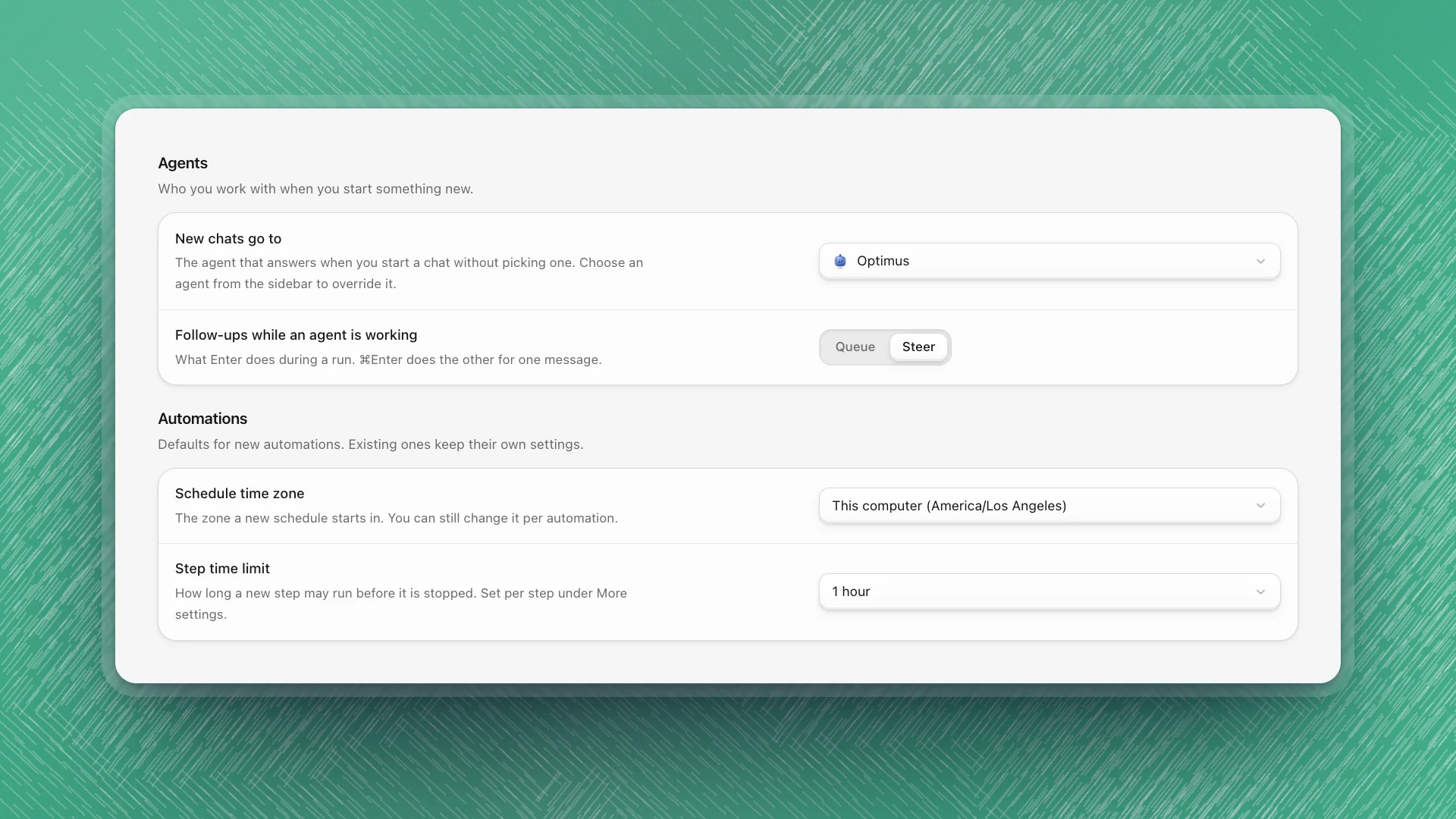
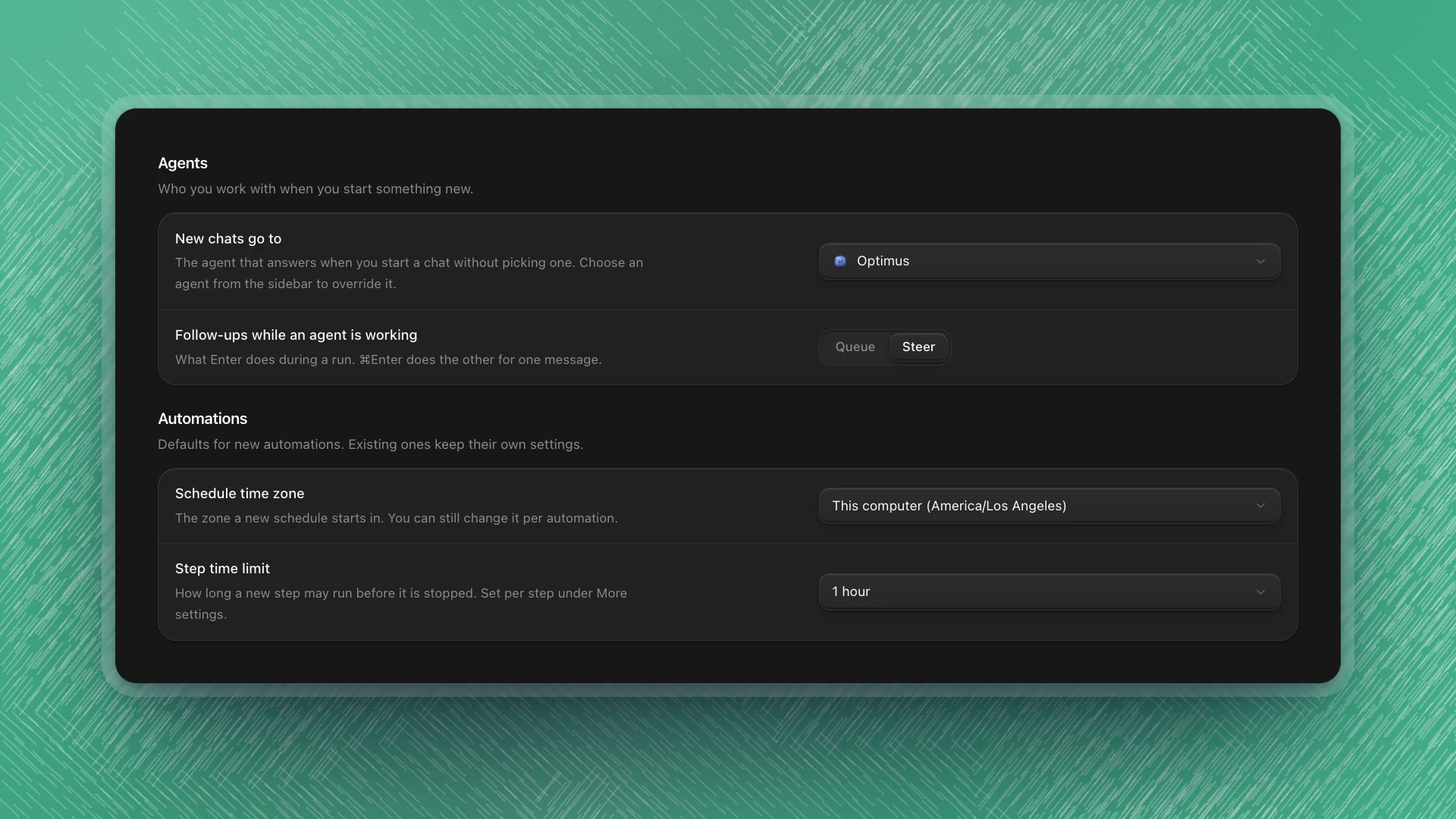
| Setting | What it does | Default |
|---|---|---|
| New chats go to | The agent that answers when you start a chat without picking one. Choose Optimus or any agent available in every workspace. Picking an agent from the sidebar still overrides it for that chat. | Optimus |
| Follow-ups while an agent is working | What Enter does while an agent is mid-run. Steer redirects it now; Queue holds your message until it finishes. ⌘Enter does the other one for a single message. | Steer |
- When to change New chats go to: when you spend most of your day with one specialist, like Soundwave for analysis. Otherwise leave it on Optimus, which brings in the others when a task needs them.
- When to choose Queue: you often type ahead while a run is going, like lining up "then write it up" during a sweep. Keep Steer if you usually type to correct course. See Steer, queue and stop.
Automations
These only set what a new automation starts with. Existing automations keep their own settings.
| Setting | What it does | Default |
|---|---|---|
| Schedule time zone | The zone a new schedule starts in. This computer follows your clock; pick a named zone to pin it. You can still change it per automation. | This computer |
| Step time limit | How long a new step may run before it's stopped: 15 minutes, 30 minutes, 1, 2, 4, 8 or 24 hours. Set per step under More settings. | 1 hour |
- Pin the time zone when your team spans zones, so "every morning at 8" means the same 8 for everyone reading the schedule.
- Raise the step limit when you schedule training or long evals. A stuck step still ends at the limit, so set it a little above how long the step usually takes. See Create an automation.
Editor
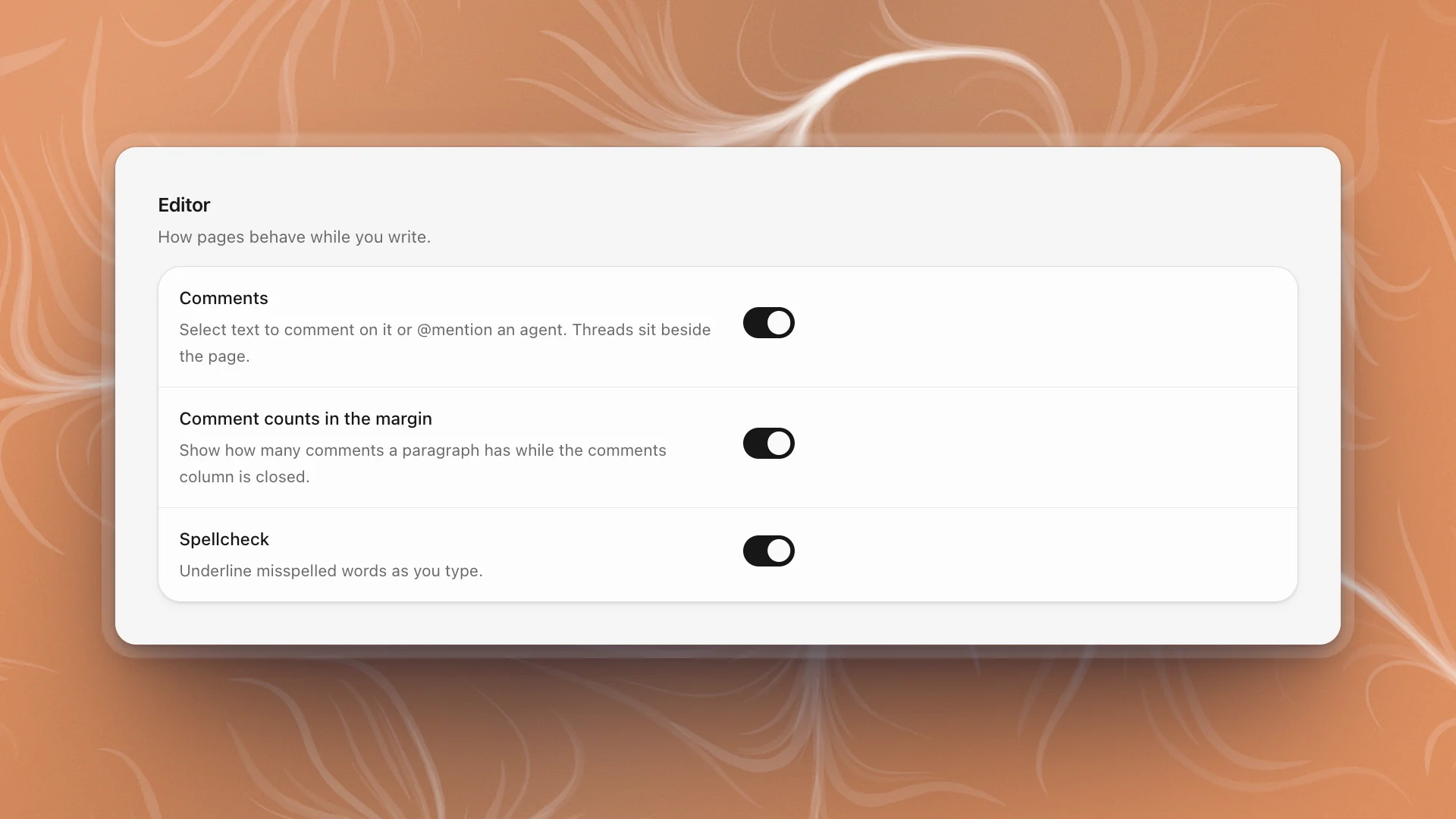
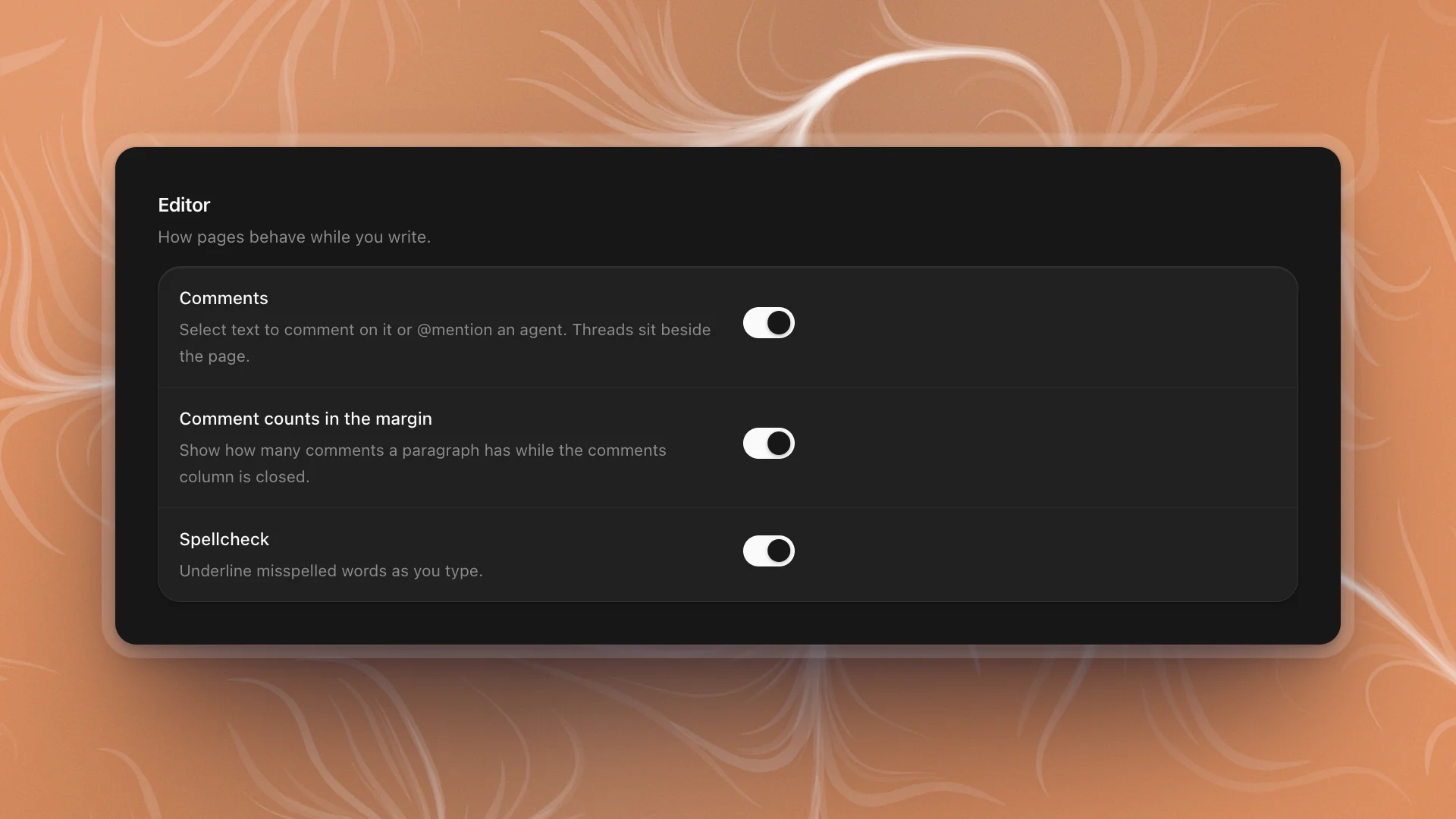
| Setting | What it does | Default |
|---|---|---|
| Comments | Lets you select text on a page to comment on it or @mention an agent. Threads sit beside the page. | On |
| Comment counts in the margin | Shows how many comments a paragraph has while the comments column is closed. Needs Comments on. | On |
| Spellcheck | Underlines misspelled words as you type. | On |
- Turn margin counts off if you're drafting and the markers distract you. Comments still work; the column shows them.
- Turn Spellcheck off for pages full of code names, model IDs and config keys, where every second word gets underlined.
- To switch page comments off for a whole workspace, use Workspace features.
Canvas
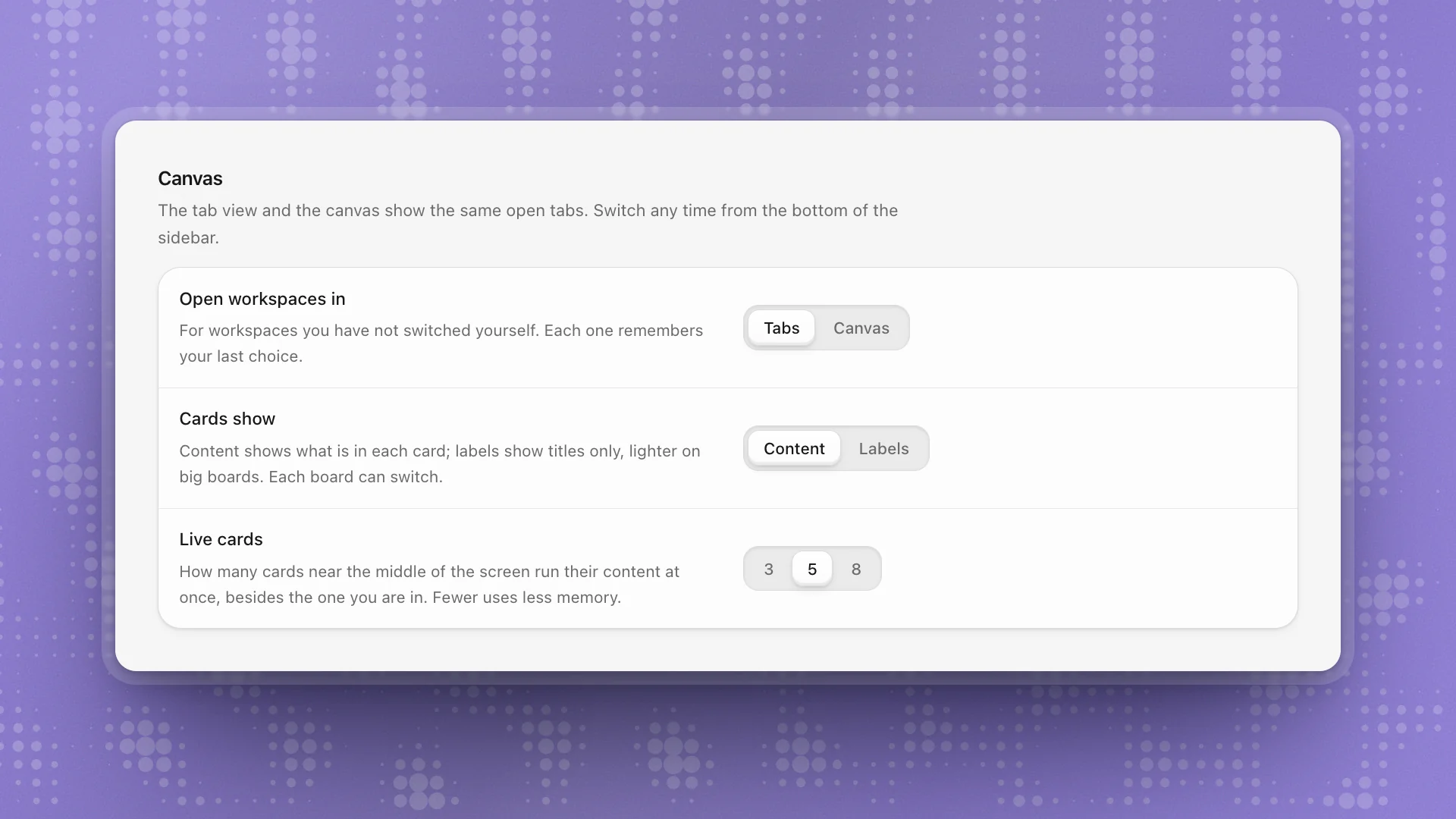
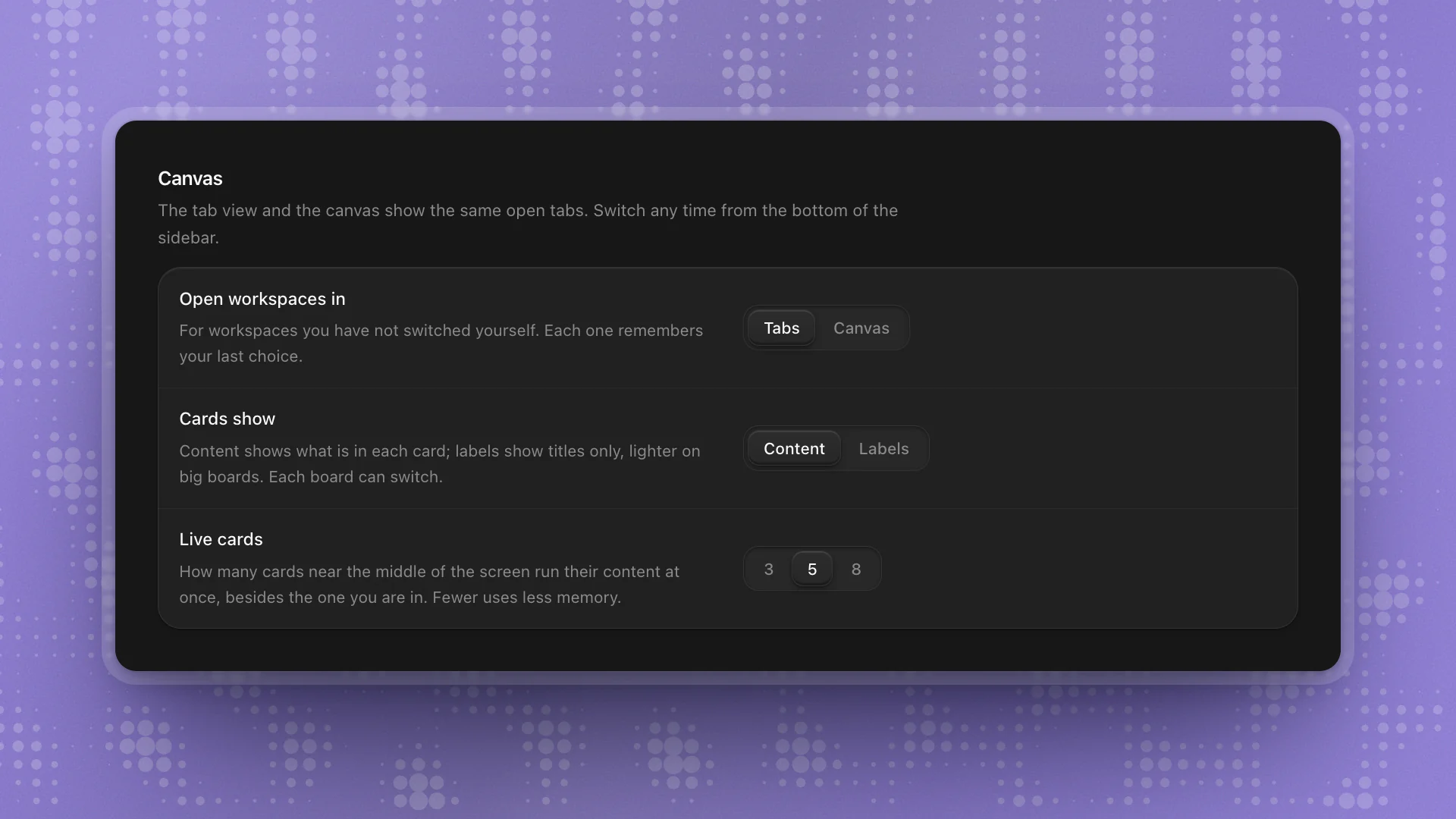
| Setting | What it does | Default |
|---|---|---|
| Open workspaces in | Tabs or Canvas, for workspaces you haven't switched yourself. Each workspace remembers your last choice. Switch any time from the bottom of the sidebar. | Tabs |
| Cards show | Content shows what's in each card; Labels shows titles only, which is lighter on big boards. Each board can switch. | Content |
| Live cards | How many cards near the middle of the screen run their content at once, besides the one you're in: 3, 5 or 8. | 5 |
- Lower Live cards to 3 on a laptop, or with many boards open. Fewer live cards uses less memory.
- Use Labels on big boards you mostly move around in. Open a card when you need its content.
Related: General, workspace and profile.