Settings
Your own MCP servers
Connect any MCP server, hosted or run on your computer, and keep it working.
The Integrations catalog covers common research tools. For anything else (your lab's eval harness, an internal data service, a tool you wrote last week) add it as your own MCP server. Any server that speaks MCP works.
Open Settings → Integrations and click Add your own server.
When to use it
- Your lab has its own tools: an eval harness, a dataset service, an internal search. Wrap them as an MCP server and agents can call them.
- A tool publishes an MCP server that isn't in the Integrations catalog yet.
For a tool that is in the catalog, use its card in Integrations instead. It knows the right address, sign-in and settings already.
Why it matters
Agents can only use tools they can reach. Exposing your eval harness lets an agent run the held-out eval itself after every fine-tune and read the scores, with no copy-and-paste from you. Tokens and keys stay in your keychain, out of config files someone might commit.
A hosted server (Remote URL)
Use this for a server that runs somewhere else and has a web address.
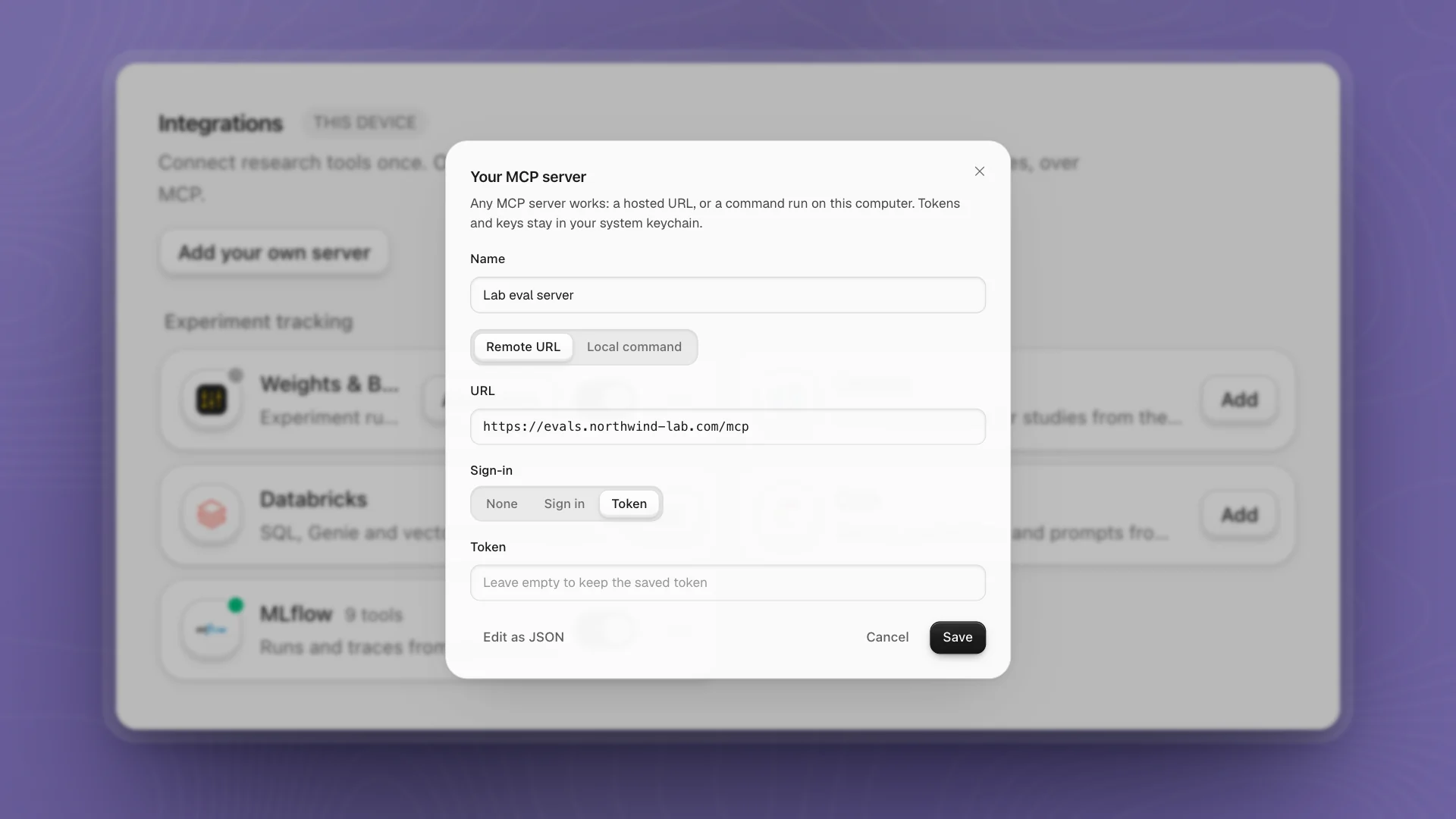
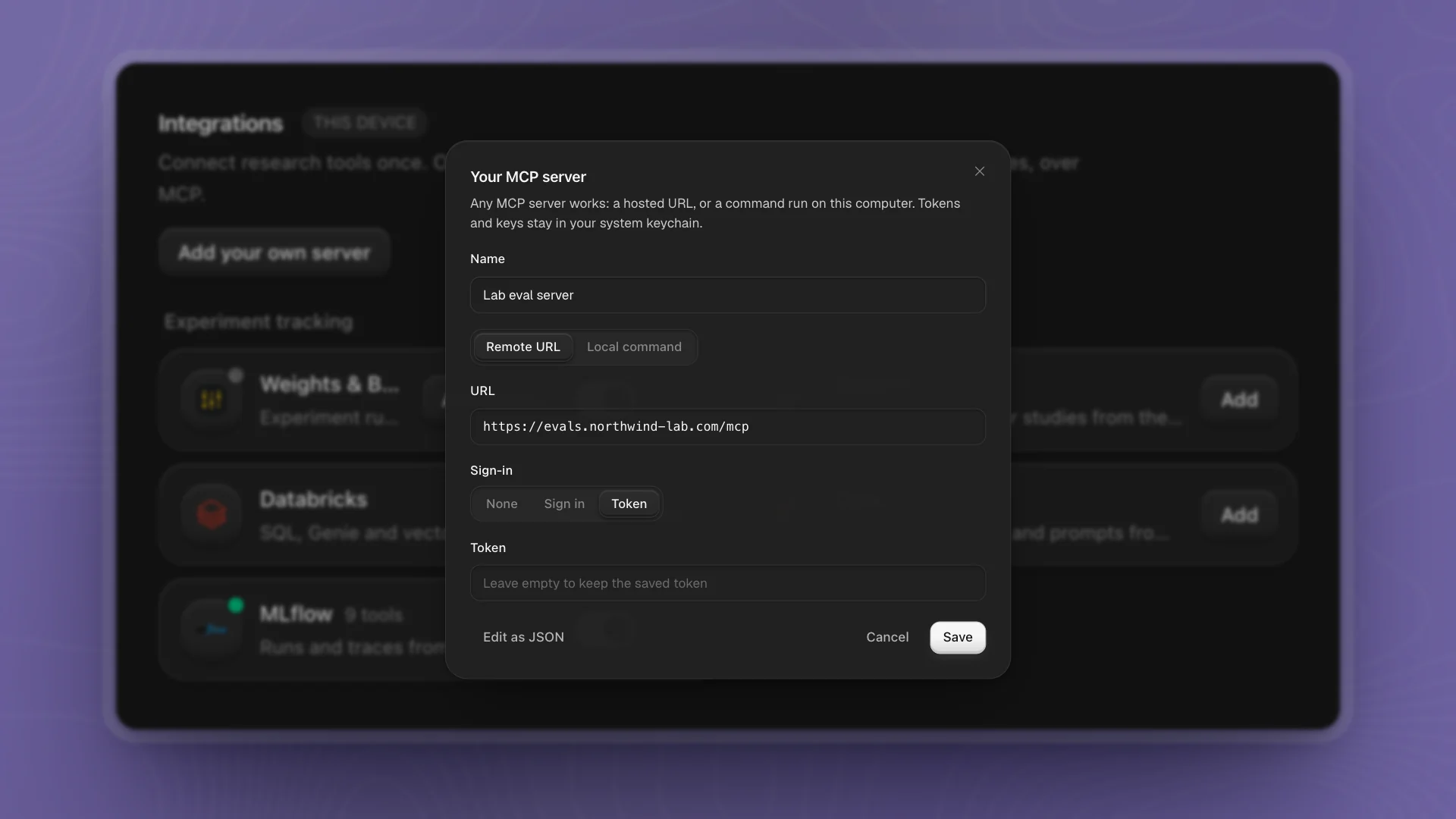
Name it
The name agents and the
@picker show, like "Lab eval server".Choose Remote URL and paste the address
Usually ending in
/mcp.Choose how it signs in
Sign-in Use when None The server is open, or protected some other way Sign in The server signs you in through your browser. After saving, click Sign in on its card and finish in the browser. Token The server takes a token or API key. Paste it in Token. Click Save
The server appears under Your servers with an on/off switch.
A server on your computer (Local command)
Use this for a server you start with a command, like most open-source MCP servers and anything you've written yourself. ArkenOS runs it on this computer when an agent needs it.
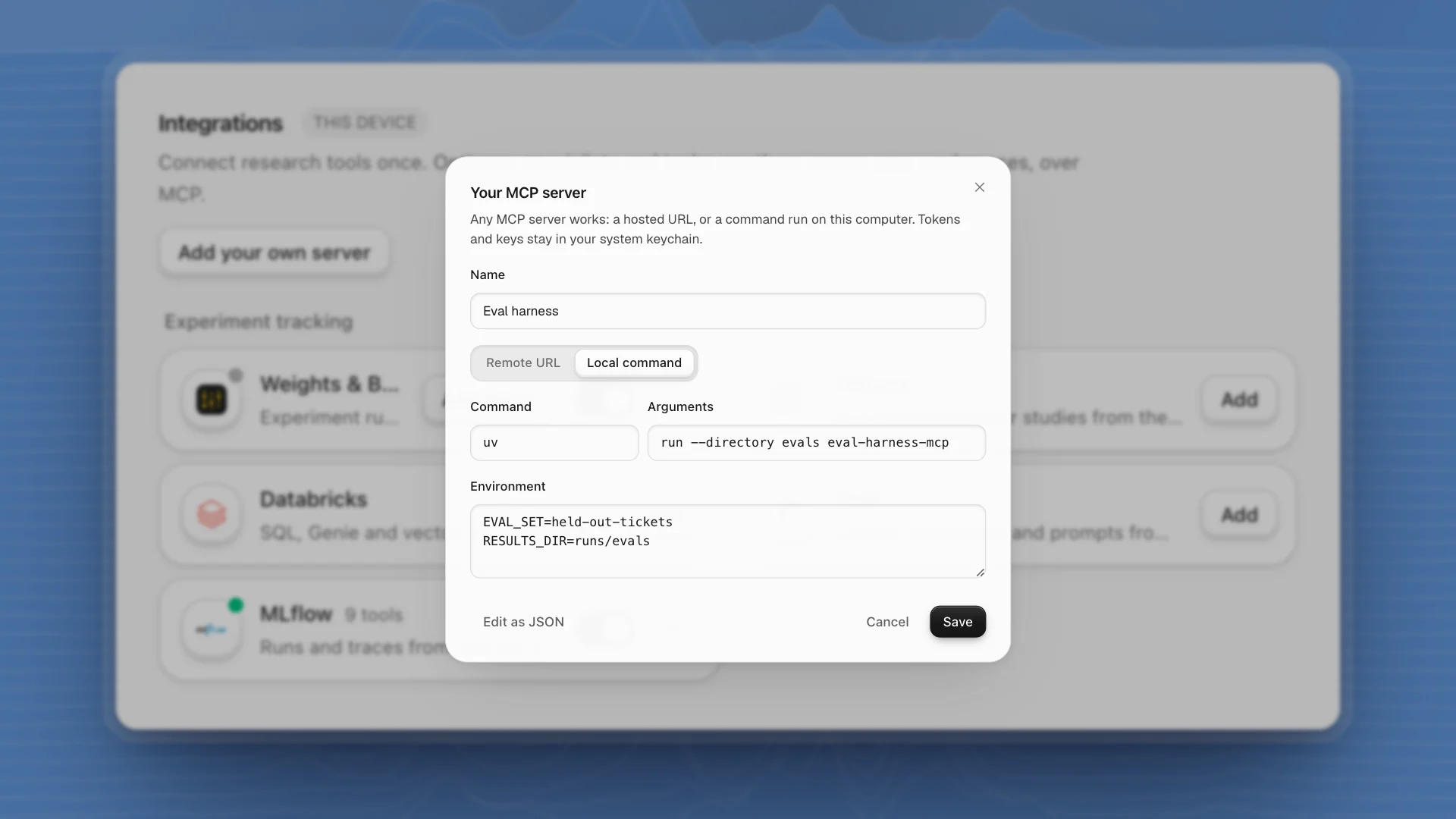
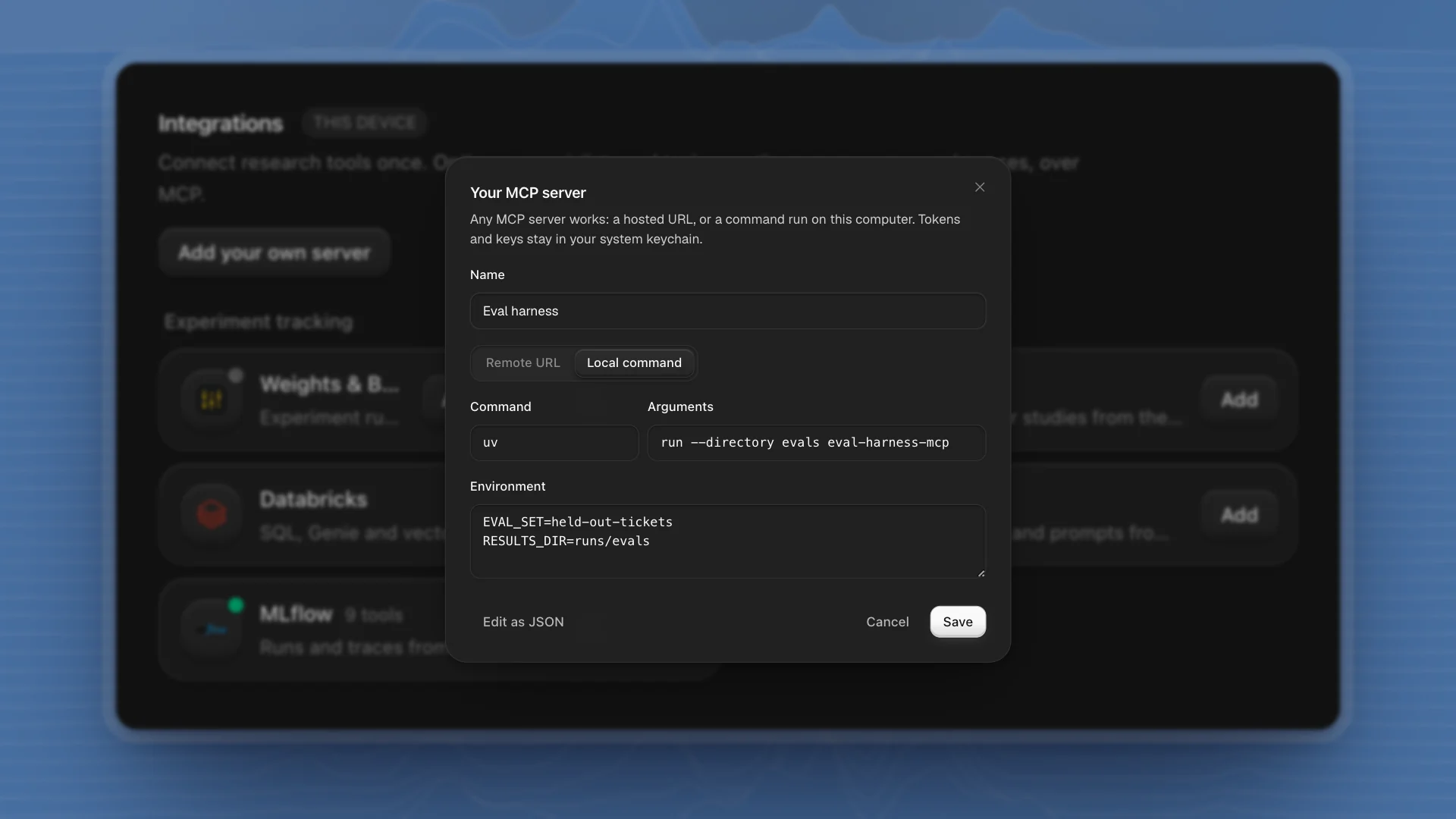
| Field | What to enter |
|---|---|
| Command | The program to run, such as npx, uvx, uv or python |
| Arguments | Everything after the command, separated by spaces |
| Environment | Values the server needs, one KEY=value per line. For catalog tools, the box suggests the variable names. |
Test the command in a terminal first. It should start cleanly there before you add it.
Edit as JSON
Click Edit as JSON to see and edit the server's full configuration, for settings the form doesn't cover, such as extra request headers. Use the form switches back.
Where secrets go
Tokens, keys, environment values and headers are saved in your system's keychain. If the keychain is unavailable, ArkenOS stops and reports an error. The rest of the server's settings live in the app's data folder. Servers belong to this computer; add them again on each machine you use.
Manage a server
Each server's card shows a status dot and its tool count once it has connected:
| Card shows | Means |
|---|---|
| 9 tools (green dot) | Connected; agents can use its tools |
| Connects when used | Set up, not yet used since the app started; it connects on an agent's first call |
| Couldn't connect (red dot) | The last attempt failed |
| Off | Switched off and hidden from agents |
From the card's menu:
- Refresh tools reconnects and reloads its tool list. Do this after updating the server.
- Sign in again renews an expired sign-in (servers using Sign in).
- Edit, or Change token for token servers, reopens the dialog.
- Remove deletes the server and its secrets from this computer.
Troubleshooting
| Problem | Try |
|---|---|
| Couldn't connect on a hosted server | Check the URL in a browser, then Refresh tools. For token servers, Change token. |
| Couldn't connect on a local server | Run the command and arguments in a terminal. Missing programs and missing environment values are the usual causes. |
| Sign-in doesn't finish | Click Open again in the sign-in notice. If the browser can't hand back to ArkenOS, use Didn't work? Paste the address your browser ended on and paste the final address. |
| Agents don't use the tool | Check the switch is on, then mention it in chat: type @ and pick the server. |
| Too many tools | Switch off servers the current project doesn't need. Every server's tools are offered to the agents, and a shorter list helps them choose. |
Related: Integrations, Security and privacy.