Settings
Connect models
Connect the plans and API keys your agents think with, then choose which model handles each kind of work.
Agents need at least one model before they can work. Connect a plan you already pay for or an API key, then use the task router to choose which model each kind of work gets.
Open Settings → Models (⌘,, then Models). The page has three tabs: Subscriptions, Model providers and Web access. The Intelligent task router sits above the first two, because it decides which model each task gets whatever you connected it through.
When to use it
- Setting up a new computer or account. Agents need at least one connected model, assigned to the default router tier, before they start.
- A plan is running out. When a long goal keeps stopping on a subscription's weekly limit, add an API key as a second source.
- You want a specific model for a kind of work, like a long-context model for reading whole repositories.
To decide which connected model does which work, use the Intelligent task router. For a model you host yourself, or models your organization shares, see Custom endpoints and organization models.
Why it matters
Every agent step is a model call. Without a model connected, chats show Choose a model for Optimus and nothing runs. With only one plan connected, a weekend goal can stall on Saturday when the plan's limit runs out. Two sources, such as a plan for daily work and a key for long runs, keep work moving.
Connect a plan you already pay for
Subscriptions lists plans you sign in to, then coding plans you connect with the plan's own key. Your agents run on that plan's models and within its limits.
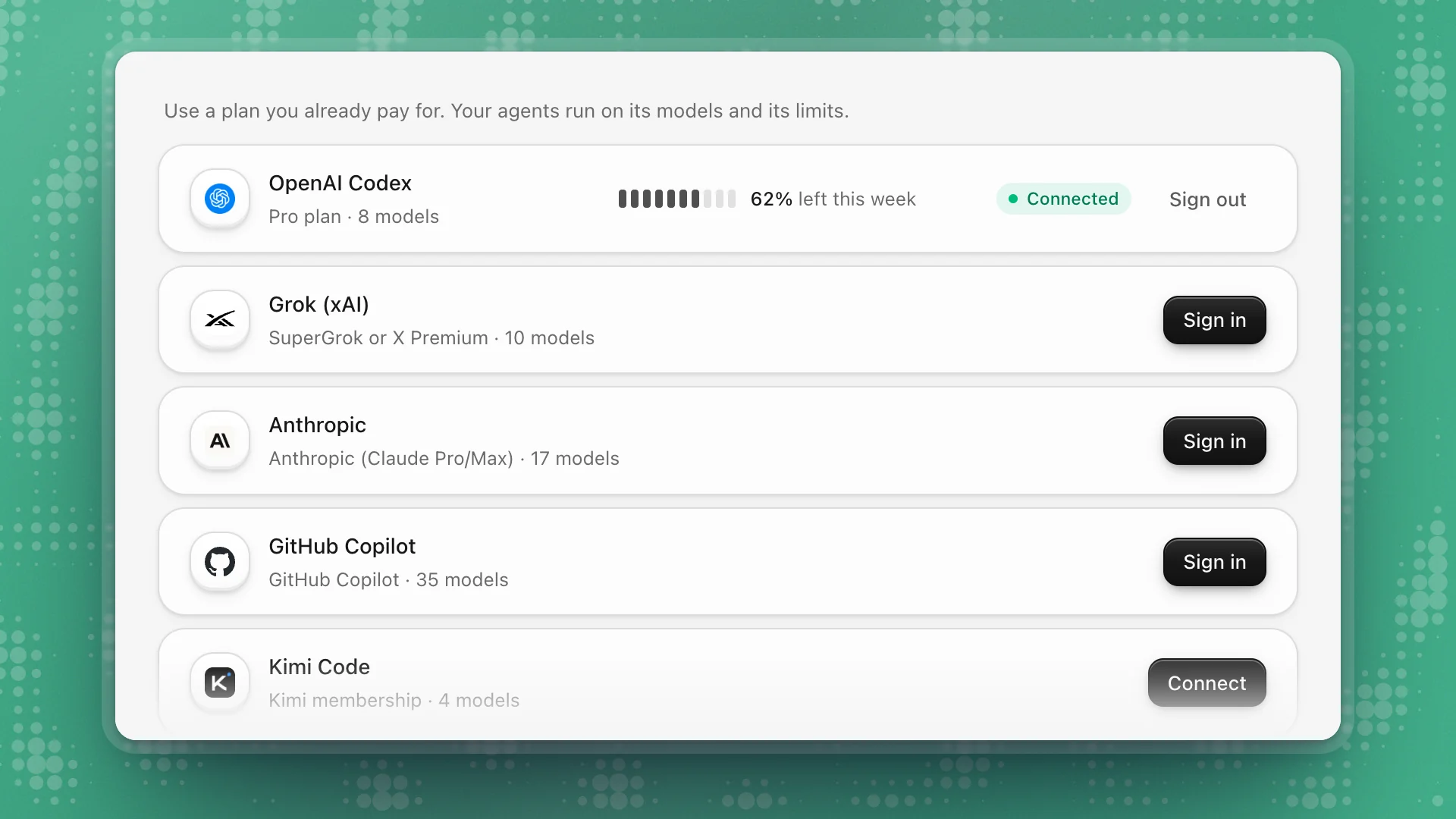
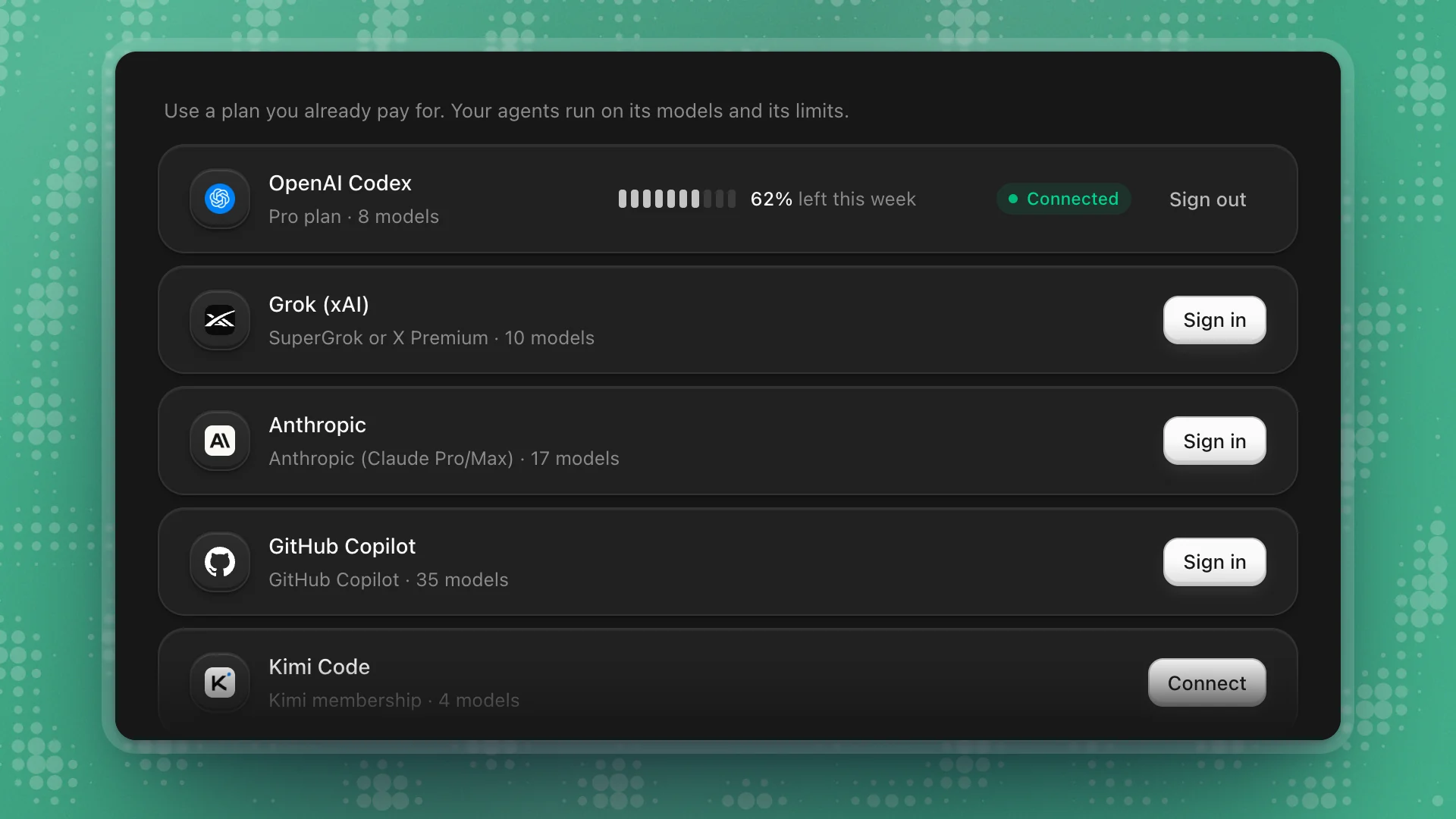
Click Sign in on your plan
Your browser opens the provider's sign-in page. The row shows Waiting for sign-in until you finish.
Finish signing in
The row turns Connected. For plans that report usage, a meter shows how much is left this week and when it refills.
Coding plans (Kimi Code, Z.ai, MiniMax, Alibaba Qwen and others) have no app sign-in. Click Connect: the plan's key page opens in your browser and a paste box opens beside it. Some plans ask which region the key is for. Paste the key and click Save.
Add an API key
Model providers lists every provider ArkenOS can use. Search it, or filter it to recommended or connected. Pick a provider to open its card.
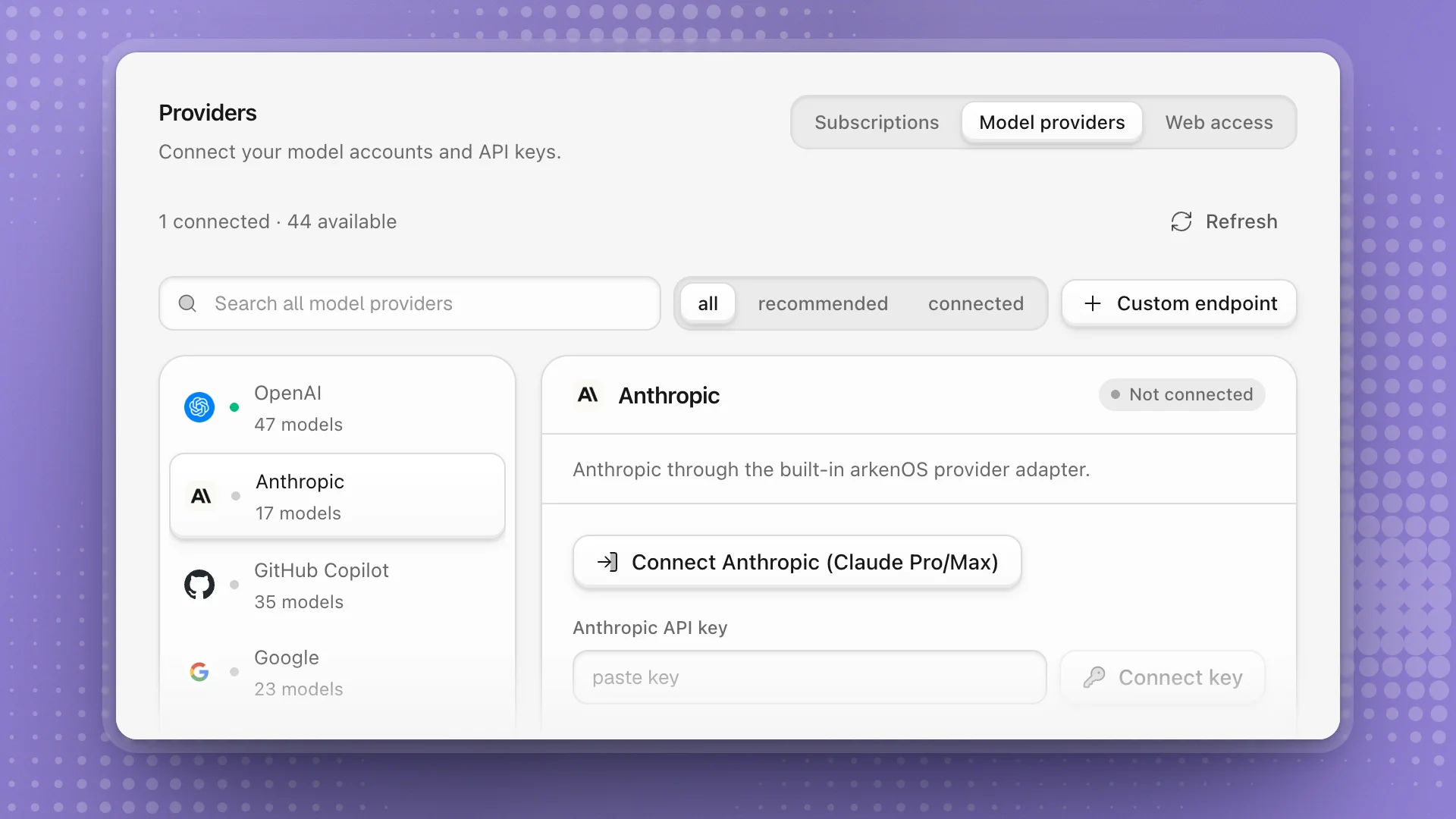
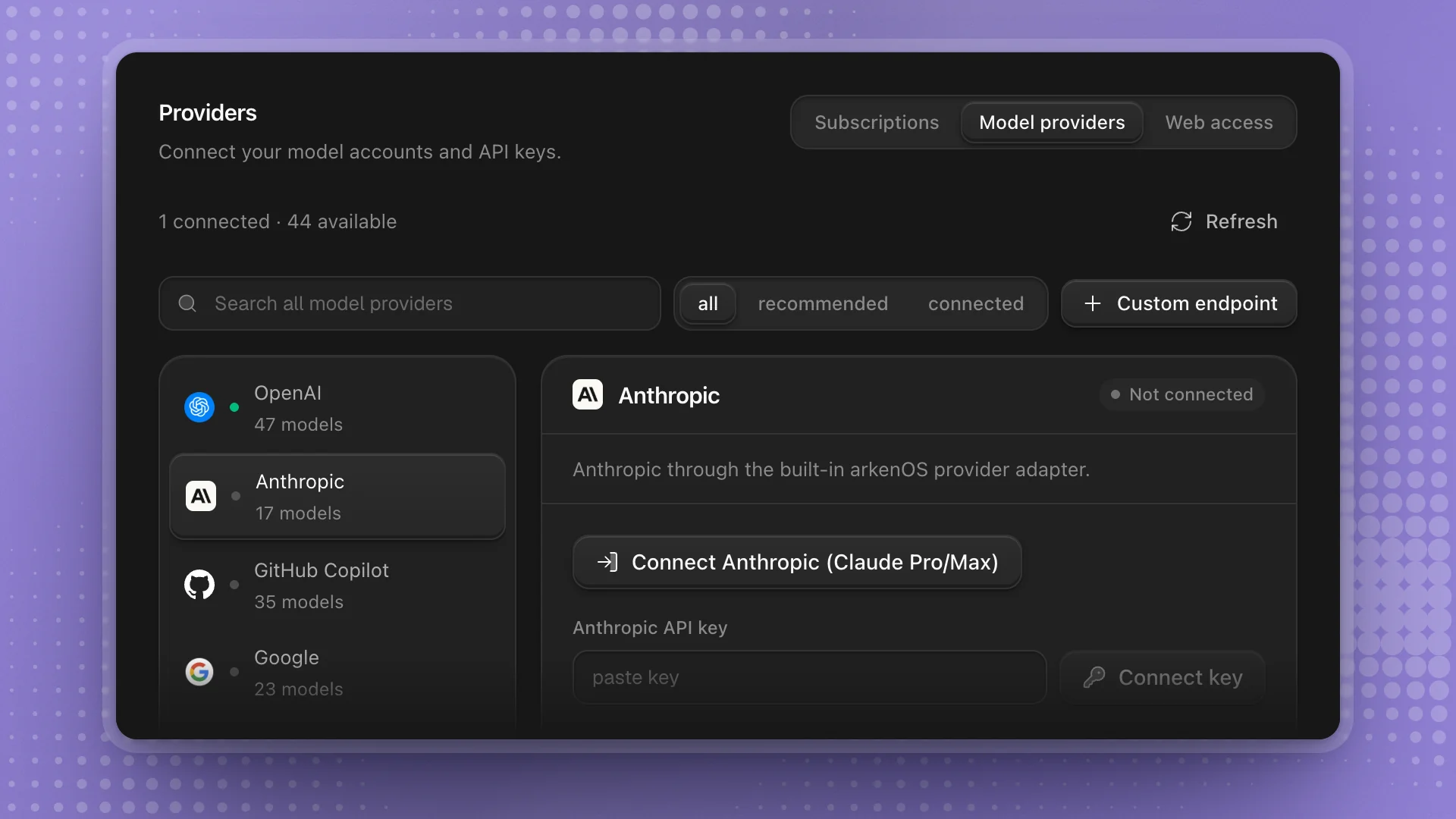
Pick the provider
Its card shows Not connected, the ways to connect it, and the models it offers.
Paste your key and click Connect key
Providers with an account sign-in also show a Connect button for it. Some providers ask for a base URL or extra fields first.
Check the card says Connected
The footer reads Authenticated and shows where the credential is kept. Use model appears beside each model.
Subscription or API key?
| Subscription | API key | |
|---|---|---|
| You pay | Your existing plan, at its usual price | The provider, per token |
| Limits | The plan's own usage limits | Your account's rate limits and budget |
| Good for | Getting started, and steady daily use | Heavy runs, long goals, and team budgets |
You can connect both. Many people start on a subscription and add an API key when long goals start hitting the plan's weekly limit.
Your own endpoint, or your organization's
Running a model on your own server or behind a gateway? Click Custom endpoint. Has an admin shared models with the organization? They're under Organization models at the top of the provider list. Both are covered in Custom endpoints and organization models.
Choose a model for each kind of work
Connecting a provider makes its models available. The Intelligent task router decides which one does what: it holds tiers (Frontier, Balanced, Economy and any you add), each with a model assigned, and agents switch between them as the work changes.
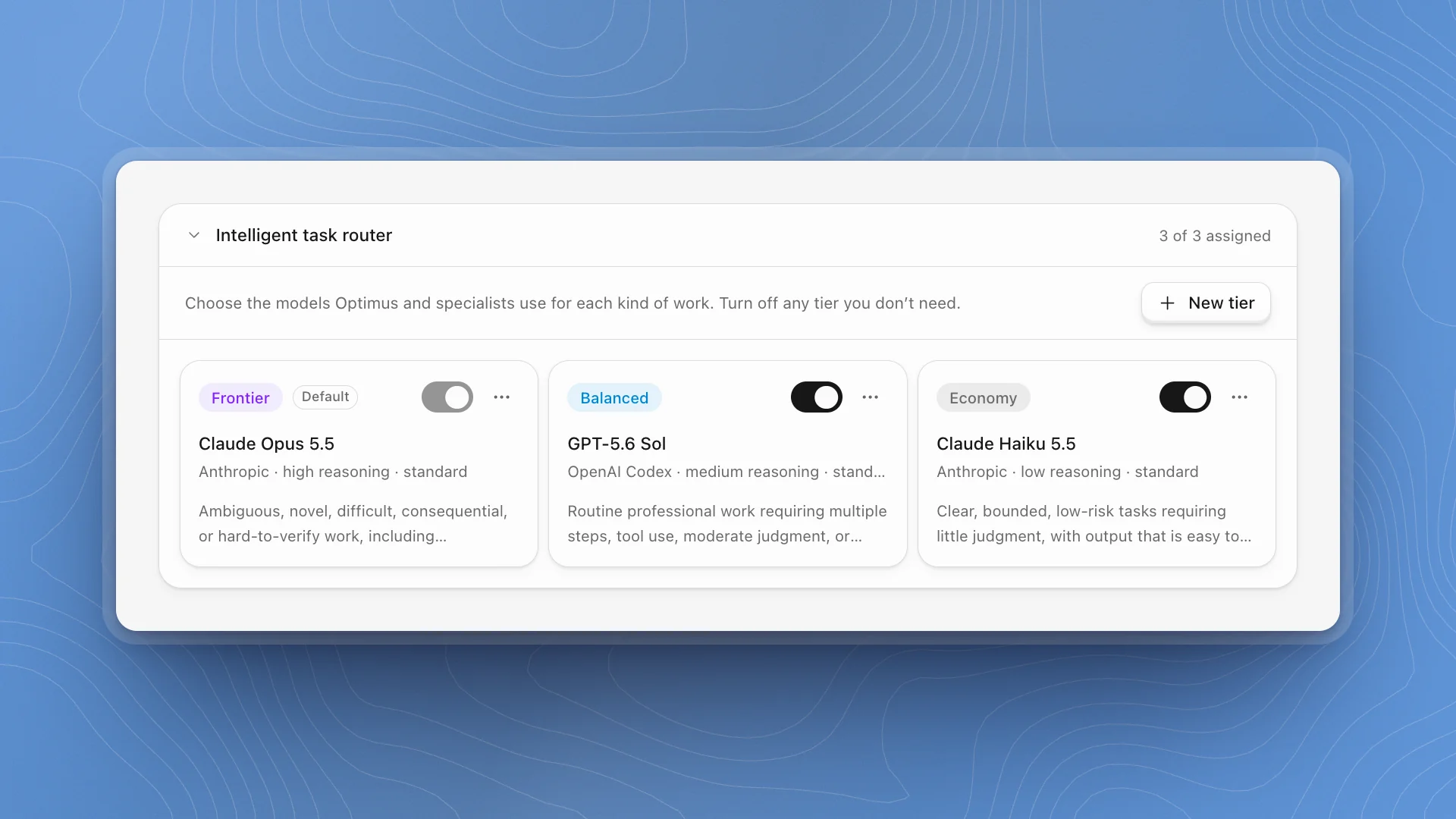
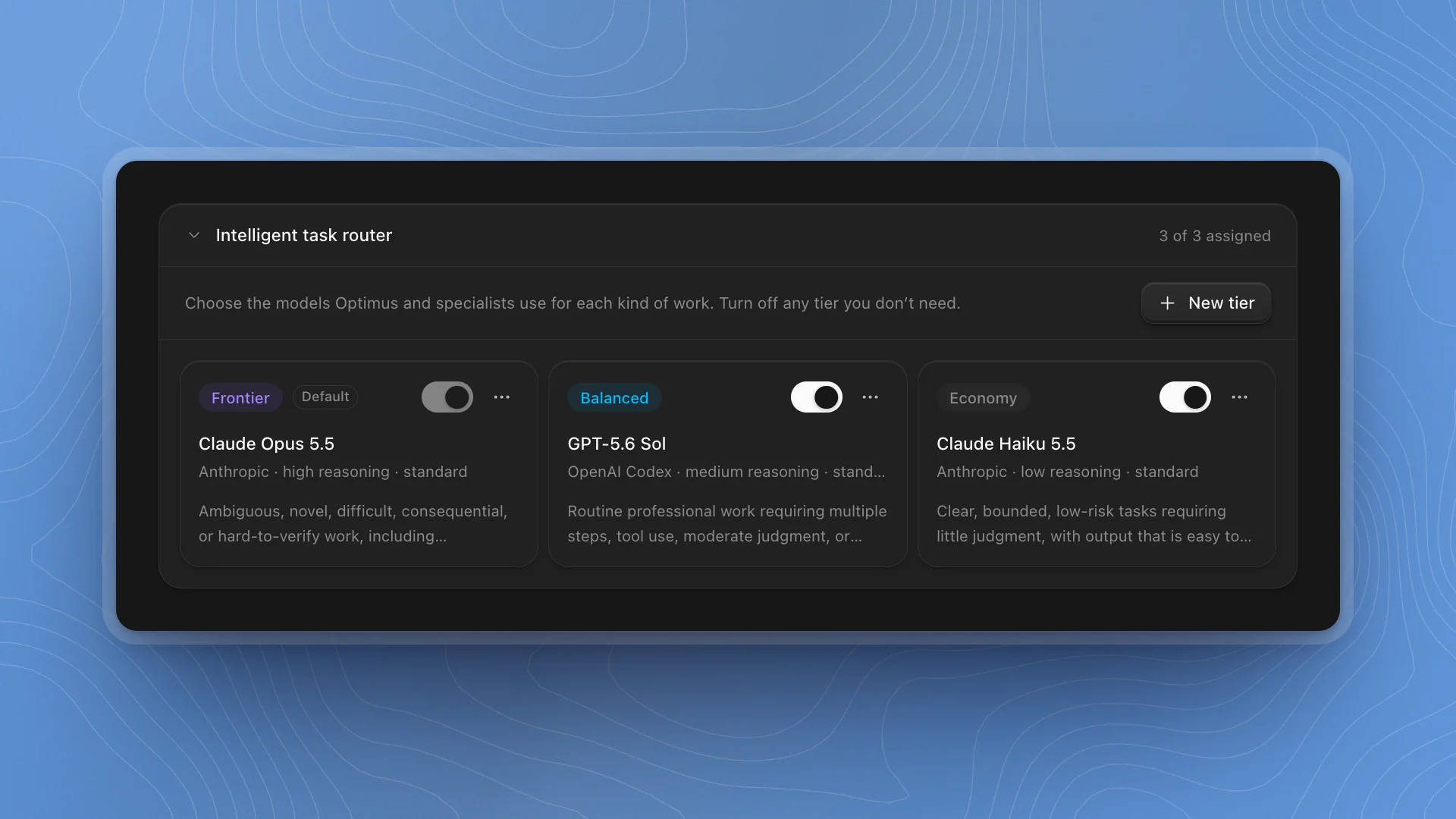
Give the default tier (Frontier) a model first. Agents start every session there. If a chat shows Choose a model for Optimus, it's empty: click Set up models in that notice and the router opens. The rest is in Intelligent task router.
Manage connections
- Sign out or Remove on a subscription's row disconnects that plan.
- On the Model providers tab, the line above the list counts what's connected, for example 2 connected · 44 available. Refresh reloads the list after you change a key elsewhere.
- Disconnect all, below the list, removes every saved connection at once. It asks you to confirm with the number of connections first. Use it when handing over a computer or rotating every key.
- A connected provider's card shows Authenticated, where the credential is kept, and Disconnect.
Good to know
- Your own keys and plans bill through their provider. Only ArkenOS's own models draw on your organization's credits. See Credits and grants.
- Web search has its own settings on the Web access tab. See Web access.