Settings
Intelligent task router
Choose which model handles each kind of work, add tiers of your own, and let agents switch as they go.
The router decides which model does each piece of work. Instead of one model for everything, you set up tiers: each tier describes a kind of work and has a model assigned. Optimus and the specialists read those descriptions and move to the tier that fits the step they're on, so planning gets your strongest model and log-tidying gets a fast, cheap one.
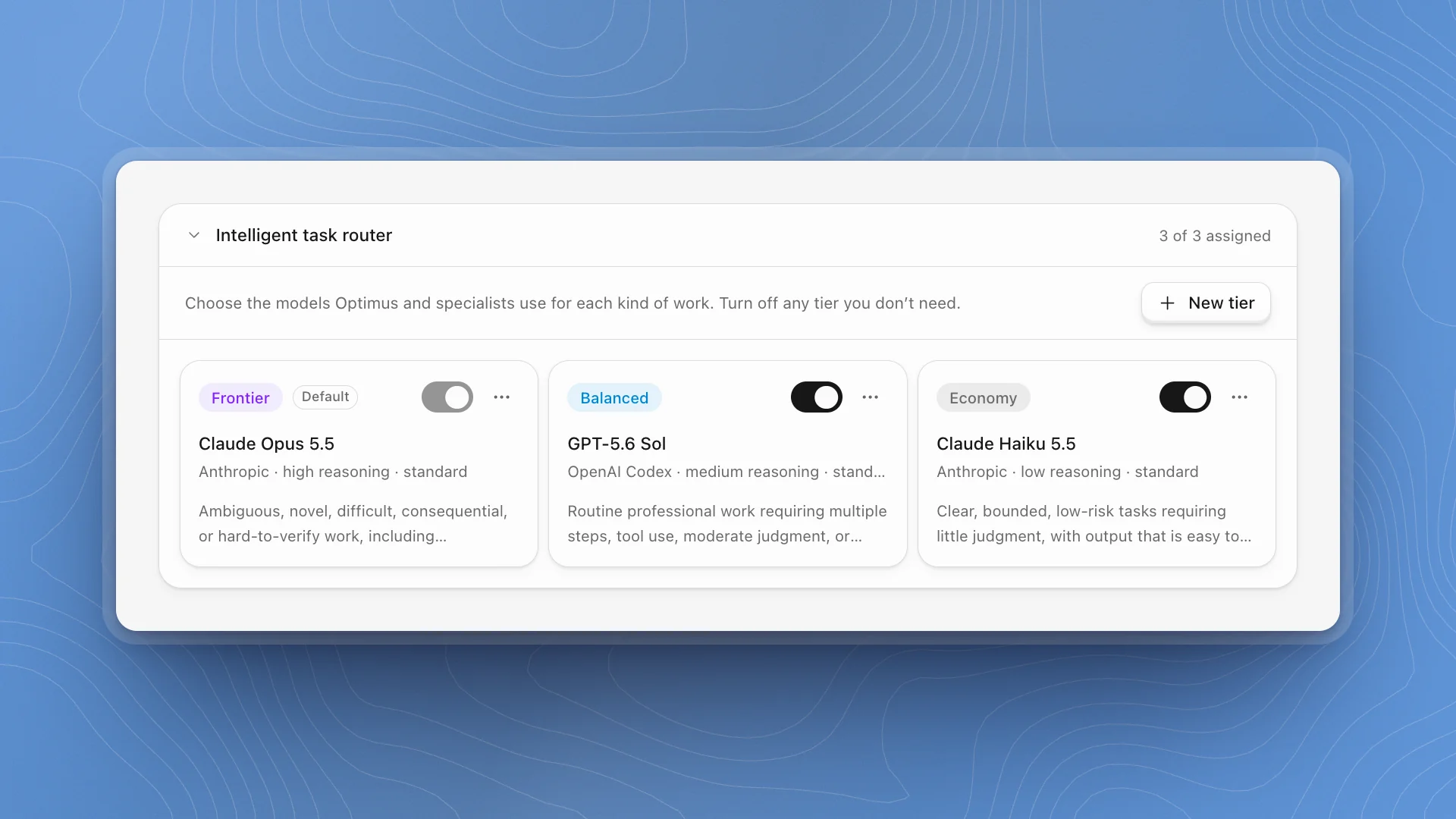
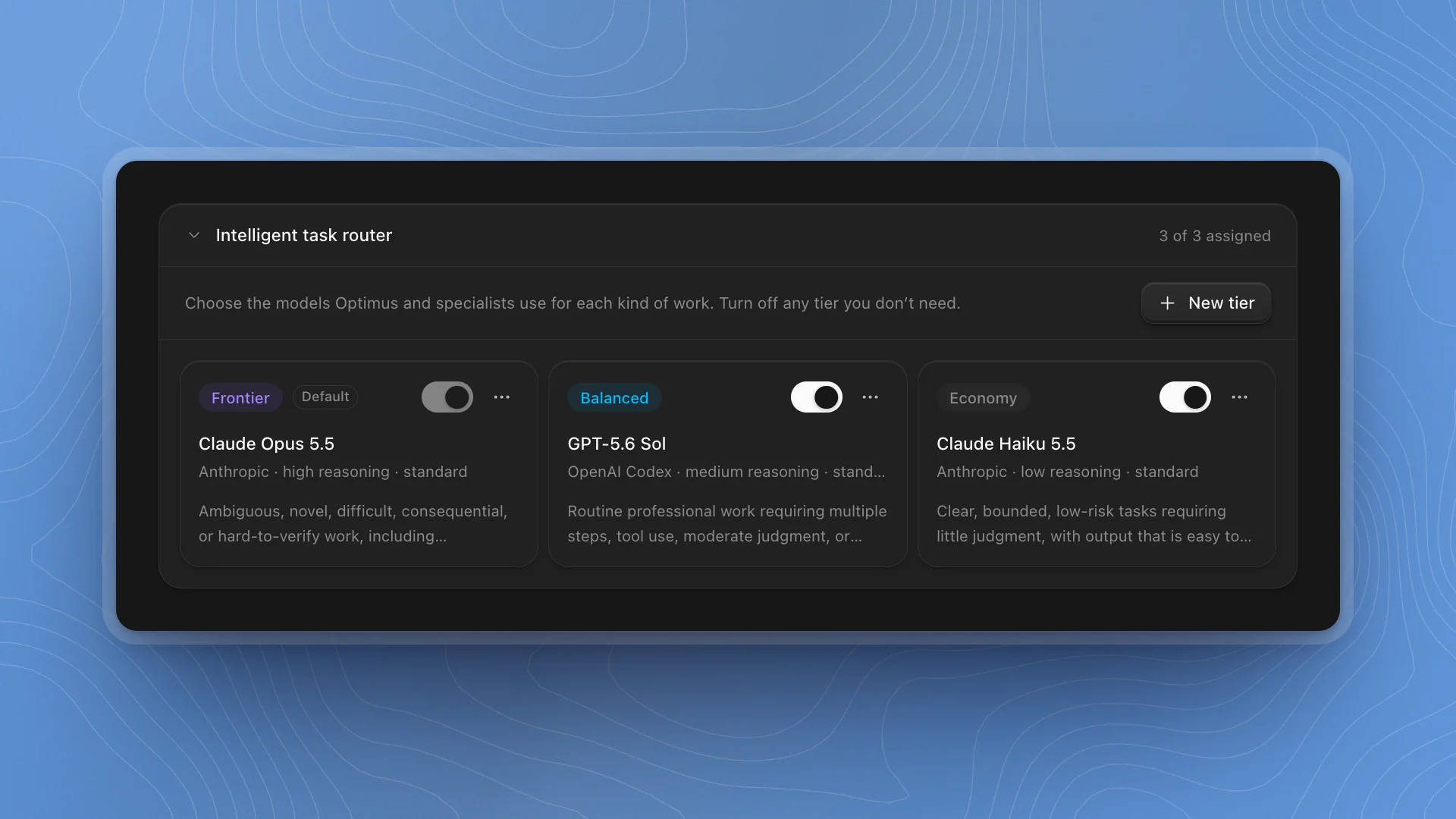
Open Settings → Models. The Intelligent task router sits at the top, above the Subscriptions and Model providers tabs. Click it to open it. The header counts how many tiers have a model, for example 3 of 3 assigned.
When to use it
- Right after connecting your first model: the default tier needs a model before agents can start.
- When costs climb. Move routine and bulk work to a cheaper model on Balanced or Economy, and keep the strong model for Frontier.
- When one kind of work deserves its own model, like eval sweeps that only read logs, or a long-context model for literature review.
To connect providers in the first place, use Connect models. For one-off control in a single chat, tell the agent which kind of model to use; the router sets the defaults it chooses from.
Why it matters
Without tiers, every step runs on the same model. Run everything on your strongest model and a week-long fine-tuning project costs several times what it needs to, because formatting results and tidying logs cost as much as design decisions. Run everything on a cheap model instead and the plans and reviews that decide whether a run is worth anything get worse. Tiers put each step on a model that fits it.
The built-in tiers
| Tier | Takes |
|---|---|
| Frontier (default) | Ambiguous, novel, difficult, consequential or hard-to-check work: architecture, complex implementation, difficult debugging, cross-system decisions and critical review |
| Balanced | Routine multi-step work with tool use and moderate judgment, where the requirements and the way to check the result are clear |
| Economy | Clear, bounded, low-risk tasks that need little judgment and whose output is easy to check, redo or correct |
Each card shows the tier's model, its provider, reasoning level and service tier, and the start of its description. When the model's limits are known, the card also says when a long session on that model compacts its context, for example "Compacts at 566K of 1M tokens".
Assign a model
Click the tier's card
Or choose Change model from the card's menu. The editor opens below the cards.
Choose the provider and model
Provider lists the providers you've connected. Model lists that provider's models.
Set reasoning and service tier
Reasoning offers the levels the model supports (off, low, medium, high and so on). Service tier offers Standard, and Priority or Flex where the provider has them.
Click Save changes
The card updates. Clear assignment removes the model from the tier.
A card says Unsaved changes while you're editing, and Provider unavailable if the provider behind its model was disconnected. Assign it a model from a connected provider.
How agents pick a tier
Every session starts on the default tier. From there, each agent reads your tiers' names and descriptions, weighs what the next step needs (reasoning, creativity, analysis, reliability, speed and cost) and switches tiers when another fits better. The switch applies from its next model call. When Optimus hands work to a specialist, it can choose the tier for that specialist too.
Because agents decide from the descriptions, the description is the instruction. Write it as plainly as you'd brief a colleague.
Cheap stuff.
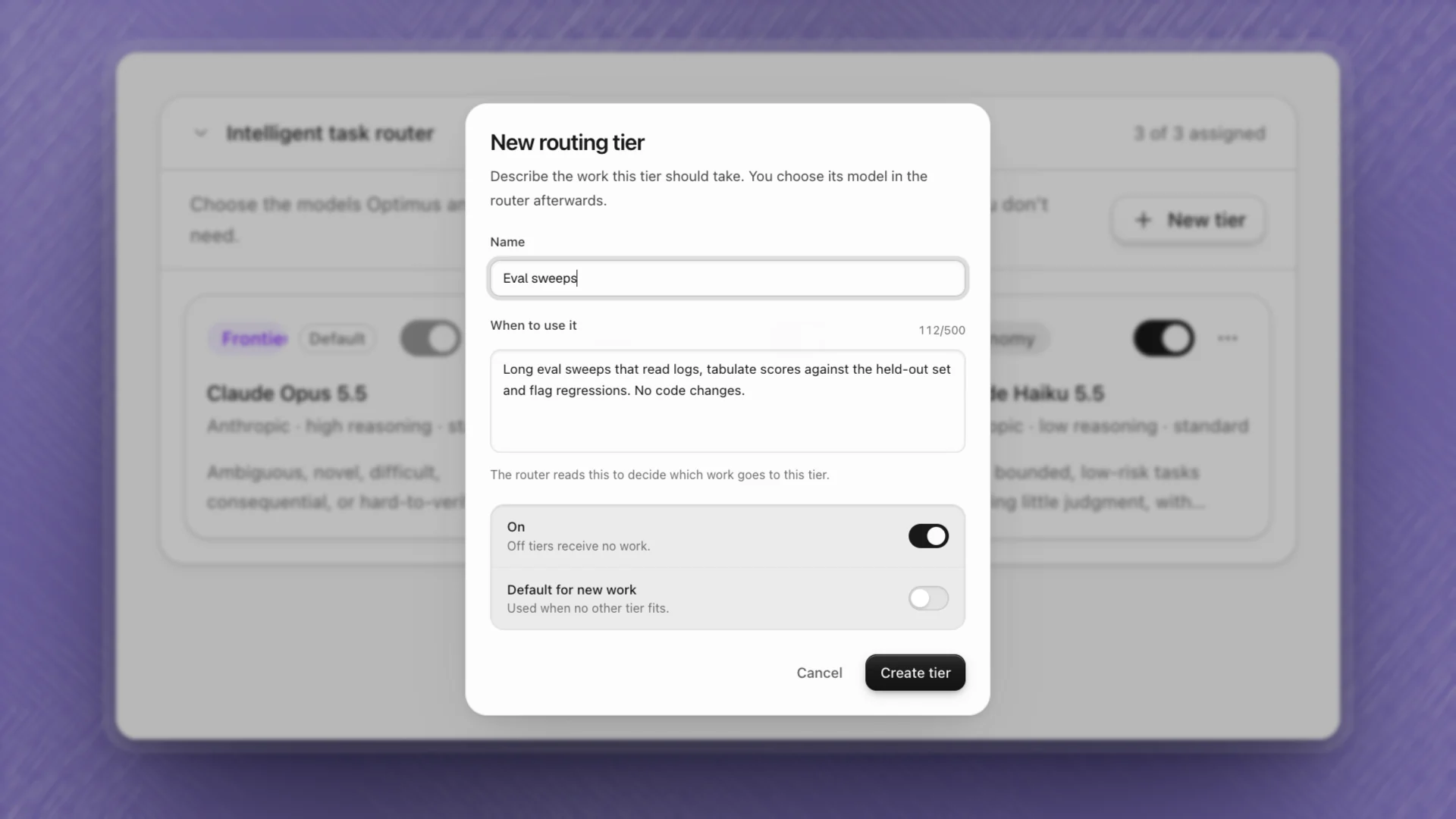
Long eval sweeps that read logs, tabulate scores against the held-out set and flag regressions. No code changes.
Add a tier of your own
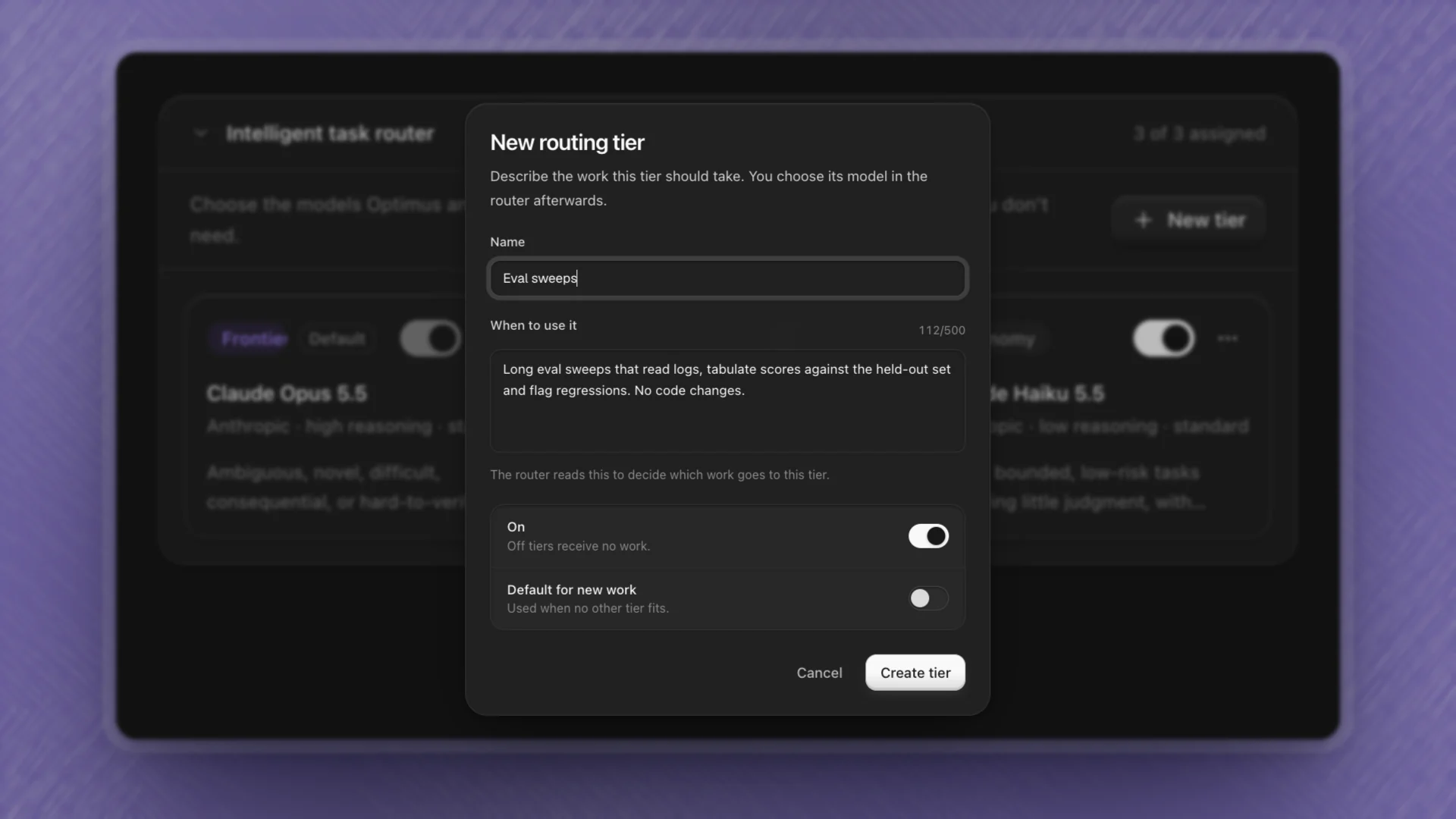
Click New tier.
| Field | What to enter |
|---|---|
| Name | A short label, like "Eval sweeps" or "Long-horizon research" |
| When to use it | Up to 500 characters on the work this tier should take. The router reads this. |
| On | Off tiers receive no work |
| Default for new work | Used when no other tier fits. Turning this on also turns the tier on. |
Click Create tier, then assign it a model like any other. A router holds up to 32 tiers.
- Add a tier for work you run often at volume: eval sweeps, data cleaning, literature triage. A dedicated cheap model there saves the most.
- Add a tier for one standout model, like a long-context model for reading whole codebases or papers, and say so in its description.
- Keep descriptions distinct. Two tiers that sound alike make the choice a coin toss.
Turn tiers off and change the default
- Turn a tier off with its switch. It keeps its model but receives no work, and its card reads "Off: receives no work". Built-in tiers stay in the router permanently; switching them off is how you set them aside.
- Make another tier the default with Make default in its menu. The default tier is always on; its switch is greyed out.
- Edit or delete a tier with Edit tier in its menu. Tiers you added have Delete tier in that dialog.
Best practice
- Fill the default tier first. If a chat shows Choose a model for Optimus, the default tier has no model. Click Set up models in that notice and the router opens.
- Put your strongest model on Frontier. Plans and reviews decide whether a long run is worth anything.
- Use high reasoning on Frontier, low or off on Economy. Reasoning costs tokens; spend them where judgment matters.
- Mix providers. A tier can use any connected provider: a subscription for Balanced, an API key for Frontier, an organization model for Economy.
Related: Connect models, Custom endpoints and organization models.