Get started
Workspaces and organizations
The Workspaces page, moving between workspaces and organizations, working in several windows, and the account menu.
ArkenOS opens on the Workspaces page of your organization. From there you open a workspace, start a new one, switch organization, or check what's running across all of them.
Come here when you move between projects, want a quick look at what's running everywhere (Overview), finish a project and want it off the list, or work for more than one team. To set up a new project, see Create a workspace.
Why it matters: agents learn per workspace, and plans and members are per organization. Keeping one workspace per project and one organization per team keeps each agent's memory focused, and each bill and member list in the right place.
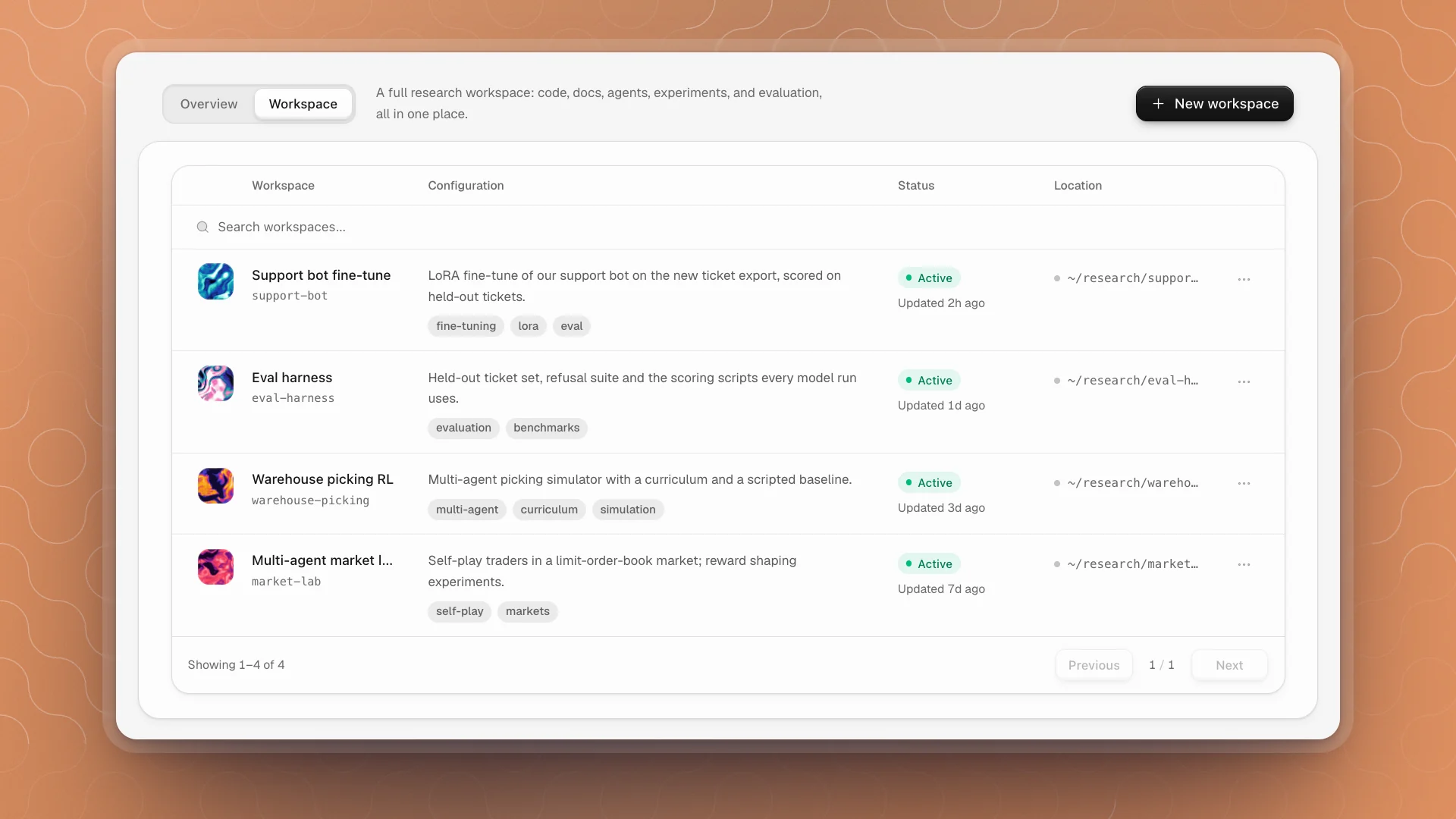
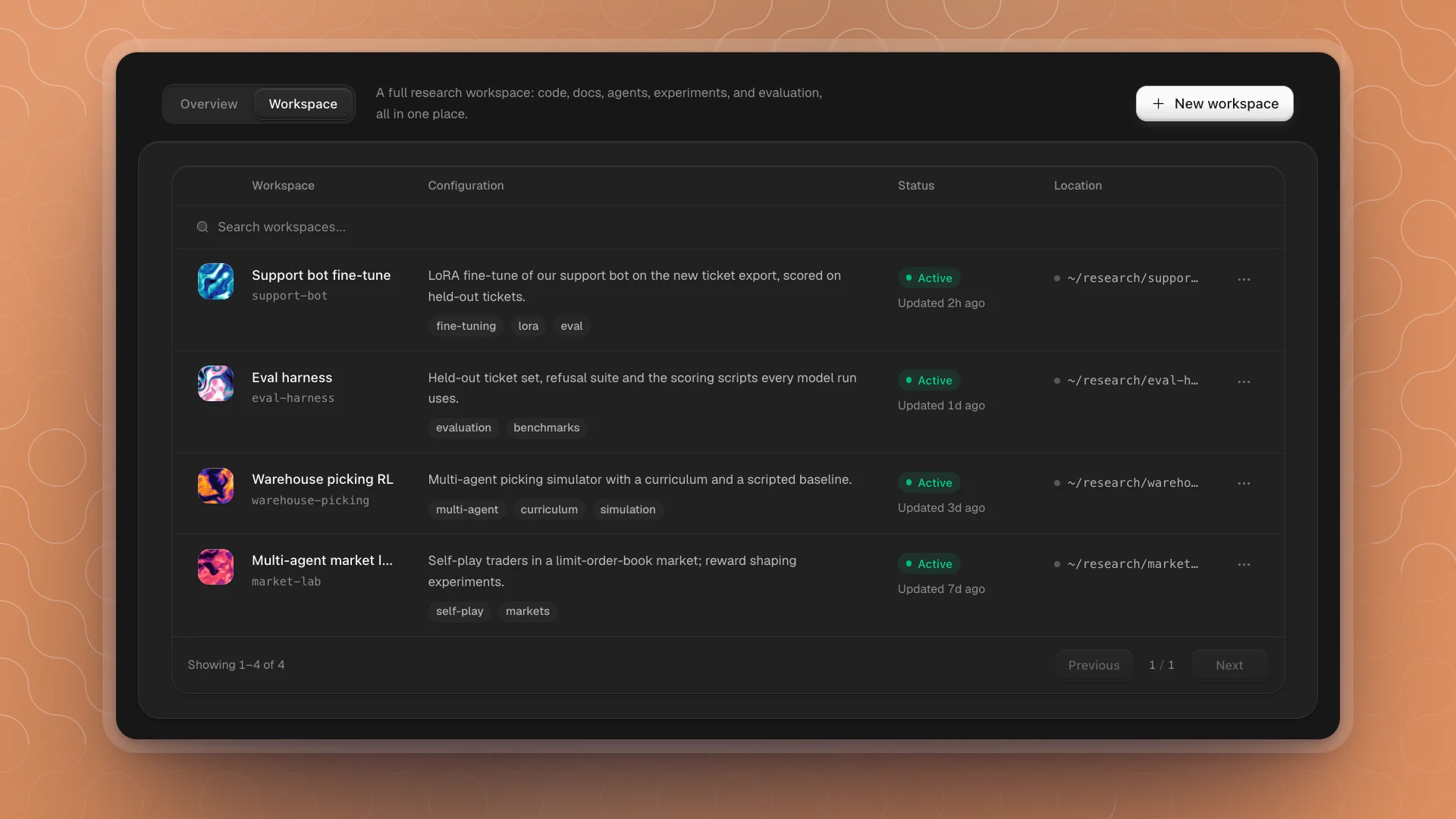
The Workspaces page
Two tabs sit at the top:
| Tab | Shows |
|---|---|
| Workspace | Every workspace in a list, with New workspace on the right |
| Overview | Status and activity across every workspace: this week's prompts, chats and tool calls, runs that need attention, active work, recent chats, recent workspaces, and the compute your runtime reports |
Each row of the list shows the workspace's name and short address, its description and tags, its status and when it was last updated, and the folder it lives in (~ stands for your home folder). Click a row to open the workspace.
- Search workspaces… at the top of the list matches names, addresses, descriptions and tags.
- The list shows 15 workspaces a page, with Previous and Next below.
The ⋯ menu
| Item | Does |
|---|---|
| Open workspace | Opens it |
| Edit details… | Changes its Name, Description and Tags. Its address and folder stay the same |
| Open in … | Opens the folder in your code editor |
| Show in Finder | Shows the folder in your file manager |
| Copy path | Copies the folder's location |
| Archive… | Takes it off the list and stops its runs |
Archive and bring back
Archiving keeps everything: the folder and its files stay on disk, untouched. To bring an archived workspace back, click New workspace, choose Existing folder, and pick the same folder. It returns with its pages, agents and their memory.
- Archive finished projects to keep the list short. Nothing is lost.
- Describe each workspace in a line. The description shows in the list and is searchable, so "LoRA fine-tune of the support bot, scored on held-out tickets" finds it faster than a name alone.
- Tag by kind of work ("fine-tuning", "evaluation", "multi-agent") to pull up related workspaces with one search.
Move between workspaces
- From inside a workspace, click the workspace name at the top of the sidebar, then All workspaces.
- On launch, ArkenOS opens on the Workspaces page. Pick up where you were from there, or set a start page for each workspace.
Organizations
You can belong to more than one organization, each with its own members, plan, workspaces list and models.
- Switch from the Organizations menu at the top left of the Workspaces page. The current one has a check mark.
- Create another with New organization at the bottom of that menu. Give it an Organization name and an Address, click Create organization, then choose its plan and connect models as in Set up your organization.
Use separate organizations for separate teams or billing, such as your lab and a consulting client. Inside one team, use workspaces per project instead.
Several windows
- File → New Window (⌘⇧N) opens another window on the Workspaces page. On a Mac, the Dock icon's menu has New Window too.
- Drag a tab out of a workspace to open it in its own window.
- Two windows can show the same workspace. Use it to keep a results page on one screen while you chat on another.
Windows reopen at the size and place you left them.
The account menu
Your picture at the top right of the Workspaces page opens the account menu:
| Item | Does |
|---|---|
| Profile | Your display name and email address |
| Settings | All settings (⌘,) |
| Keyboard shortcuts | The full list; see Keyboard shortcuts |
| Match system, Light, Dark | The app's theme |
| What's new | The changelog on the ArkenOS website |
| Privacy policy, Terms of service | The legal pages on the website |
| Sign out | Signs you out on this computer |