Get started
Sign in or sign up
Create your account, sign in, join a team that invited you, or reset your password.
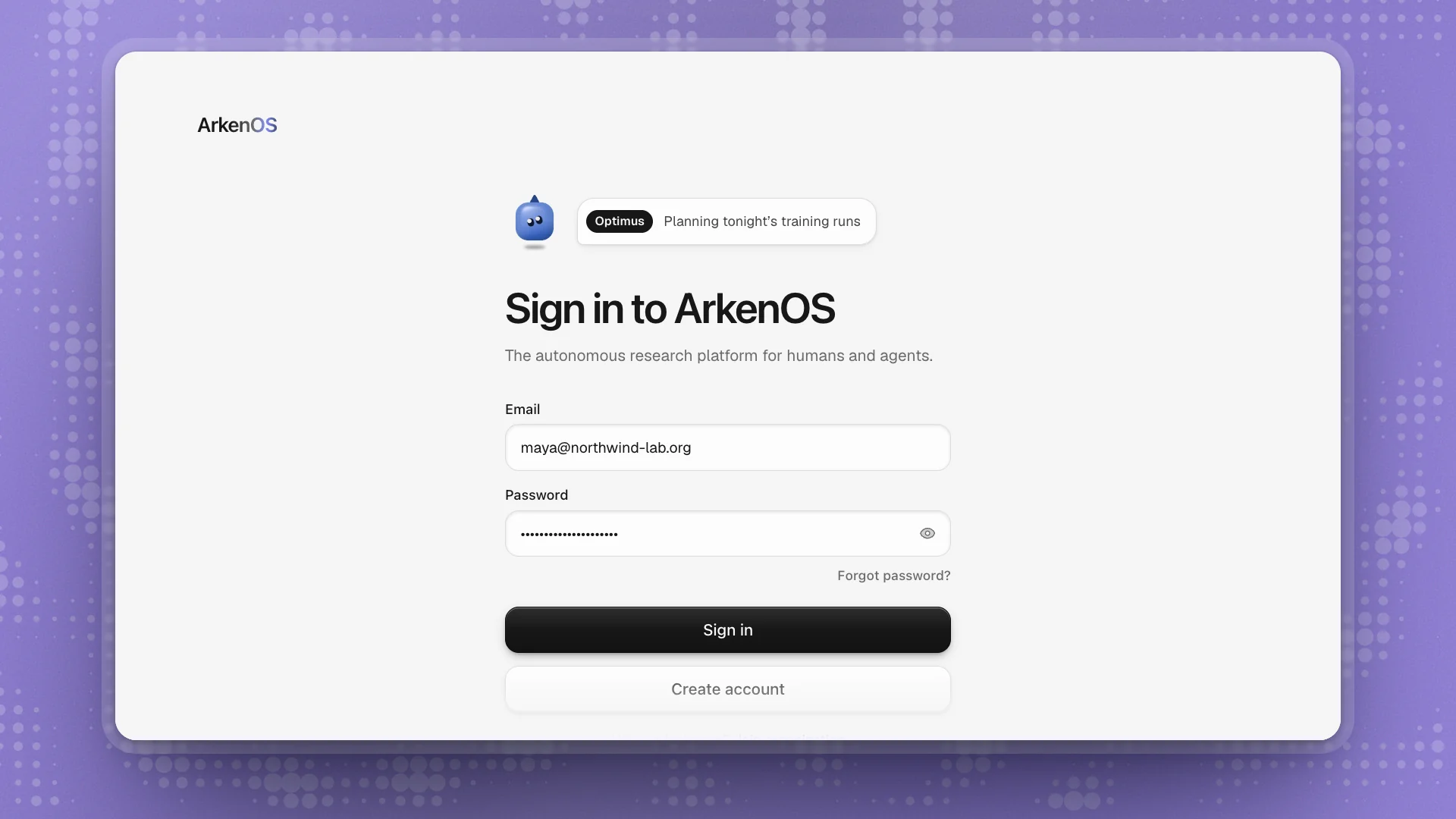
The sign-in screen has a way in for each starting point. Pick the one that fits:
- New to ArkenOS and setting up for your team: create an account.
- A teammate invited you: join their organization. Use the invitation; skip creating an organization of your own.
- You already have an account: sign in.
Create an account
Click Create account
It sits under the Sign in button.
Enter your name and email
Fill in First name and Email, then click Send verification code. Use the address your team knows you by: invitations, alerts and billing all go there.
Enter the code and choose a password
Check your inbox for an eight-digit code. It expires after ten minutes. Enter it under Verification code, choose a password of at least 12 characters, type it again under Confirm password, and click Verify and continue.
No email after a minute? Check spam, then click Resend code (it unlocks after 60 seconds). Typed the wrong address? Click Change email.
Sign in
The screen says Your account is ready. Click Sign in, and ArkenOS walks you through setting up your organization.
Sign in
Enter your Email and Password and click Sign in. You land in your organization's workspaces.
If your account has two-step verification, the next screen asks for the Security verification code from your authenticator app.
Join an organization
Invitations arrive by email. Here's how to accept one:
Open the invitation
Click the link in the email, then Open arkenOS. If you don't have the app yet, click Download arkenOS, install it, and open the link again.
Sign in with the invited email
ArkenOS opens on Join and the organization's name, and shows the address the invite went to.
- Already have an account with that email: click Sign in to join.
- New to ArkenOS: click Verify email and create account. You get the same eight-digit code and choose a password.
- Signed in as someone else: click Continue with the invited email to switch accounts.
Click Join organization
You go straight to the organization's workspaces. The organization already has a plan, so you skip the plan step.
The invitation only works for the address it was sent to. If you'd rather use a different email, ask the person who invited you to send a new invite to that address.
Invite expired? The Join screen asks for your Work email. Enter it and click Request invitation; if an invite is waiting for that address, a fresh link goes out. You can also reach the Join screen from Have an invitation? Join organization under the sign-in form.
Reset your password
Click Forgot password?
It's under the Password field. Enter your Email and click Send reset code.
Enter the code and a new password
Enter the code from your email and a New password of at least 12 characters, then click Reset password and continue. You're signed in straight away.
Good to know
- One email per person. Teammates find, mention and invite you by it, so keep it the address you use at work.
- Use a password manager. Passwords need at least 12 characters, and the strength meter under the field tells you when one is strong.
- Signing in on a second computer gives you the same organizations and members. Your workspaces stay on the computer where you made them; see Where your data lives.