Get started
Find your way around
The sidebar, its four tabs, search, and the shortcuts worth learning first.
Inside a workspace, almost everything starts from the sidebar on the left. It has the same shape in every workspace: the workspace name and search at the top, four tabs, a few highlight rows, then the body of whichever tab you're on.
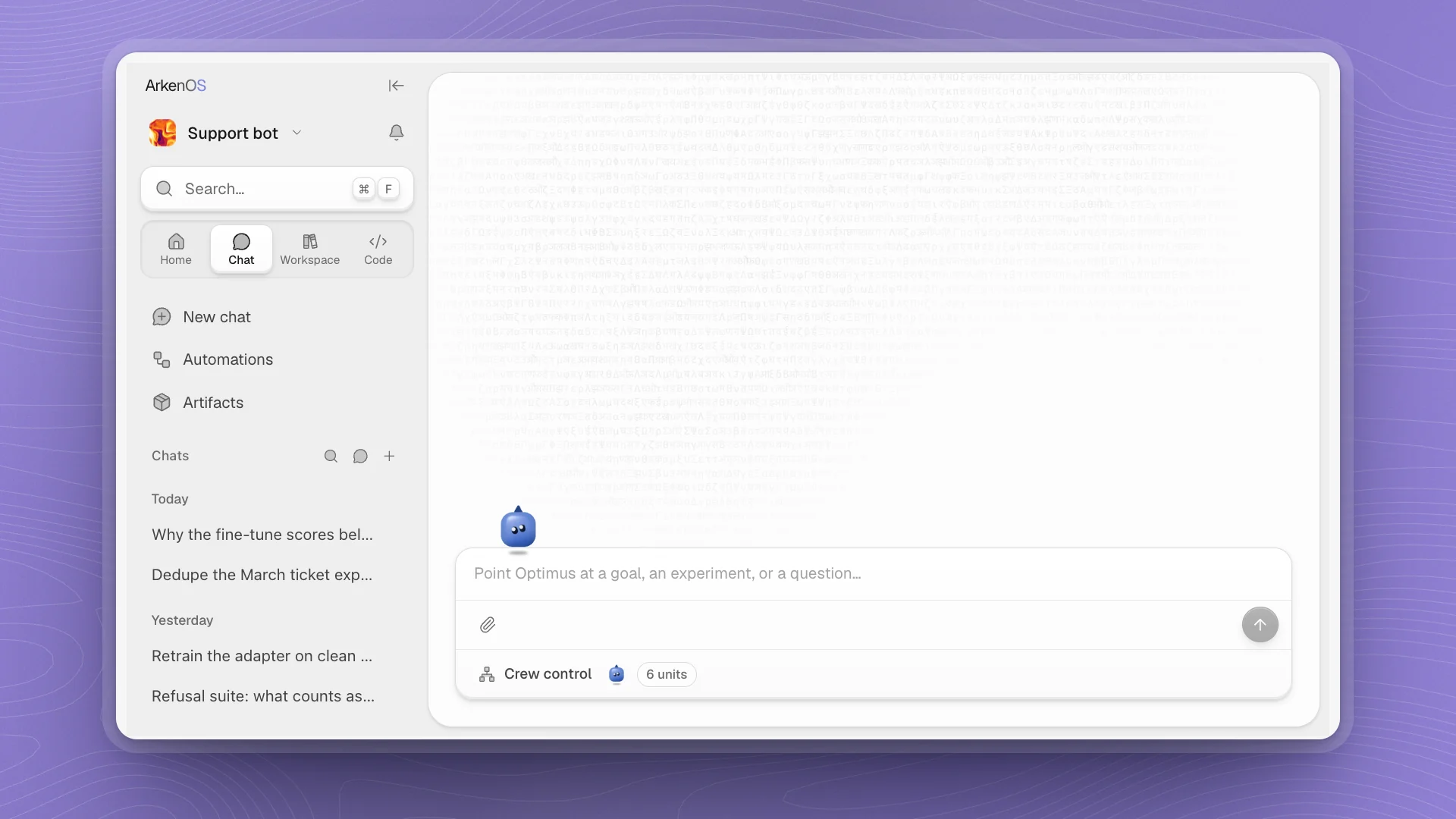
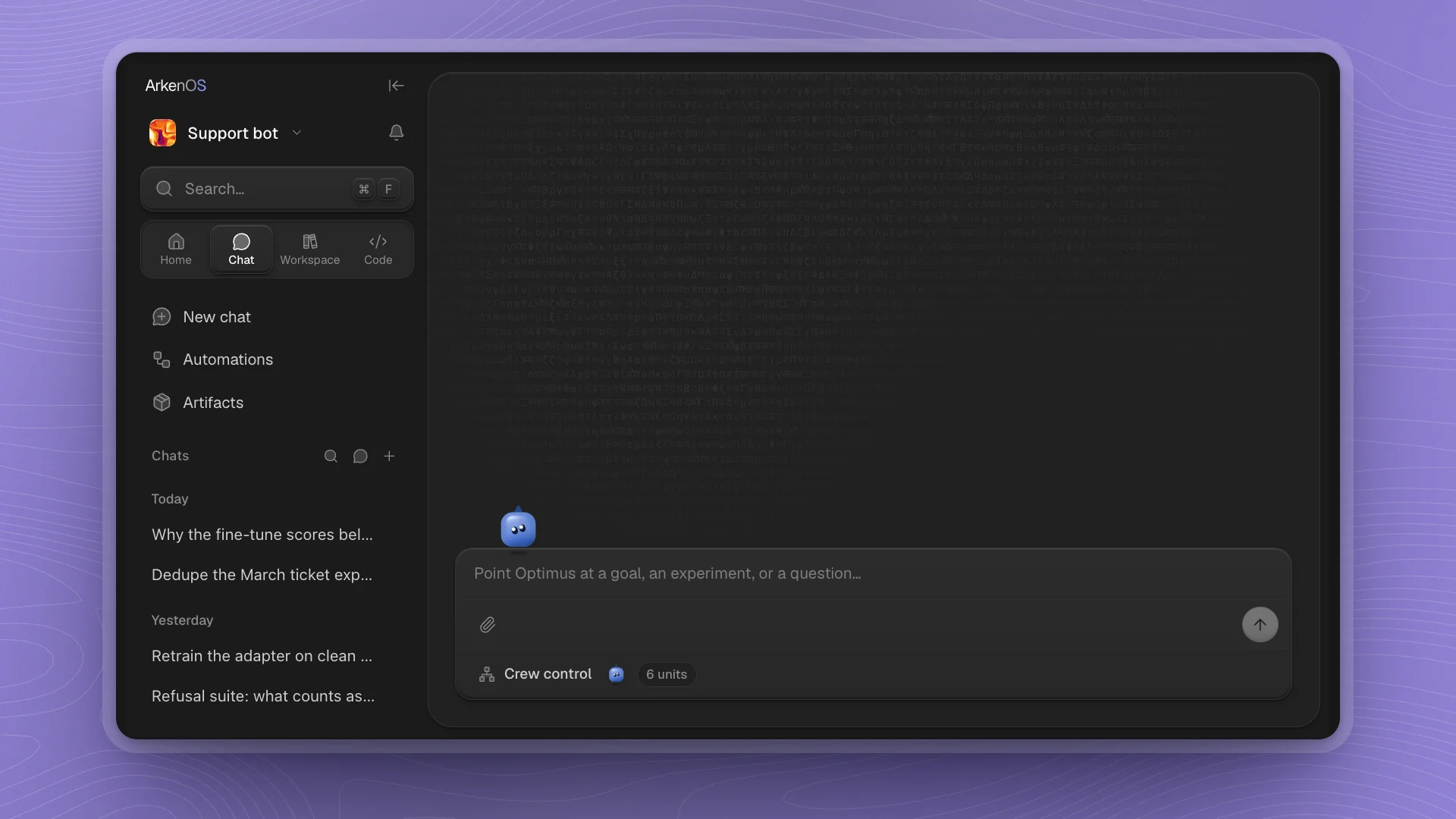
The top of the sidebar
| Piece | Does |
|---|---|
| ArkenOS | Goes to All workspaces, the list of every workspace |
| Collapse button | Hides the sidebar (⌘B) to give the work area the full window. Expand sidebar at the top left of the work area brings it back |
| Workspace name | Opens a menu: Workspace home, All workspaces, light or dark mode, and Settings |
| Bell | Notifications: mentions, replies and updates from channels, projects and page comments |
| Search… | Searches page titles, page text and chat threads in this workspace |
When an update is ready, an arrow button appears next to the bell. See Stay up to date.
Drag the sidebar's right edge to make it wider or narrower.
The four tabs
Each tab is an icon. Hover for its name, or turn on Tab names in Workspace settings → Sidebar.
| Tab | Icon | Shows | Go here when |
|---|---|---|---|
| Home | House | Projects, Recents and Favorites | You want to pick up where you left off |
| Chat | Speech bubble | Channels, Agents and Chats | You want to give an agent work or talk with your team |
| Workspace | Books | The workspace's pages and sections | You want to read or write notes, reports and papers |
| Code | Angle brackets | The files in the workspace folder | You want to look at or edit code |
Each list shows five rows, then Show more. Star a page or file to keep it in Favorites; Recents fills itself with the chats, pages and files you open.
Highlights
The rows under the tabs are shortcuts to the places you go most. Every workspace starts with four:
- New chat starts a fresh conversation with Optimus.
- Automations opens scheduled and triggered runs.
- Artifacts shows everything agents have made: charts, reports, files.
- Analytics shows how the workspace is moving: edits, chats and issues, and who made them.
You can add Search, Agents, Projects, Notifications or Workspace settings, or a shortcut to any page, folder or link. Right-click any tab, highlight or section to rename it, move it, or remove it. Customize the sidebar has the full set of options.
The bottom of the sidebar
- Version number: the dot shows where agents run, and hovering the pill shows the version and that state: Local runtime connected, Connecting to the local runtime, Local runtime offline, or Running in the cloud. It turns into Update when a new version is ready; see App updates.
- Branch: the git branch the workspace folder is on.
- Tab view and Canvas view: show open chats, pages and files as tabs you can split, or spread out on an open canvas. Both show the same things; each workspace remembers its choice.
- Gear: Workspace settings, for features, the sidebar layout and analytics.
Find anything
- Search… at the top of the sidebar finds pages by title or text and chats by what was said. Use it when you remember the words but not where they were.
- Quick open (⌘K or ⌘P) jumps to a page or file by name. Start typing and press Enter. It's the fastest way around once you know what you're looking for. To search inside chats and page text, use Search (⌘F); Search and quick open covers both.
- Mention a file in chat with
@so an agent reads exactly that file. See Mentions.
Shortcuts to learn first
| Shortcut | Does |
|---|---|
| ⌘N | New chat |
| ⌘K or ⌘P | Quick open a page or file |
| ⌘F | Search pages and threads |
| ⌘B | Show or hide the sidebar |
| ⌘, | Settings |
| ⌘/ | Every shortcut |
On Windows and Linux, use Ctrl in place of ⌘. The full list is in Keyboard shortcuts.
Make it yours
- Pin what you open daily. A page you check every morning ("Eval results") belongs in the highlights.
- Put channels where you look. Channels sit under Chat by default; move them to Home if your team lives there.
- Switch off what you skip. Workspace settings → Features switches off channels, projects, automations and more for this workspace, and the sidebar drops them.