Workspace
Customize the sidebar
Arrange tabs, shortcuts and sections around how you work in each workspace.
The sidebar is yours to arrange, workspace by workspace. Put the places you use most at the top, move sections to the tab where you look for them, and hide the rest. Changes show in the sidebar the moment you make them.
When to change it. When you find yourself scrolling or switching tabs to reach the same place every day, or when a project changes phase, say from running evals to writing the paper.
Why it matters. Each workspace keeps its own layout, so a solo eval project and a team project can each put what matters first, and the sidebar stays short enough to scan.
How the sidebar is built
From top to bottom:
| Part | What it is | Default |
|---|---|---|
| Tabs | The icons across the top: Home, Chat, Workspace, Code | All four |
| Highlights | Shortcut rows under the tabs, the same on every tab | New chat, Automations, Artifacts, Analytics |
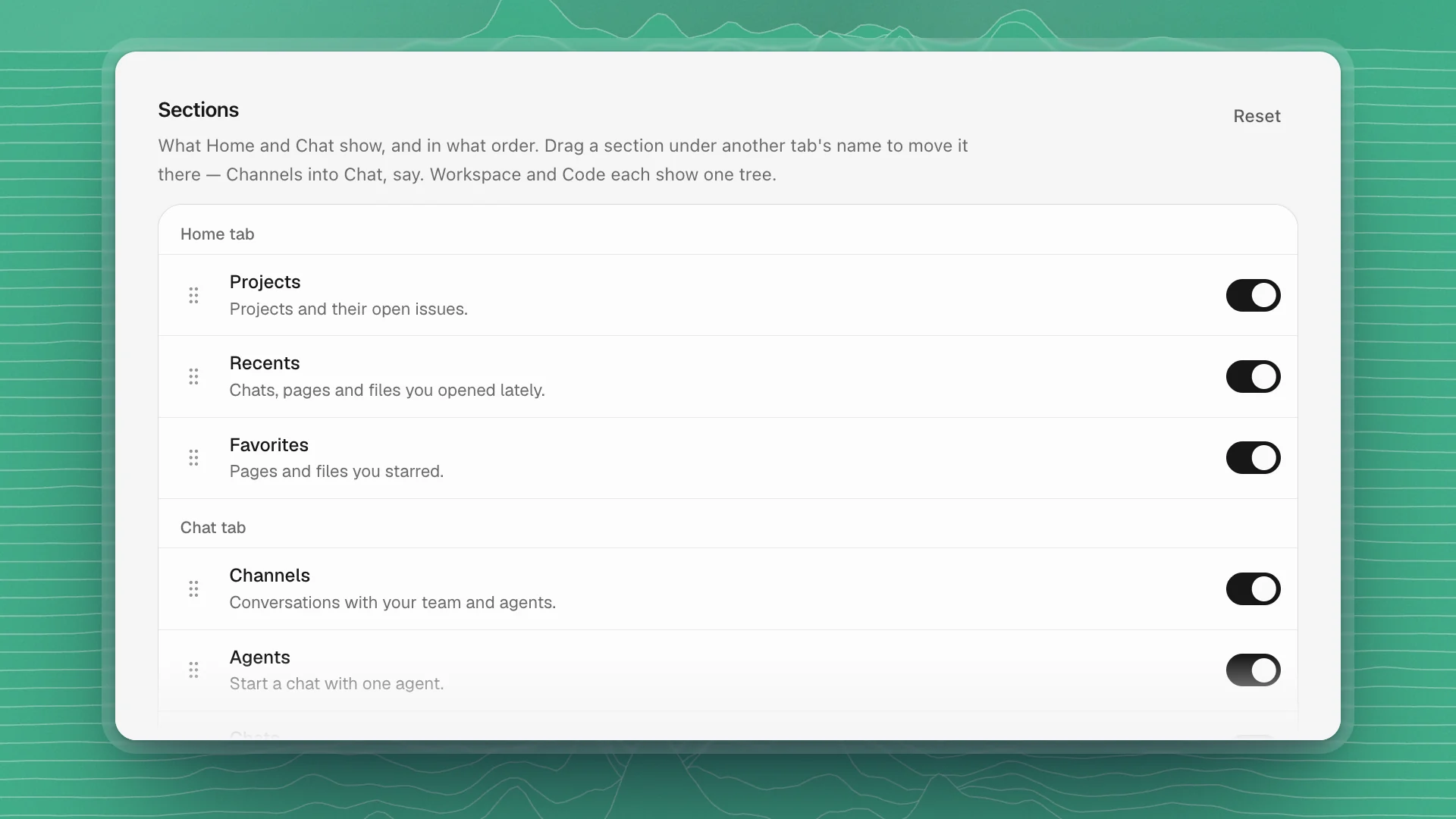
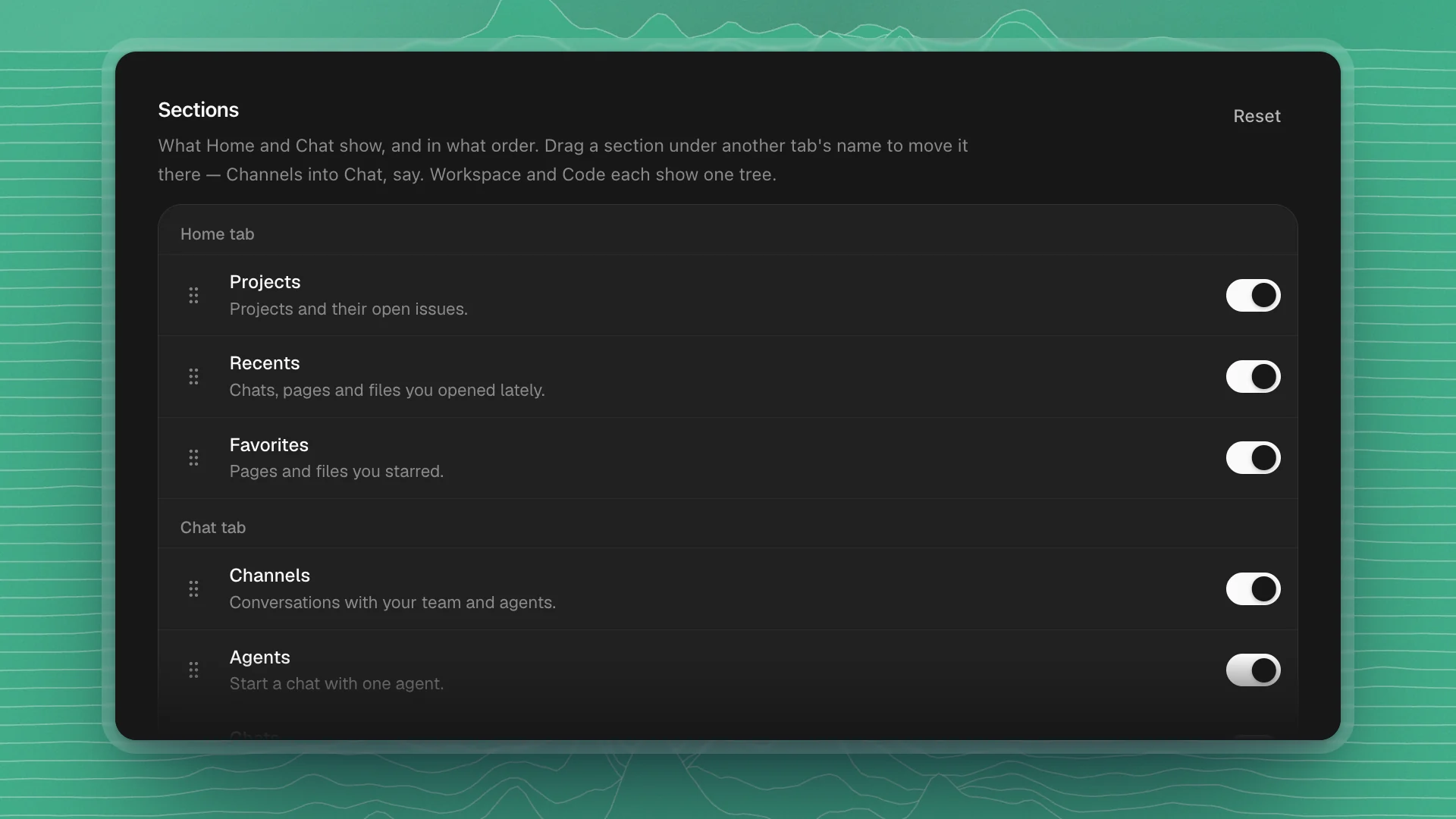
| Sections | The lists inside the Home and Chat tabs | Home: Projects, Recents, Favorites. Chat: Channels, Agents, Chats |
The Projects section starts with All projects, which opens the Projects page with every project and issue, then lists your open projects with their open issue counts.
The Workspace tab shows your pages and folders, and the Code tab shows the repository's files. Each is one tree, so it has no sections to arrange.
Every list shows five rows, then Show more. Press ⌘B to collapse or expand the sidebar.
Quick changes: right-click
Right-click any tab, highlight or section header:
| Action | Does |
|---|---|
| Rename… | Gives it your own name, in this workspace only |
| Move up / Move down | Reorders it (tabs move left and right) |
| Move to Home / Move to Chat | Moves a section to the other tab |
| Hide … | Takes it out of the sidebar. Bring it back from settings. |
| Remove shortcut | On a shortcut you added (a page, folder or link), in place of Hide: deletes the shortcut |
| Customize sidebar… | Opens the full settings |
You can also drag a section by its header onto another tab's icon to move it there.
To pin a page or folder, right-click it in the Workspace tab and choose Pin to sidebar. It joins the highlights at the top.
All settings at once
Open Workspace settings from the button at the bottom of the sidebar. Open its Sidebar tab. Every change previews live in the sidebar beside it, and each card has a Reset that puts its part back to the default.
| Card | What you can do |
|---|---|
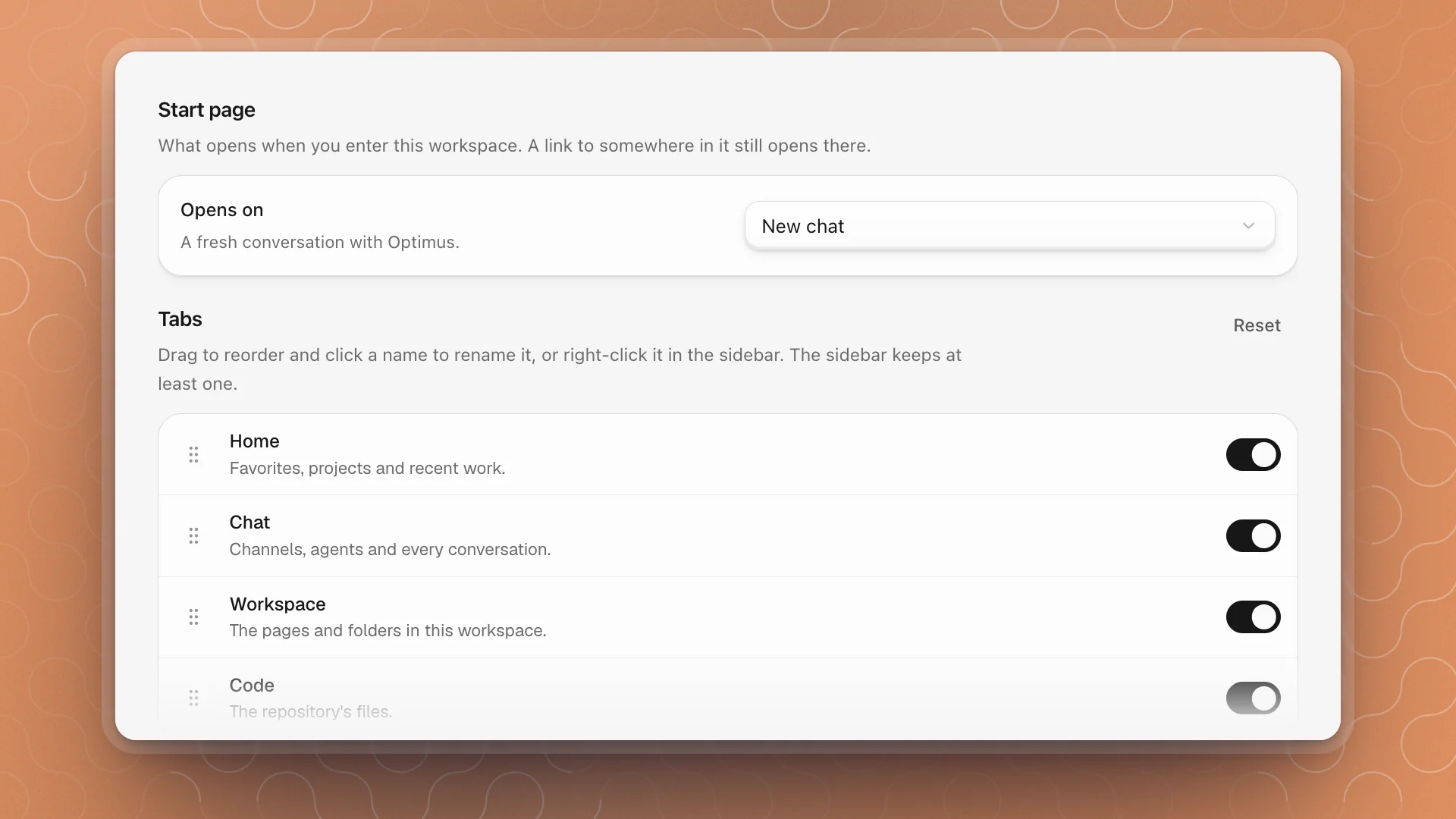
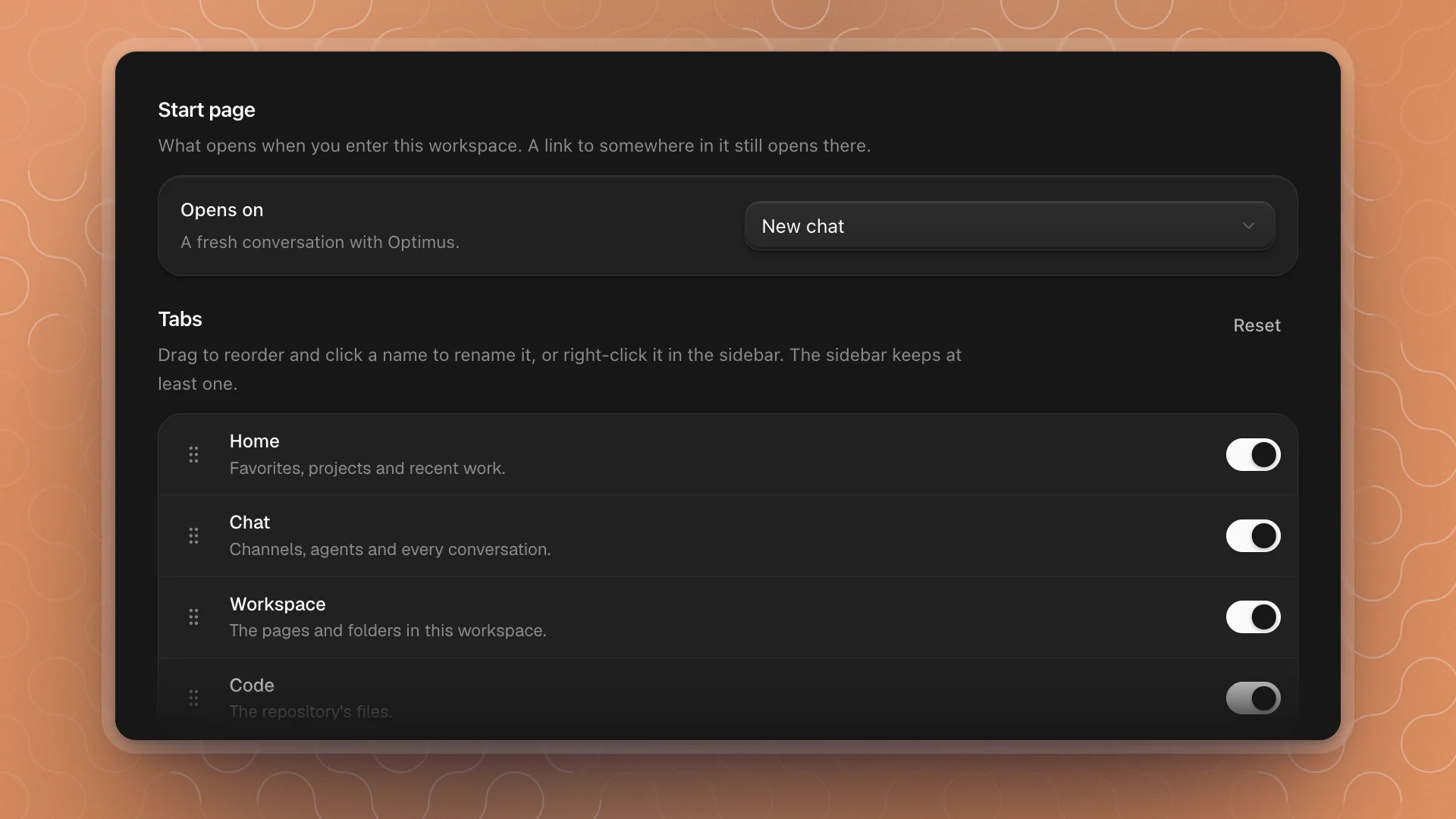
| Start page | Choose what opens when you enter the workspace. See Home. |
| Tabs | Drag to reorder, click a name to rename, switch a tab off. The sidebar keeps at least one. |
| Highlights | Switch the built-in rows on or off: New chat, Automations, Artifacts, Analytics, Search, Agents, Projects, Notifications and Workspace settings. Add your own with Add a shortcut to a page, folder or link. |
| Sections | Every section in one list, under the tab it sits on. Drag one under the other tab's name to move it. |
| Display | Tab names shows a label under each tab icon. Rows before “Show more” sets list length: 3, 5, 10 or All. |
Where the layout is kept
The layout is saved per workspace in ArkenOS's data folder on this device, beside the workspace's feature switches. It lives outside the workspace folder, so it stays out of your commits. When a feature is off, its sections and highlights stay out of the sidebar whatever the layout says, and come back when you turn it on.
Layouts that work
- Solo research project. Hide Projects and Channels, and pin your eval protocol page so it is one click away.
- Team project run on issues. Turn on the Projects and Notifications highlights. Move Channels to the Home tab, above Recents, so the conversation is the first thing you see.
- Writing a paper. Make the Workspace tab first and set the start page to your draft.
- Long agent runs. Move Chats to the Home tab and set the start page to All chats, so running work is in view when you come back.
Start with one change and live with it for a day. Two or three small tweaks usually get a sidebar where you want it.