Workspace
Artifacts
Charts, comparisons and dashboards your agents build, open beside your work and kept with the project.
An artifact is a small web page an agent builds to show you something: a chart of eval scores, a side-by-side comparison, a live training dashboard. It opens as a tab like any page, and every artifact in the workspace collects on the Artifacts page.
When to use one
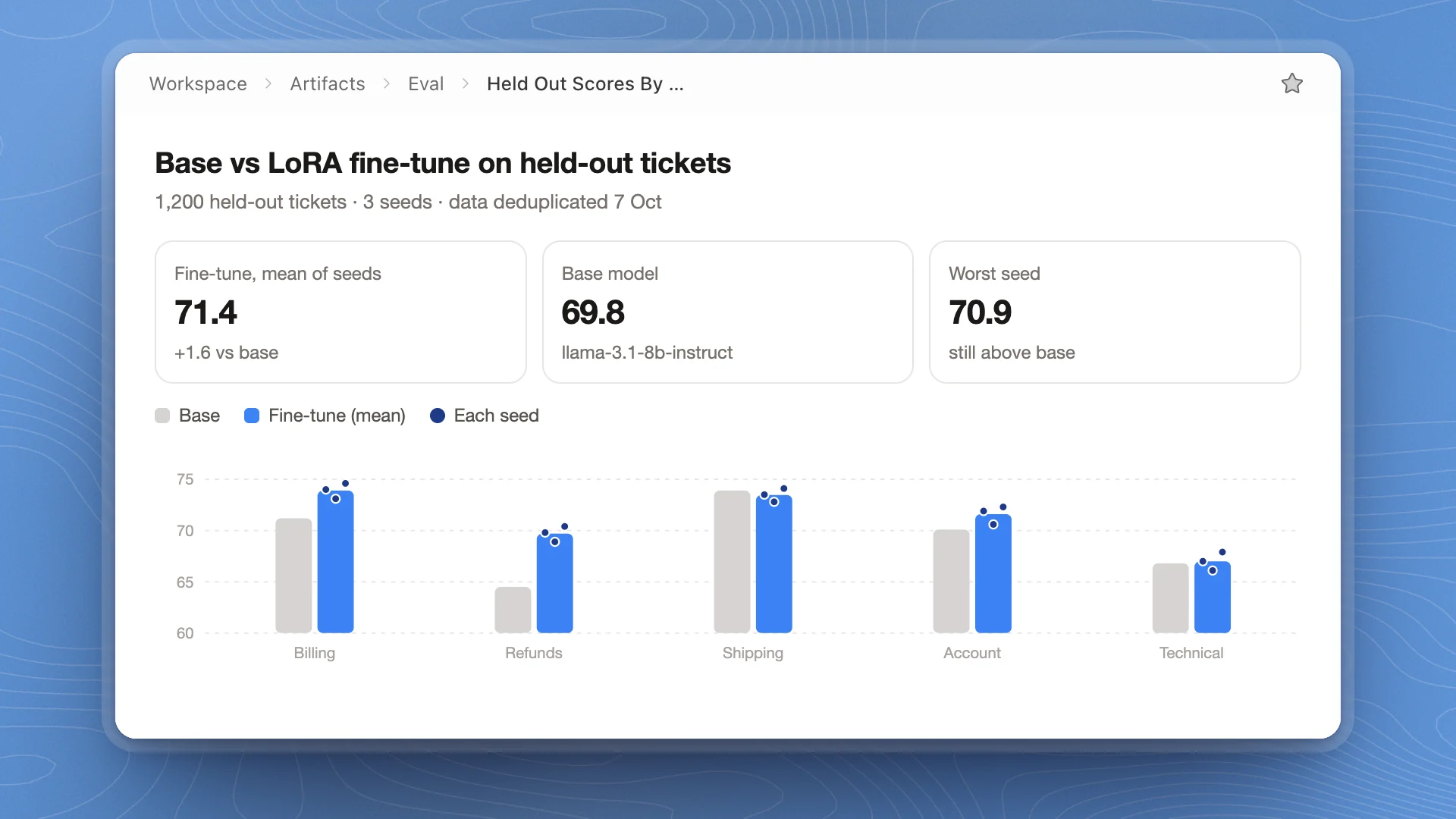
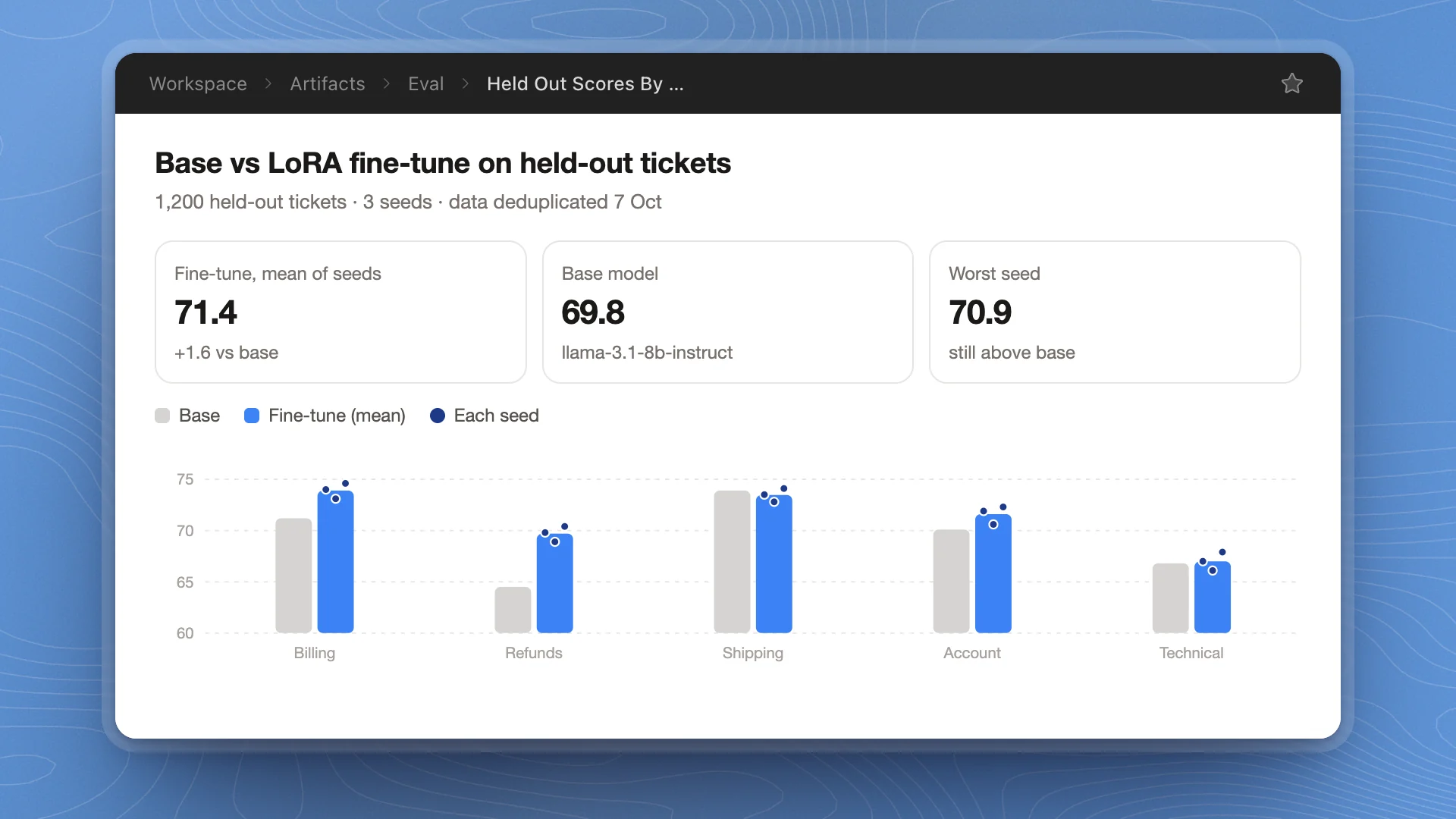
Ask for an artifact when you need to see a result, compare runs, or watch something change: base vs fine-tune by category, a LoRA rank sweep, a live loss curve. For results you'll read, cite or edit, ask for a page instead; pages hold prose, tables and charts written into the document. For a quick number, a chat answer is enough.
Why it matters
A paragraph of means hides what a chart shows at once: one bad seed, one category that got worse, a curve that flattened hours ago. An artifact puts the evidence in front of you in the form that makes problems obvious, and because it's a file in the project, the same view is there next week when someone asks why you shipped the fine-tune.
Ask for one
Ask in any chat. Name the comparison, how to show it, and where the numbers are:
Build an artifact comparing the base model and the LoRA fine-tune on the held-out tickets: score per category as grouped bars, the three seeds as dots on each bar, and the overall means as tiles at the top. Use the results in runs/eval/. Put it in the eval folder.
More asks that work well:
| You want | Ask |
|---|---|
| A sweep summary | “Chart held-out score against LoRA rank for ranks 8, 16 and 32, one line per seed, and mark the rank we picked.” |
| A failure review | “Make a table of the 30 held-out tickets the fine-tune got wrong, with the ticket, the reply and the expected reply, filterable by category.” |
| A before and after | “Show refusal-suite scores before and after we removed the leaked prompts, side by side.” |
| Something to keep open | “Make a training dashboard for the LoRA run: loss and eval score against step, updating live as the run logs metrics.” |
The agent writes the page and can open it in a tab for you. Ask for changes the same way: “Sort the categories by the gap between the two models.”
How they update
- Edits show up in place. When the agent changes an artifact, its open tab updates. There's no need to close and reopen it.
- Live data redraws. An artifact can read data files kept beside it in the artifacts folder and redraw whenever they change. For a running job, the agent keeps the data file current and the chart follows it.
- It remembers your view. Filters or tabs you pick inside an artifact stay as you left them while the app window is open.
Keep a live dashboard open in a split beside the chat while a run goes.
Find and open artifacts
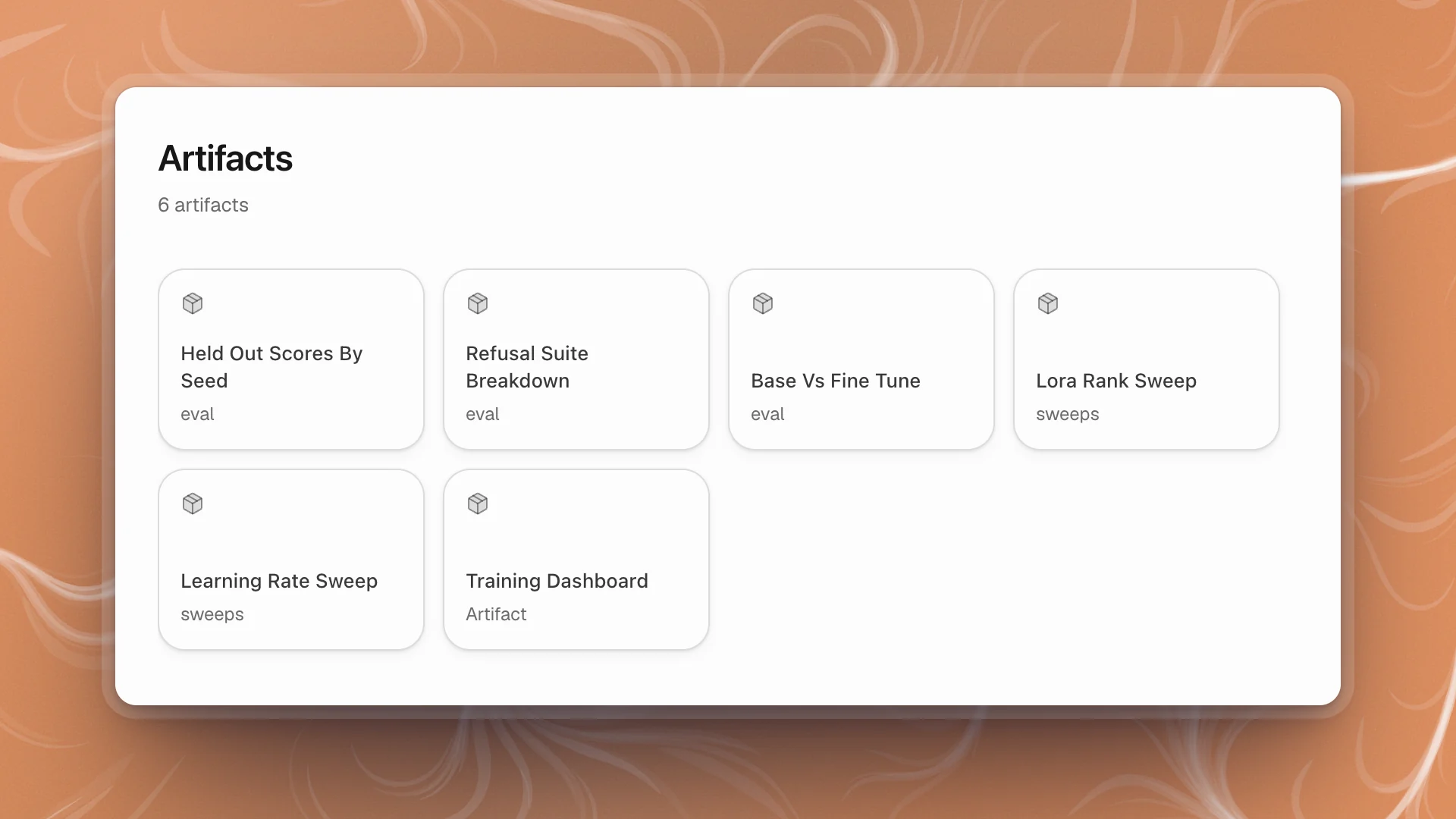
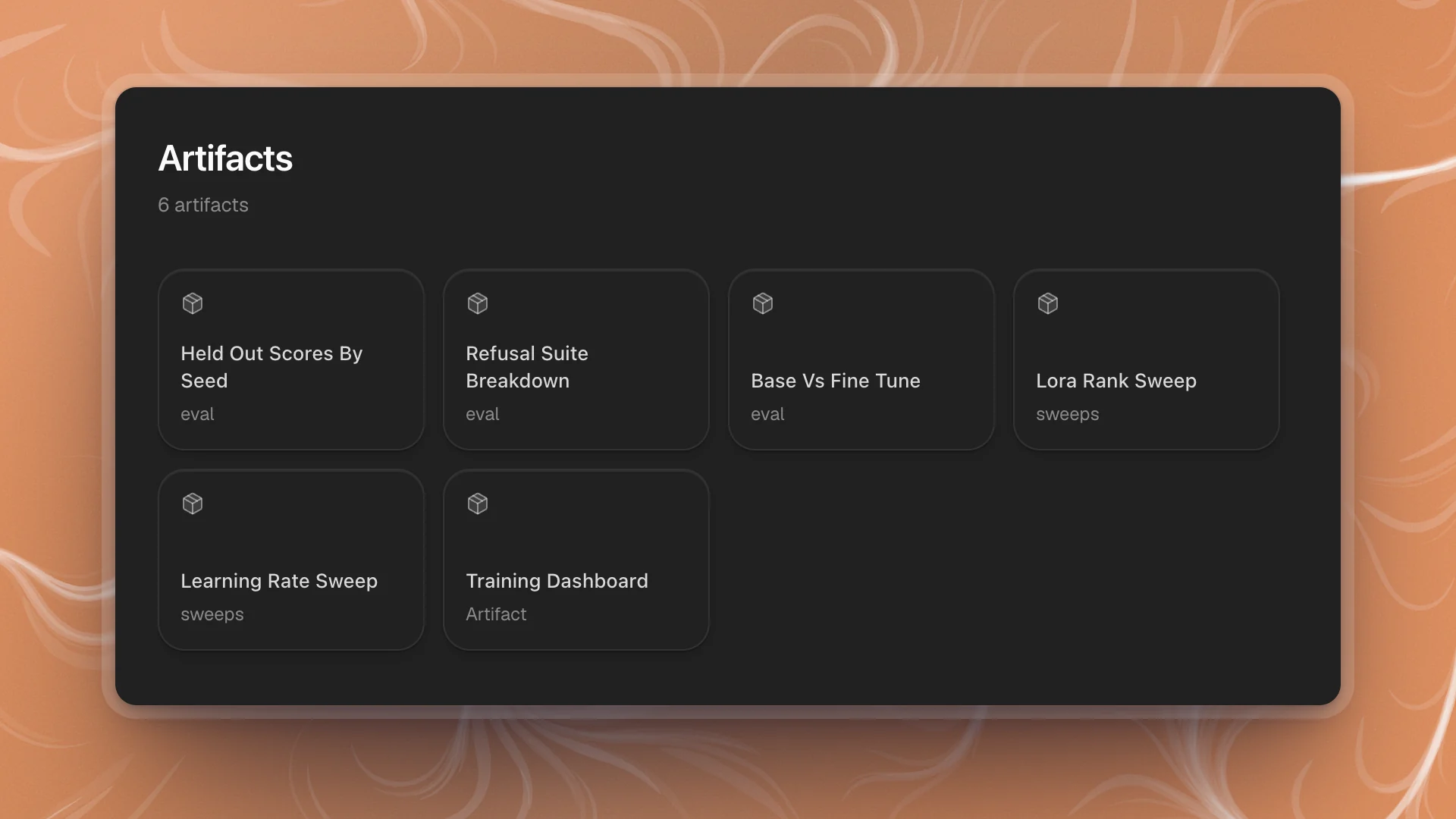
Click Artifacts in the sidebar's highlights. The page shows every artifact as a tile, named from its file, with the folder it sits in underneath. Click a tile to open it. Star the Artifacts page to keep it in your Favorites.
Search and Quick open find artifacts by name too.
Where they live and how to share them
Artifacts are HTML files in the .arkenos/artifacts/ folder of your workspace, in subfolders if the agent or you choose. Because they're ordinary files, they stay with the project and travel with it. To share one, send the HTML file: it opens in any browser, as long as it carries its numbers inside it.
An artifact runs in a sandbox. It reads its data from files inside the artifacts folder and can load charting libraries from jsDelivr or cdnjs. The rest of your machine stays out of its reach. An artifact can offer downloads, so ask for a Download CSV button when you want the numbers behind a chart.
Get better artifacts
- Name the comparison. “Base vs fine-tune by category” makes a sharper chart than “visualize the eval”.
- Point at the data. Name the files or the run. Agents chart what you point them at instead of guessing.
- Show the spread. Ask for every seed, or error bars. A chart of means can hide a bad seed.
- Ask for honest axes. Say “start the y-axis at zero” when the size of a gap matters.
- Ask for one that travels. “Put the numbers inside the page” makes a file you can send to someone who doesn't use ArkenOS.
- Update instead of rebuilding. “Update the held-out scores artifact with today's run” keeps one view current instead of five near-copies.
- Ask for folders by topic. “Put it in eval” keeps the Artifacts page tidy once a project has dozens.