Workspace
Tabs and windows
How tabs open, keep and close, the keys that move between them, giving a tab its own window, and how the layout adapts to the window size.
Everything you open in a workspace (chats, pages, files, artifacts, settings) opens as a tab in the work area. This page covers how tabs behave, the keys that move you between them, and the window-level controls around them.
When this helps
- You have more open than fits. Preview tabs and quick keys keep the strip short and fast to move through.
- You want two things on two screens. Give a tab its own window and put a live dashboard on your second monitor.
- You work in a narrow window. The layout folds itself so the work area keeps its room.
To show two tabs side by side in one window, use split view. To see many at once, use the canvas.
Why it matters
A long project piles up tabs fast: every file you glance at, every chat an agent starts. Without previews and quick keys the strip fills with things you looked at once, and the chat you care about drifts out of sight. Knowing these few behaviors keeps the strip to what you're actually working on.
Reading the tab strip
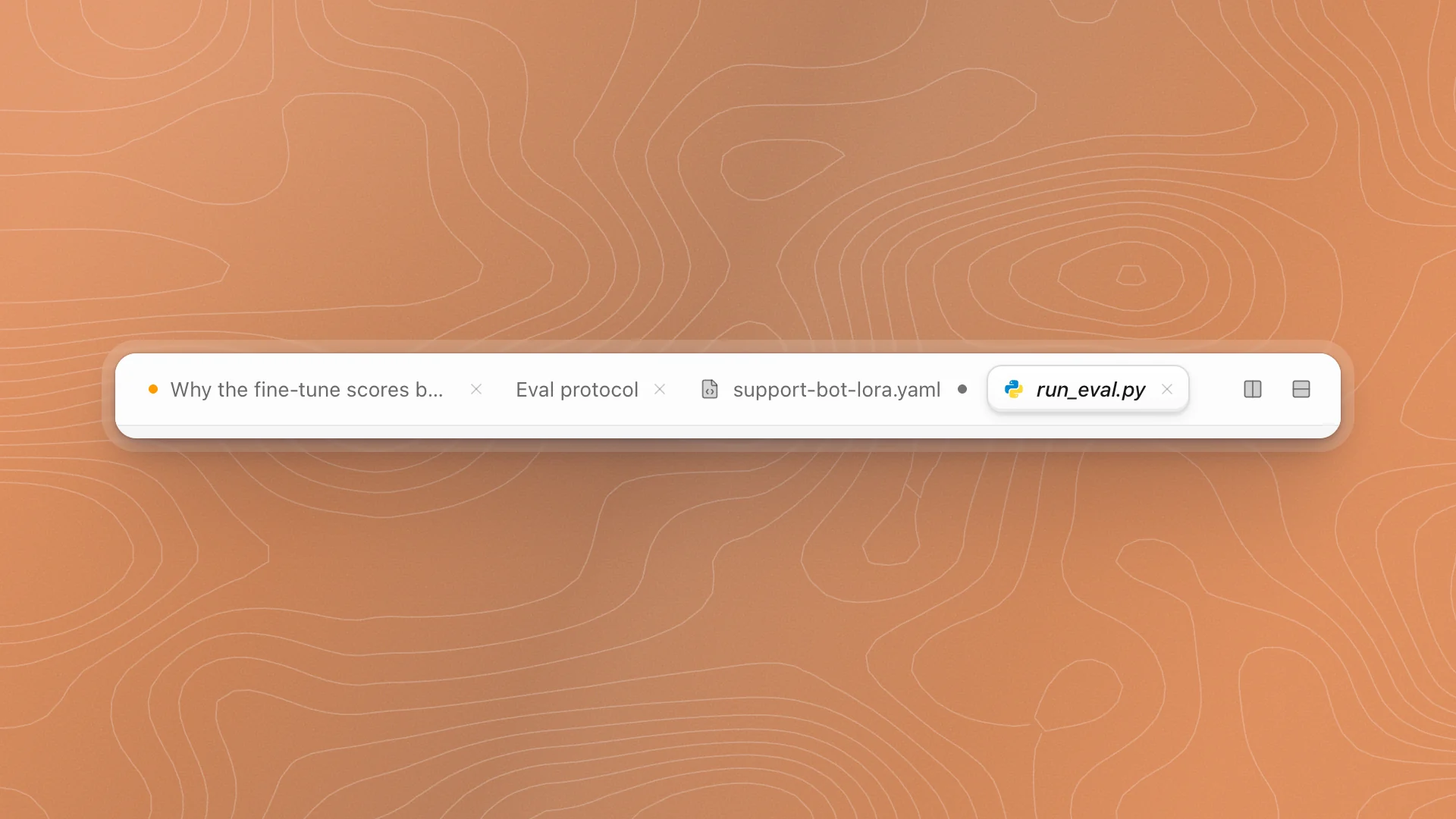
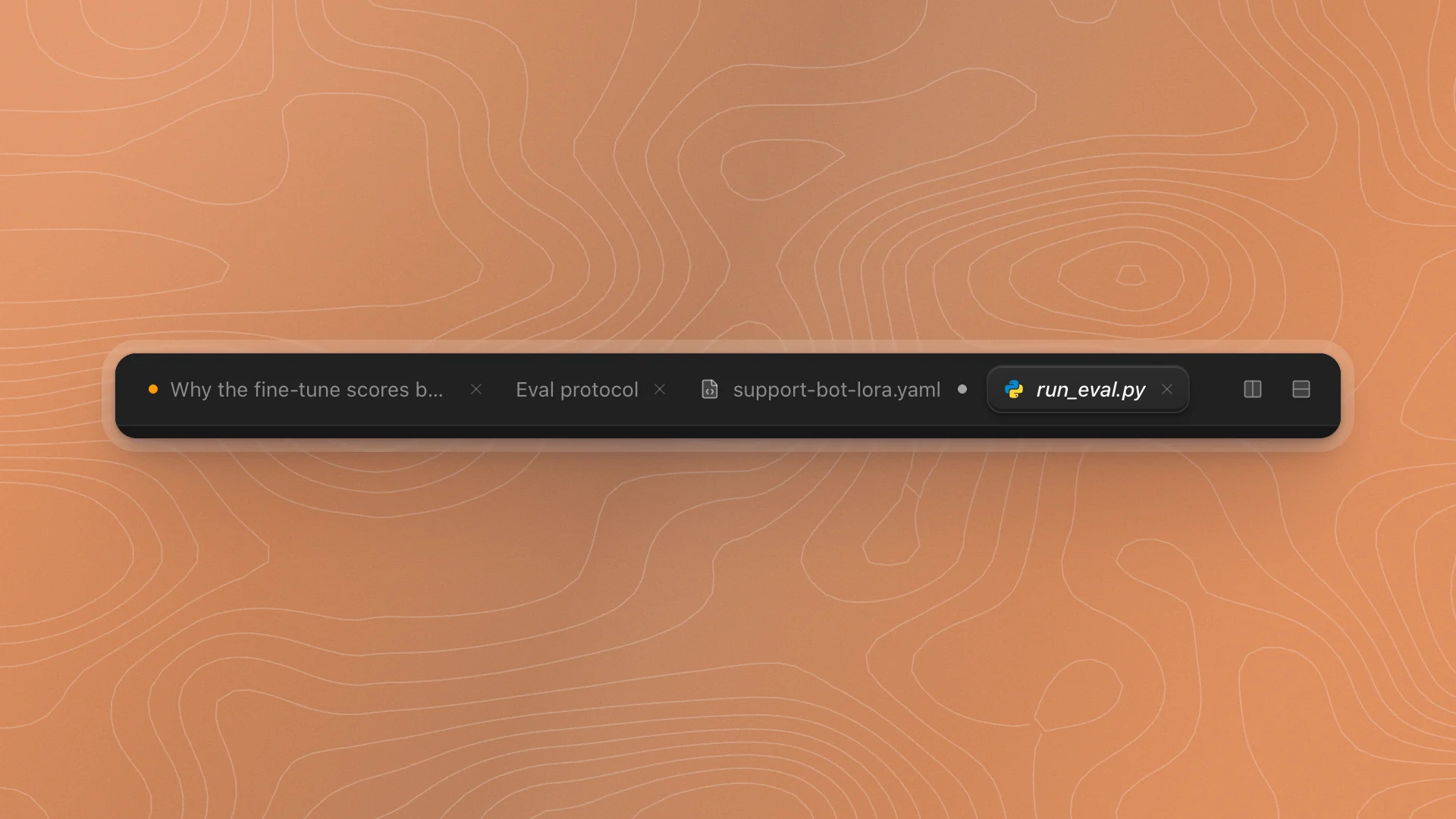
| You see | It means |
|---|---|
| A dot before a chat's title | The chat's status: amber while running, green when ready, red if it hit an error |
| A dot where the × should be | Unsaved changes. Hover to see the ×. |
| A title in italics | A preview tab. The next file you click replaces it. |
| A raised tab | The active tab in the pane you're working in |
Open, keep and close
- Preview tabs. Clicking a file in the Code tab opens it as a preview, so browsing doesn't pile up tabs. Double-click the tab, or double-click the file in the tree, to keep it open. Editing a file also keeps it.
- Reorder. Drag a tab along the strip. A line shows where it will land.
- Close. Click its × or press ⌘W.
- Reopen. ⌘⇧T brings back the last tab you closed.
Keys
| Key | Does |
|---|---|
| ⌘1 … ⌘9 | Jump to a tab by position |
| ⌘⇧[ / ⌘⇧] | Previous / next tab |
| ⌘W | Close the tab |
| ⌘⇧T | Reopen the last closed tab |
| ⌘T or ⌘N | New chat |
| ← / →, Home / End | Move between tabs when the strip has focus |
On Windows and Linux use Ctrl in place of ⌘, and Ctrl+Page Up / Page Down to move between tabs. The full list is in Keyboard shortcuts.
Give a tab its own window
In the desktop app, drag a tab out of the window and let go over empty space. It opens in a window of its own, with its contents intact: a chat keeps its history and anything you'd typed, a page saves first, a file keeps unsaved edits.
- Use it for a second screen. A training dashboard or a long-running chat on one monitor, your editor on the other.
- Teach sessions stay put. A tab running a Teach session or a new agent you're still filling in can't move. Finish it first.
- If a page can't save, the tab stays. You'll see “The page could not be saved. Your tab is still here.” Fix the save, then try again.
Narrow windows
The layout follows the window's width:
| Window | What changes |
|---|---|
| Under about 1024 px wide | The sidebar becomes a drawer over the work area. Open it with the sidebar button, and it closes when you pick something or click outside it. |
| Under about 768 px wide | Split panes fold into one: every pane's tabs share a single strip. Your split layout comes back when the window widens. |
Sidebar width
Drag the sidebar's right edge to resize it, between 180 and 520 px. You can also focus the edge with Tab and press ← or → to move it in small steps. The width is remembered. ⌘B hides or shows the sidebar.
Good practice
- Let previews do the browsing. Click through files freely; keep only the ones you'll come back to.
- Close finished chats. A closed chat is still in Chats on the Chat tab and in Search. Closing it only tidies the strip.
- Use ⌘1–⌘3 for your anchors. Drag the main chat, the plan page and the config you're tuning to the front of the strip, and they're always one key away.
- Watch for the unsaved dot before you leave. Code files need ⌘S; pages save on their own.