Workspace
Search and quick open
Find a page by what it says, a chat by what was said, or jump to any file by name.
ArkenOS has two ways to find things. Search looks inside page text and chat threads. Quick open jumps to any page or file by name.
When to use which
| You remember | Use |
|---|---|
| Words from a page or a chat, but not where they were | Search (⌘F) |
| The name of a page or file | Quick open (⌘K) |
| Roughly where it lives in the folder layout | The Workspace library or the Code tab's Filter files |
| That you opened it lately | Recents on the Home tab (Home) |
Why it matters
Agents write a lot: pages, configs, scripts, dozens of chats. After a few weeks on a fine-tuning project, the answer to “which run used the deduplicated tickets?” is somewhere in a chat or an experiment page, and browsing folders for it wastes time. Search finds it from one word. Quick open saves the clicks of walking the tree to a file you already know by name.
Search
Click Search… at the top of the sidebar, or press ⌘F.
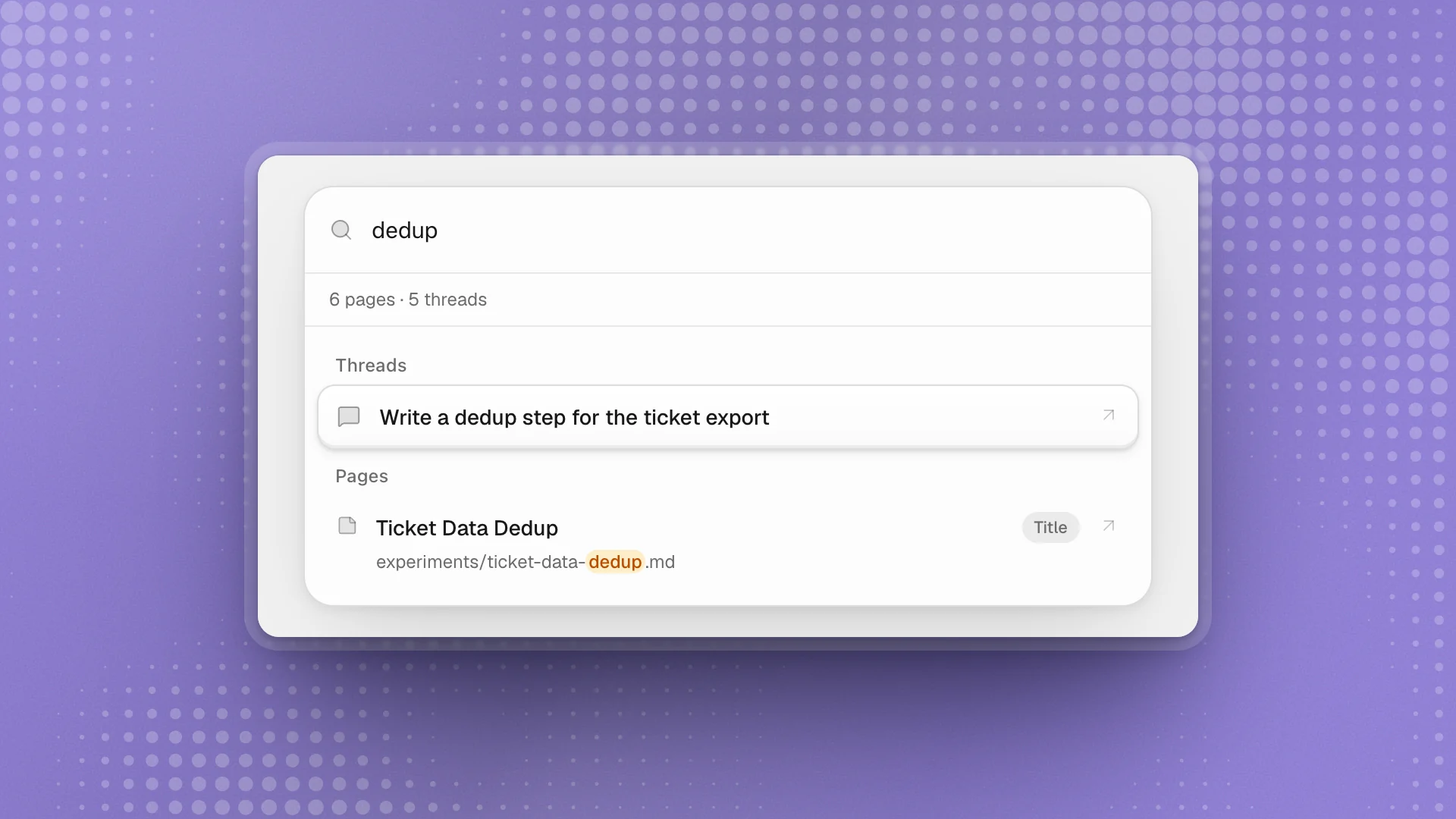
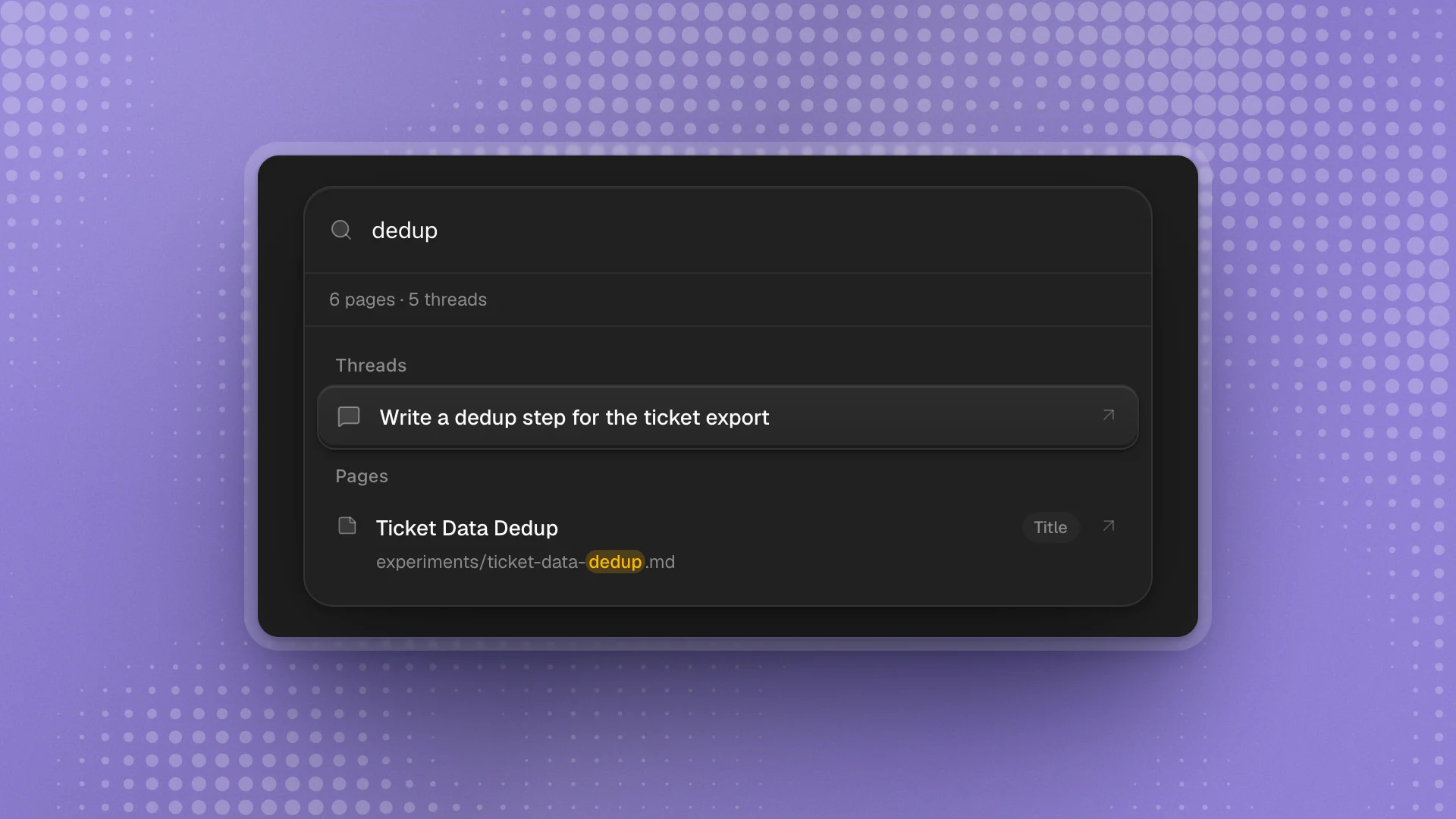
| Group | What it searches | Shows |
|---|---|---|
| Threads | Chat titles, their latest message, and what you wrote in them | Up to six chats, with the matching words highlighted |
| Pages | Page titles, paths and text | Up to ten pages, each marked Title, Path or Content for where it matched |
The line under the box counts what's searchable, for example “6 pages · 5 threads”. While ArkenOS reads page text for the first time it shows Indexing page text…, and title matches appear straight away. Text search covers Markdown, LaTeX, HTML, CSV and plain-text pages, up to the first 120 kB of each. Larger pages say so in a note under the count.
| Key | Action |
|---|---|
| ↑ / ↓ | Move through results |
| Enter | Open the result |
| Esc | Close |
You can also add a Search row to the sidebar's highlights in Customize the sidebar.
Quick open
Press ⌘K or ⌘P and type part of a name or path.
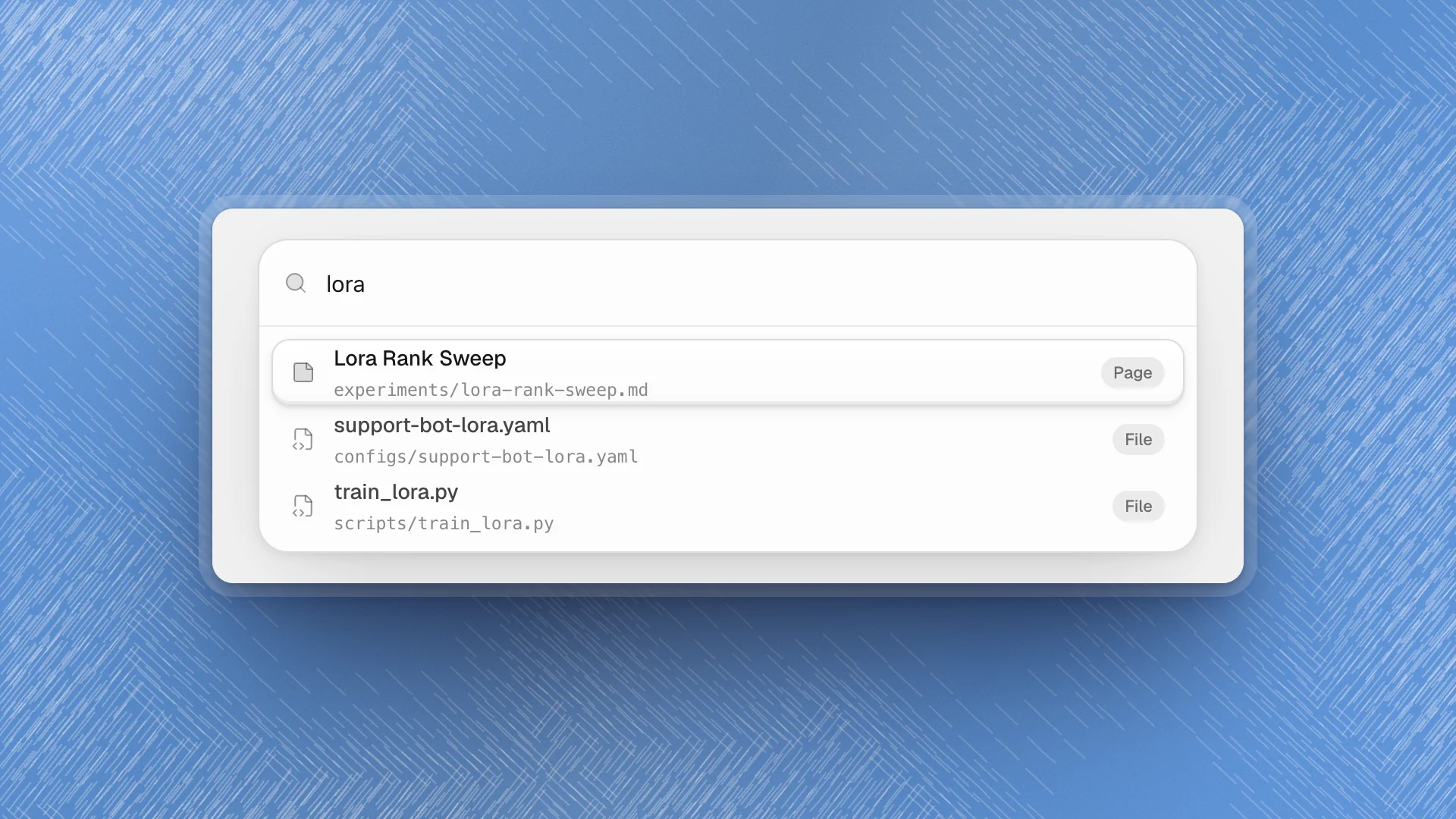
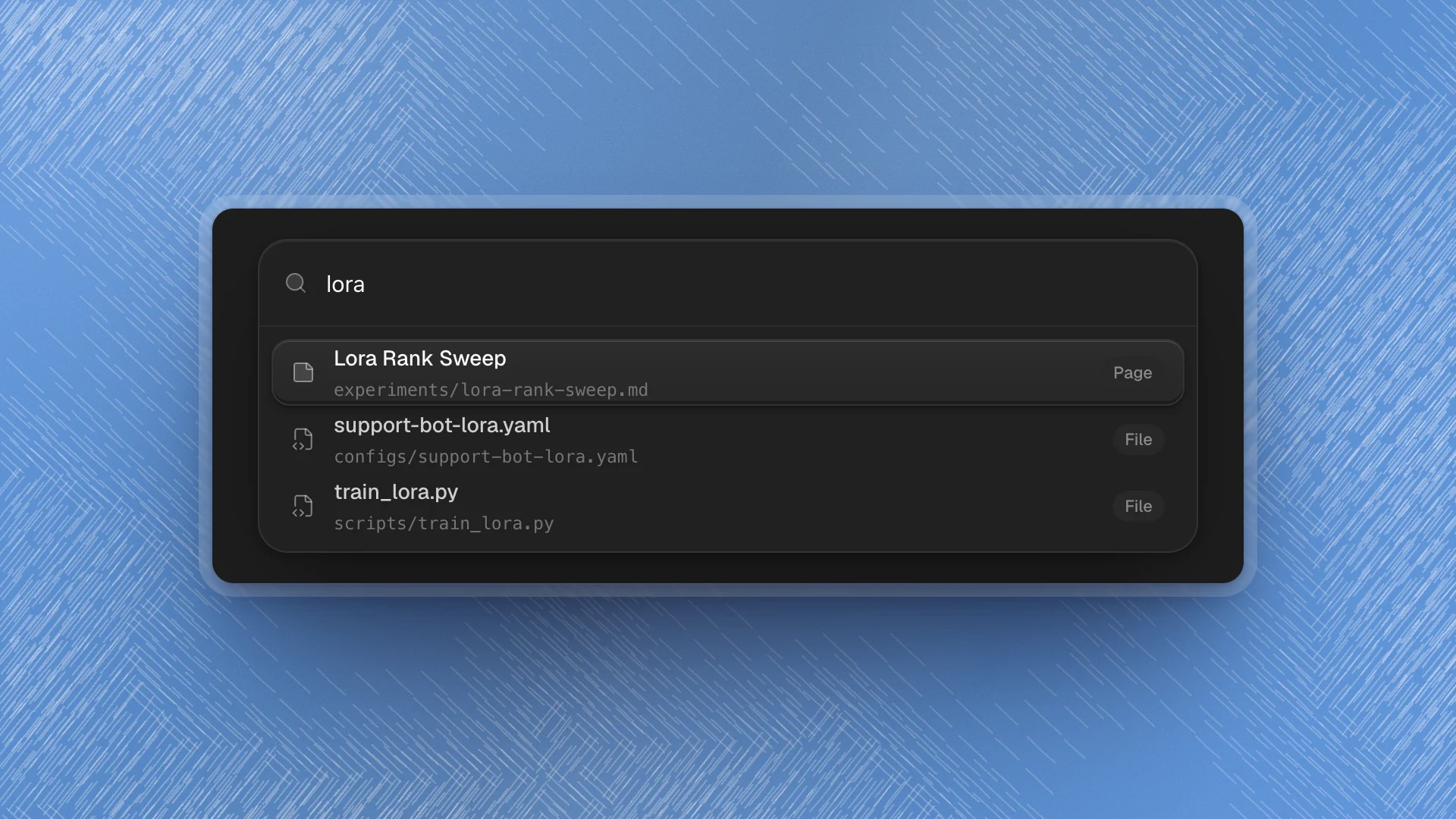
- Every word must match.
lora sweepfinds the sweep page;configs lorafinds the config. Matches against the name rank above matches in the path. - Pages come first. A page and a file with the same name both show, and the page sits on top.
- Fourteen results at most. If what you want is missing, add a word.
- ↑ ↓ to move, Enter to open, Esc to close.
Pages open in the page editor and files open in the Code tab.
Find things faster
- Search for a word only the target contains. “dedup” beats “data”. One rare word usually puts the right result first.
- Ask agents for clear page titles. “Write it up on a page called Refusal suite results” is easy to find by name a month later.
- Use Quick open for anything you've seen before. It's the quickest way around once you know the name.
- Search threads for decisions. A word you used when you asked, like “epochs”, turns up the chat where it was decided.