Workspace
Notifications
One inbox for replies, assignments and agent updates, with the keyboard for everything.
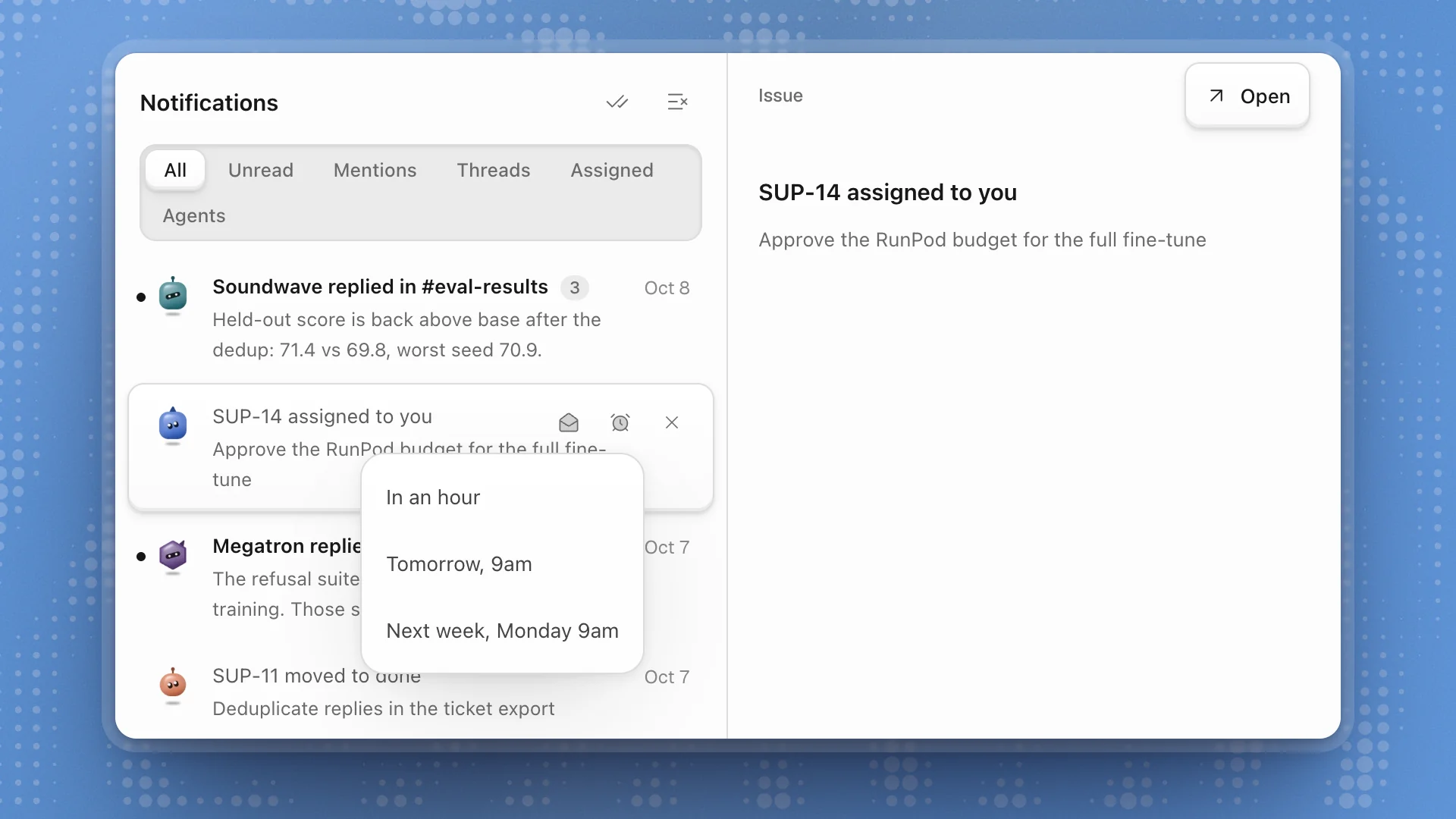
With agents working around the clock, a lot happens while you're away. Notifications collect the replies, assignments and agent updates meant for you into one inbox, one row per conversation, so you can work through them fast and answer most of them without leaving.
When to use it. Work through it when you come back to the app, or keep it open in a split during the day. To hear about events while you're away from the app, set up alerts.
Open the inbox
Click the bell at the top of the sidebar, next to the workspace name. A dot on the bell means something is unread. The inbox opens as a tab, so you can keep it in a split beside your work.
You can also add a Notifications row to the sidebar's highlights, or make it the start page for a busy team workspace.
What lands here
| You get one when | Example |
|---|---|
| An agent answers your message in a channel | “Soundwave replied in #eval-results” |
| Someone replies in a thread or comment thread you're part of | “Megatron replied on eval-protocol.md” |
| Someone posts to @everyone in a conversation you're in | “@everyone in #eval-results” |
| An issue is assigned to you | “SUP-14 assigned to you” |
| An issue you're on changes status or gets a comment | “SUP-11 moved to done” |
| An agent couldn't finish work it was asked for | “Ratchet couldn't finish on SUP-12” |
| A chat finishes, needs your input, is blocked or fails | Updates from your own chats with Optimus |
Updates in the same conversation group into one row, with a count when there's more than one.
Filters
| Filter | Shows |
|---|---|
| All | Everything |
| Unread | What you haven't read. Empty means All caught up. |
| Mentions | Posts to @everyone |
| Threads | Replies in threads and comment threads |
| Assigned | Issues assigned to you, their status changes and comments |
| Agents | Agent replies, agents that couldn't finish, and updates from your chats |
Work through it
Click a row to select it and mark it read. The conversation opens beside the list: channel threads and page comments in full, with a Reply… box at the bottom, so you can answer without leaving the inbox. Issues and chat updates show a summary and an Open button. Double-click a row, or press Enter, to open it in its own tab.
| Key | Action |
|---|---|
| J / ↓ | Next |
| K / ↑ | Previous |
| Enter | Open in its own tab |
| U | Mark read or unread |
| ⌥U | Mark all as read |
| H | Snooze for an hour |
| Delete | Clear |
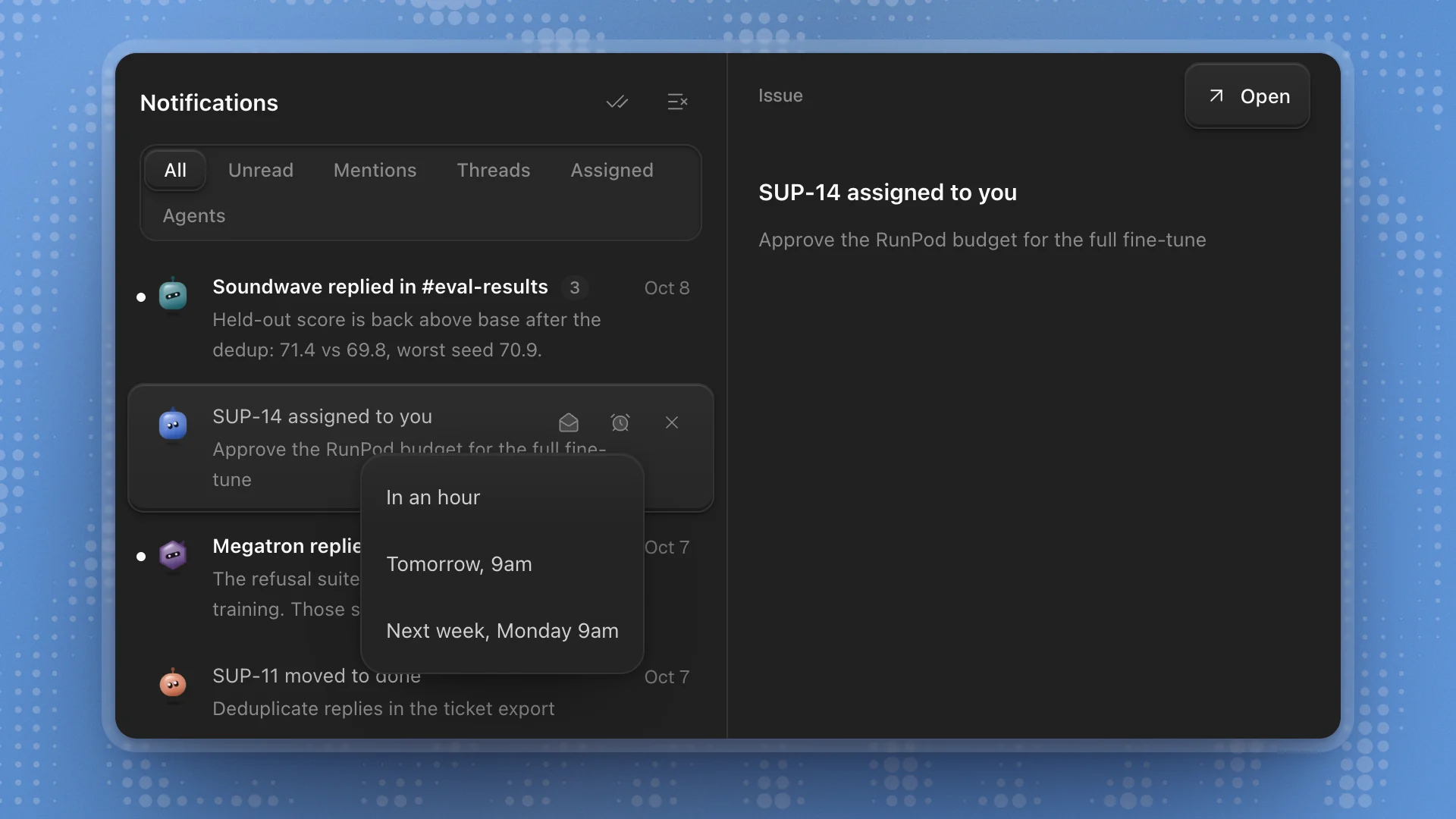
Hover a row for the same actions as buttons. The snooze button also offers Tomorrow, 9am and Next week, Monday 9am. A snoozed notification comes back at that time.
At the top of the list, Mark all as read and Clear everything read tidy up in one click.
Outside a workspace, on the Workspaces page and in Settings, the bell in the top bar opens a short list of agent runs instead: the latest 20 that finished, need your input or failed. Click one to go to it. Mark all read marks them read, and Clear empties the list.
Stay on top of it
- Triage, then work. Go down the list with J: reply to quick ones in place, snooze what needs thought, clear what's done. Then open the few that need real work.
- Clear as you go. A cleared notification leaves the inbox, and the conversation stays where it was. An inbox of only open questions is easier to trust.
- Mention people sparingly. @everyone lands in every person's Mentions. Keep it for things the whole channel must see.
- Turn on alerts for long work. The inbox is for when you're in the app. To hear when a goal finishes while you're away, set up alerts.
The bell disappears when Channels, Projects and Page comments are all switched off in Workspace features, since nothing would reach it.