Settings
Alerts
Hear when an agent finishes, needs you, gets stuck or fails, so you can leave long work running.
Alerts are what let you walk away from long work. Start a goal on the support-bot fine-tune, go to a meeting, and you'll hear when the eval results are in or when an agent needs a decision from you.
Open Settings → Notifications under Organization.
When to use it
- Before starting long work you won't watch, like an overnight sweep or a multi-day goal.
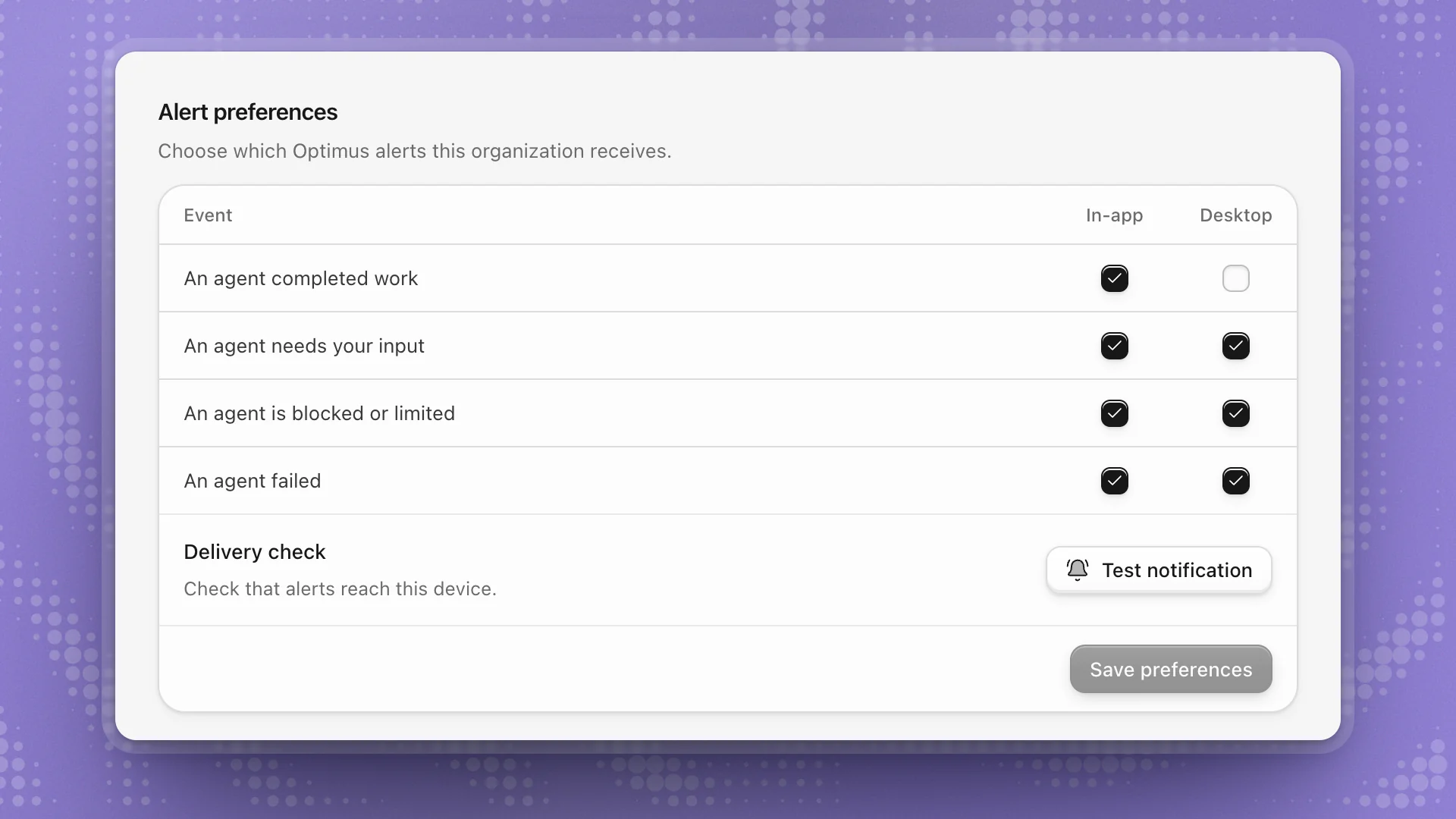
- When pings get noisy: keep Desktop alerts for things that wait on you, and leave completed work in the app.
For notifications about channels, issues and comments inside a workspace, see Notifications.
Why it matters
An agent waiting for your answer makes no progress until you reply. A desktop alert for An agent needs your input can turn a four-hour stall into a two-minute pause. Alerts are also how you hear that a goal stopped on a usage limit before the morning is gone.
Choose what reaches you
| Event | When it fires | Suggested |
|---|---|---|
| An agent completed work | A chat or goal finished | In-app; add Desktop for long goals |
| An agent needs your input | It asked you a question and is waiting | In-app and Desktop |
| An agent is blocked or limited | It's stuck, or paused on a usage or budget limit | In-app and Desktop |
| An agent failed | A run stopped with an error | In-app and Desktop |
In-app alerts appear inside ArkenOS. Desktop alerts use your computer's notifications, so they reach you while the app is in the background. Every event starts with both on. Click Save preferences after changing them.
These choices apply to the whole organization.
- Keep Desktop on for anything that waits on you. An agent waiting for an answer makes no progress until you reply.
- Turn Desktop off for completed work if you run many short chats and the pings get noisy. You'll still see the alert in the app.
Check that alerts get through
Under Delivery check, click Test notification. You should see a test alert on this device. If nothing shows, click System settings and allow notifications for ArkenOS, then test again.
Pick a sound
Sound sets what this device plays when an alert arrives. Click a sound to hear it and choose it, or pick None for silent alerts. Sounds come in a few families: Original, Game, Musical, Sci-fi, Organic and Status, each labelled with what it suits, like "Agent needs your input" or "Long run finished". Sounds play on macOS for now.