Settings
Worlds
Themes set in places you know, with their own light, colours and small story objects across the app.
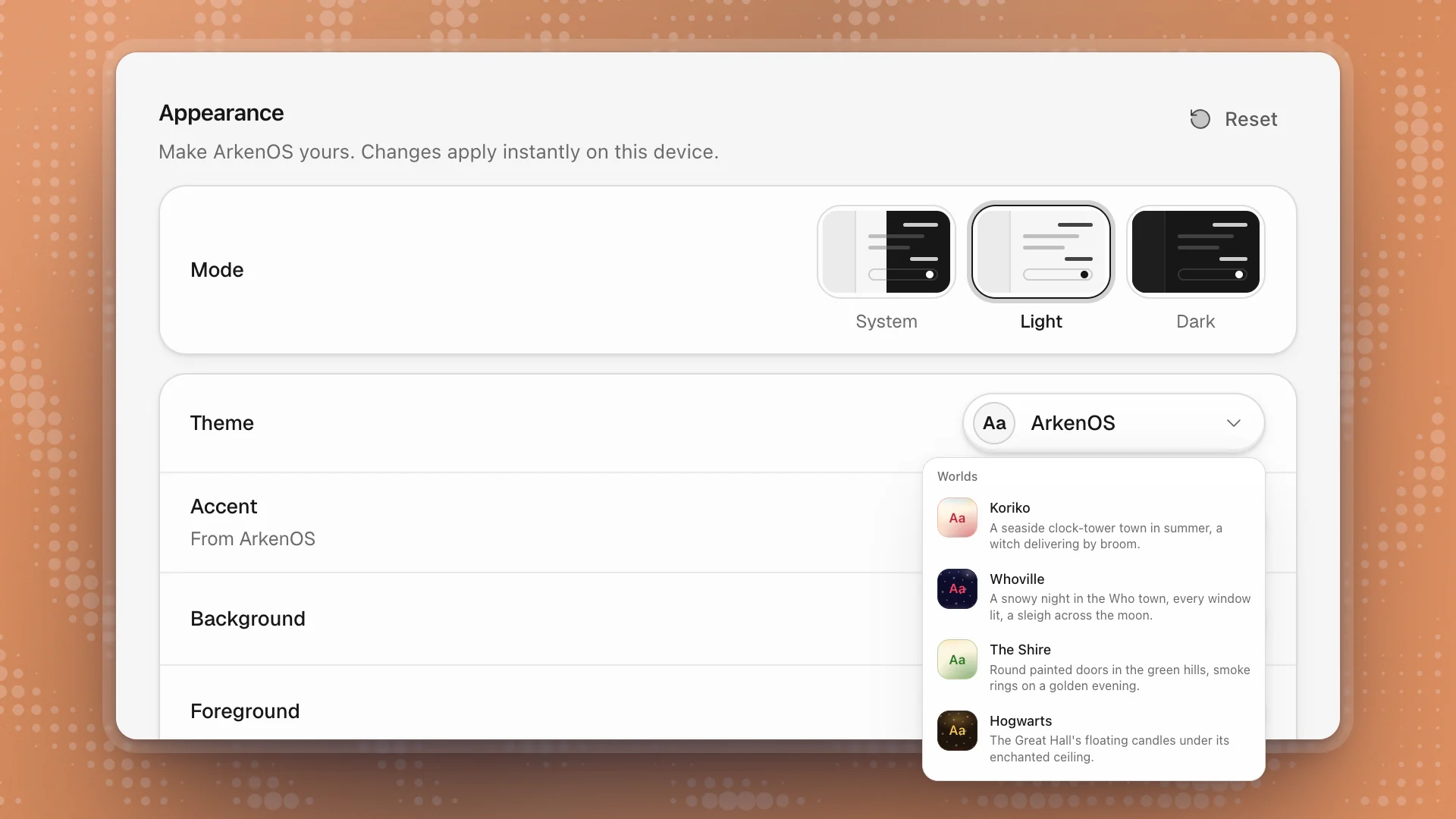
A World is a theme with a place behind it. Pick The Shire and ArkenOS takes on a golden evening in the green hills; pick Whoville and it's a snowy night with every window lit. Each World brings its own colours, its own light painted across the app, and small story objects on the parts you use most.
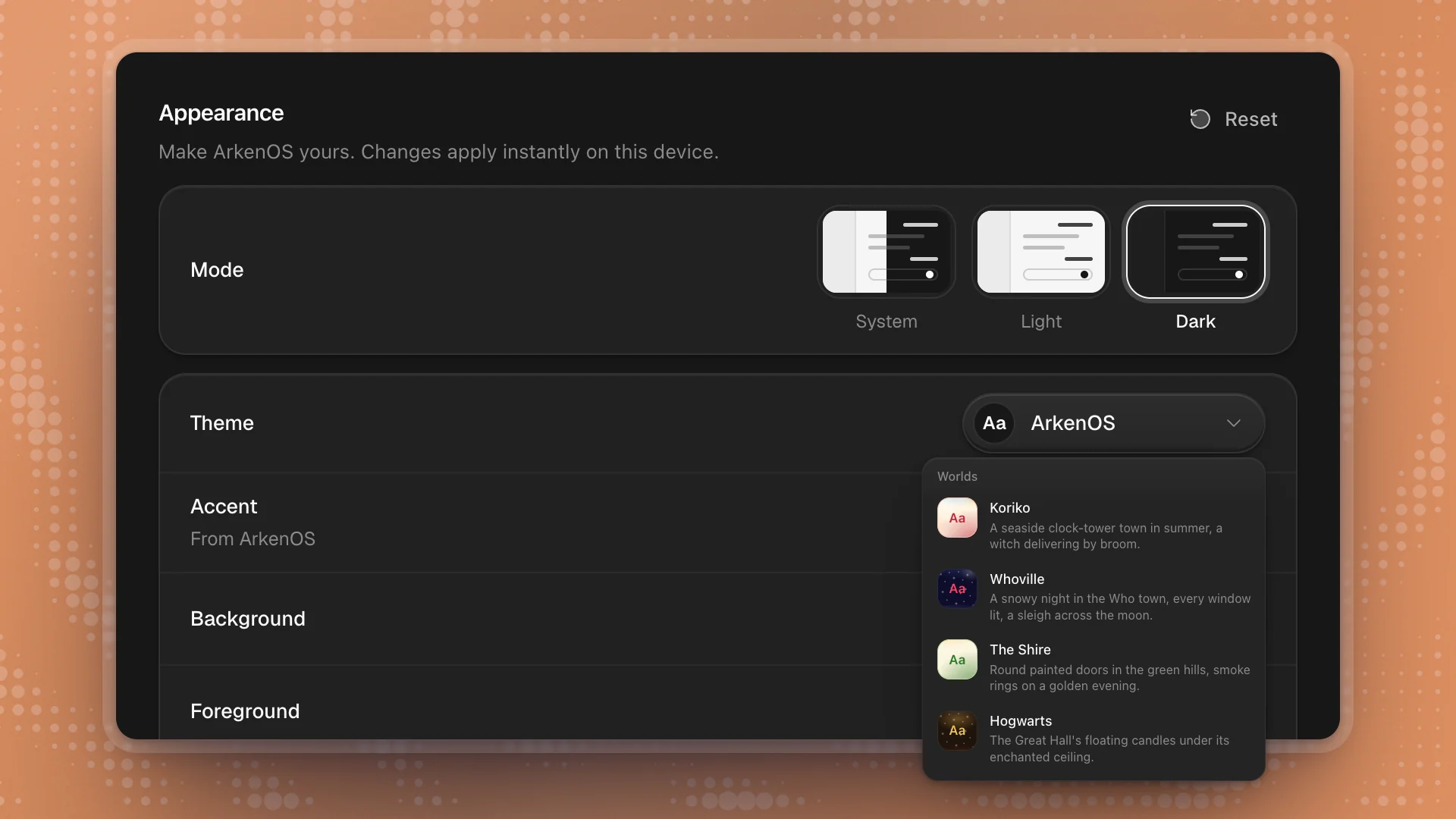
Open Settings → Appearance, click Theme, and scroll past the ArkenOS palettes to Worlds.
When to use it
- For a change of scene during long projects, or to tell two computers apart at a glance.
- Pick a day World for daytime and a night World for evenings, since a World keeps its own time of day.
Use a plain theme in Appearance when you share your screen, record a demo, or want ArkenOS to follow your computer's light and dark setting.
Why it matters
Worlds make the app feel like yours. They change only how it looks, so you can switch freely; nothing about your work changes.
What changes
| Where | What you'll see |
|---|---|
| Colours and light | The World's background, text and accent colours, and its light across the window frame |
| The chat composer | The World's objects sitting on its top edge |
| The send button | Restyled as something from the World |
| Agent avatars | Small touches on the agents, like a wizard's hat or reindeer antlers |
| The sidebar | Section labels, the highlighted row, tabs and search take on the World's style |
| Moments | A short burst when you send a message and when a run finishes, and an arrival scene when you first pick the World |
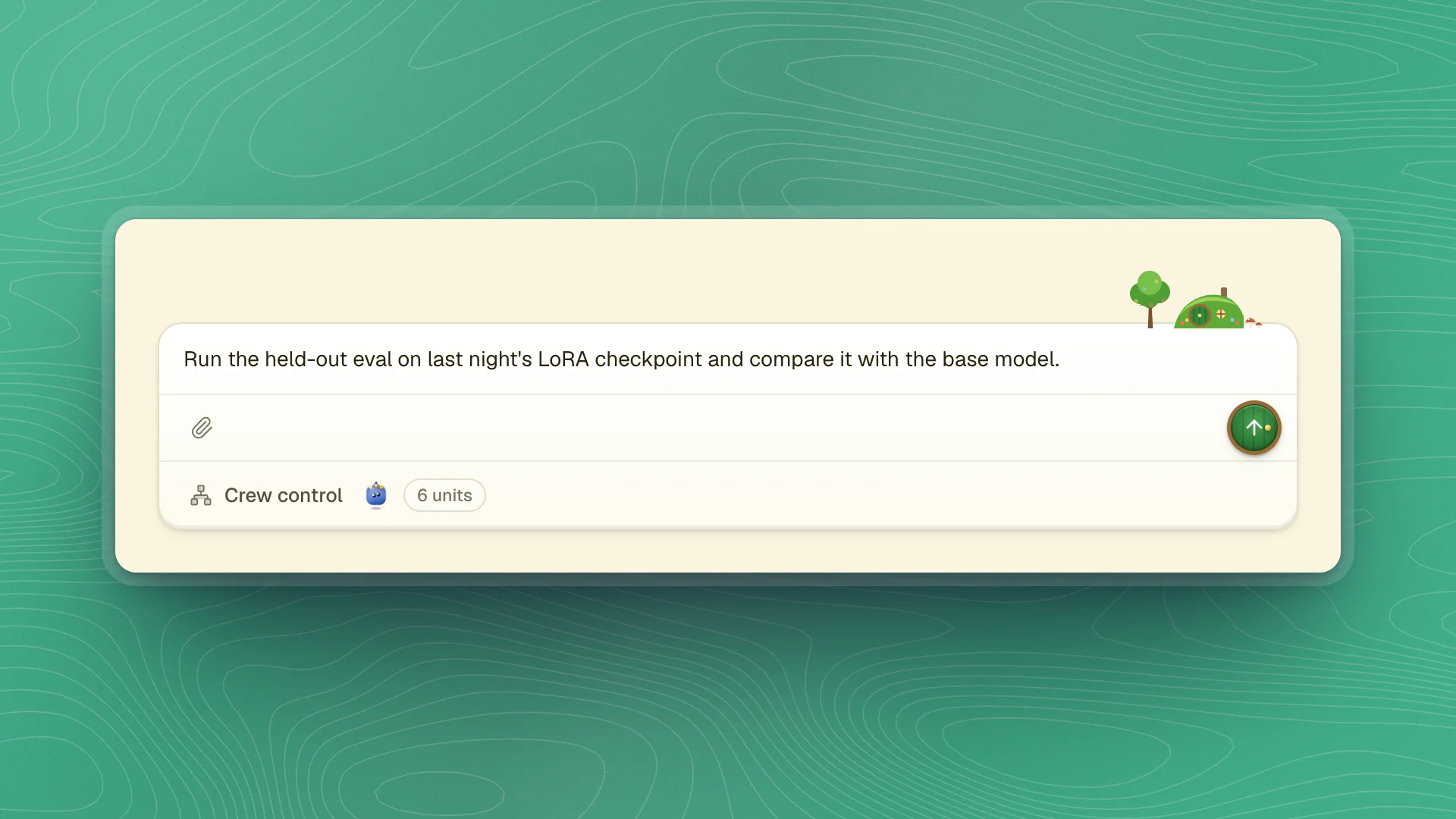
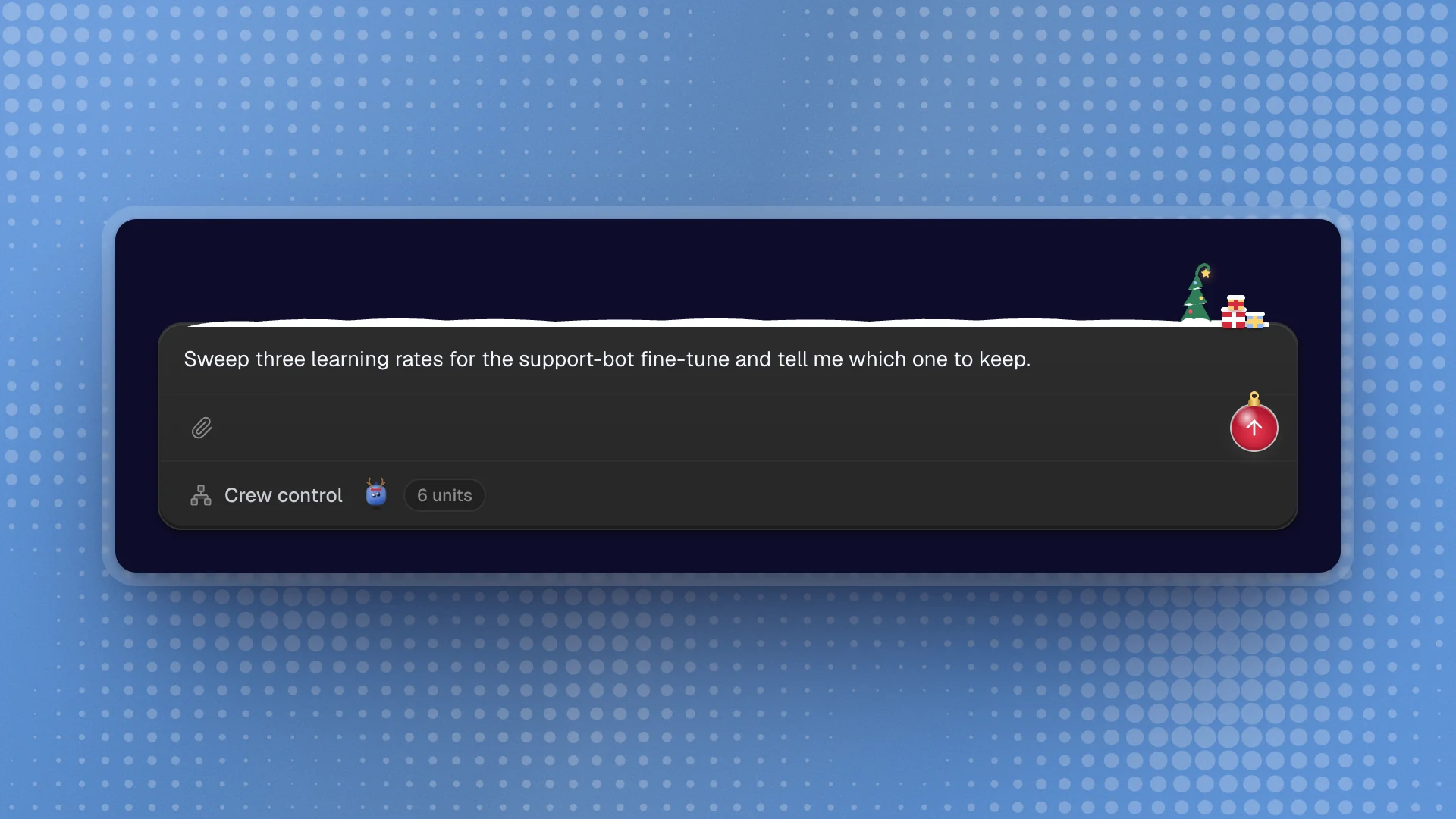
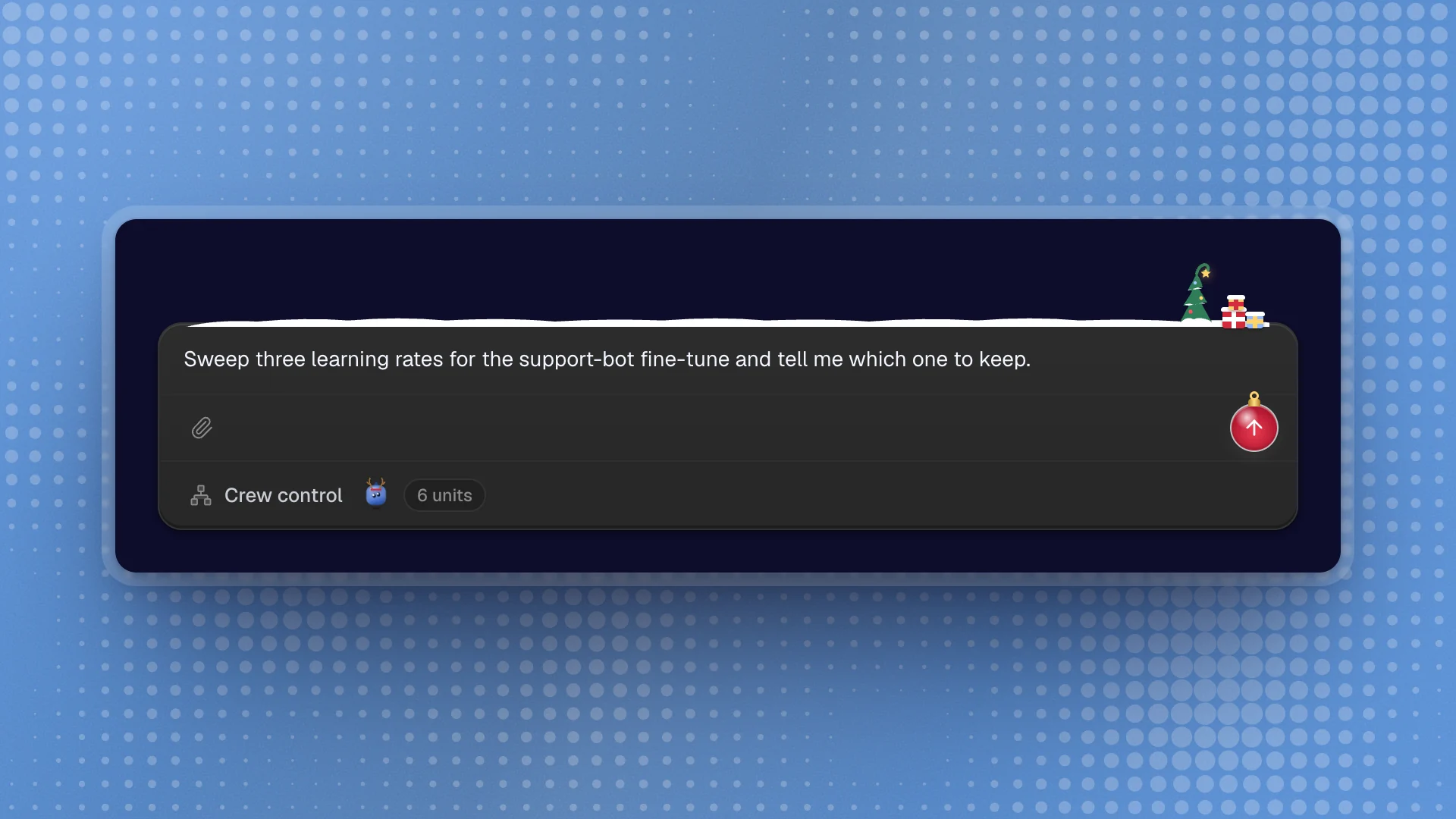
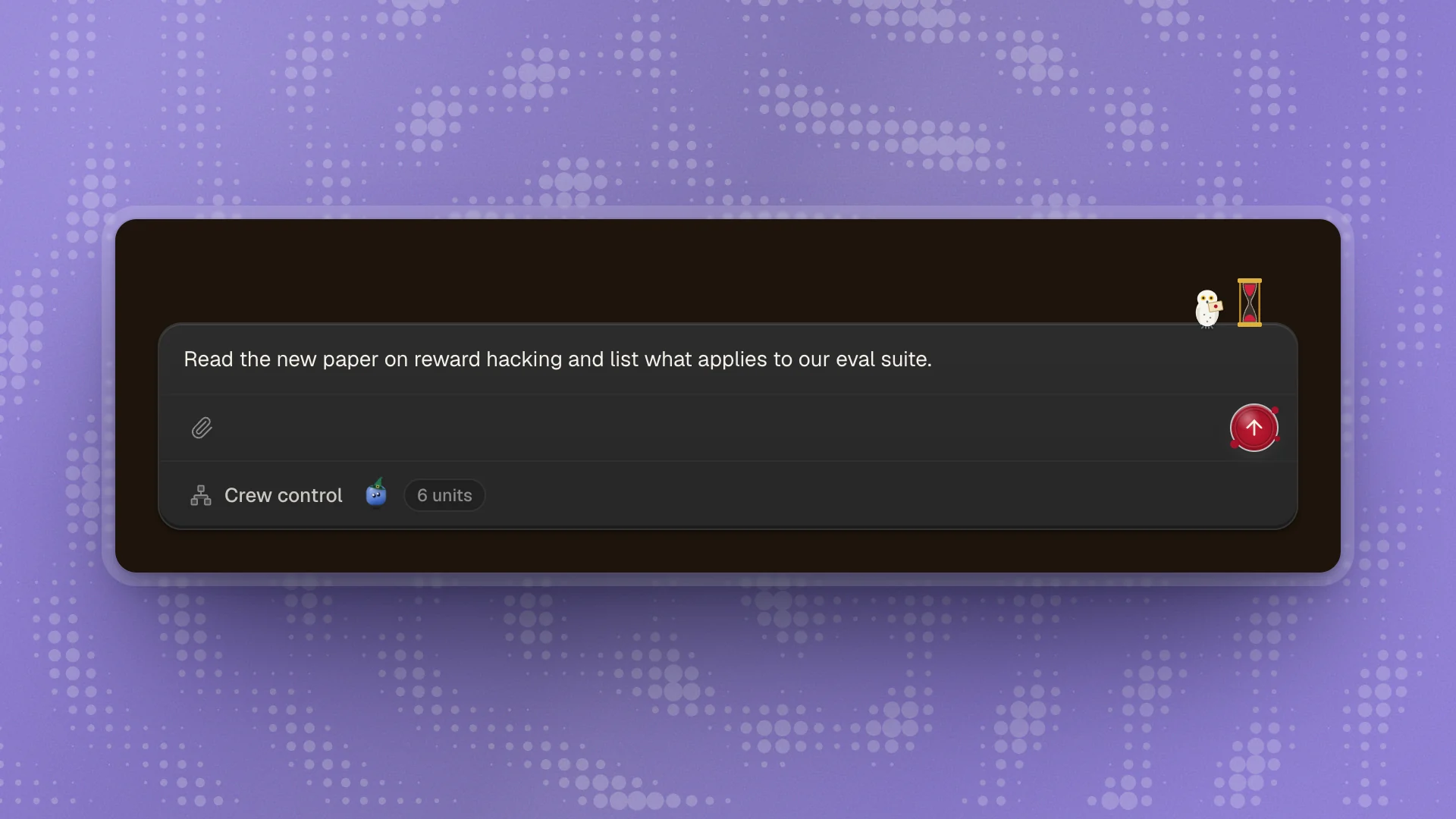
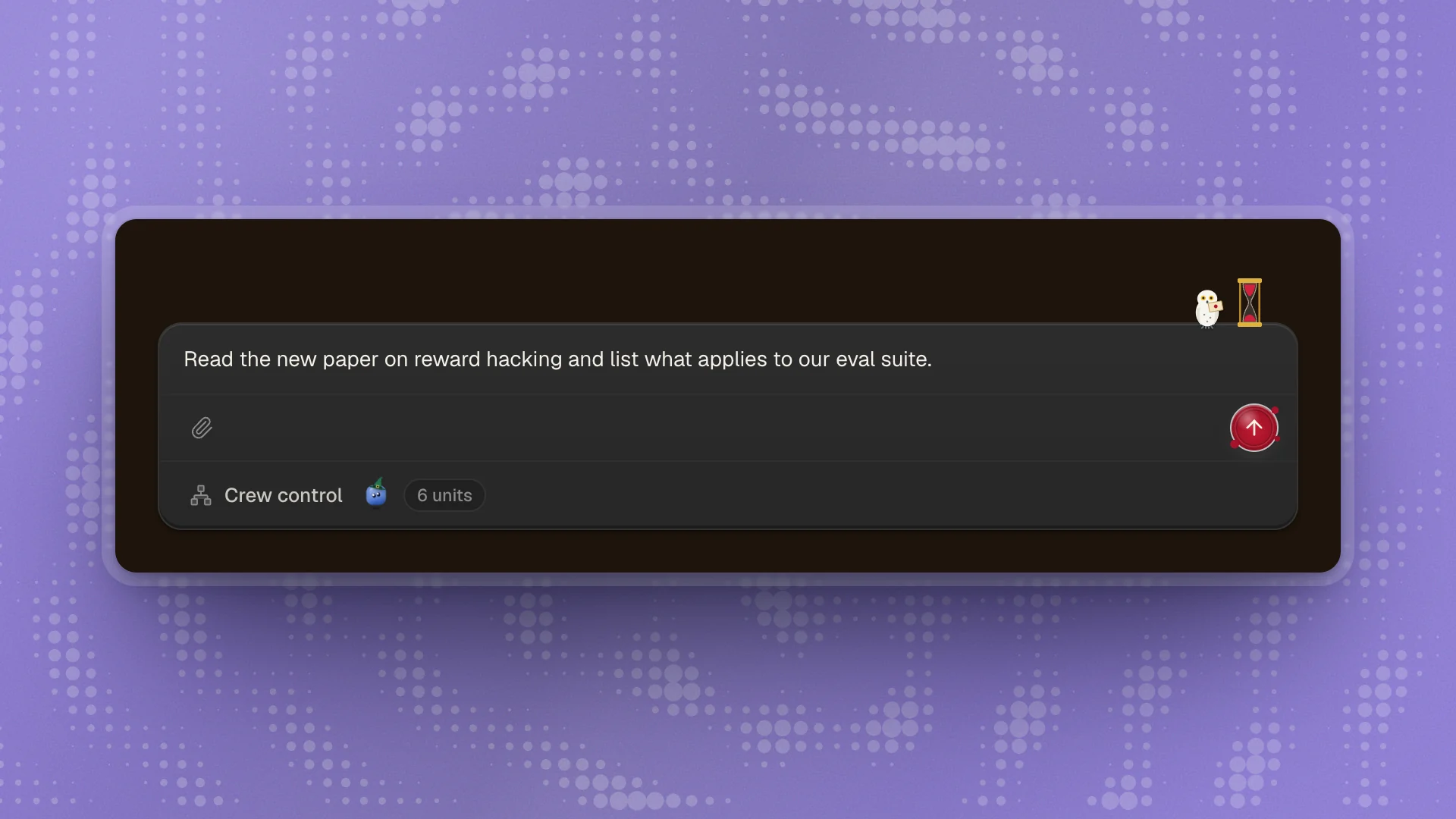
Worlds change how ArkenOS looks. Your files, chats and settings stay exactly as they are.
Each World keeps its own time of day
Every World is either a day or a night scene, whatever your Mode says. Whoville is always night; Koriko is always a summer day. While a World is chosen, the Mode tiles are greyed out and say the World keeps its own time of day. Pick a plain theme again and your saved mode comes back.
The Worlds that ship
Thirty-two Worlds, listed in the order the menu shows them:
| Day | Night |
|---|---|
| Koriko | Whoville |
| The Shire | Hogwarts |
| Wonderland | Los Angeles 2049 |
| Motunui | Corona |
| Paradise Falls | Rivendell |
| Arrakis | Tatooine |
| Hundred Acre Wood | Agrabah |
| Minas Tirith | The Grid |
| Andy's Room | Arendelle |
| Valley of the Wind | Ravenclaw Tower |
| Emerald City | Avengers Tower |
| Sugar Rush | Halloween Town |
| Bikini Bottom | Moria |
| Neverland | Pandora |
| Hyperspace | |
| Mordor | |
| Death Star | |
| Minas Morgul |
Switch back
Open Theme and pick any palette on the ArkenOS shelf, or click Reset at the top of Appearance to return to the default ArkenOS theme. Your mode, fonts and sizes come back as they were.
Tips
- Pick by time of day. Choose a day World for daytime work and a night World for evenings, since a World ignores the Mode switch.
- Use Separate light and dark modes with plain themes if you want ArkenOS to follow your computer's light and dark setting. A World holds one scene all day.
- Turn on Reduce motion in Appearance if the moments distract you during long sessions.
- Stay on a plain theme for screen sharing and screenshots, so what others see matches the docs.
Related: Appearance and themes.