Settings
Custom endpoints and organization models
Connect a model you host or a gateway you run, and share models with everyone in your organization.
Two ways to bring models beyond the built-in providers:
- Custom endpoint: a model server you run, or a gateway in front of several models. You connect it for yourself.
- Organization models: models an admin connects once with the organization's key, so everyone can use them without a key of their own.
Both live under Settings → Models → Model providers.
When to use it
- Custom endpoint: you serve your own model (for example, the fine-tuned support-bot model behind vLLM), run an internal gateway, or use a provider ArkenOS doesn't list.
- Organization models: you're an owner or admin and want everyone to have the same models without each person bringing a key, or the organization pays one provider bill centrally.
For providers ArkenOS already lists, connect them directly in Connect models. For a plan someone already pays for personally, use Subscriptions there.
Why it matters
A custom endpoint puts your own model next to the others in the router, so agents can test the fine-tune they just trained against the base model, or use a model your security team has approved. Organization models save every new member a setup step and keep keys in one place: when the key rotates, an admin updates it once.
Connect a custom endpoint
Use one when you serve a fine-tuned model yourself (for example, the support-bot LoRA behind vLLM), run an internal gateway, or use a provider ArkenOS doesn't list.
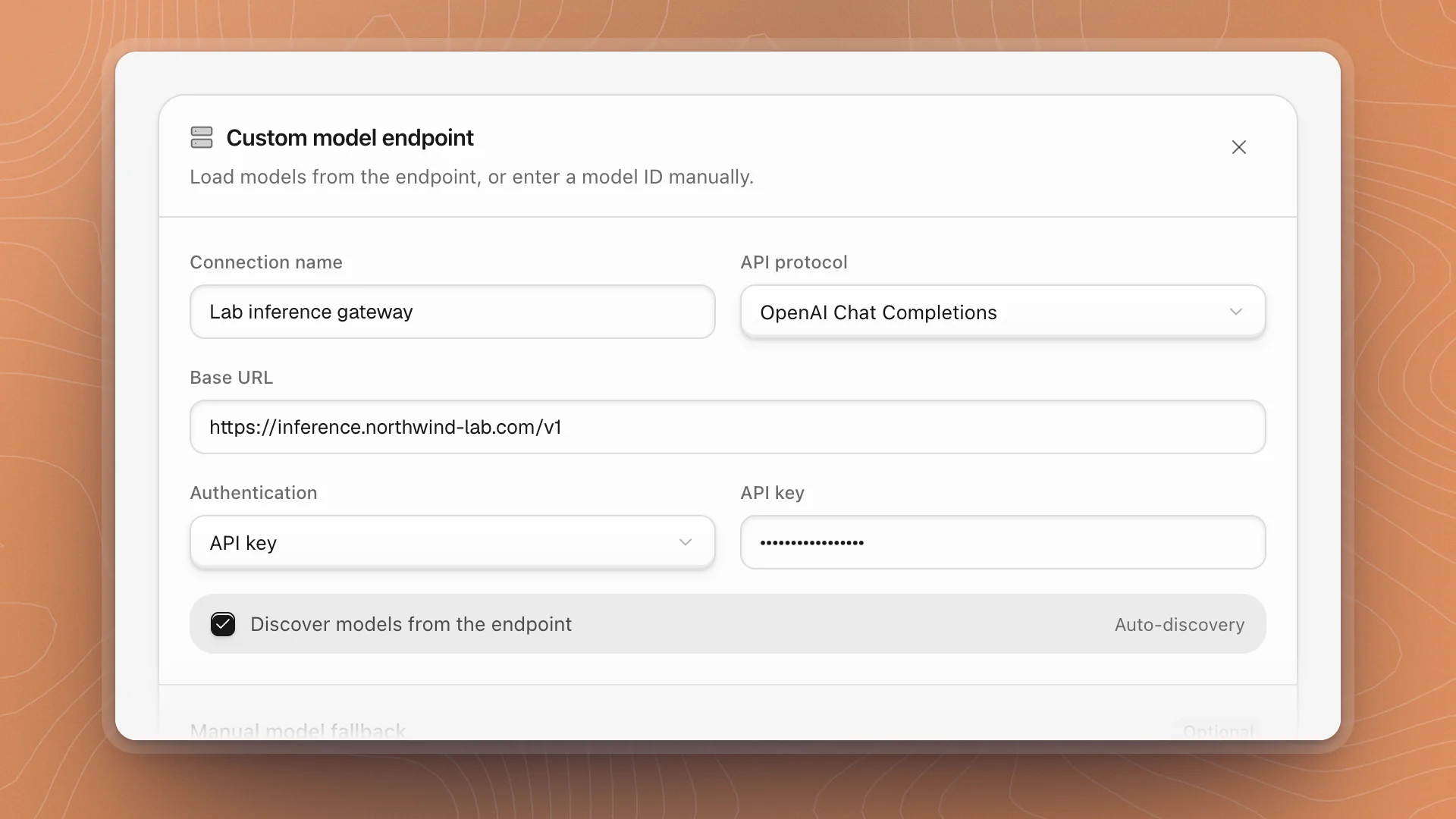
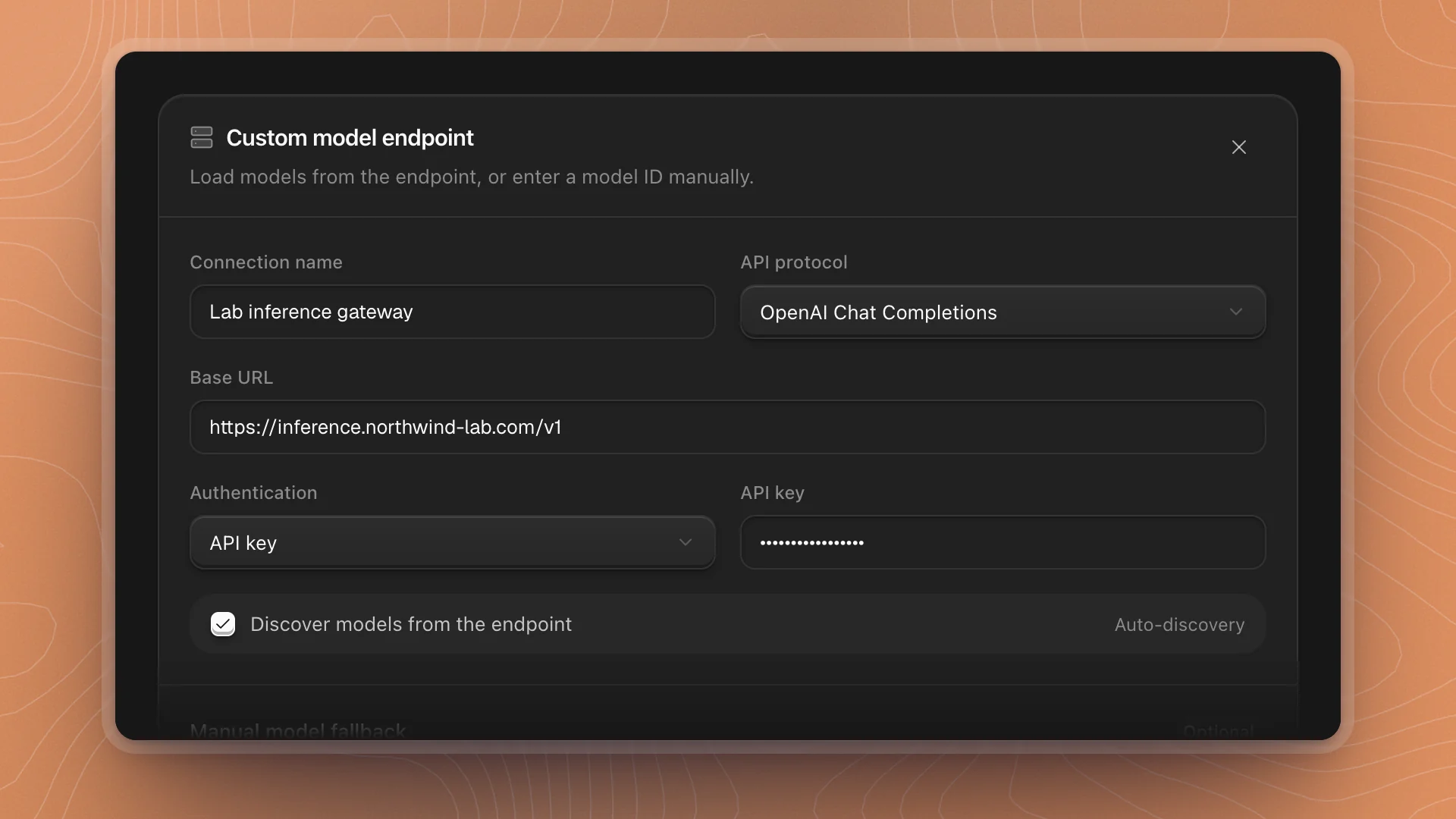
Click Custom endpoint
It's beside the provider search and filters.
Describe the endpoint
Field What to enter Connection name How it appears in the provider list and the router, like "Lab inference gateway" API protocol OpenAI Chat Completions, OpenAI Responses, Anthropic Messages or Google Generative AI: whichever your server speaks Base URL The API root, such as https://inference.example.com/v1Authentication API key, or No authentication Choose how models are found
Leave Discover models from the endpoint on to read its model list. Turn it off, or fill in Manual model fallback, to name a model yourself: only Model ID is required; Display name, Context window, Max output, Image input and Reasoning controls are optional.
Click Connect endpoint
The footer lists anything still missing, or says Ready to connect. The endpoint then appears in the provider list, and its models in the router.
Requirements
Model calls go through ArkenOS's model gateway, which calls your endpoint from the cloud. So the base URL must be:
- HTTPS on the standard port (443), with no username, password, query string or fragment in it.
- A public hostname.
localhost,.localnames and private network addresses (10.x, 192.168.x, 172.16–31.x and similar) are refused.
A model running only on your laptop or office network needs a public HTTPS address in front of it first, for example through your cloud provider's load balancer.
Tips
- Set the context window when you know it. Without one, a manually added model gets 128,000 tokens of context and 16,384 of output, which may undersell a long-context model.
- Turn on Reasoning controls only if the server supports them, so agents can set a reasoning level on that model.
- Add more models later from the endpoint's card with Load or add models. Existing models are kept. Re-enter the API key to let it read the list again; saved keys are never shown.
Share organization models
Owners and admins can connect a provider with the organization's own key and choose which of its models to share. Everyone in the organization then sees them under Organization models, at the top of the provider list.
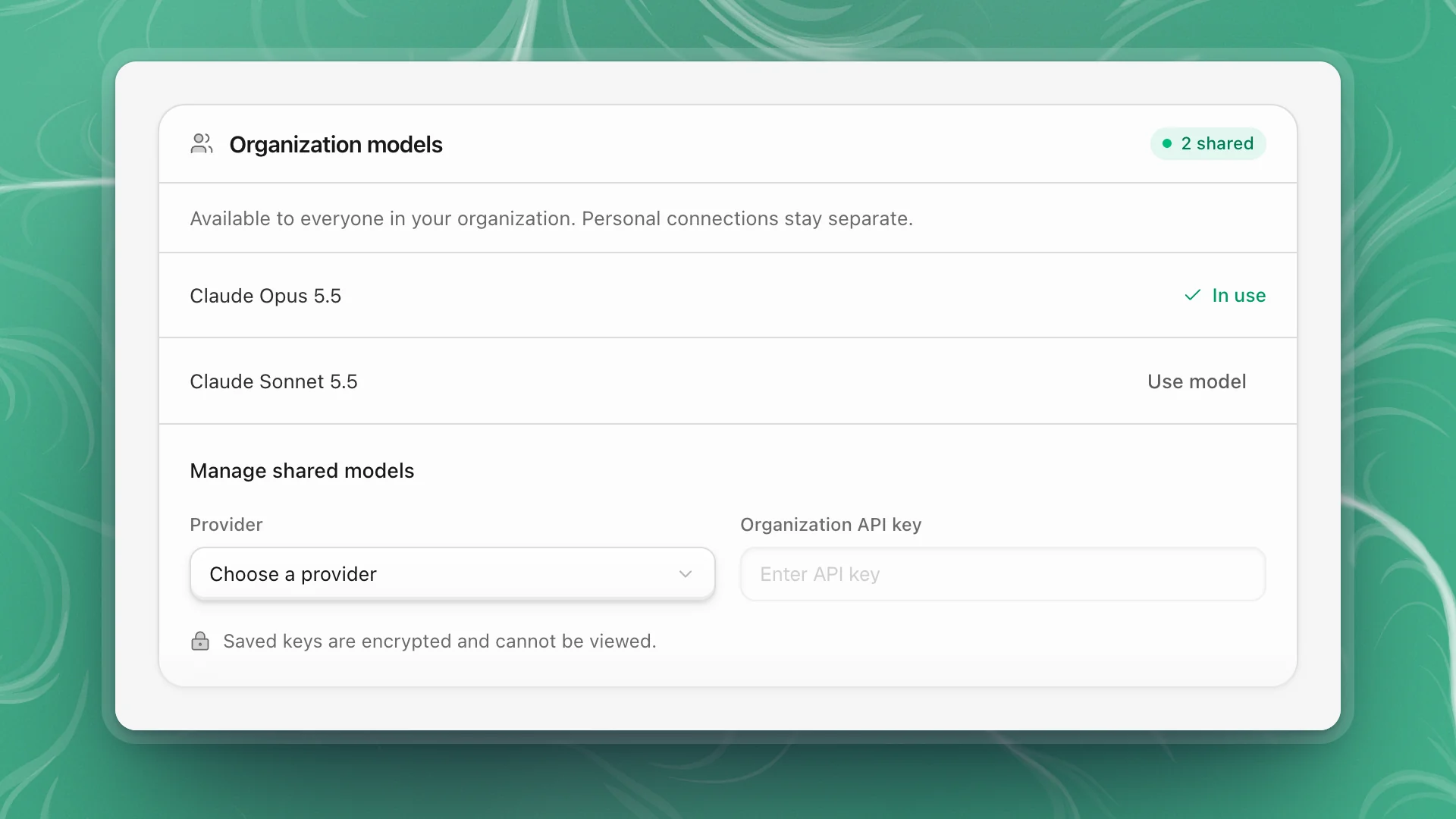
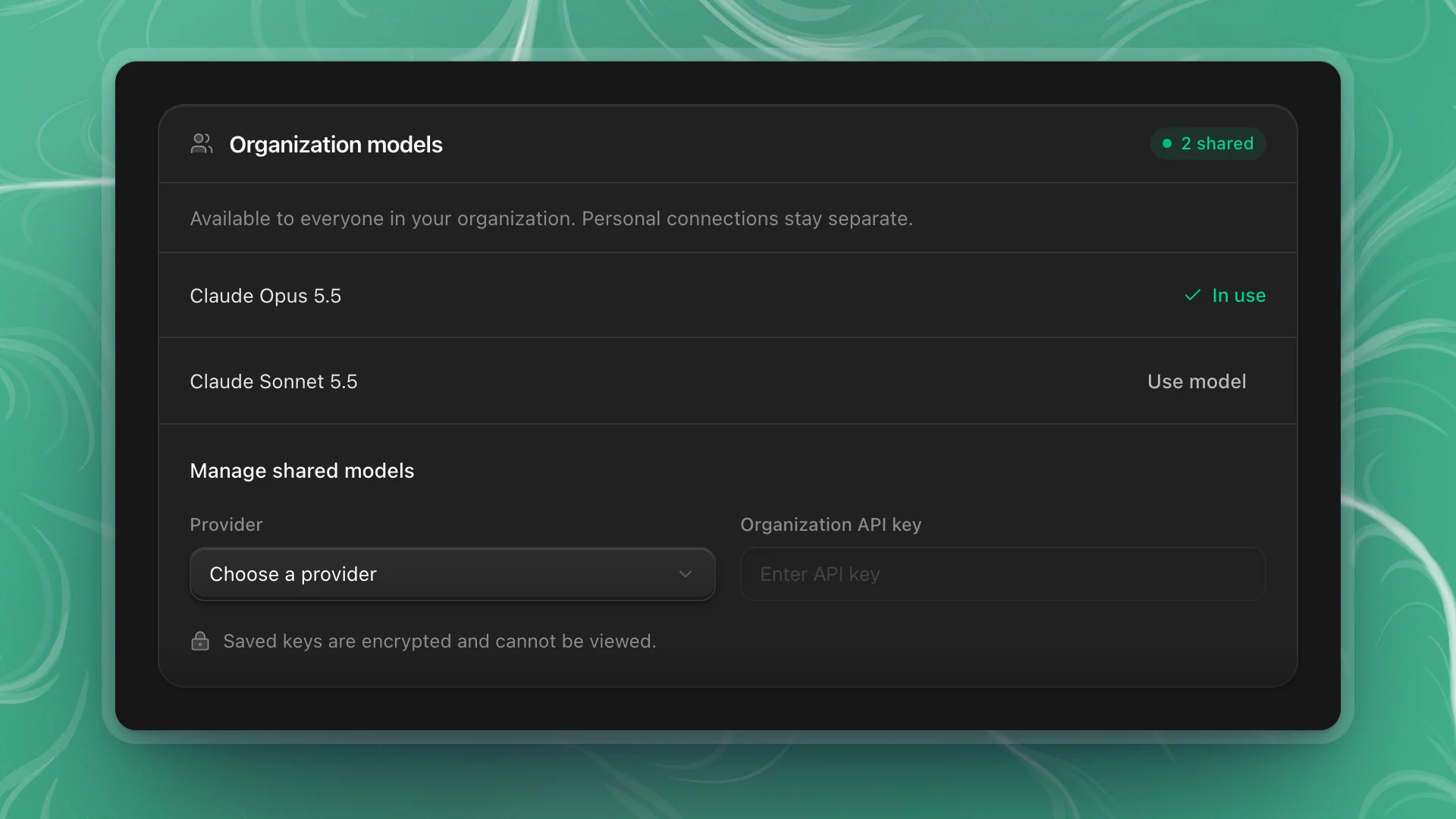
To share models (owners and admins):
Open Organization models
Pick it at the top of the Model providers list.
Choose a provider and enter the organization's key
Under Manage shared models, pick the Provider and fill in its key and any fields it asks for. Providers that need a personal sign-in can't be shared; the card says so.
Tick the models to share
Search the provider's models and tick up to 50.
Click Share models
Everyone in the organization can now pick them. Later changes use Save changes; Disconnect provider revokes the shared connection for everyone.
To use a shared model, click Use model beside it, or assign it to a tier in the router. The model in use shows In use.
- Saved keys are encrypted and can never be viewed again, even by admins. Leave the key blank when editing to keep the saved one.
- Personal connections stay separate. A member's own keys and plans keep working alongside the shared models.
- Share a sensible default set, such as one strong and one fast model, so new members can start without connecting anything.
Related: Connect models, Usage.