Settings
Members and teams
Invite people to your organization, give them the right role, and group them into teams.
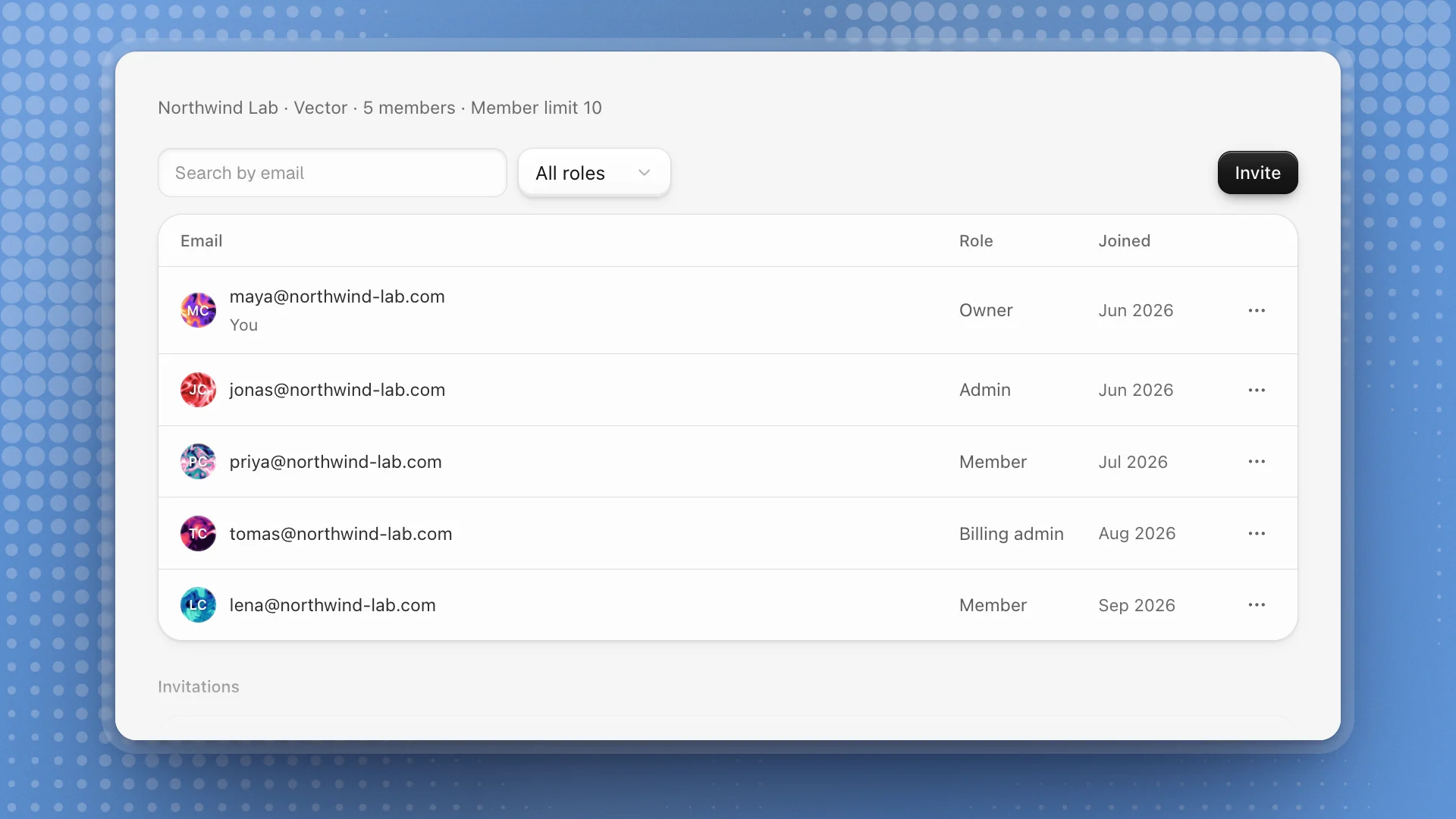
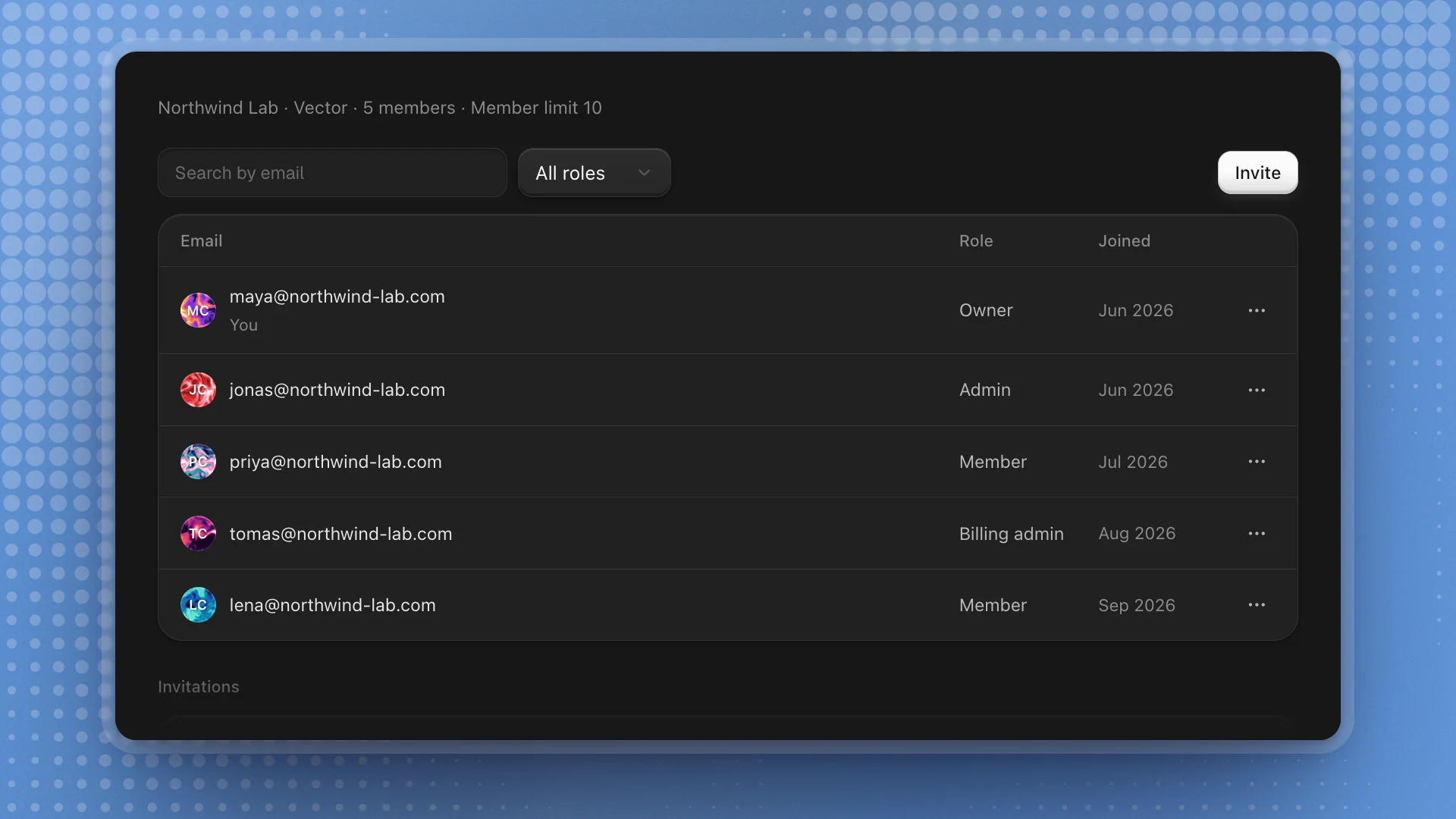
Everything under Organization in Settings is shared by everyone in your organization. Members & teams is where you invite people, set what they can manage, and group them into teams. The line at the top sums it up: organization, plan, member count and the plan's member limit.
When to use it
- Someone joins or leaves the lab: invite them, or remove them.
- Responsibilities change: give the person who handles finance Billing admin, or hand ownership to a new lead.
- The organization grows past one project: group people into teams like "Evals" or "Fine-tuning".
To change what people are billed, or the number of seats, see Billing. Owners and admins manage members; members can see the list.
Why it matters
Roles decide who can change billing, invite people and share organization models. Getting them right means finance handles credits while admins handle people, and a departing member's access ends the moment you remove them.
Invite people
Click Invite
It sits above the roster. Owners and admins see it.
Add their emails
Paste addresses separated by commas, or one per line, up to 50 at once. For a single person you can add a First name for the email.
Choose roles and teams
Pick an Organization role and a Team role, then tick at least one team under Assign teams. These apply to everyone in this batch.
Click Send invite
Each person gets an email and joins when they accept. Until then they're listed under Invitations, where you can Resend or Revoke.
Pending invitations count toward your plan's member limit. If a batch would go over it, the invite form says how many seats are left and offers a way to add seats or change plan.
Roles
| Role | Can |
|---|---|
| Owner | Everything, including billing, ownership and roles |
| Admin | Manage members, roles, teams, organization details and shared models; view usage and billing |
| Billing admin | Manage billing and see usage; view members and teams |
| Member | Use the workspaces, agents and everything else; view members and teams |
- Give most people Member. Doing research needs nothing more.
- Keep Admin for the few who run the organization.
- Make whoever pays a Billing admin, so finance handles the plan, credits and invoices while admins look after people.
- An organization always keeps an owner. To hand over, open the new owner's menu and click Transfer ownership; you become an admin.
Find someone with Search by email, or narrow the list with the role filter (All roles, Owner, Admin, Billing admin, Member). The roster shows each person's email, role and the month they joined, and marks you with You.
To change someone's access, click the menu on their row. Manage access lets you change their Organization role, set their role in each team (Lead, Member, Viewer or Not assigned), or Remove member.
Teams
Teams group people inside the organization, like "Evals" or "Fine-tuning". Use them to keep a project's people together.
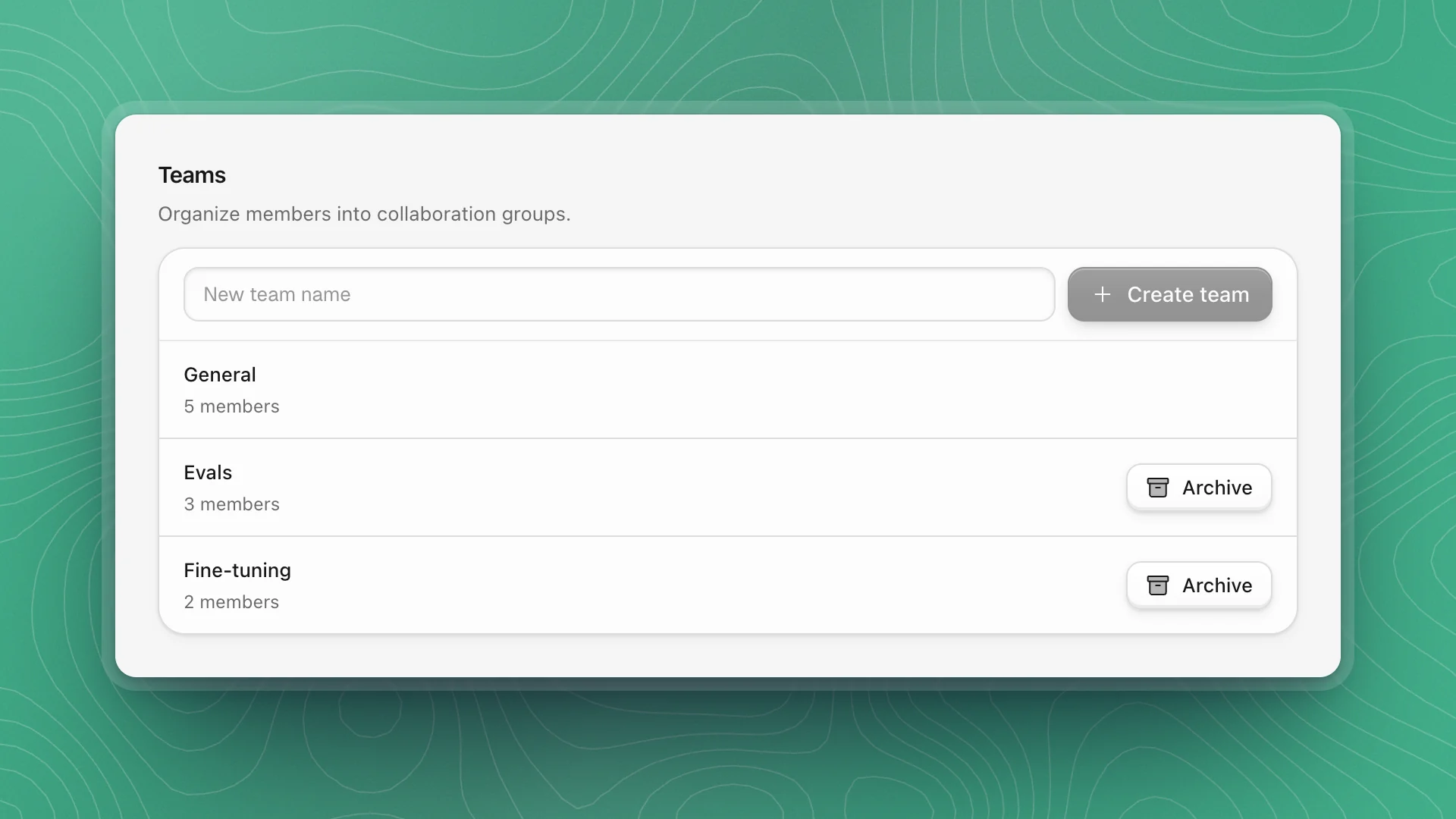
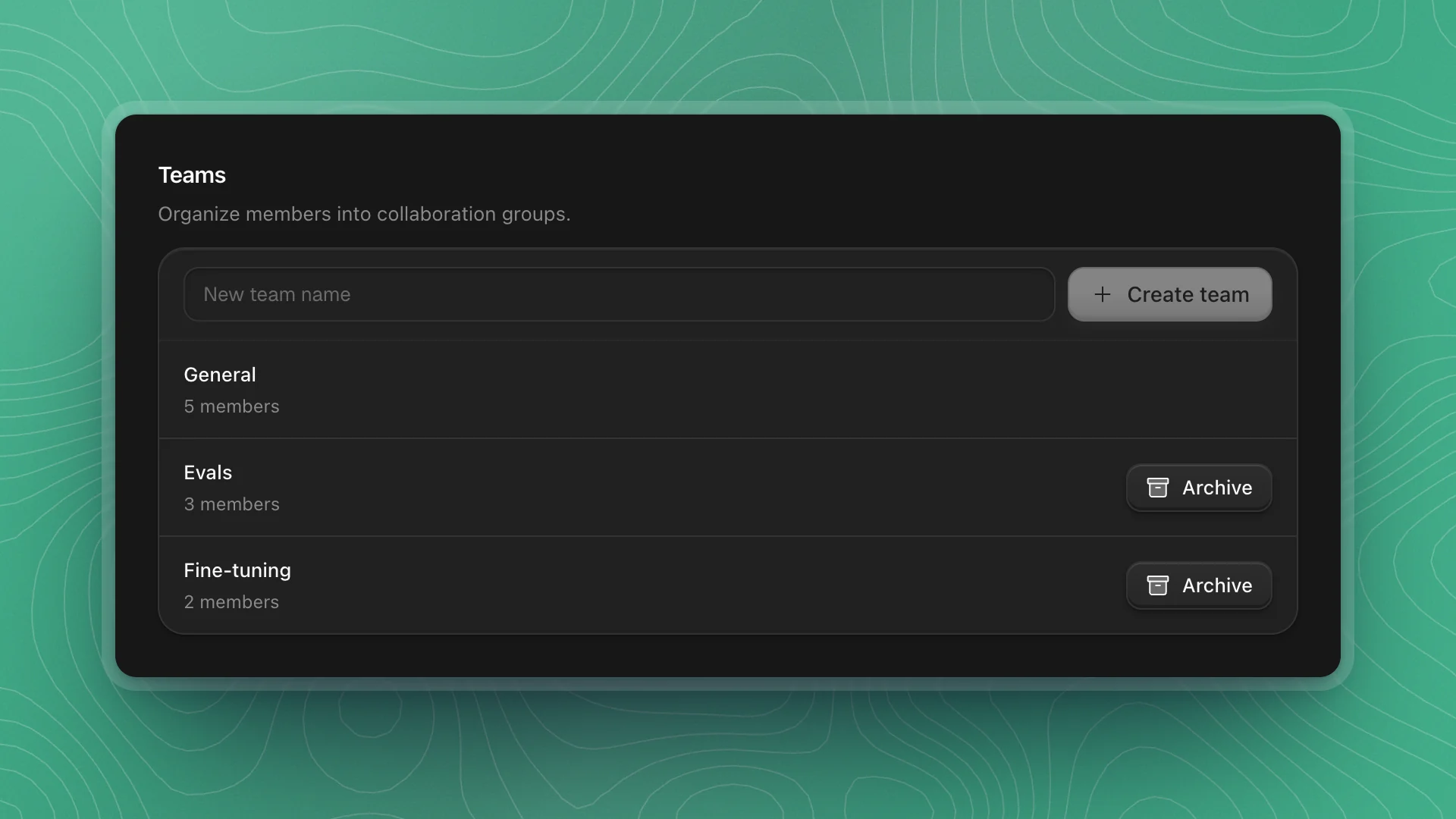
- Create a team: type a New team name and click Create team.
- Archive a team when the work it was for is over. Membership records are kept for auditing. The General team stays put.
- Each plan allows a set number of teams. When you reach it, the list says so and offers View plans.
Organization details
Settings → General, under Organization, holds your organization's Organization logo, Organization name and Organization ID. The ID is the organization's permanent address in ArkenOS. Owners and admins can Upload a logo, edit the name and click Save changes; everyone else sees these details read-only. Until you upload a logo, ArkenOS draws a pattern from the organization's name. The heading of the Organization group in Settings shows your role, like Owner or Member.
Change the name or logo when the organization itself changes, like a lab rename or a new logo. Teammates recognise the organization by them in invitations and when they switch organizations, so a clear name keeps people from joining the wrong one. The Organization ID stays the same through a rename, so existing links keep working.