Settings
Web access
Choose what agents can do online and which search provider they use.
Research needs the web: new papers, library docs, dataset cards, benchmark leaderboards. Web access sets which web tools Optimus and the specialists get, and which search provider answers them. It works out of the box; change it when you want a particular search engine or a tighter set of tools.
Open Settings → Models → Web access.
When to use it
- Usually, leave it as it is. Web access works out of the box with Automatic routing.
- Change the provider when you have a search API key you trust or pay for, need a particular index, or run your own SearXNG server.
- Turn tools off when a project should read only what it fetches deliberately, for example switching off Search content.
To keep one workspace offline entirely, switch off Web access in its workspace features. For research tools like arXiv or Semantic Scholar, use Integrations.
Why it matters
Agents use the web to find recent papers, read library docs and check claims. Source check in particular is how an agent verifies a number or quote before it lands in your report. A good search provider gives better sources and fewer dead ends; a keyless provider works but hits public rate limits sooner on heavy research days.
Choose the tools
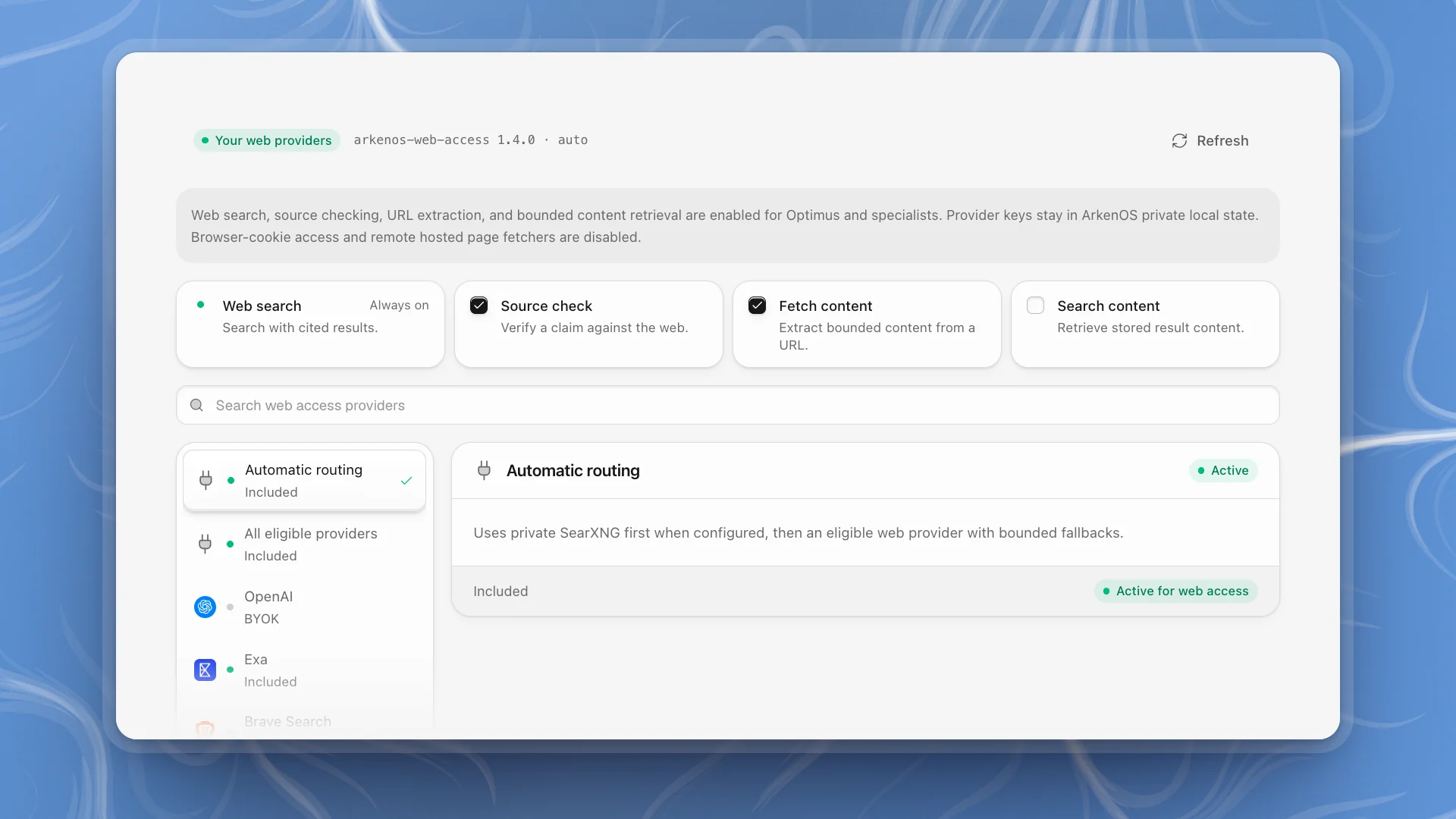
Click a tool to turn it on or off. The change applies to every agent.
| Tool | Lets agents |
|---|---|
| Web search | Search the web and get cited results. Always on. |
| Source check | Check a claim against the web before relying on it |
| Fetch content | Read a specific page from its URL, within a size limit |
| Search content | Pull up the full content of results they found earlier |
All four start on. Leave them on for research work. Source check in particular is how agents verify a number or a quote before it lands in your report.
Choose a provider
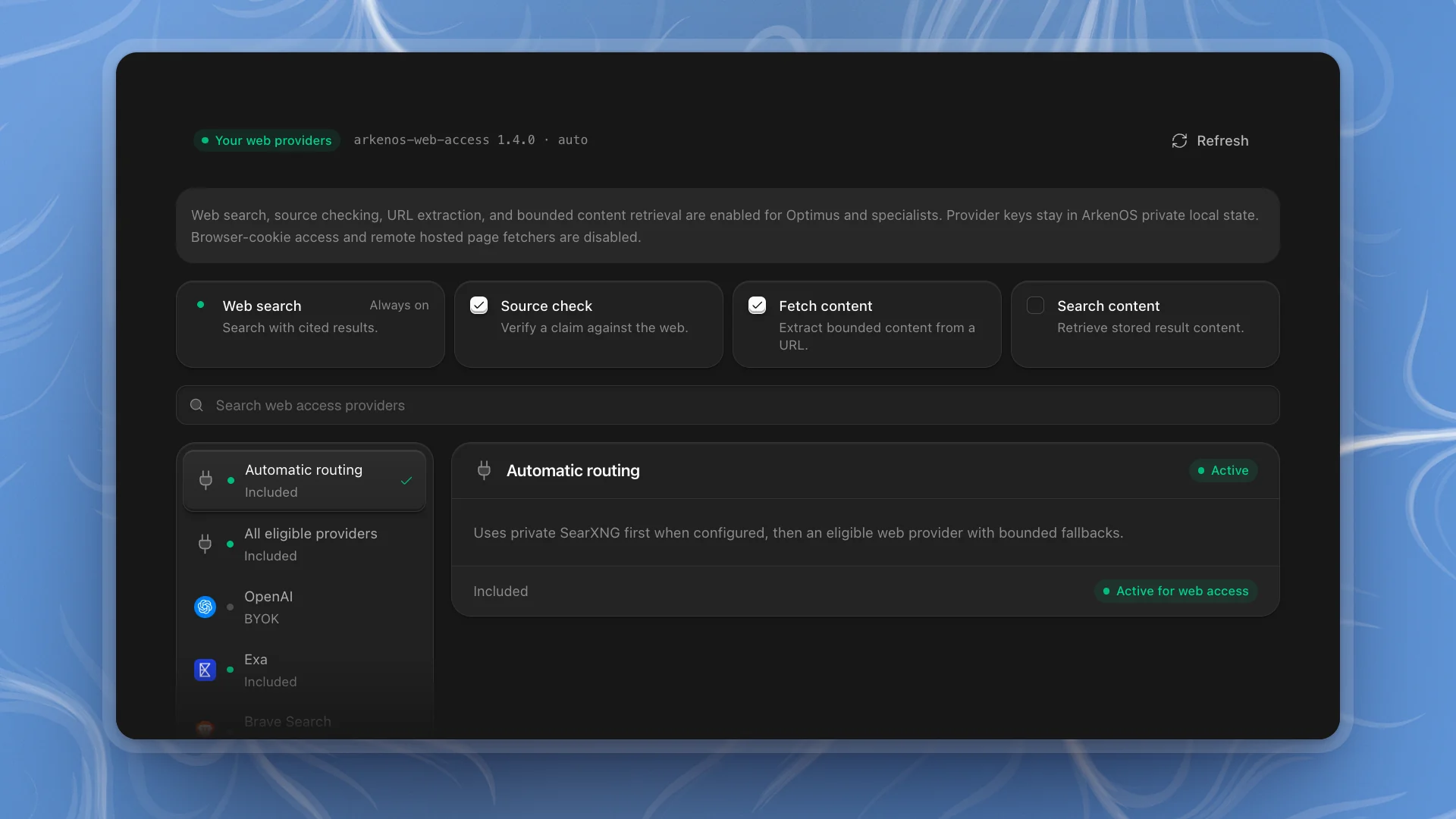
By default agents use Automatic routing: a private SearXNG server first if you set one up, then an eligible provider, with fallbacks if one fails. All eligible providers sends each search to every provider you've set up and merges the results.
To use a specific provider, search the list and pick it. Each one shows how it connects:
| Shows | Means |
|---|---|
| Included | Works with no setup, such as DuckDuckGo, Exa or Parallel MCP |
| Model provider | Reuses a model account you already connected, such as OpenAI or xAI |
| BYOK | Needs your own key for that search service |
Pick the provider
Its card says Available, Active, or BYOK required.
Connect it if it needs a key
Fill in the key and any fields it asks for, and click Connect BYOK.
Click Use for web access
The card shows Active for web access, and every agent searches through it from then on.
Manage providers
- Update connection saves a new key or field for a provider you've connected; Disconnect removes it.
- The strip at the top shows the provider in use. Refresh reloads the list.
- In the list, a key icon marks providers you've connected and a tick marks the one in use.
Good to know
- Search keys stay in ArkenOS's private files on this computer. Agents fetch pages in their own session, separate from your browser and its cookies, and hosted page-fetching services stay off.
- Self-hosting search? Set up SearXNG with your server's address. Automatic routing then tries it first.
- Keep a workspace offline. Web access is also a workspace feature. Switch it off and agents in that workspace lose their web tools while other workspaces keep theirs.