Workspace
Workspace features
Turn features on or off for each workspace, for you and for its agents.
Each workspace has its own feature switches. A solo fine-tuning project can run lean on chat, pages and code, while a team project uses channels, issues and automations. Switching a feature off takes it away from people and agents alike.
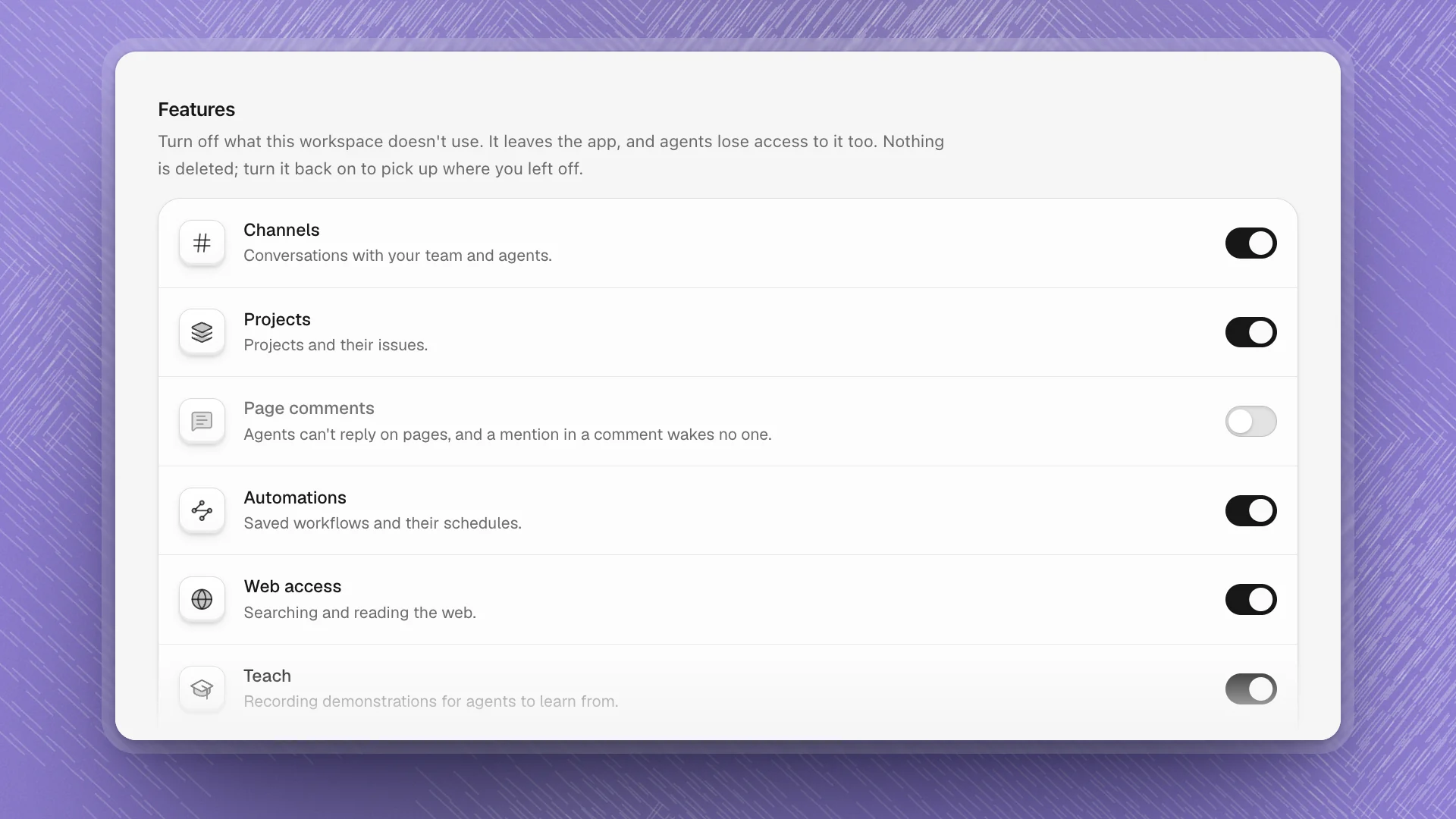
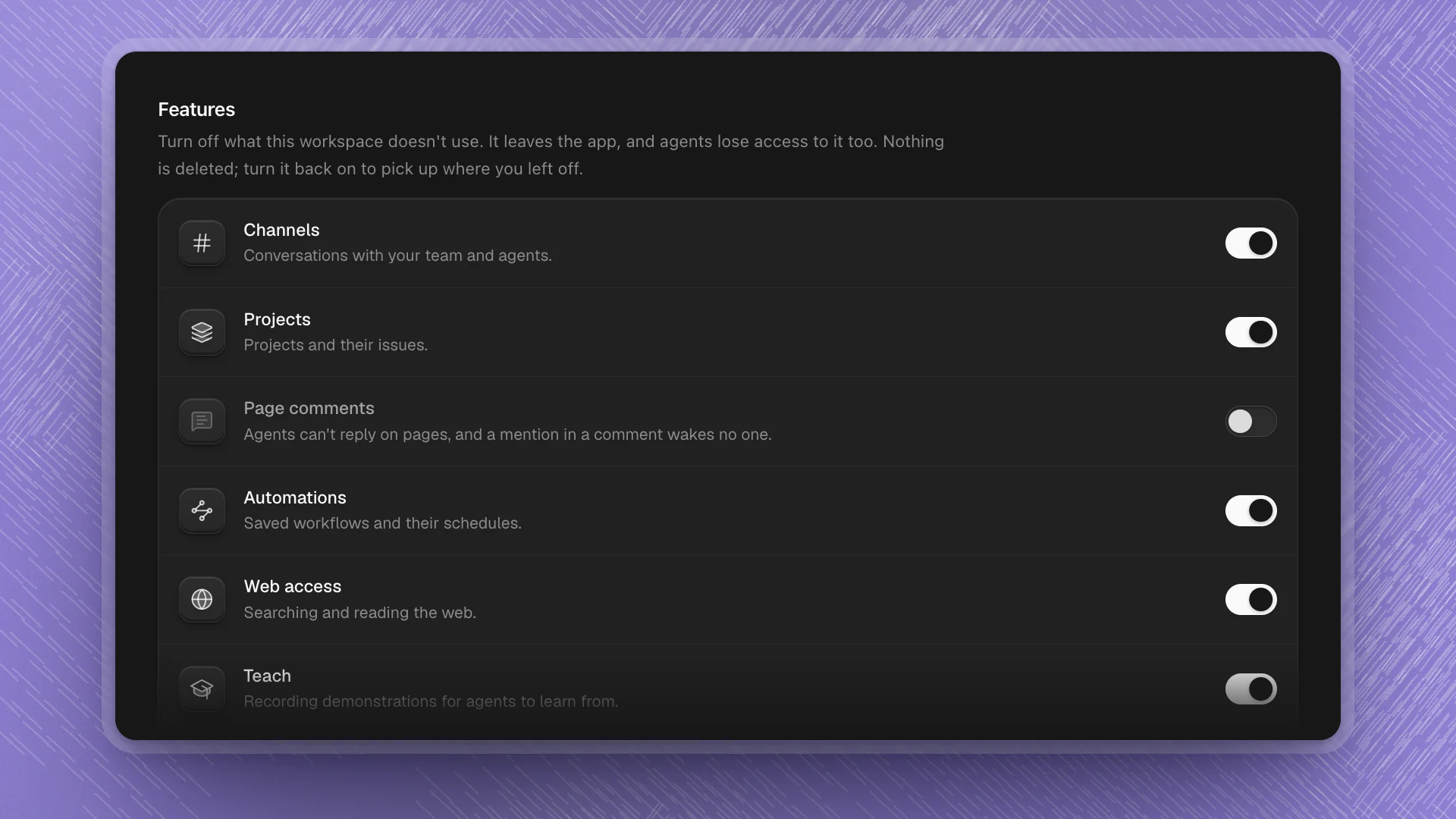
Turn a feature on or off
Open Workspace settings from the button at the bottom of the sidebar. It opens on the Features tab. Flip the switch. The change applies at once, including to agents already working.
| Feature | What it is | While it's off |
|---|---|---|
| Channels | Conversations with your team and agents | Agents can't read or post in channels, and a mention there wakes no one |
| Projects | Projects and their issues | Agents can't see or change issues, and nothing is delegated to them |
| Page comments | Comment threads beside your pages | Agents can't reply on pages, and a mention in a comment wakes no one |
| Automations | Saved workflows and their schedules | Agents can't save or run workflows, and schedules pause. Handing a task to another agent still works. |
| Web access | Searching and reading the web | Agents can't search or open web pages from this workspace |
| Teach | Sessions where you show agents what you want | Agents can't start or use Teach sessions |
| LaTeX documents | .tex files with a live PDF preview | Agents can't compile LaTeX, and .tex files open as plain text |
Every feature starts on.
What “off” means
Off is enforced everywhere, so you can rely on it:
- The app hides it. Its sidebar sections and highlights leave the rail, and it drops out of the start page choices. A tab that was open when you switched it off says the feature is turned off and points back to this setting. With Channels, Projects and Page comments all off, the notifications bell goes too, since there is nothing left to notify about.
- Agents lose the tools. An agent that tries to use a switched-off feature is told it's off and works around it. Agents see the current switches on every turn, and running agents pick up a change within seconds.
- Nothing wakes for it. Mentions, schedules, hand-offs and queued deliveries for that feature stop waking agents. A paused schedule skips the runs it missed, so turning Automations back on never fires a backlog.
- The server refuses it. For Channels, Projects, Page comments and Automations, requests for the feature's data are turned away too, and search leaves those results out.
Nothing is deleted. Turn the feature back on and every channel, issue, comment thread and workflow is where you left it.
Anyone who can work in the workspace can change its switches. Agents read them; only people change them.
When to switch things off
- Working alone. Channels and Page comments add little when it's just you and Optimus. Switch them off for a quieter sidebar.
- Keeping agents offline. Turn off Web access when the work must use only what's in the workspace, for example a held-out eval that must stay free of outside data.
- Pausing every schedule at once. Turn off Automations before a long trip or a compute freeze. Turn it back on and schedules resume from the next run.
- Ending a phase. When a project finishes its issue-tracking phase, switching Projects off clears it from view and keeps the history.
The switches are stored per workspace on this device, beside the sidebar layout. See Where your data lives.