Workspace
Canvas and library
See every open chat, page and file on one board, and browse the workspace's pages as a library.
Canvas view spreads your open chats, pages and files across one board. The Workspace library shows every page and folder in the workspace as shelves you can walk through.
When to use them
- Canvas when several things run at once: a goal where Optimus has brought in Ratchet and Soundwave, three sweeps you're watching, the pages they write. Stay in Tab view for focused work on one or two things side by side.
- Library when you want to browse: getting back into a project after a break, or seeing what pages agents have written. Use Quick open when you already know the name.
Why they matter
Tabs hide what isn't in front. With five agents' chats open, a tab strip shows one at a time and you miss the one that stalled. The canvas shows them all, grouped, so a glance tells you what's running and what failed. The library does the same for pages: agents write many of them, and shelves of folders plus a recently-opened shelf make them easy to scan without remembering paths.
Tab view and canvas view
The switch at the bottom of the sidebar flips the work area between Tab view and Canvas view. Both show the same open tabs: open something in one and it's there in the other. Each workspace remembers which view you used last.
| View | Best for |
|---|---|
| Tab view | Focused work on one or two things, with splits side by side |
| Canvas view | Keeping an eye on many things at once: several agents' chats, the pages they write, the configs they change |
The canvas
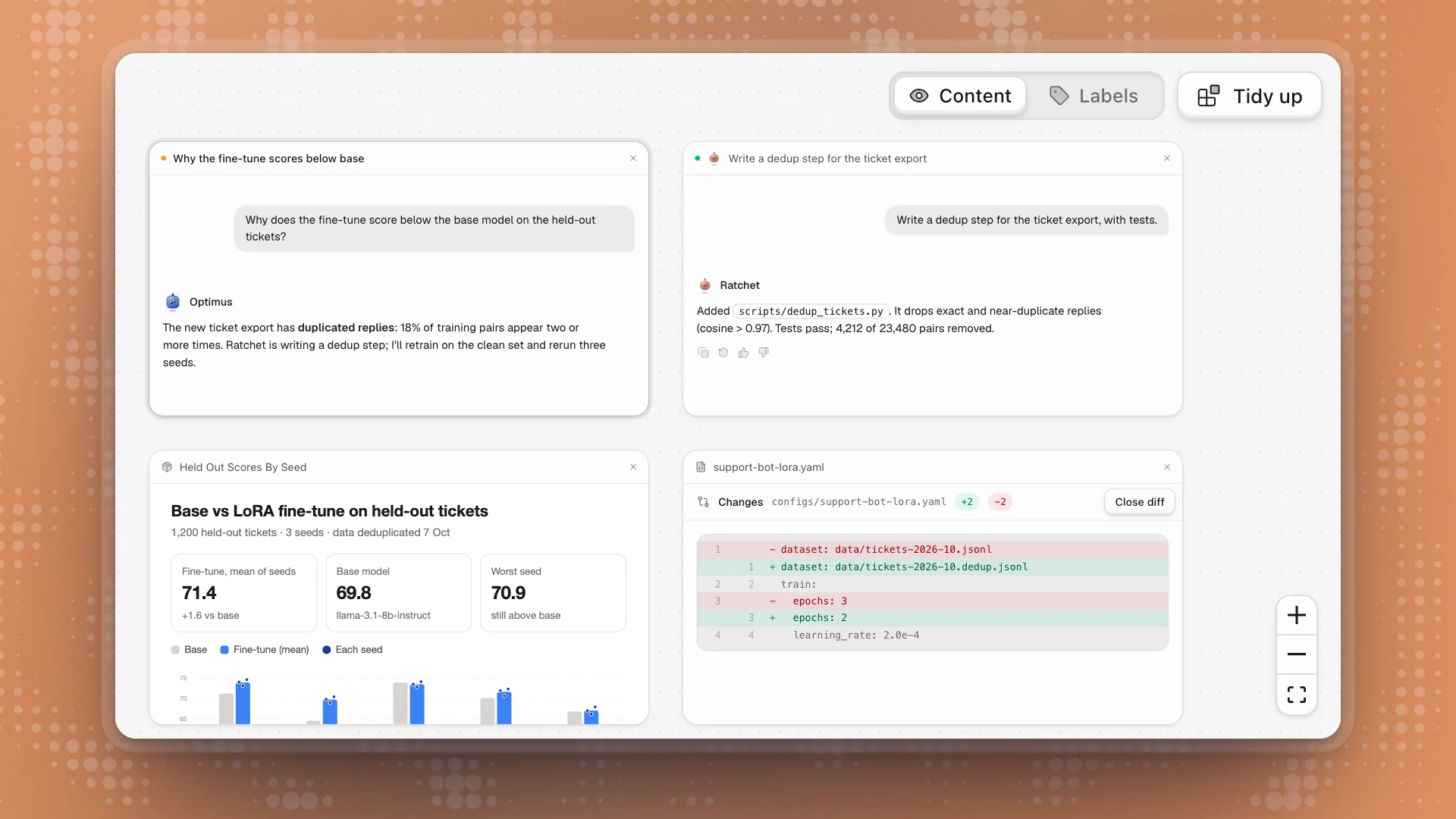
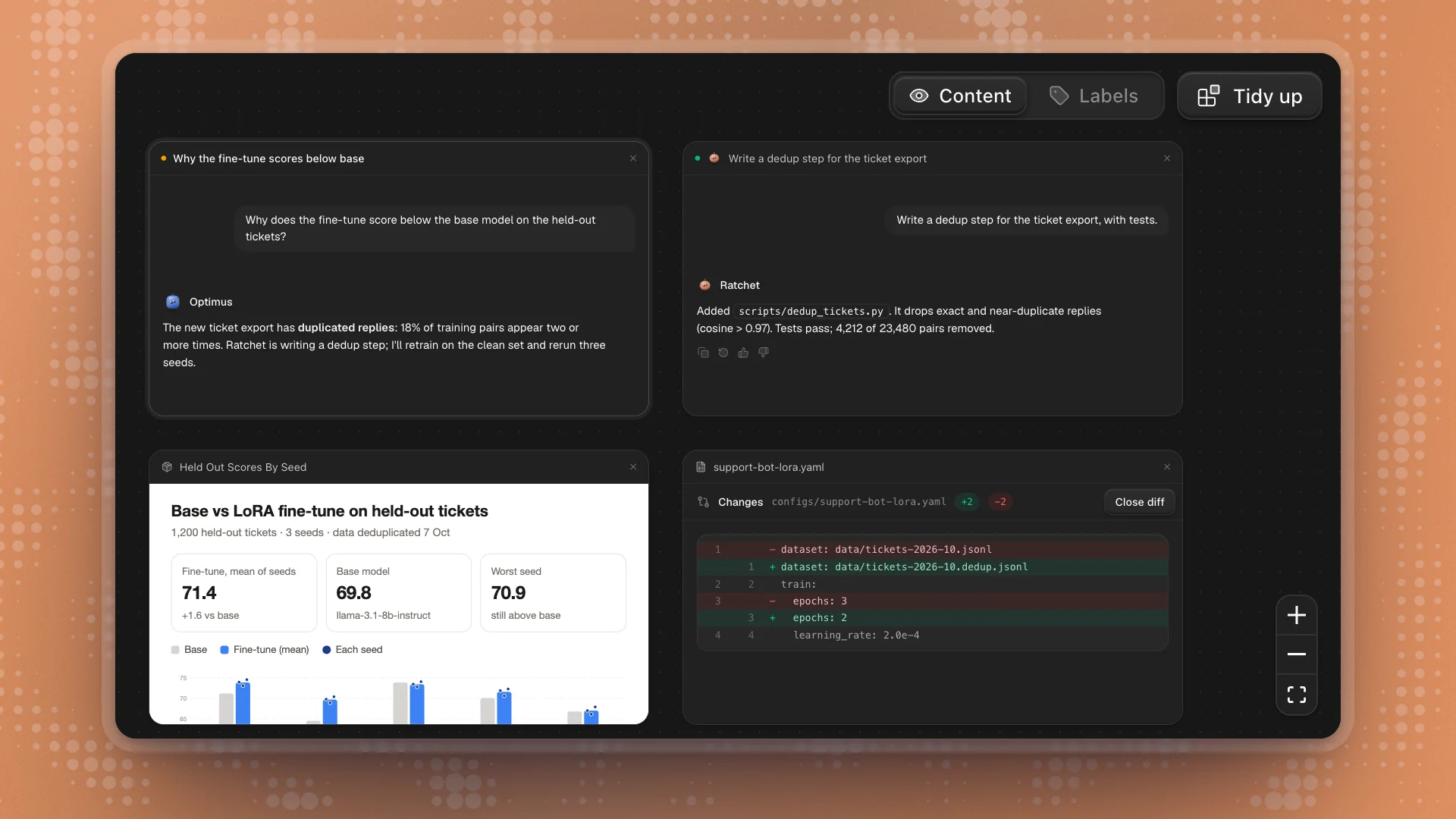
Every open tab is a card on an open board. Cards keep their place, and so does your view of the board, so it comes back as you left it.
| To | Do this |
|---|---|
| Move around | Scroll, or drag an empty part of the board |
| Zoom | Pinch, or hold ⌘ and scroll. The +, − and fit buttons sit at the bottom right. |
| Move a card | Drag it by its header |
| Resize a card | Select it, then drag an edge |
| Work in a card | Click into it. Chats, pages and editors work as they do in a tab. |
| Close a card | Its × closes the tab |
Content or labels
The switch at the top right sets how cards draw:
- Content shows what's in each card: the chat, the page, the file.
- Labels shows only each card's kind and title. Use it on big boards; it's lighter and easier to scan.
The card you're working in always shows its content. Zoomed far out, every card becomes a label so the board stays readable. To keep the app light, only a few cards near the middle of the screen run their content at once.
Tidy up
Tidy up gathers the cards into labelled groups. Pick what to group by:
| Option | Groups |
|---|---|
| By type | Chats, pages, files, channels and issues |
| By agent | Each agent's chats together, such as “Ratchet's chats”. Other cards keep their type. |
| By status | Running, Ready, Needs attention (hit an error) and Idle |
A new board starts grouped by type. Moving or resizing a card takes the board out of its grouping, so your own arrangement stays put. Tidy up again whenever it gets messy.
Defaults
Set what new boards do in Settings → Workspace → Canvas: Open workspaces in (Tabs or Canvas), Cards show (Content or Labels) and Live cards (how many cards run their content at once: 3, 5 or 8).
The Workspace library
Click the Workspace tab in the sidebar to open the library: every page and folder in the workspace on one page.
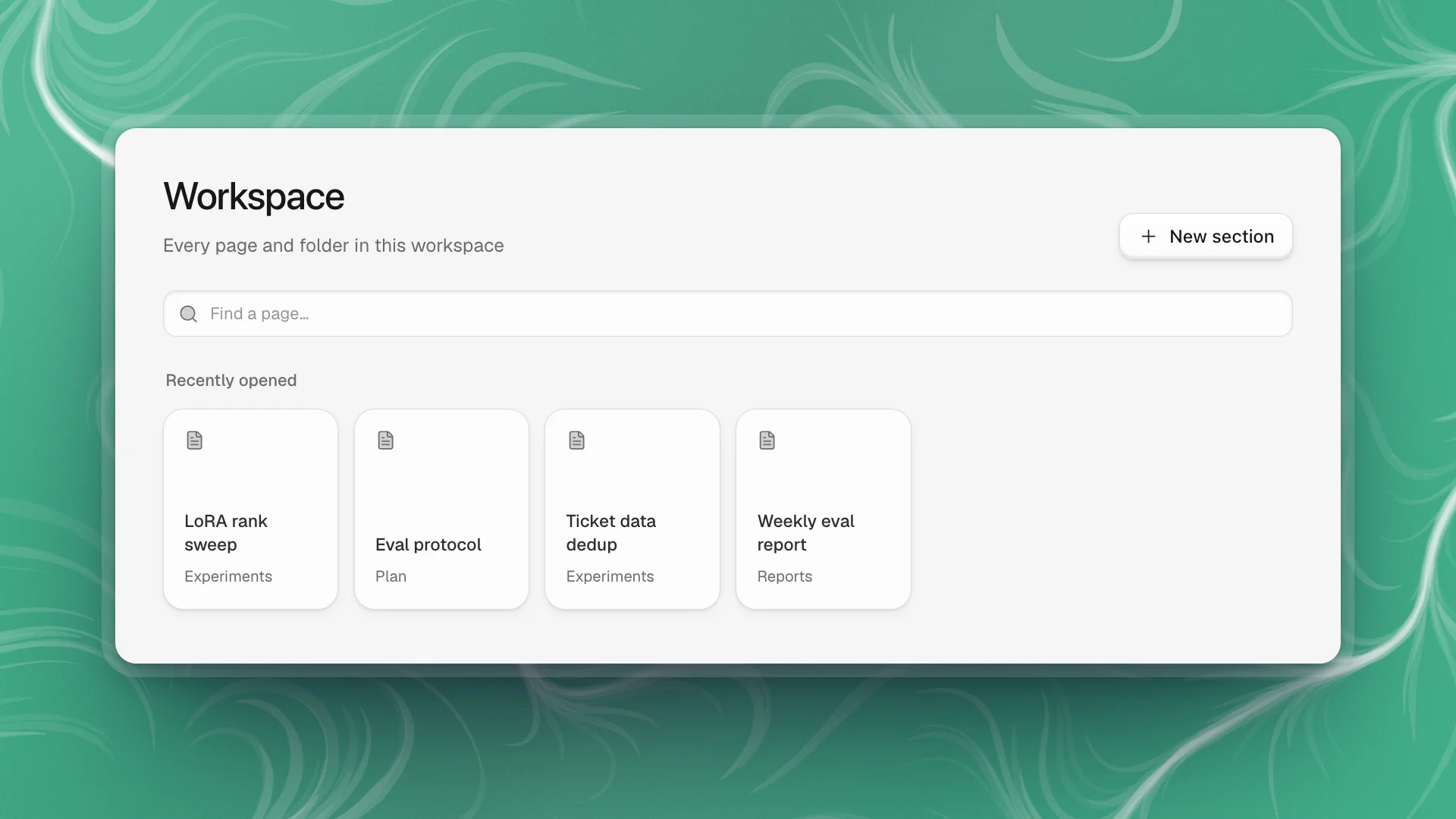
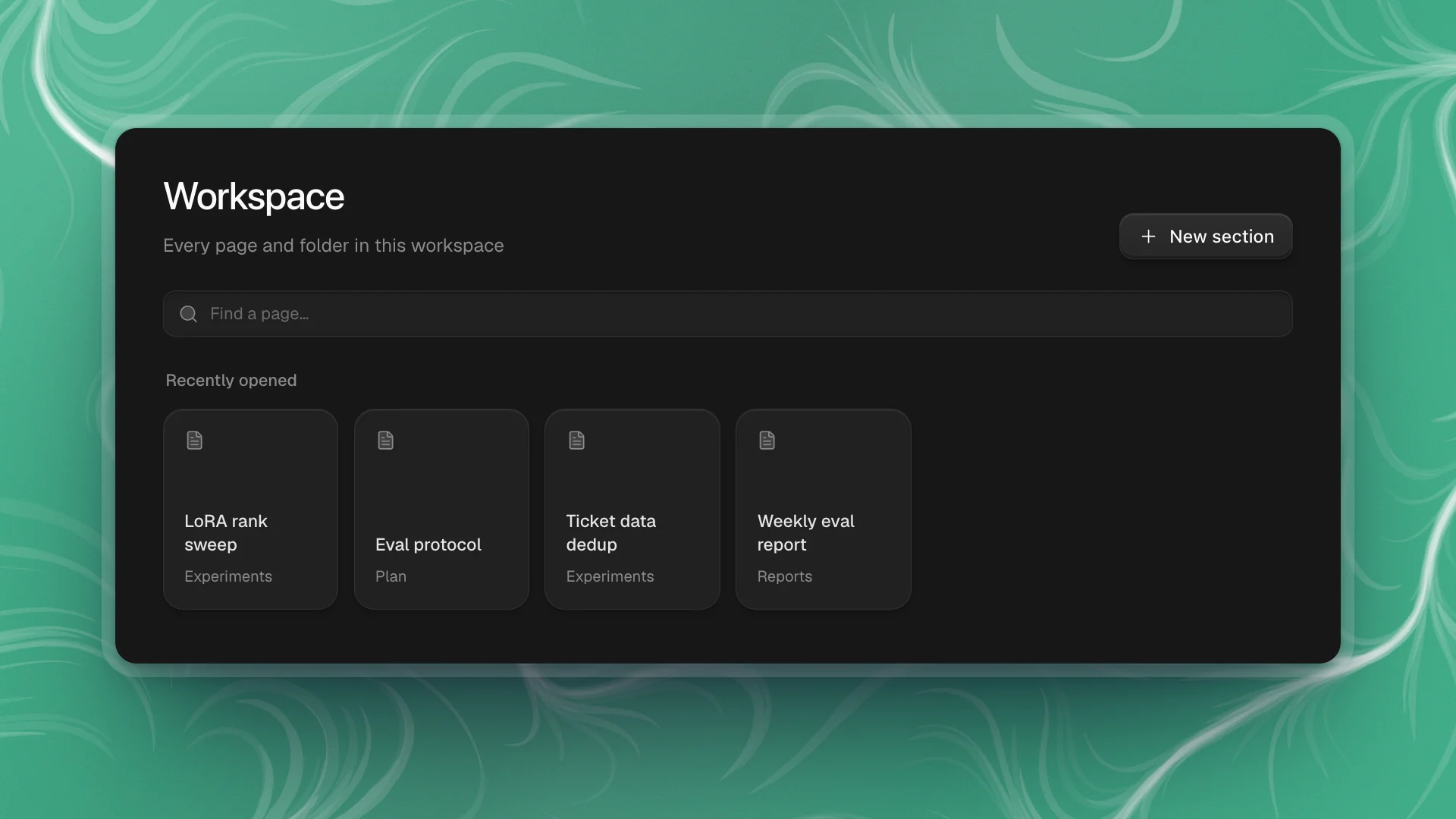
- Recently opened shows the last six pages you opened, each with the section it sits in.
- Folders stand as books. Click one to walk into it; the breadcrumb at the top walks back out. A folder that is also a page has Open page.
- Pages at the current level are listed underneath.
- Find a page… filters every title in the workspace, at any depth, and shows where each match sits.
- New section (or New page inside a folder) adds a page right there.
The sidebar's Workspace tab shows the same pages as a tree. The library is easier for browsing; the tree is quicker when you know where you're going.
Use them well
- Switch to canvas when you start a goal with several agents. Put the main chat in the middle and the specialists' chats around it, and you can see who's working at a glance.
- Group by agent when you're reviewing. It puts each agent's chats side by side, so you can read one agent's work in order.
- Group by status when you come back. Running shows what's still going, and Needs attention collects anything that hit an error.
- Switch Labels on above a dozen cards. The board stays quick and the titles are easier to scan.
- Close cards you're done with. The board is your open tabs; closing finished ones keeps it useful.
- Keep folders shallow. Two levels of folders read well as shelves. Deeper trees are easier to reach with Quick open.