Get started
Set up your organization
Name your organization, invite your team, start a plan and connect the models your agents think with.
Your organization holds your team, your plan and your model connections. Setup runs once, right after you create your account, in three steps: Name your organization, Choose your plan, Connect a model.
Joining a team that invited you? Their organization is already set up. See Join an organization.
1. Name your organization
- Organization name: your lab's or company's name. ArkenOS fills in "your first name's workspace" to start; change it to something your teammates will recognize.
- Logo (optional): click Upload an image. Until you add one, ArkenOS shows a generated mark.
- Invite your team (optional): type a teammate's email and press Enter. Each address becomes a chip; click the chip's role to switch between Member and Admin.
Click Continue. Invitations go out once you've picked a plan, and the next screen confirms how many were sent.
| Role | Can |
|---|---|
| Member | Work in the organization's workspaces with its agents |
| Admin | Everything a member can, plus manage the organization, its members and teams, and see billing |
You become the organization's owner. Invite the people who'll work with you in the first week; adding more later takes a minute in Members and teams.
2. Choose your plan
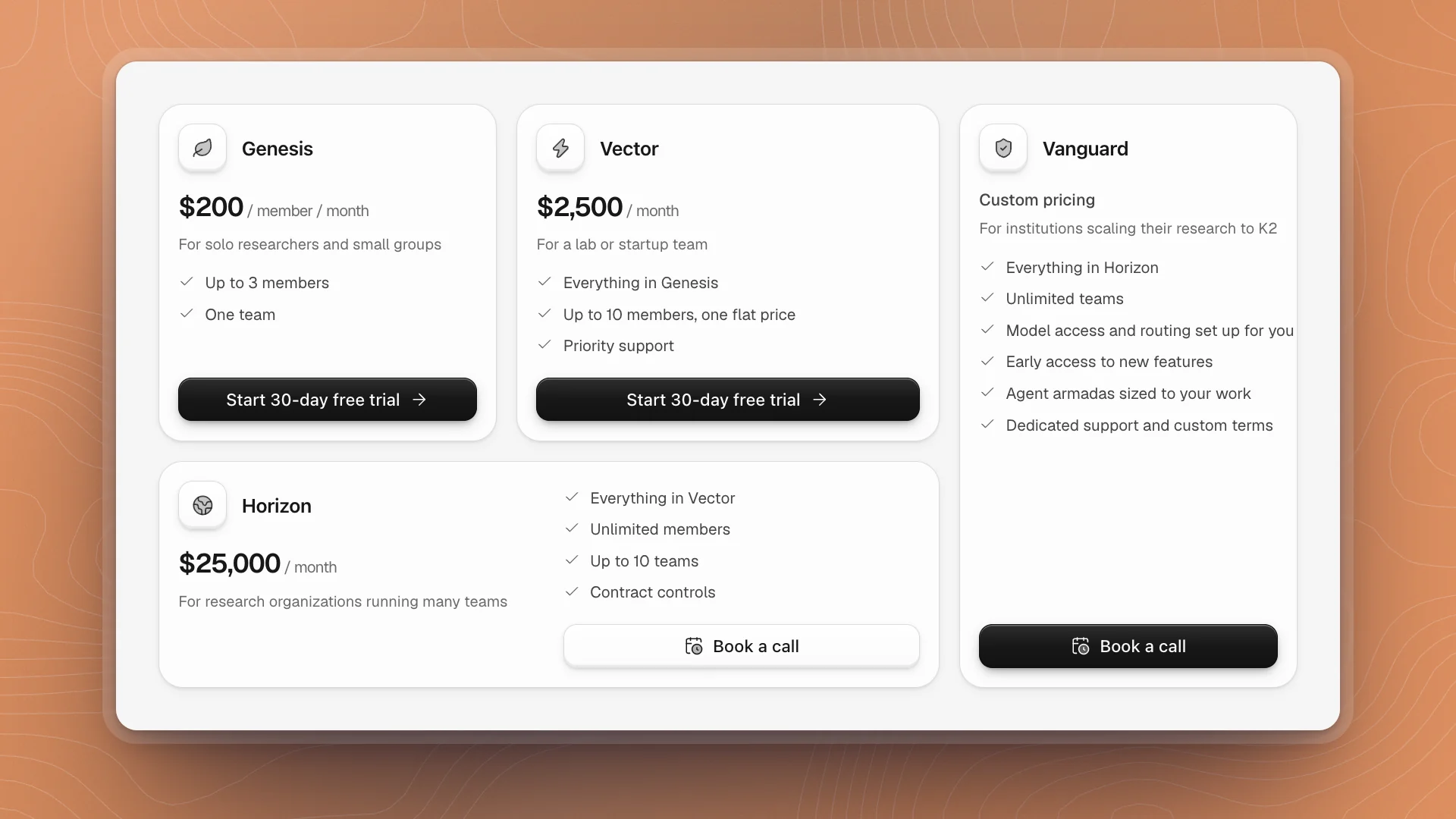
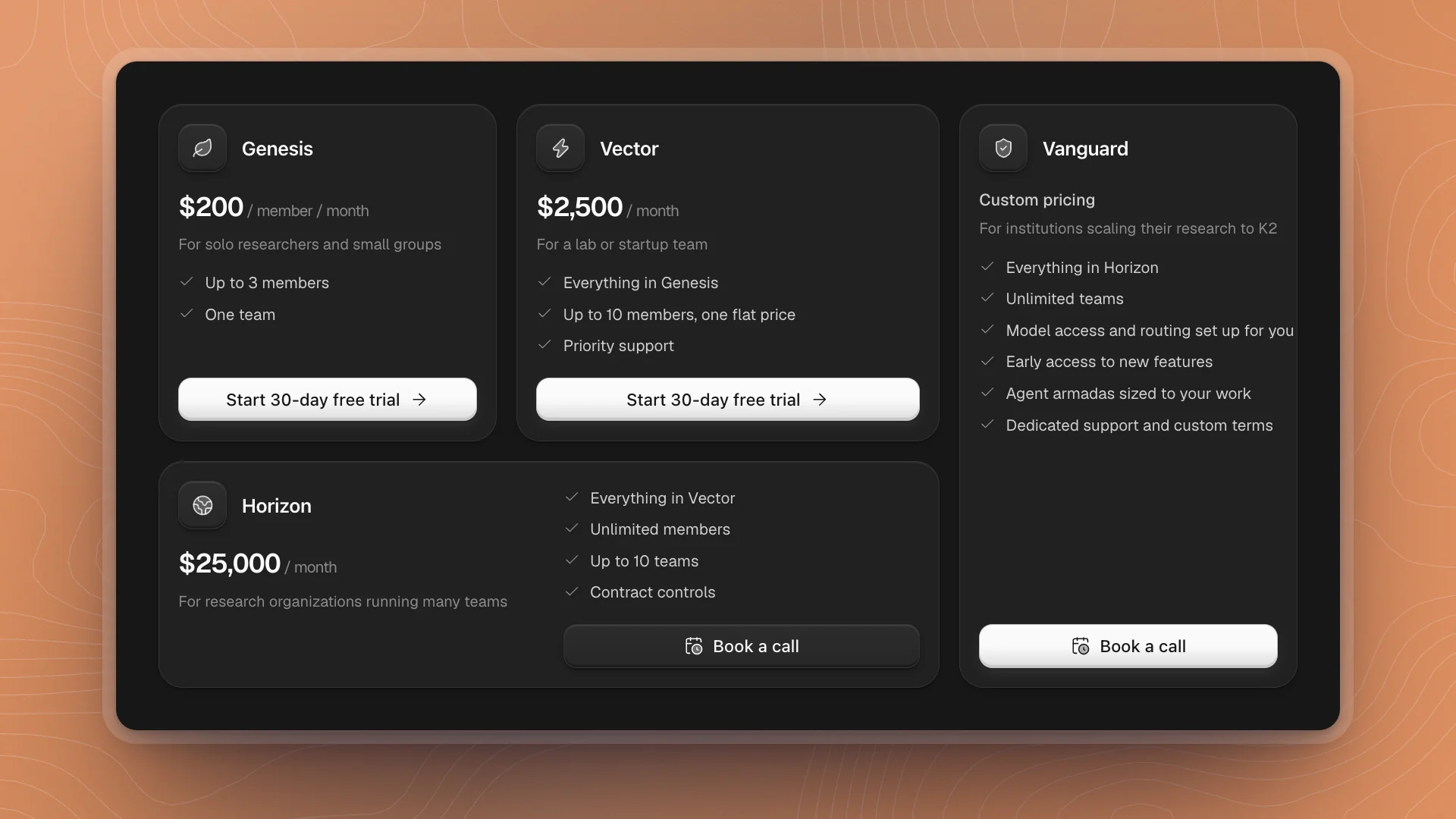
| Plan | Price | Members | How it starts |
|---|---|---|---|
| Genesis | $200 per member per month | Up to 3 | 30-day free trial |
| Vector | $2,500 per month, flat | Up to 10 | 30-day free trial |
| Horizon | $25,000 per month | Unlimited, up to 10 teams | Book a call |
| Vanguard | Custom pricing | Unlimited | Book a call |
Every plan runs on your own models, connected in the next step, so you pay for model use through the plan or account you connect.
To start a trial:
Click Start 30-day free trial
Checkout opens in Stripe in your browser. Add a card there. The first charge comes when the trial ends.
Come back to ArkenOS
The app notices when Stripe confirms and moves on by itself. If you closed checkout without finishing, click I cancelled checkout and pick again.
- Pick by team size. Genesis charges per member and fits up to three people. Vector is one flat price for up to ten.
- Only owners and billing admins can choose. Anyone else sees a note that an owner needs to pick; the screen moves on once they do.
- Change it later in Billing.
3. Connect a model
Models are what your agents think with. Connect at least one before your first chat.
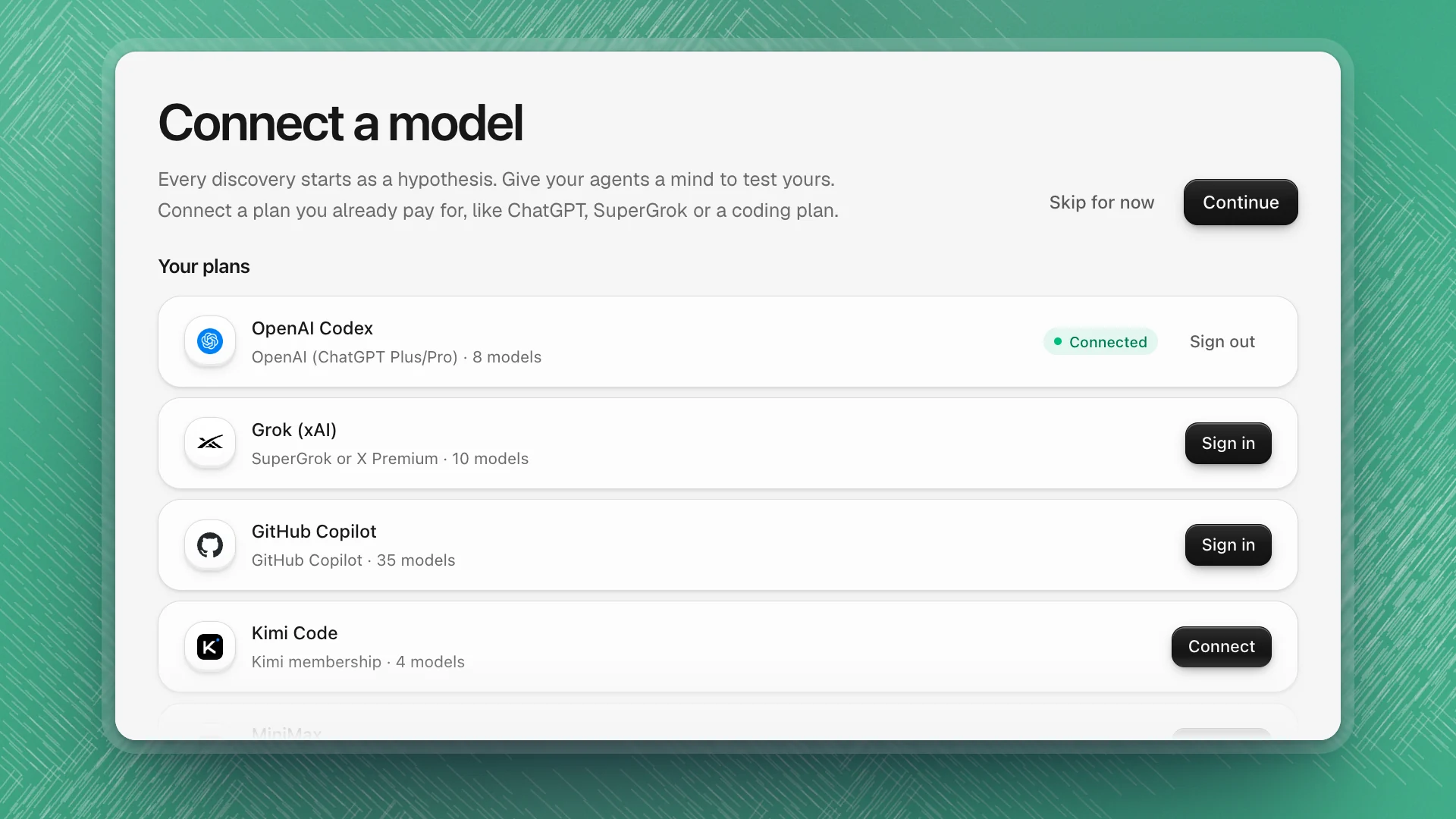
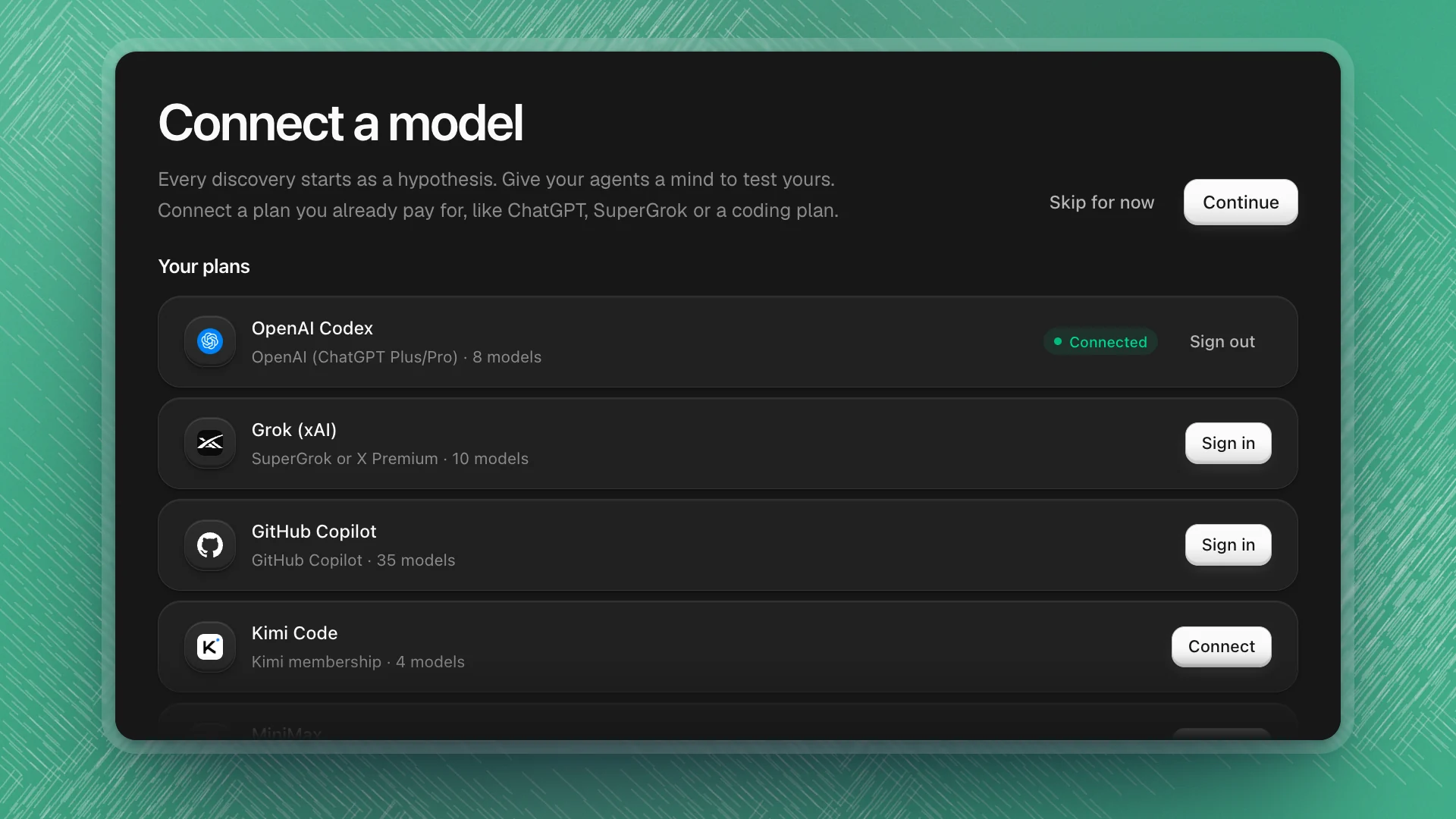
Your plans lists two kinds of connection:
- Plans you sign in to, like ChatGPT, SuperGrok and GitHub Copilot. Click Sign in, follow the sign-in steps, and the row shows Connected with how many models it brings.
- Coding plans you connect with a key, like Kimi Code, MiniMax, OpenCode Go, Z.ai and Cerebras. Click Connect, follow the link to copy your plan key, paste it, and click Save.
Click Continue when a plan shows Connected.
- Start with what you already pay for. A subscription you have covers your agents too, with its own limits.
- Pay-as-you-go API keys live in Settings → Models → Model providers. See Connect models.
Skip for now takes you into the workspace without a model. Chat then shows Choose a model for Optimus with a Set up models button; click it whenever you're ready.