Get started
Quickstart
The shortest path from a fresh install to a first checked result.
The shortest path from an installed app to a result you can trust. Each step links to the page with the details.
Use it when you've just installed ArkenOS and want to see it work on a real project before reading anything else. If a teammate already set up your organization, start at step 2.
Why this order: agents need a model before they can do anything, and they do their best work on a project they've read. One small, checkable task first shows you how they work, and where to trust them, before you hand over a long goal.
Sign in and set up your organization
Open ArkenOS and click Create account (or Join organization if a teammate invited you). Then name your organization, start a plan, and on Connect a model sign in to a plan you already pay for. Agents need at least one model before they can work.
Details: Sign in · Set up your organization
Create a workspace on a real project
On the Workspaces page, click New workspace, choose Existing folder, and pick a project you already have on this computer. Click Create workspace. It opens on a new chat with Optimus.
Details: Create a workspace
Let Optimus read the project
Start with a question that shows you what it understood:
Try this Read through this project and tell me what you find: what it does, how training and evaluation run, and anything that looks broken or unfinished.Correct anything it got wrong. It keeps notes as it goes, so the next answer starts from the corrected picture.
Hand over one checkable task
Ask for an outcome, with the context, the limits and the report you want back. Name a specialist to check the work.
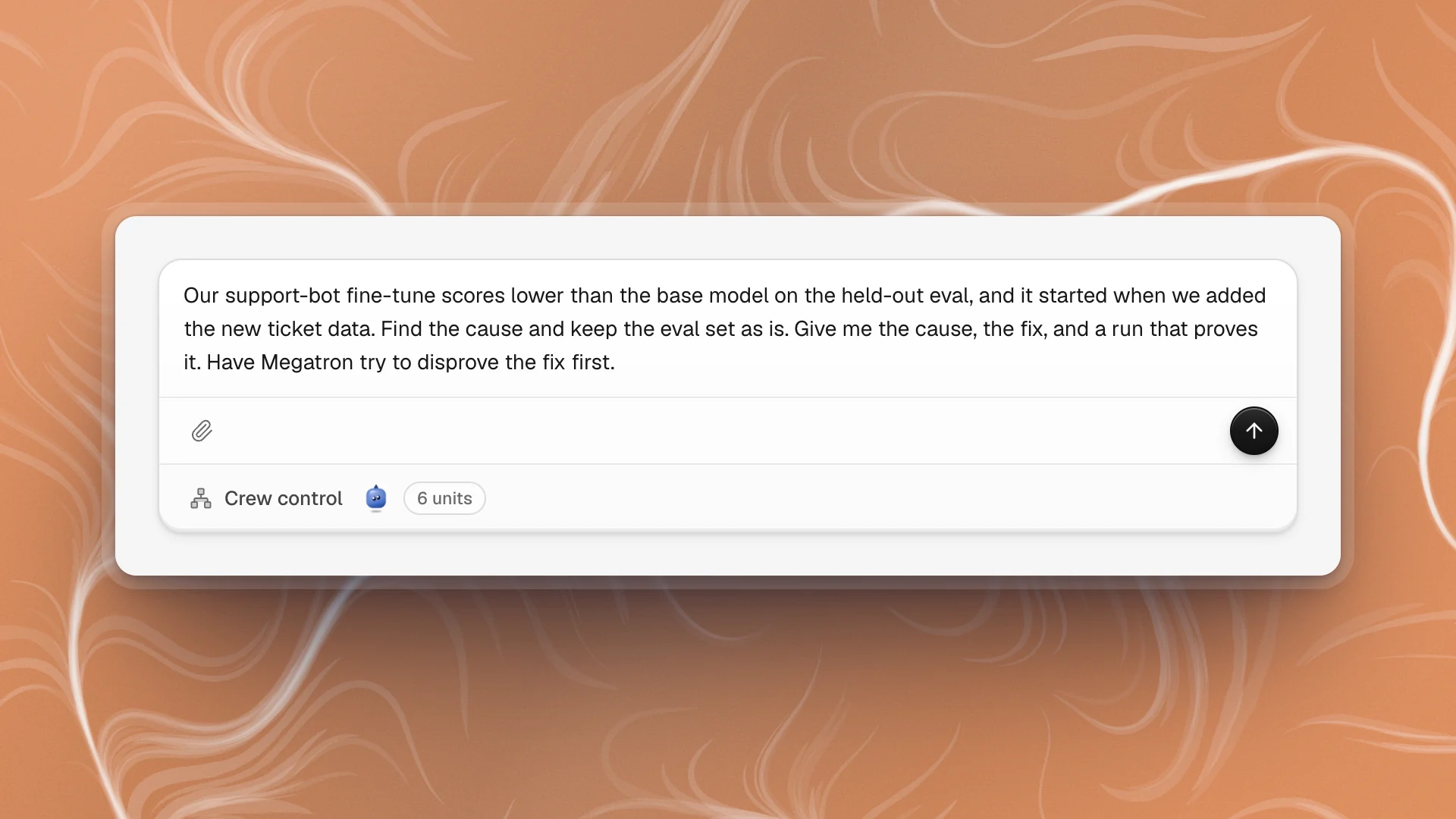
A good first ask: one outcome, the context, what to leave alone, what to hand back, and who checks it. Details: Start a chat · Meet your agents
Make it a goal when the work is big
For work that takes many steps or hours, type
/goaland say what done looks like. Optimus keeps going turn after turn until it can show the objective is met.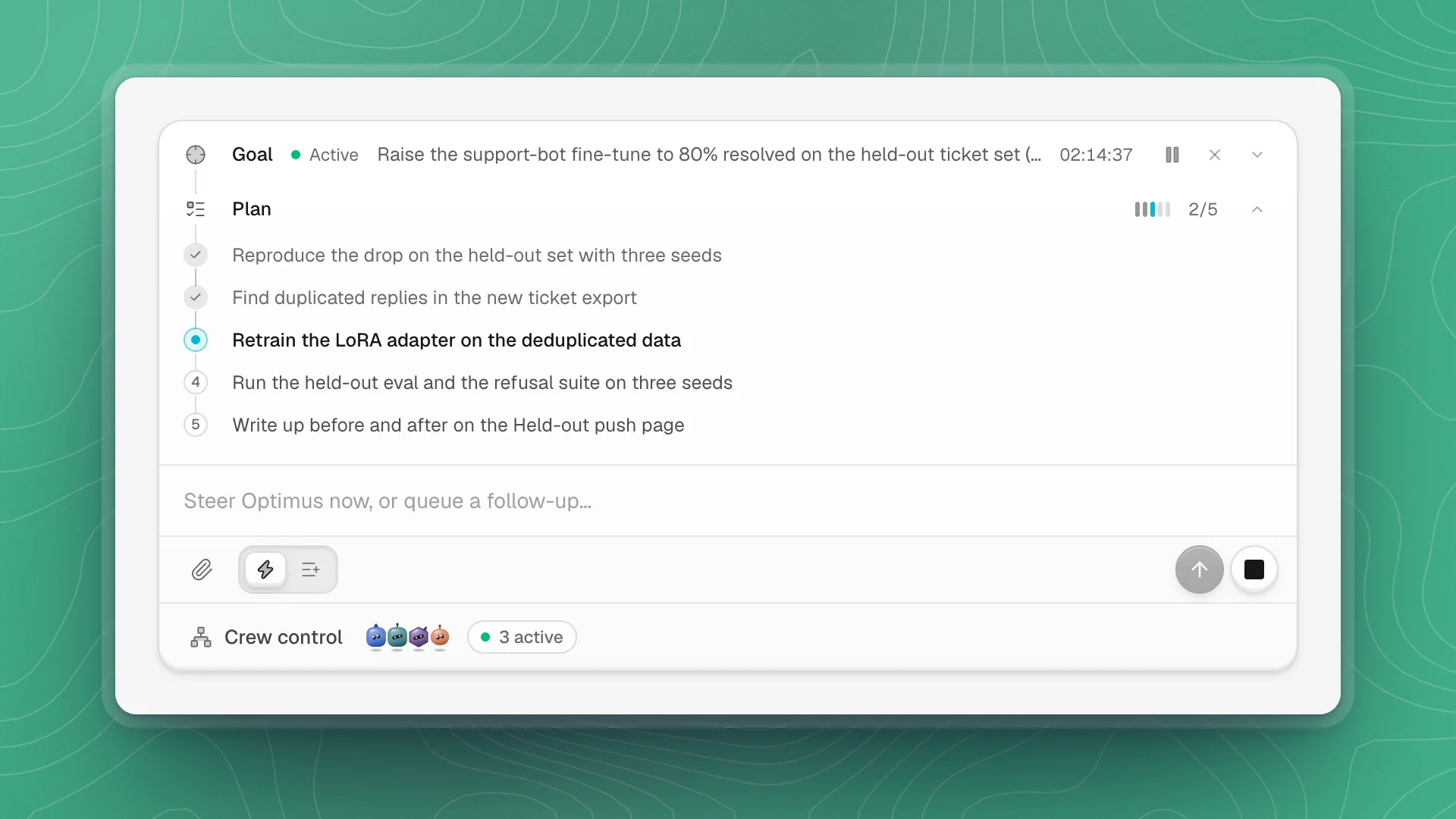
The Goal row shows the status and the plan while Optimus works. Details: Run a goal
Read the result and check it
Optimus reports what it did and how it checked. Open the page or artifacts it made from Artifacts or the Workspace tab in the sidebar, and look at the numbers yourself before you rely on them.
Details: Artifacts · Find your way around
A good first task
Pick something small, real and easy to check, so you can judge the result in a few minutes:
| Kind | Example |
|---|---|
| Evaluate | “Run the held-out eval on the current checkpoint and put the numbers on a page called Baseline.” |
| Reproduce | “Re-run last week's LoRA config with three seeds and tell me if the score holds.” |
| Debug | “Find out why the training script fails on the new ticket export. Fix it and show me a run that gets past step 1,000.” |
| Review | “Have Megatron try to disprove the result on the Baseline page.” |
Before you leave it running
- Keep the computer awake. Keep awake while agents are working in Settings → General is on by default.
- Turn on alerts so you hear when work finishes or needs you. See Alerts.
- Check in with a steer. You can send a message while an agent works to change direction. See Steer, queue and stop.