Chat
Steer, queue and stop
Change direction while an agent works, line up what comes next, and stop cleanly.
The composer stays open while an agent works. Your next message can change what it's doing right now, or wait its turn until the current work is done.
Why it matters: a steer keeps the work already done and changes direction from there. Stopping and asking again means the agent re-plans from your new message. Catching a wrong turn early with a steer saves most of a run.
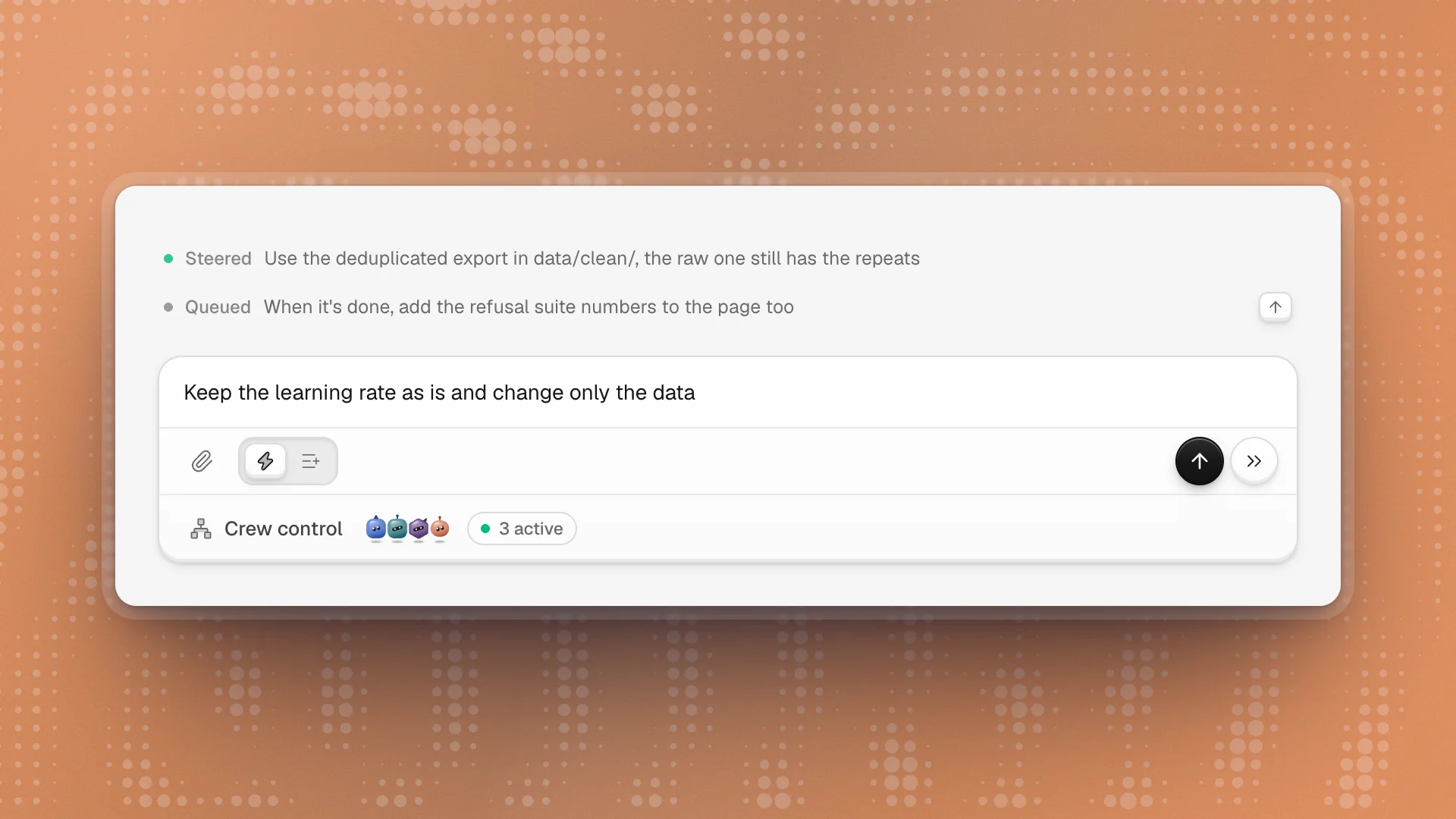
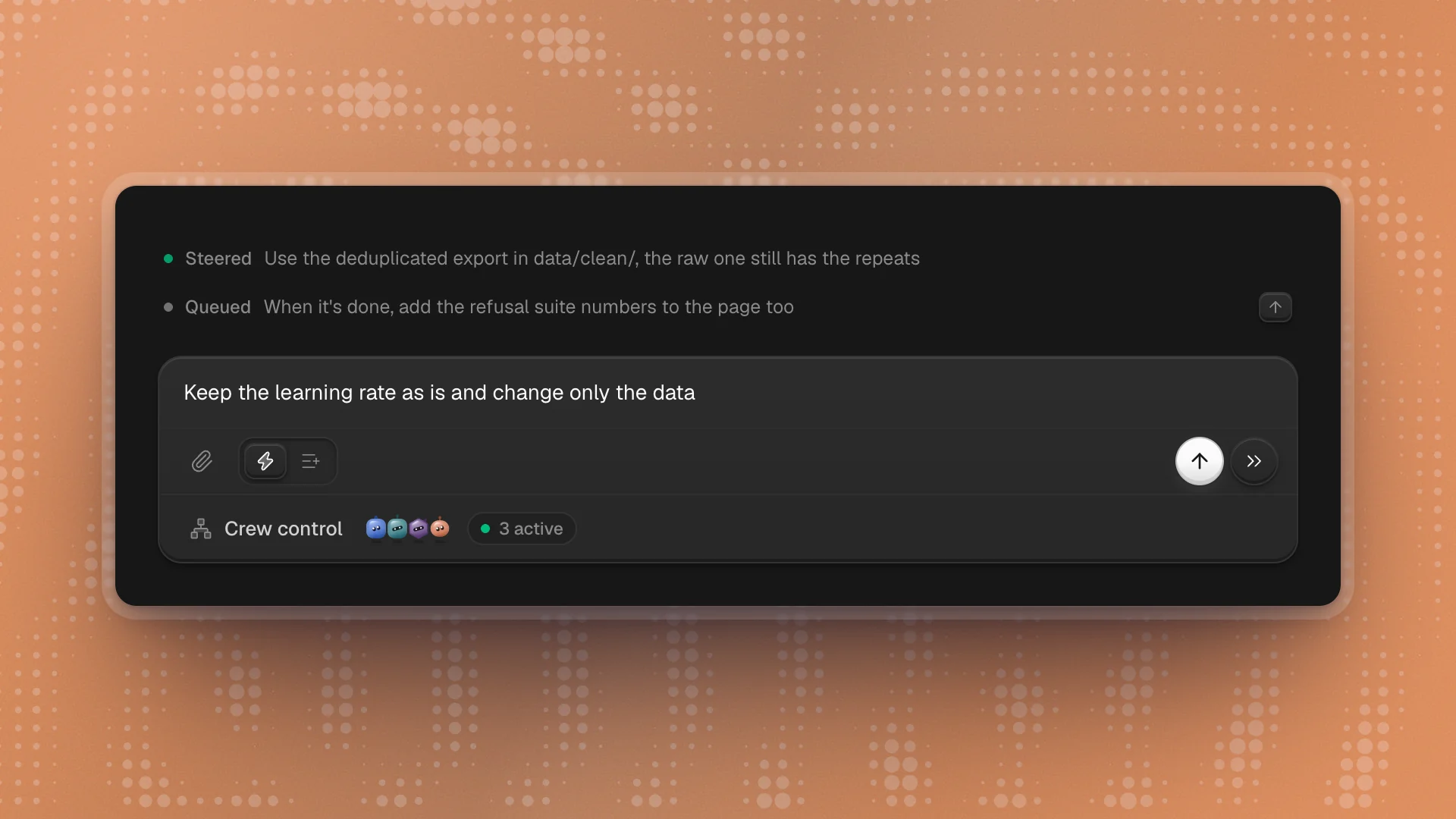
Three ways to step in
| Do | What happens | Use it when |
|---|---|---|
| Steer | Lands at the agent's next safe point, between steps. It reads your message and carries on with the new direction. | It's heading the wrong way, or you just learned something it needs |
| Queue | Waits until the agent finishes what it's doing, then goes in as the next message | It's the next task, or a detail that can wait |
| Stop | Ends the run | The task itself was wrong |
Steer or queue a message
Pick a mode
While an agent works, the composer reads “Steer Optimus now, or queue a follow-up…” and a two-button toggle appears next to the paperclip: Steer (the lightning bolt) and Queue (the list).
Type and press Enter
Enter sends in the selected mode. ⌘Enter uses the other mode for that one message, so you can queue a note while staying in Steer.
Check it landed
Your message shows its status at the foot of the chat: Steering, then Steered; or Queued, then Delivered.
Attachments travel with steers and follow-ups, so you can drop in a screenshot mid-run.
Take one back. Press ↑ in an empty composer to pull the latest waiting message back into the box, edit it, and send it again.
Stop
Click the square Stop run button next to send, or press ⌘..
While messages are queued, that button changes to a double arrow: it sends the queue in right away and the agent keeps going. Press it again, with nothing left in the queue, to stop.
During a goal, the Goal row has a pause button too. The first press lets the current turn finish and then pauses. Press it again (it now reads Stop now) to stop right away.
Steer one task
When Optimus has handed work off to run on its own, open Armada under the composer. Each task has its own controls:
- Steer opens a box to give that task new direction.
- Pause holds it.
- Discard task drops it. Click twice to confirm.
The rest keep running.
Steer well
- Steer early. A correction at minute two is much cheaper than a redo at minute sixty. If the first steps look off, say so right away.
- Be specific. “Use data/clean/, the raw export still has duplicates” beats “wrong data”.
- Say what to keep. “Keep the learning rate, change only the data” stops it undoing good work while it changes course.
- Queue follow-ups instead of stacking steers. Three steers in a row pull the agent three ways. Queue the second and third.
To make Queue the default for Enter, open Settings → Workspace and set Follow-ups while an agent is working to Queue.