Chat
Chambers and Armada
See every agent on a chat at once, follow work handed off to run on its own, and open any agent's transcript.
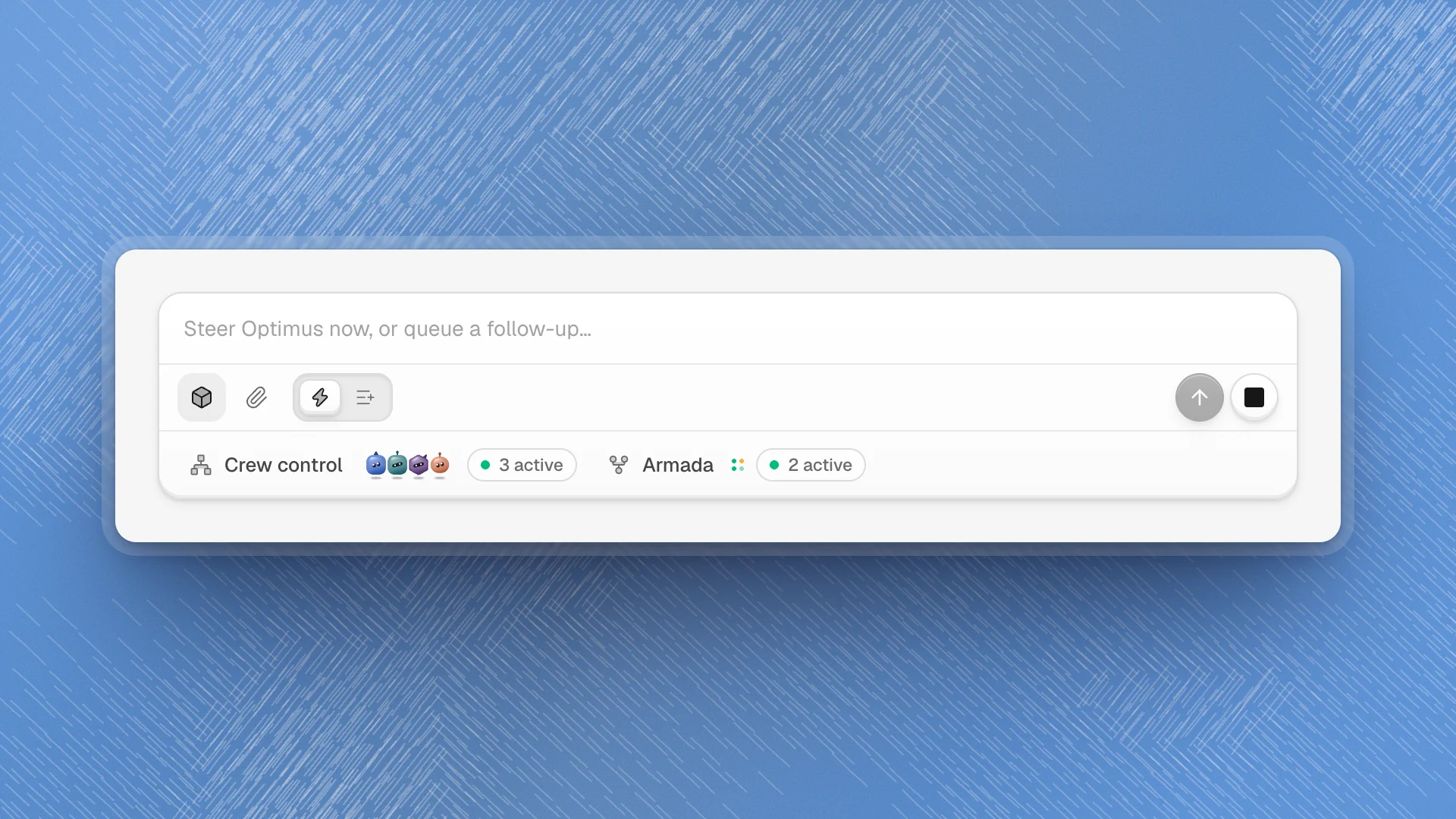
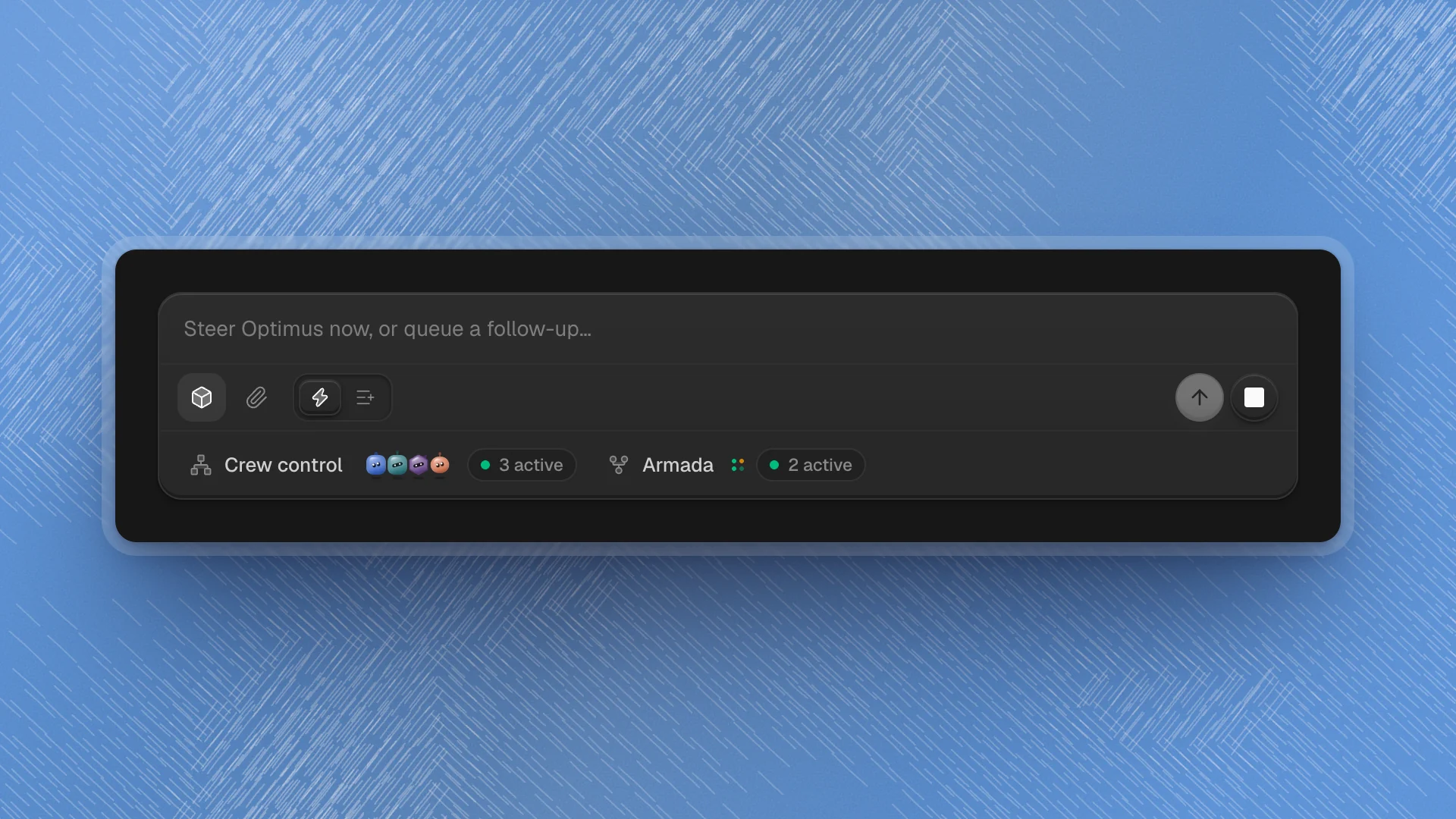
When Optimus spreads a job across several agents, the message list only shows part of it. Two views under the composer show all of it: Chambers draws the whole chat as a stage of agents, and Armada lists the work handed off to run on its own, with controls for each.
Chambers
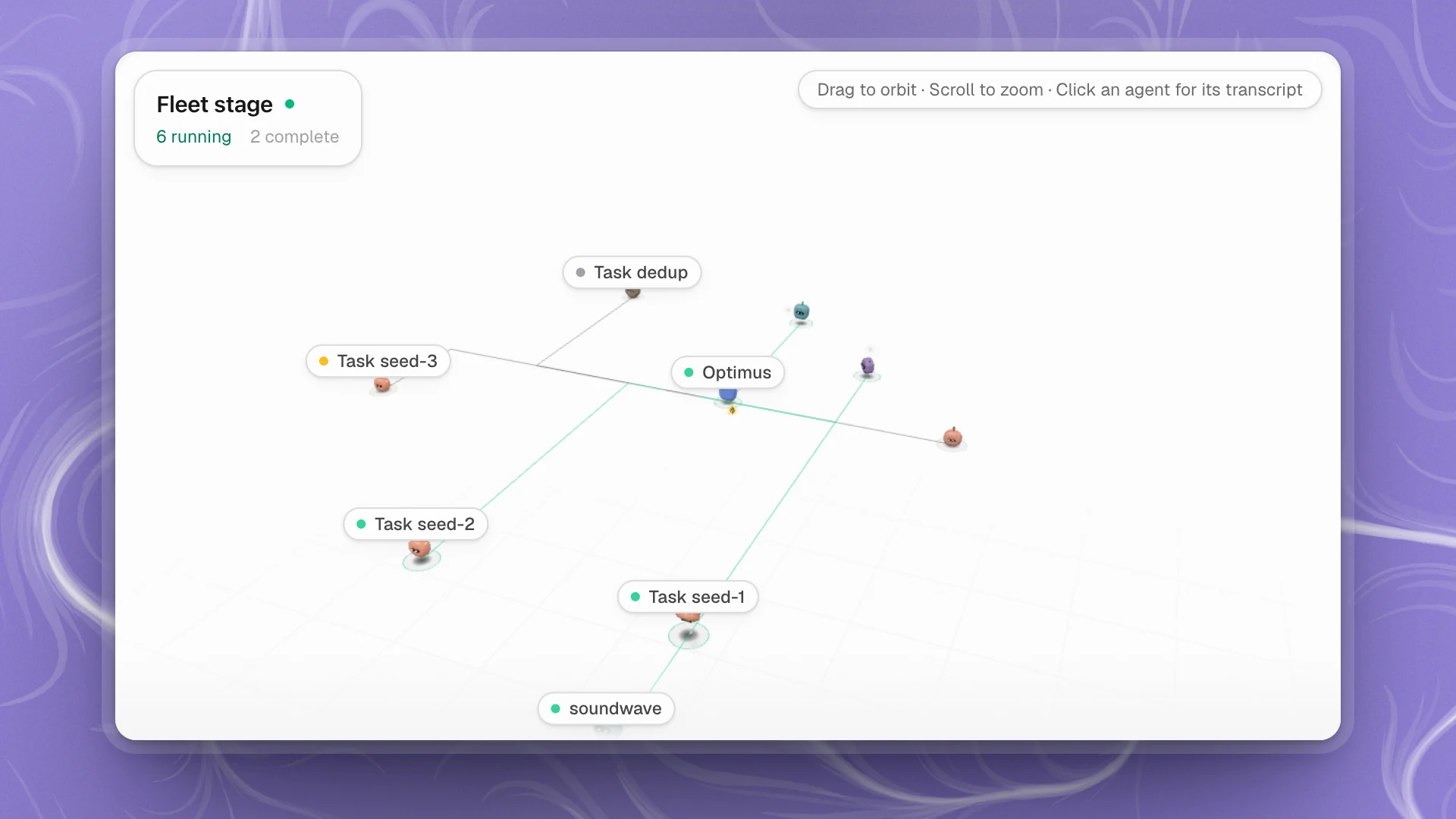
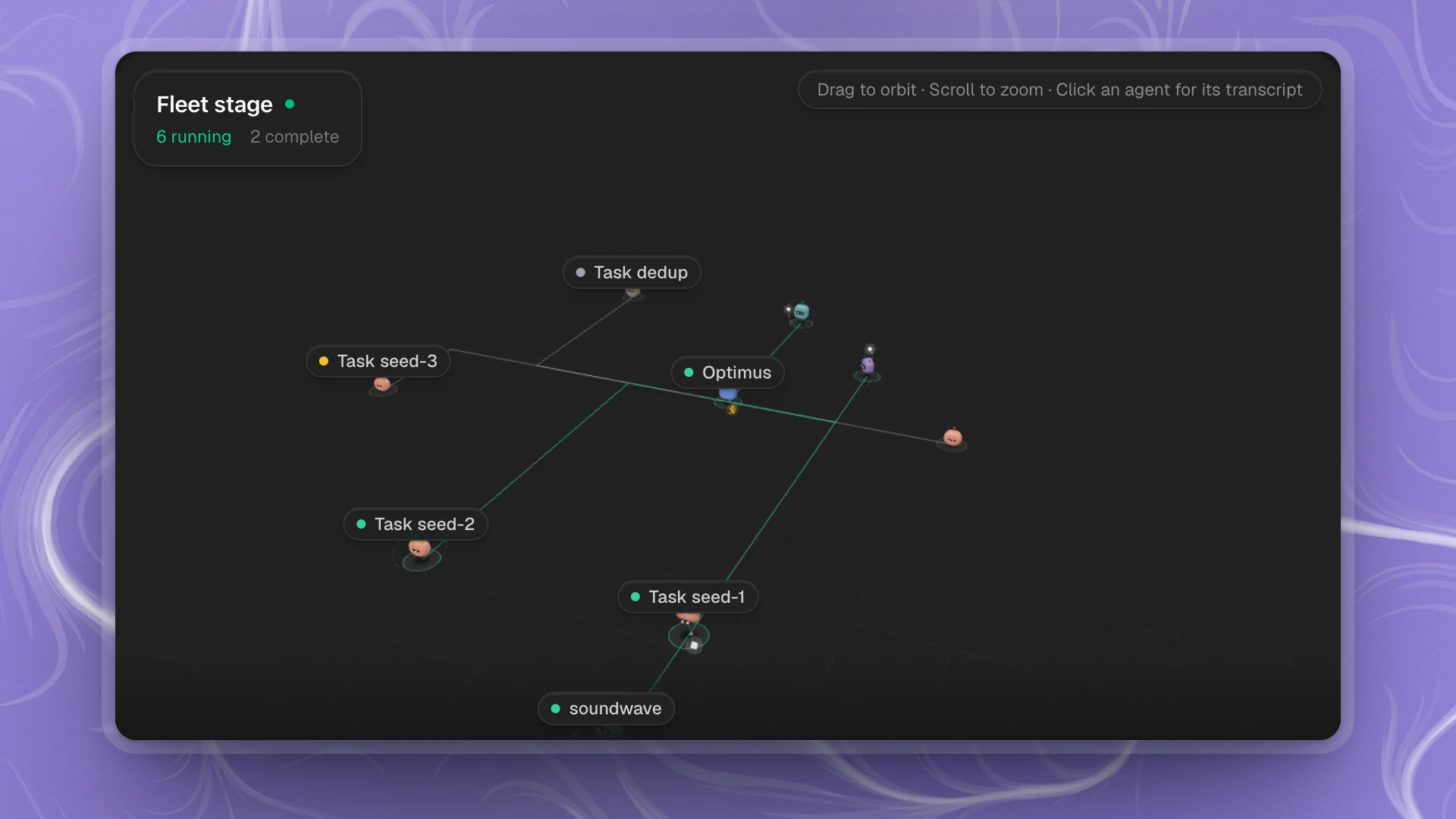
Chambers swaps the message list for a 3D stage of the same chat. Optimus stands in the middle. The specialists it brought in, the tasks it handed off and the files it touched recently sit around it, joined by lines that light up while work flows.
Open it: click the cube button (Chambers) to the left of the paperclip. It appears in local workspaces once a chat has started. Click it again to go back to the messages.
What the stage shows:
- Each agent as a figure with a small name tag. Hover a figure for its full card: its state (Running, Standby, Complete, Failed or Idle) and what it's doing, such as the tool it's using.
- Tasks as hubs further out, with the specialists helping on each one clustered around it.
- Recently changed files close to Optimus, so you can see what's being edited.
- A summary card in the corner, titled Fleet stage, counting what's running, complete and failed.
Drag to orbit, scroll to zoom, and click any agent to open its transcript. The composer stays on top, so you can steer while you watch.
Until Optimus brings someone in, the stage shows No agents deployed yet.
When to open Chambers
- A big job just fanned out. Seeing six agents at once tells you faster than scrolling whether the work split the way you expected.
- Something looks stuck. A figure sitting on Standby or Failed while the rest finish is the one to open.
- You want to know what's being edited. File nodes show which parts of the workspace are changing right now.
For reading what an agent said, the messages and transcripts are better. Chambers is for the shape of the work.
Armada
Tasks are pieces of work Optimus handed off to run on their own, side by side, while the chat carries on. Retraining three seeds in parallel is a typical case. Open Armada when one of those tasks needs attention: a seed that faulted, a task that should change direction, or a finished task waiting to be integrated. The Armada cell under the composer shows a dot per task and a count, like 2 active.
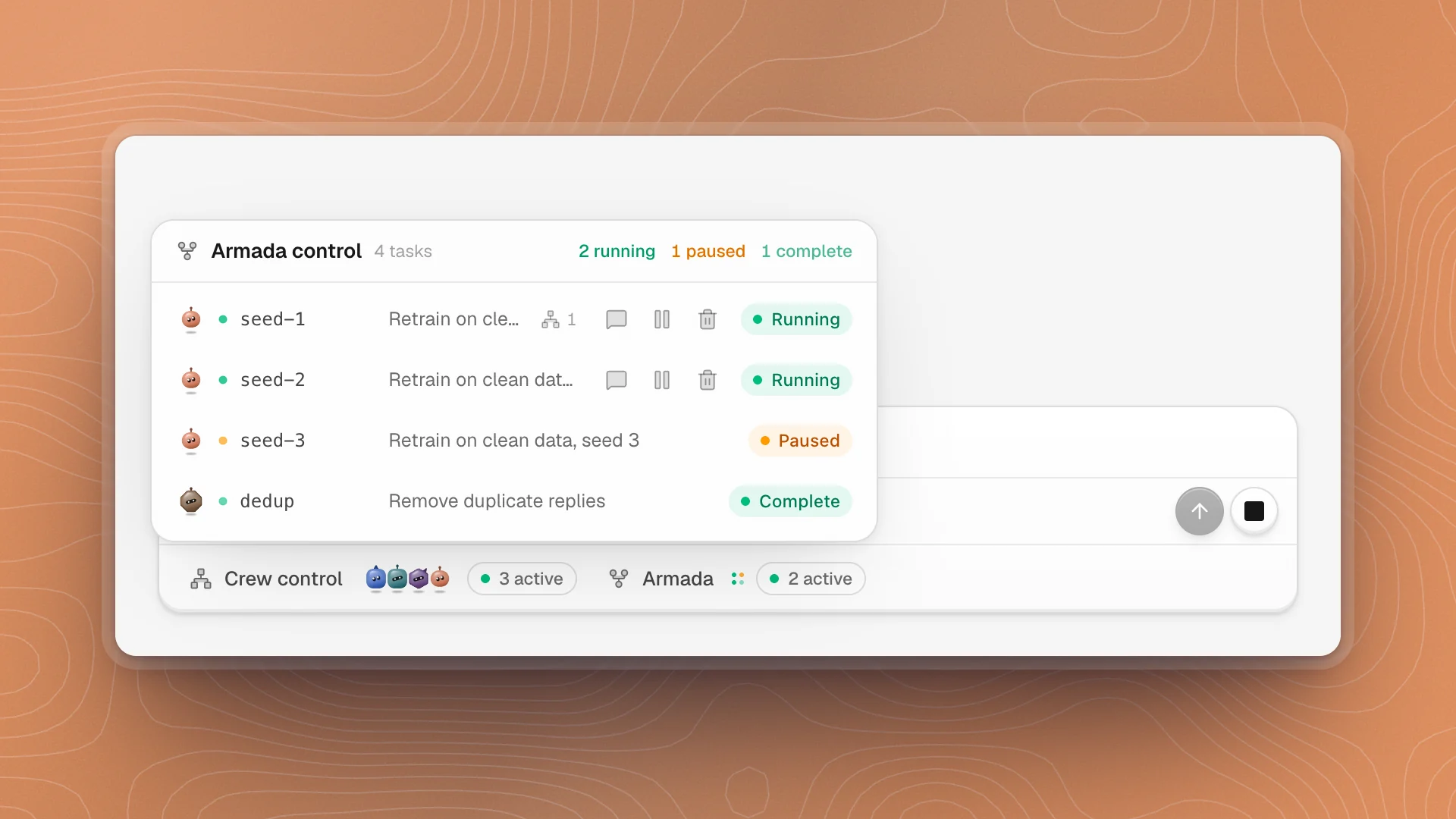
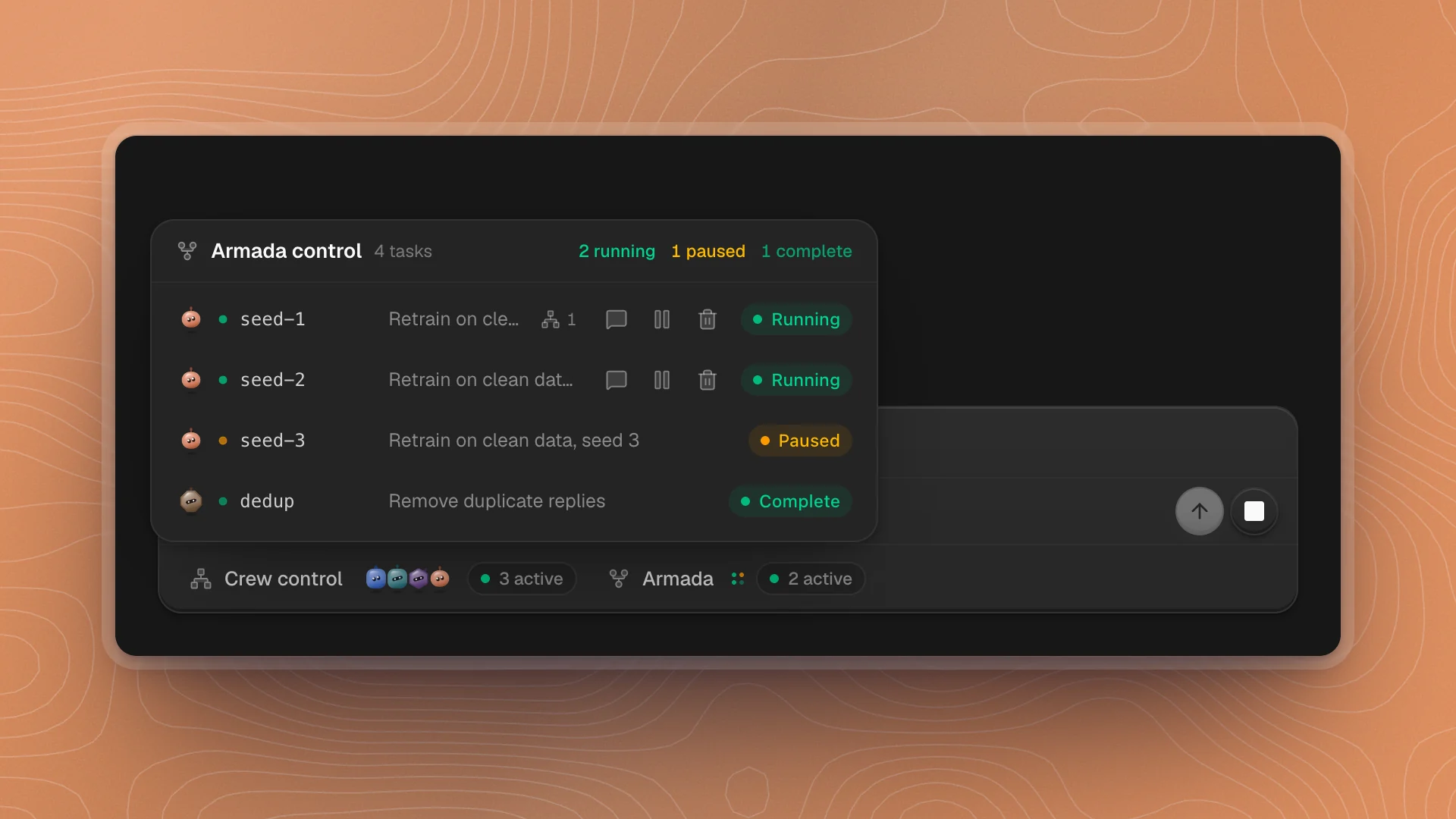
Open it: click Armada. The Armada control list shows each task's agent, name and description, a count of specialists helping on it, and its state: Running, Starting, Paused, Complete, Retired or Fault. Totals sit at the top.
Running tasks have three buttons on their row:
| Button | Does |
|---|---|
| Steer | Opens a box to give that task a new direction |
| Pause | Holds the task where it is |
| Discard task | Drops it. The first click arms it, the second discards. |
The rest keep running, so you can redirect one seed without touching the others.
Open an agent's transcript
Every agent's full working record is one click away:
- From Armada control, click a task's row.
- From Crew control, click an agent that has a task.
- From Chambers, click the agent's figure.
- From the chat, click a specialist's card in the messages.
A task's transcript ends with its own composer. While the task runs, type in “Give this agent another direction…” to steer it, or click Pause. Once it's paused, add a direction and click Resume, or resume as it was. The ⋯ menu has Discard task and, for tasks that worked in a separate copy of the workspace, Ask Optimus to integrate result, which asks Optimus to review the task's changes and bring them in if they're ready.
Use them well
- Glance at Tasks before you leave. If a task shows Fault, open it before the goal waits on it.
- Steer the task, not the whole chat. When one seed went wrong, steering that task leaves the others running.
- Let Optimus integrate. Ask it to integrate a finished task. It checks the result before bringing the changes in.
- Close Chambers when you're reading. The messages carry the reasoning; the stage carries the layout.