Chat
Attach files
Bring screenshots, papers and logs from outside the workspace into a chat, and know what the agent receives.
Attach things that live outside the workspace: a screenshot of a loss curve, a paper PDF, a log from last night's run. For files already in the workspace, mention them with @ instead.
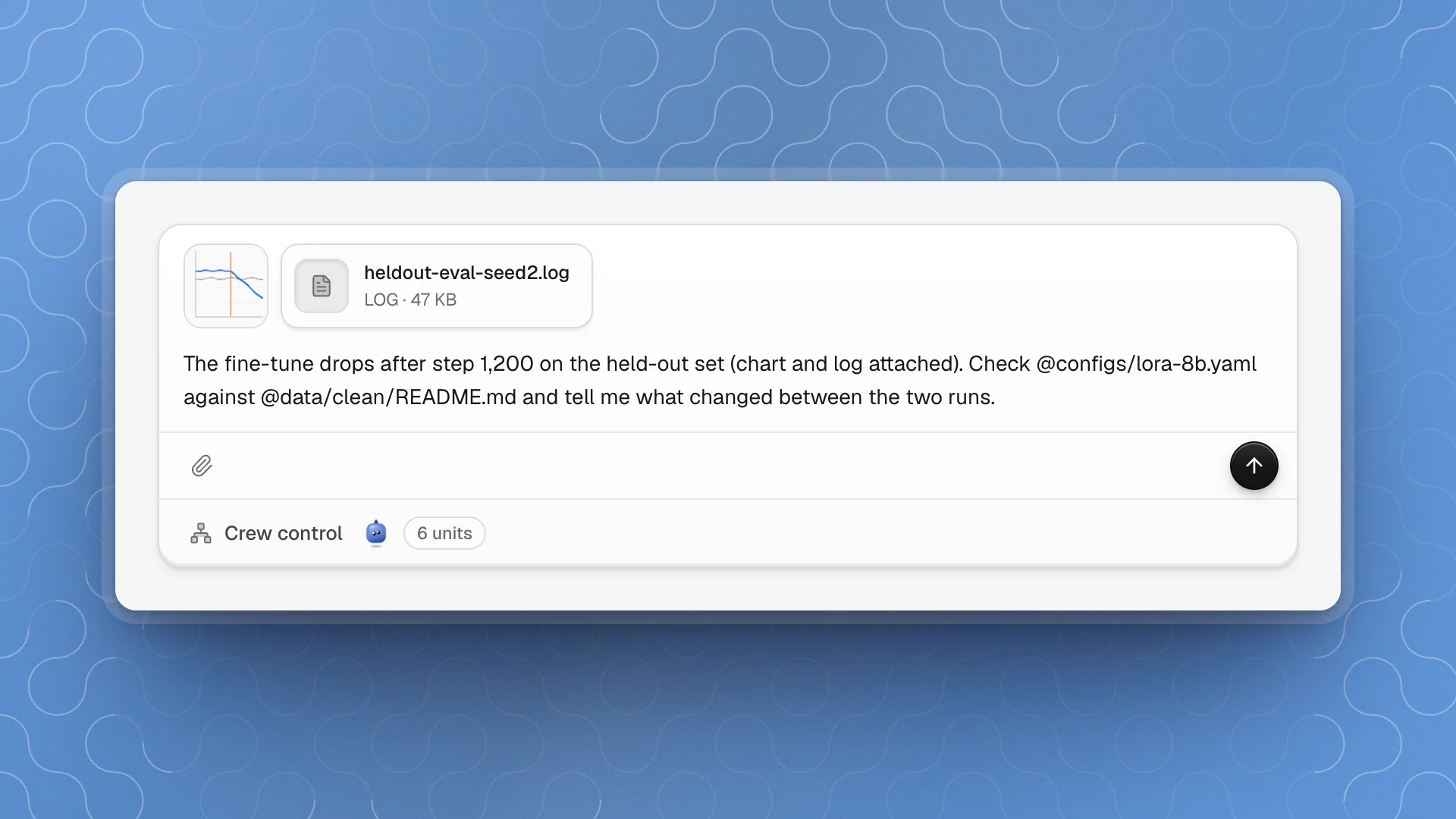
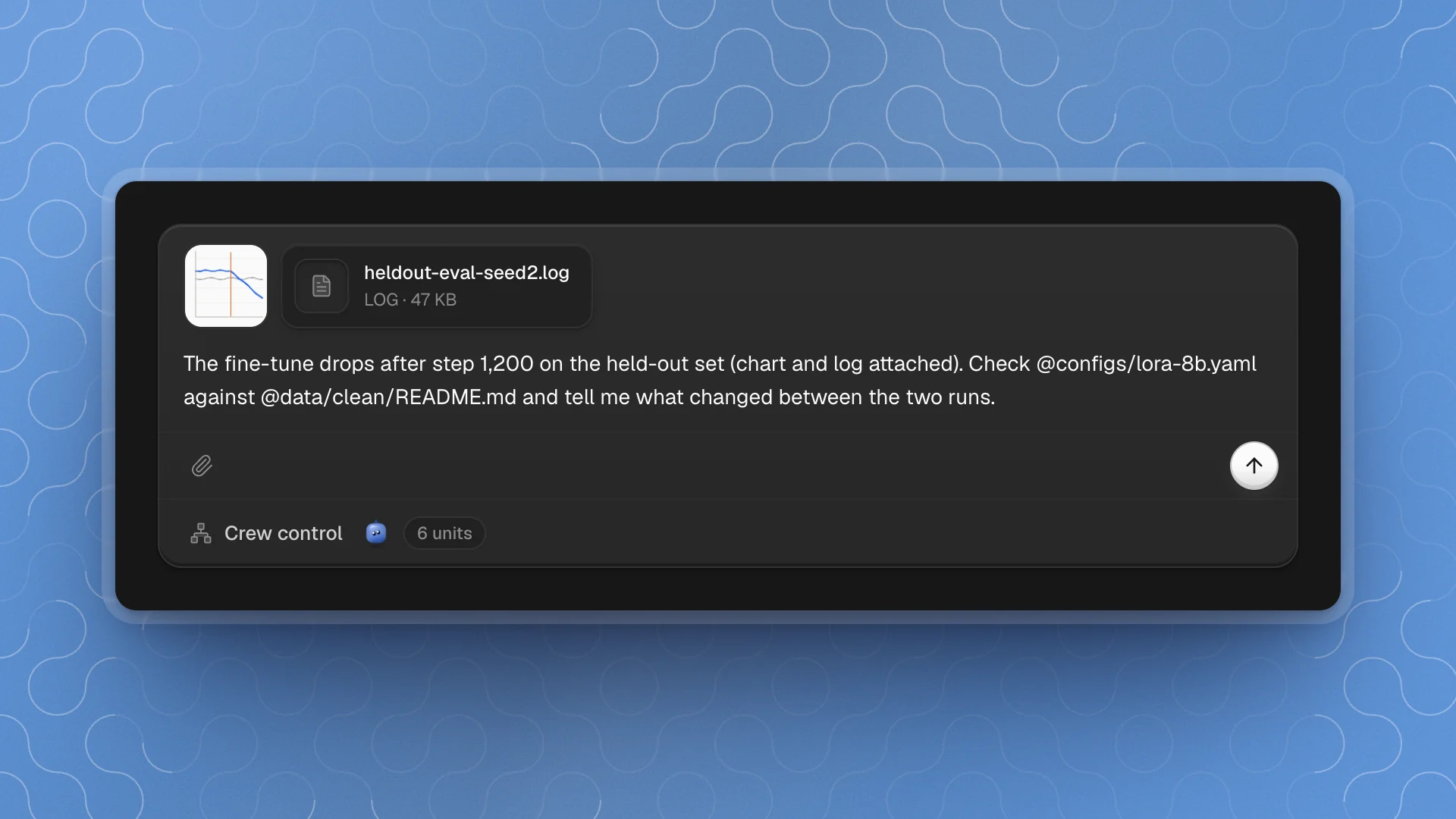
When to use it
Attach files that live outside the workspace: a screenshot of a loss curve, a paper PDF from your downloads, a log from another machine. For files already in the workspace, a mention is better, because it points at the real file and follows your edits.
Why it matters
An agent can only work with what it can see. Describing a chart in words loses the detail; attaching the screenshot shows the drop at step 1,200 exactly. Attaching the log saves a round of “can you paste the error?”.
Three ways to attach
- Click the paperclip (Attach files) under the message box and pick one or more files.
- Drag files in from Finder anywhere over the chat. The pane shows Drop files to attach while you hold them over it.
- Paste a screenshot straight into the message box.
What you add shows in the tray above the message as a thumbnail (images) or a chip with the file's kind and size (everything else). Hover an item to remove it before sending.
What the agent receives
| Kind | What's sent |
|---|---|
| Images (PNG, JPEG, GIF, WebP, and others the browser can open) | The picture itself, so the agent sees it. Large images are shrunk to fit within 2000 pixels on the long edge. |
| Everything else (PDFs, logs, CSVs, code, archives) | The file's location on your computer. The agent opens it from there with its own tools. |
Two things follow from that:
- Keep attached files where they are until the agent is finished with them. Moving or deleting a log mid-task leaves the agent with a dead link.
- Images that can't be shown (some HEIC photos, very large files) are attached by location instead, like any other file.
When a pasted file comes without a location, ArkenOS asks you to drag it in from Finder or use the paperclip instead.
Attach while an agent works
Attachments ride along with a steer or follow-up. Drop in the screenshot of the new error and send it as a steer; the agent sees it at its next step. An image on its own, with no text, is enough to send.
Good practice
- Say what to look at. “The chart shows resolved rate dropping after step 1,200. Find out why” gets further than an image with no words.
- Crop screenshots to the part that matters. One panel of the dashboard reads better than the whole screen.
- Save what the project should keep. An attachment stays where it is on your computer. If the log or paper matters later, ask the agent to copy it into the workspace: “save this log to runs/2026-10-14/ and link it from the page”.
- Mention workspace files instead of attaching copies. A mention points at the real file, so the agent sees your latest version.