Chat
Mentions
Use @ in the chat composer to point an agent at an exact file or a connected tool.
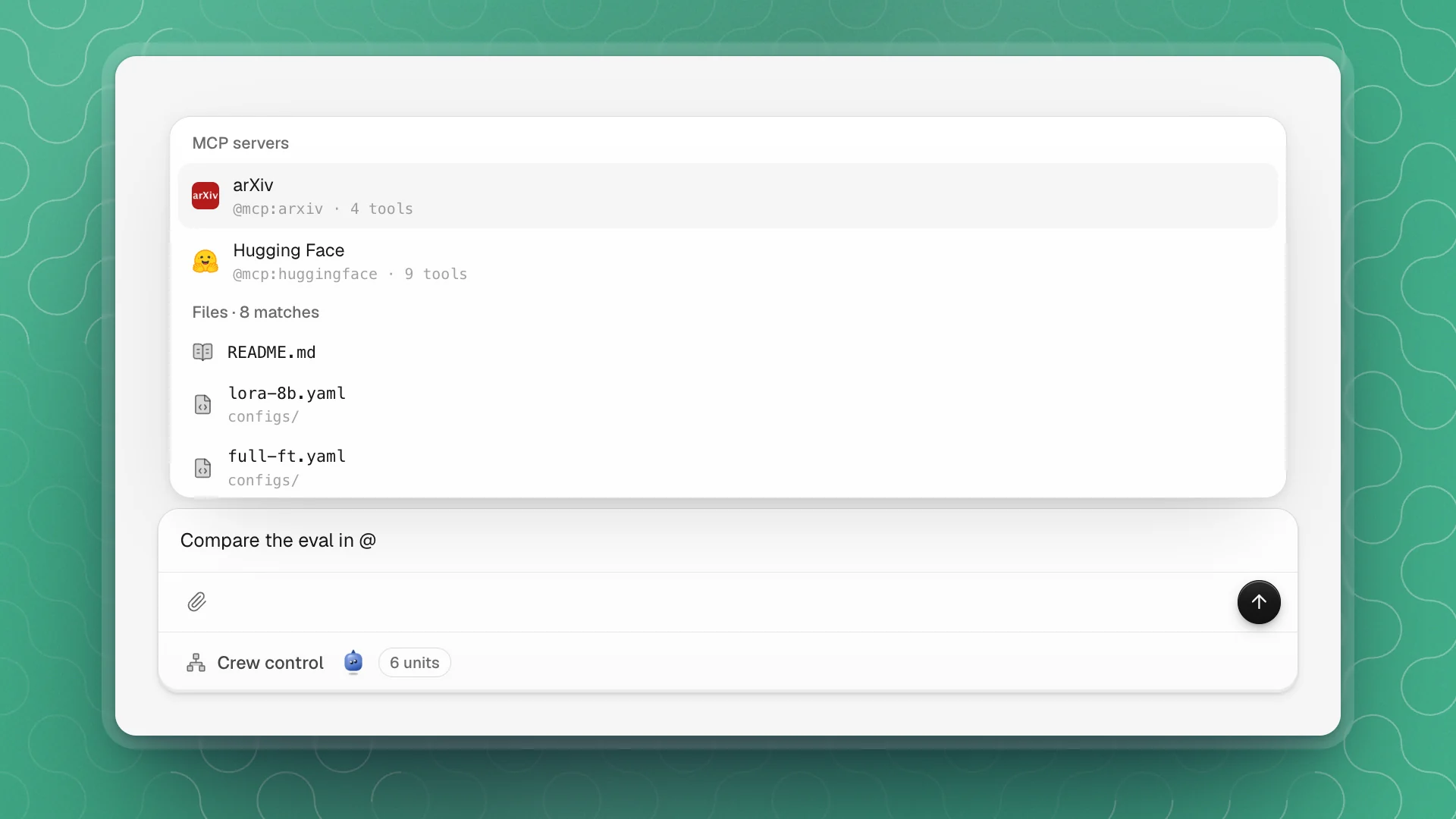
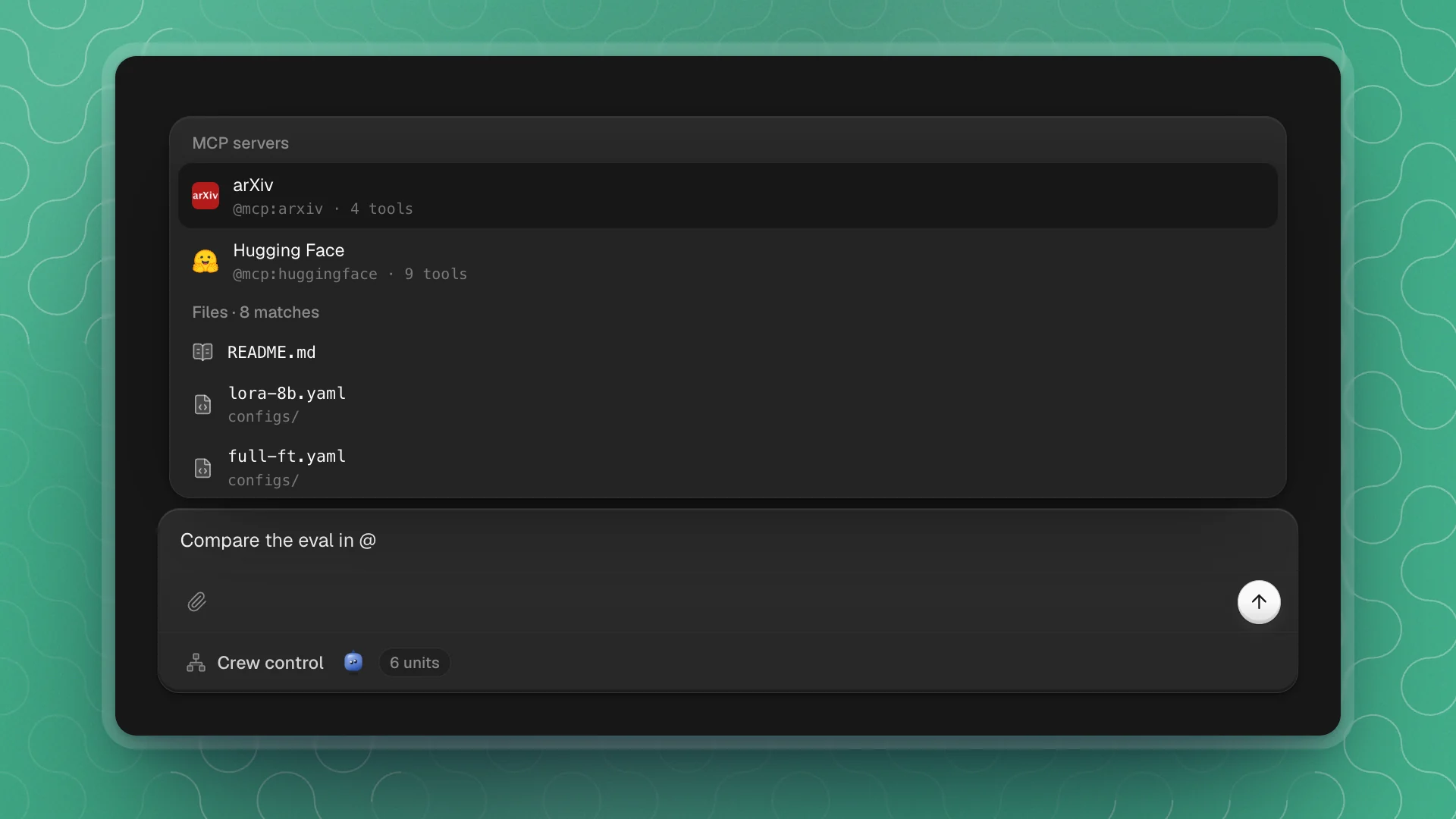
Type @ in the message box and a picker opens with two kinds of things to point at: your connected tools and the files in the workspace. Picking one puts a mention in your message, so the agent works with exactly what you meant.
When to use it
- Mention a file when the answer depends on a specific file the agent might otherwise guess at, like one of two
config.yamlfiles. - Mention a tool when you want a particular source, like arXiv or Hugging Face.
- For files outside the workspace, attach them instead.
- To bring in an agent, ask Optimus or chat with the agent directly; the composer's
@covers files and tools.
Why it matters
Without a mention the agent searches, and a search can land on last month's config or a stale copy. A mention removes that guess, which saves time and the occasional run built on the wrong file.
Mention a file
Type @ and start typing a name or part of a path: @lora finds configs/lora-8b.yaml. Pick a file with the arrow keys and Enter (or Tab), or click it. It goes into the message as its path, like @configs/lora-8b.yaml.
- Any file in the workspace can be mentioned, pages included:
@Experiments/held-out-push.mdpoints at that page. - The list shows up to 12 matches. Type more of the name to narrow it.
- Drag from the file tree. Dropping a workspace file onto the chat adds its mention for you.
The agent reads the file you mentioned, so there's no guessing between two files called config.yaml.
Mention a connected tool
Tools you've connected in Integrations appear under MCP servers, each with how many tools it offers. A bare @ shows the first two; type a name, or @mcp, to see more.
A tool goes in as @mcp: plus its id, like @mcp:arxiv. It tells the agent to use that connection for the request:
Search @mcp:arxiv for papers since 2025 on deduplicating fine-tuning data, and list the three most relevant with one line on what each found.
- Only enabled connections are listed. Turn a tool on in Integrations to make it mentionable.
- Agents can use connected tools without a mention. Mention one when you want that specific source, like Hugging Face over a general web search.
Mentions and agents
In the chat composer, @ points at files and tools. To work with a particular agent, click its name in the sidebar to chat with it directly, or ask Optimus to bring it in: “have Megatron try to disprove this.” In channels, @name mentions an agent, and it always replies; see Talk in a channel.
Mention well
- Mention the file the answer depends on. “Why does @configs/lora-8b.yaml diverge?” starts the agent in the right place.
- Mention the few that matter. Two or three files the answer depends on keep the agent focused.
- Pair a mention with what to look for. “Check the learning-rate warm-up in @configs/lora-8b.yaml” is faster than the file alone.
- Mention workspace files; attach outside ones. A mention points at the real file and follows your edits.