Settings
Integrations
Connect your research tools once, and Optimus and the specialists can use them in every workspace.
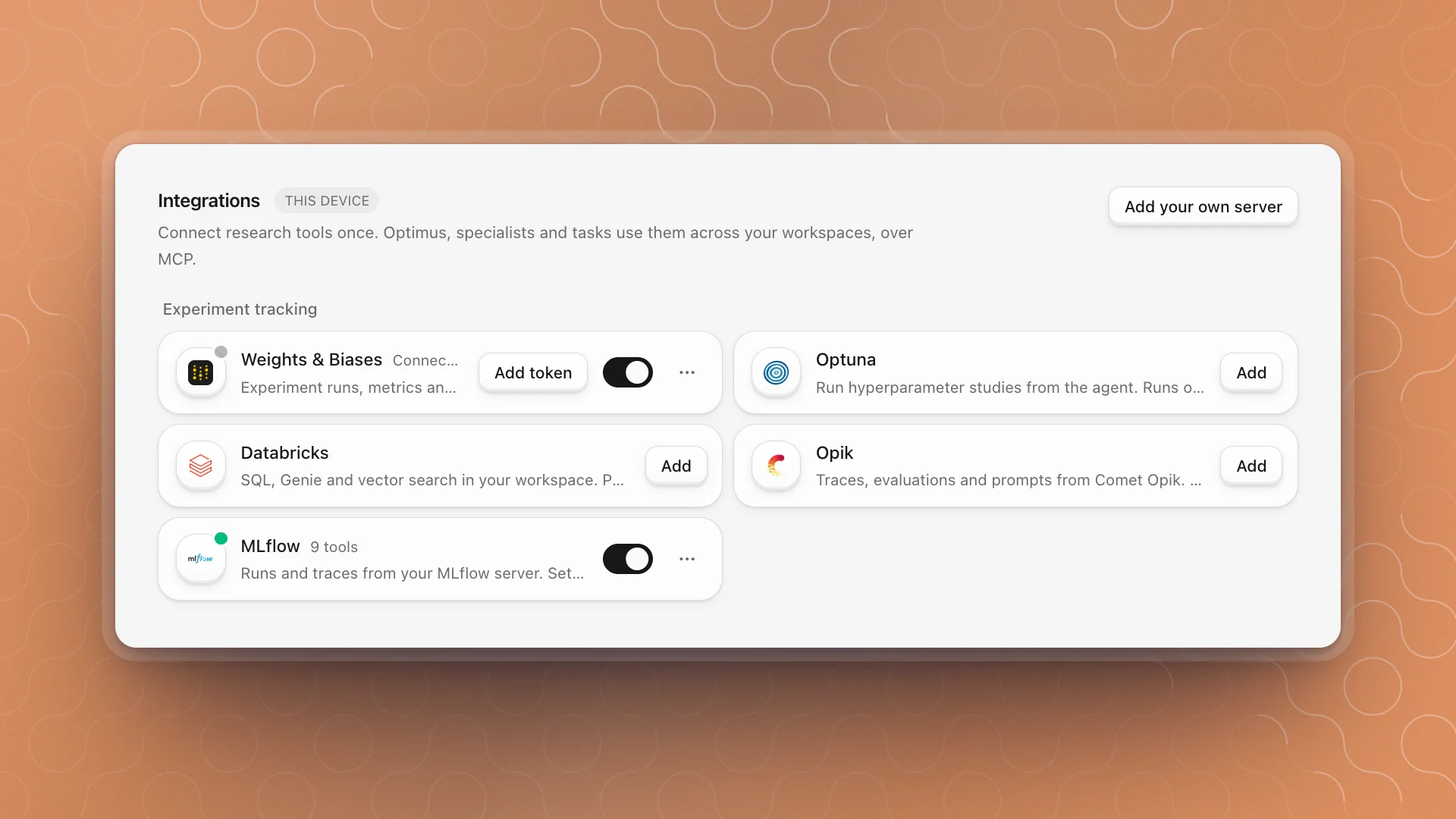
Integrations give agents your tools: paper search, the Hugging Face Hub, experiment tracking, cloud GPUs, code hosts and note apps. Connect a tool once and Optimus, the specialists and their tasks can use it in every workspace on this computer. Integrations run over MCP, an open standard for connecting tools to agents.
Open Settings → Integrations.
When to use it
- Agents need data or compute from a tool you already use: papers from arXiv, runs from MLflow or Weights & Biases, datasets from Hugging Face, GPUs on RunPod.
- You find yourself pasting the same kind of thing into chat, like run metrics or issue text. Connect the tool and let the agent fetch it.
For a tool that isn't in the catalog, add it as your own MCP server. For plain web search and reading pages, use Web access, which works with no integration at all.
Why it matters
Without integrations, agents only see your files and the web. With your tracker connected, "compare the last five LoRA runs" becomes one request. With a GPU provider connected, an agent can launch the eval on a bigger machine itself.
Connect a tool
Find it
Tools are grouped into Research, Experiment tracking, Sandboxes, Compute, Code, and Notes and writing. Or type in Search integrations.
Click Add
Each card says what the tool needs: No sign-in needed, Sign in after adding, Paste a token after adding, or Runs on this computer.
Finish connecting
Click Sign in to finish in your browser, or Add token to paste a token. Tokens and keys stay in your system keychain.
Once a tool is connected, its card shows how many tools it gives agents, for example 9 tools. A tool you haven't used since the app started shows Connects when used and connects on an agent's first call.
What's in the catalog
| Group | Includes |
|---|---|
| Research | Semantic Scholar, OpenAlex, Consensus, arXiv, PubMed, Paper Search, Zotero, Kaggle, Hugging Face, Wolfram, Lean, Benchling, Nenyax |
| Experiment tracking | Weights & Biases, MLflow, Optuna, Opik, Databricks |
| Sandboxes | Cloudflare Containers, Fly.io Sprites, Blaxel, Daytona, Docker MCP Gateway |
| Compute | RunPod, AWS, Azure, CoreWeave, DigitalOcean, Nebius, Crusoe, Kubernetes |
| Code | GitHub, GitLab, DeepWiki, Context7 |
| Notes and writing | Notion, Obsidian, Overleaf, Logseq |
Cards tagged Community use a server built by the community. Local tools such as arXiv, MLflow or Zotero run on your computer and may need the app or CLI they talk to; their card says what to set up, like "Set MLFLOW_TRACKING_URI" or "Turn on Zotero's local API".
Use a tool in chat
Agents reach for a connected tool when it helps. To point them at one, type @ in the composer and pick the server from the list (type @mcp to see them all). The message then names that server, and the agent uses it.
Check the latest runs.
Use MLflow to pull the last five runs of the support-bot LoRA fine-tune, compare held-out accuracy against the base model, and tell me which run to promote.
Manage a tool
- Switch it off with its switch to keep it set up but out of agents' reach. Turn it back on any time.
- Refresh tools in its menu reconnects and reloads what it offers. Try it first when a tool stops answering.
- Sign in again renews an expired sign-in. Change token replaces a token.
- Remove deletes it from this computer.
- GitHub, GitLab and Hugging Face also have Clone a repository… in their menu, which starts a new workspace from a repo.
Add your own server
Any MCP server works, hosted or run on your computer. Click Add your own server and choose Remote URL or Local command. Servers you add appear under Your servers. The full walkthrough, with sign-in options, secrets and troubleshooting, is in Your own MCP servers.
Best practice
- Connect what the project uses, and little else. Every tool's description reaches the agents. A short list helps them pick the right one.
- Connect experiment tracking early. With MLflow or Weights & Biases connected, agents compare runs straight from the tracker.
- Give agents read-only tokens where you can, and widen access when a task needs it.
- Set up each computer. Integrations belong to this device, as the THIS DEVICE tag says. Add them again on another machine.