Settings
General, workspace and profile
Your own settings, from how the app runs on this computer to who answers a new chat.
The Account half of Settings holds settings that are yours alone. They apply to you and leave your teammates' settings as they are. Press ⌘, to open Settings.
When to use it
- Setting up a new computer: choose whether ArkenOS starts at login, and make sure Keep awake is on before your first overnight goal.
- Checking for updates or seeing which version you run.
- Changing how teammates and agents see your name.
For defaults about chats, automations, pages and the canvas, see Workspace defaults. For anything shared with the organization, see the Organization pages: Members and teams, Alerts and Billing.
Why it matters
These are the settings that decide whether long work survives the night. A computer that sleeps mid-run stalls the goal until you wake it. A display name agents recognise makes their reports and mentions read naturally.
General
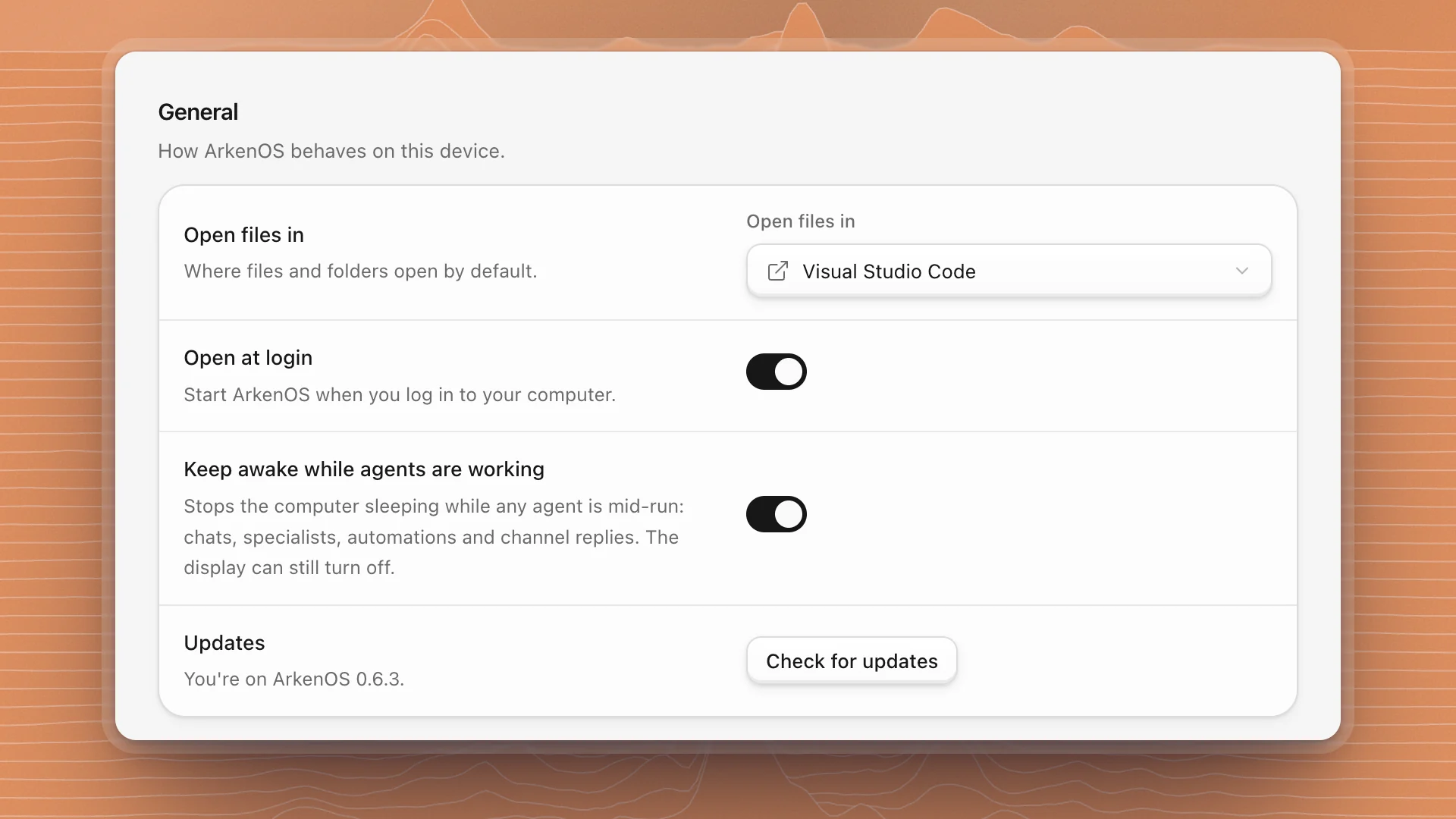
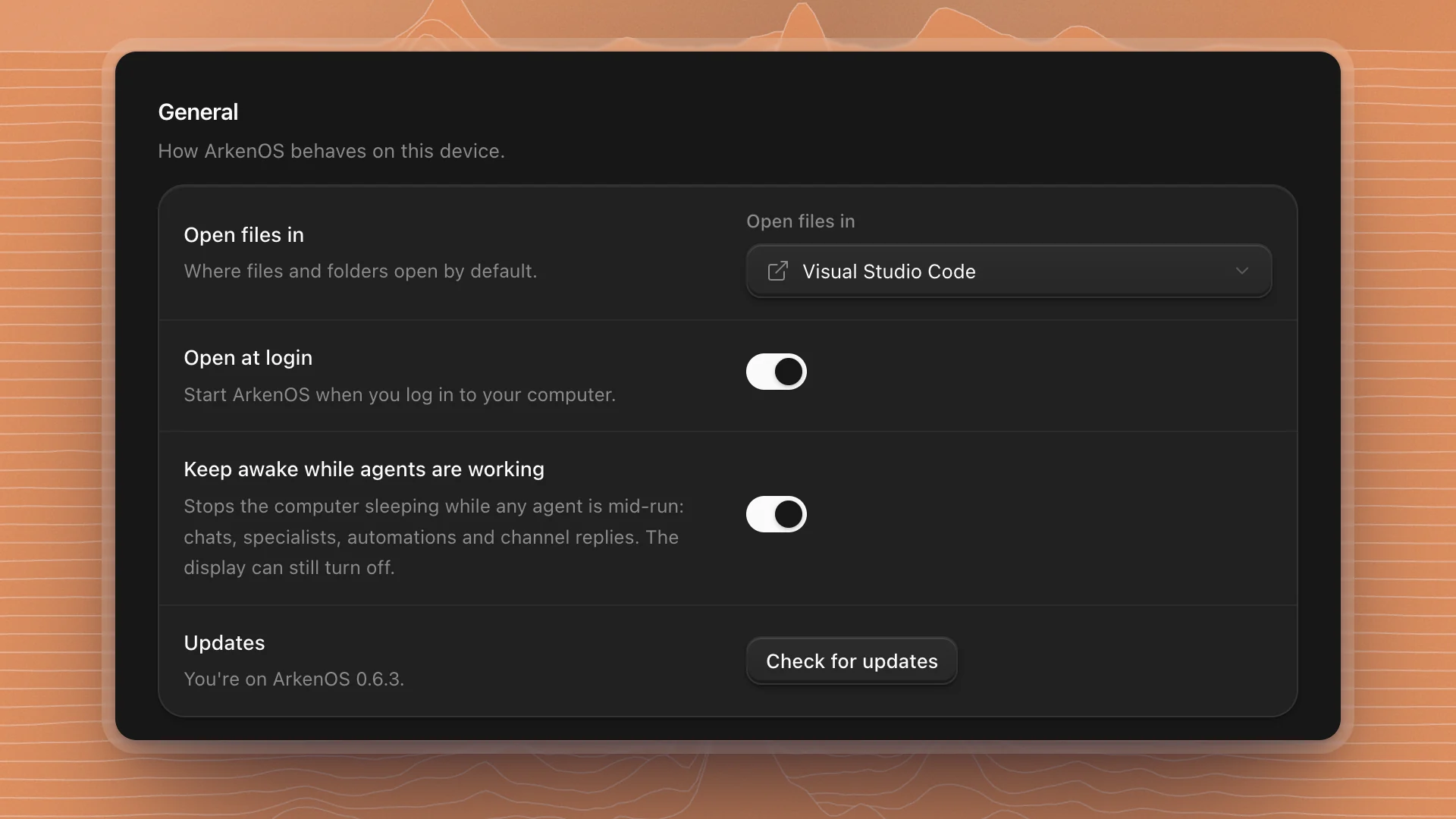
How ArkenOS behaves on this computer.
| Setting | What it does |
|---|---|
| Open files in | Saves your preferred app for opening files and folders, from the editors, file managers and terminals installed on this computer. For now the choice is only saved: the Open in … item in a workspace's menu on the Workspaces page uses the first editor ArkenOS finds, and a page's menu offers Open in VS Code. |
| Open at login | Starts ArkenOS when you log in to your computer |
| Keep awake while agents are working | Stops the computer sleeping while any agent is mid-run: chats, specialists, automations and channel replies. The display can still turn off. On by default. |
| Updates | Shows your version. Check for updates, then Download update and Restart to update when one is ready. |
Leave Keep awake on if you run goals overnight or over a weekend, so the computer stays up for the whole run. Keep a laptop plugged in for long runs.
Workspace
Who answers a new chat, what Enter does during a run, and the defaults for new automations, pages and the canvas: see Workspace defaults.
Profile
Set your Display name and click Save. It's how teammates and agents see you. Your Email address is how you sign in; contact support to change it.
Shortcuts
Shortcuts lists every keyboard shortcut in the app. The same list is in Keyboard shortcuts.
Devices
Devices is marked Coming soon. It previews pairing your own machines and phone so threads can move between them; its switches are off until it ships.