Reference
Keyboard shortcuts
Every shortcut in ArkenOS. Press ⌘/ in the app to see them.
Press ⌘/ anywhere in ArkenOS to open the shortcut list, or find the same list in Settings → Shortcuts. On Windows and Linux, use Ctrl in place of ⌘, Shift in place of ⇧, and Ctrl in place of ⌃.
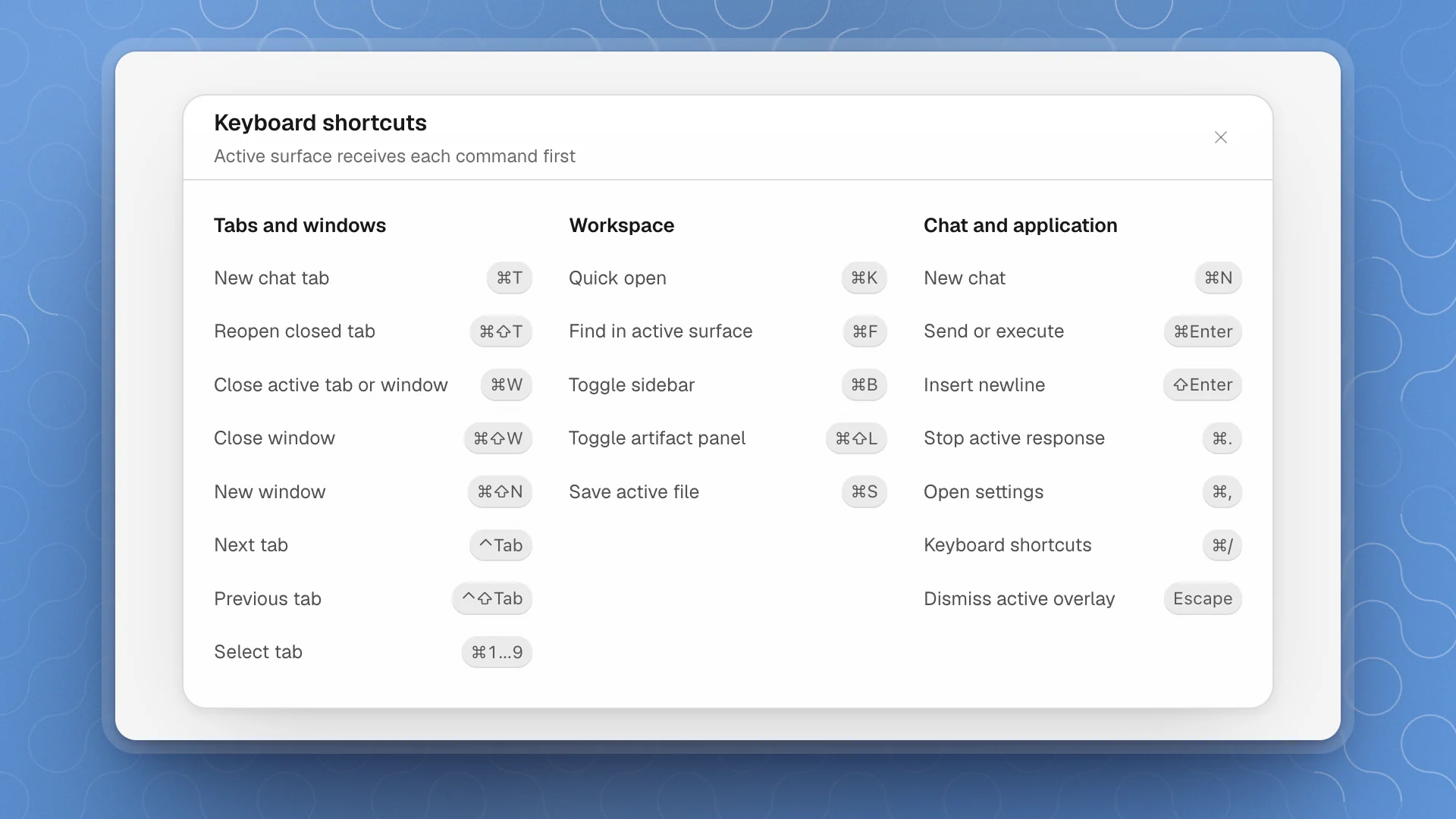
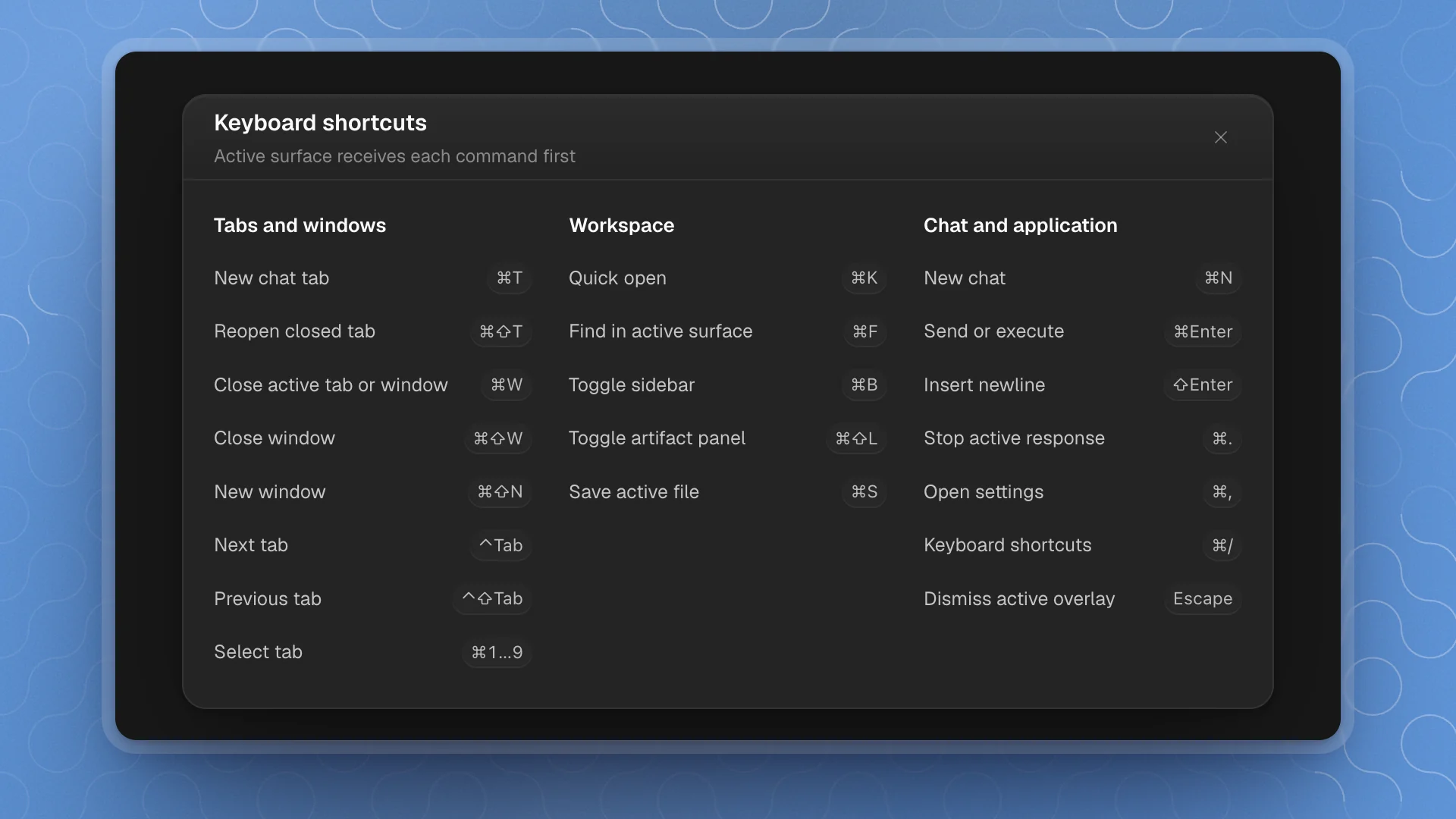
The tables below follow the dialog's groups and labels. The surface in front gets each shortcut first, so ⌘F in a code file searches that file, and in a page it searches the workspace.
Tabs and windows
| Shortcut | Windows and Linux | Action |
|---|---|---|
| ⌘T | Ctrl+T | New chat tab |
| ⌘⇧T | Ctrl+Shift+T | Reopen closed tab |
| ⌘W | Ctrl+W | Close active tab |
| ⌘⇧W | Ctrl+Shift+W | Close window |
| ⌘⇧N | Ctrl+Shift+N | New window |
| ⌃Tab | Ctrl+Tab | Next tab |
| ⌃⇧Tab | Ctrl+Shift+Tab | Previous tab |
| ⌘1…9 | Ctrl+1…9 | Select tab |
- ⌘9 always goes to the last tab, however many are open.
- ⌘W only closes a workspace tab. Use ⌘⇧W to close the desktop window.
- Tab cycling and numbered selection follow the order in the focused split pane. Reopen restores the most recently closed tab, including chats, pages, files, agents and automations.
- Window shortcuts belong to the desktop app. In a web browser, the browser may reserve new/close tab and window shortcuts.
Workspace
| Shortcut | Windows and Linux | Action |
|---|---|---|
| ⌘K | Ctrl+K | Quick open |
| ⌘F | Ctrl+F | Find in active surface |
| ⌘B | Ctrl+B | Toggle sidebar |
| ⌘S | Ctrl+S | Save active file |
- Quick open jumps to a page or file by name.
- Find searches the code file you're in, or pages and chat threads everywhere else.
- Save saves the page, file, agent file or automation in the focused pane.
- Editors handle their own keys first: for example, ⌘B makes text bold, ⌘K edits a link, and ⌘/ toggles a code comment. Outside an editor, these keys toggle the sidebar, open quick open, and show keyboard help.
Chat and application
| Shortcut | Windows and Linux | Action |
|---|---|---|
| ⌘N | Ctrl+N | New chat |
| ⌘Enter | Ctrl+Enter | Send or execute |
| ⇧Enter | Shift+Enter | Insert newline |
| ⌘. | Ctrl+. | Stop active response |
| ⌘, | Ctrl+, | Open settings |
| ⌘/ | Ctrl+/ | Keyboard shortcuts |
| Escape | Escape | Dismiss active overlay |
In the chat box, Enter sends. While an agent is working, Enter follows Follow-ups while an agent is working in Settings → Workspace (Steer or Queue), and ⌘Enter does the other one for that message. See Steer, queue and stop.
⌘T and ⌘N do the same thing: both open a new chat.
More keys
These work too, beyond the dialog's list:
| Shortcut | Windows and Linux | Action |
|---|---|---|
| ⌘P | Ctrl+P | Quick open (same as ⌘K) |
| ⌘\ | Ctrl+\ | Split the current tab to the right |
| ⌥⌘\ | Ctrl+Alt+\ | Split the current tab down |
| ⌘⇧[ / ⌘⇧] | Ctrl+PageUp / Ctrl+PageDown | Previous / next tab |
| ↑ in an empty chat box | ↑ | Bring back your last message, or the last one still waiting in the queue, to edit it |
Projects, notifications and the page editor have their own keys for their own views. Those pages list them: Views and shortcuts, Notifications and Write in the editor.
Learn these first
- ⌘K to open anything by name. Once you know your workspace, it beats clicking through the tree.
- ⌘\ to split the tab you're in, then open a results page in the new half and read it while you steer.
- ⌘. to stop a response that's heading the wrong way, then say what you want instead.