Reference
App updates
How ArkenOS checks for and installs new versions on each system, and what happens to running agents when you update.
ArkenOS checks for new versions while it runs and tells you when one is ready. Nothing downloads or installs until you click, so you choose the moment.
Read this when an update is waiting and agents are mid-run, when a Windows or Linux update needs a step from you, or when ArkenOS says an update is required.
Why it matters: installing restarts the app, which stops every running chat, goal and specialist. Timing the restart between runs keeps an overnight fine-tune or a long eval from being cut off halfway.
When it checks
- About 10 seconds after the app opens, then every hour.
- When you come back to the app or wake the computer, if the last check was more than 15 minutes ago.
- Whenever you ask: Help → Check for Updates…, or Check for updates in Settings → General → Updates.
When a new version turns up, your system shows a notification, arkenOS update available, once per version.
Where it shows
| Place | What you see |
|---|---|
| Bottom of the sidebar | The version number turns into Update, then Restart to update once it's downloaded |
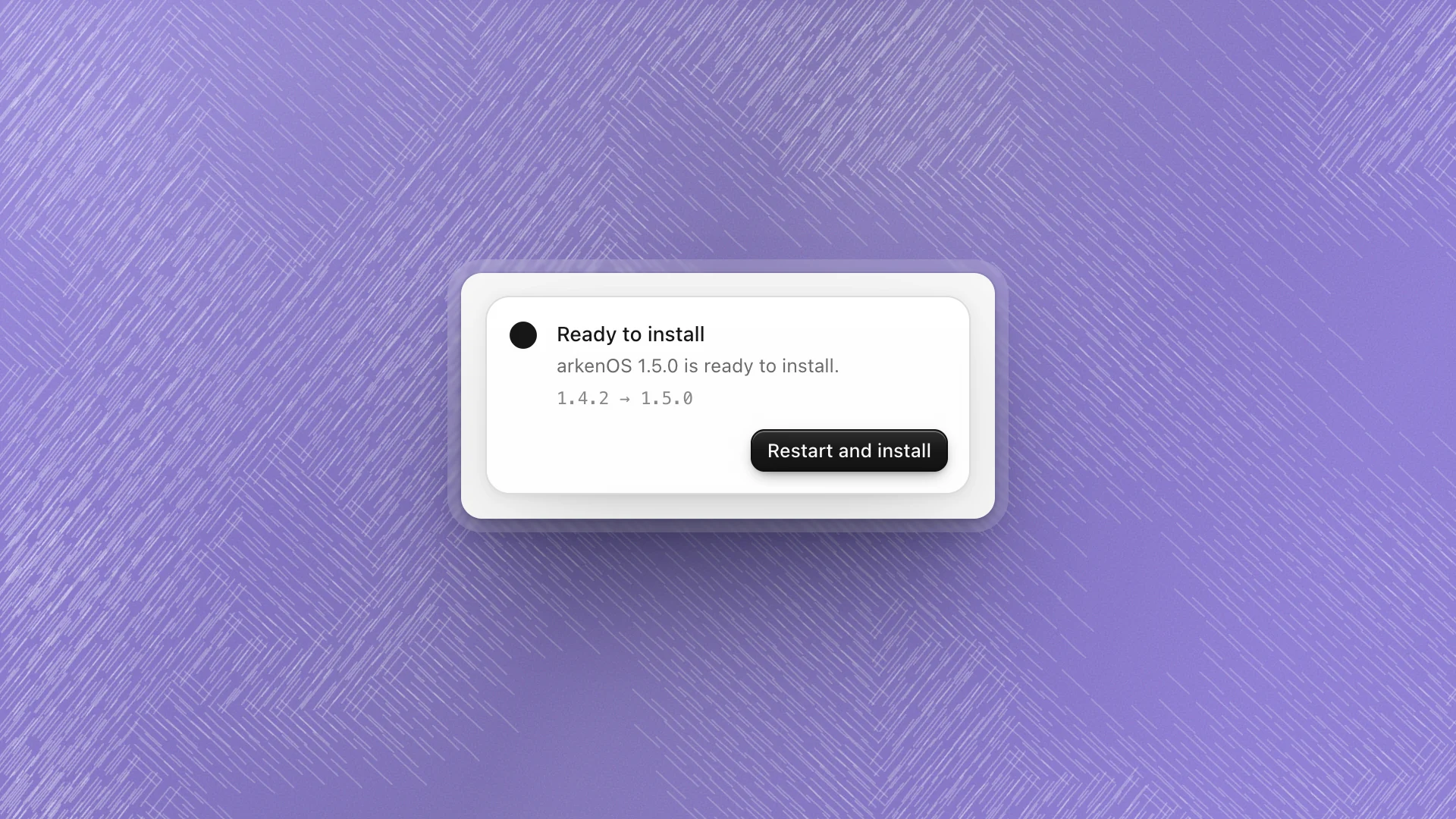
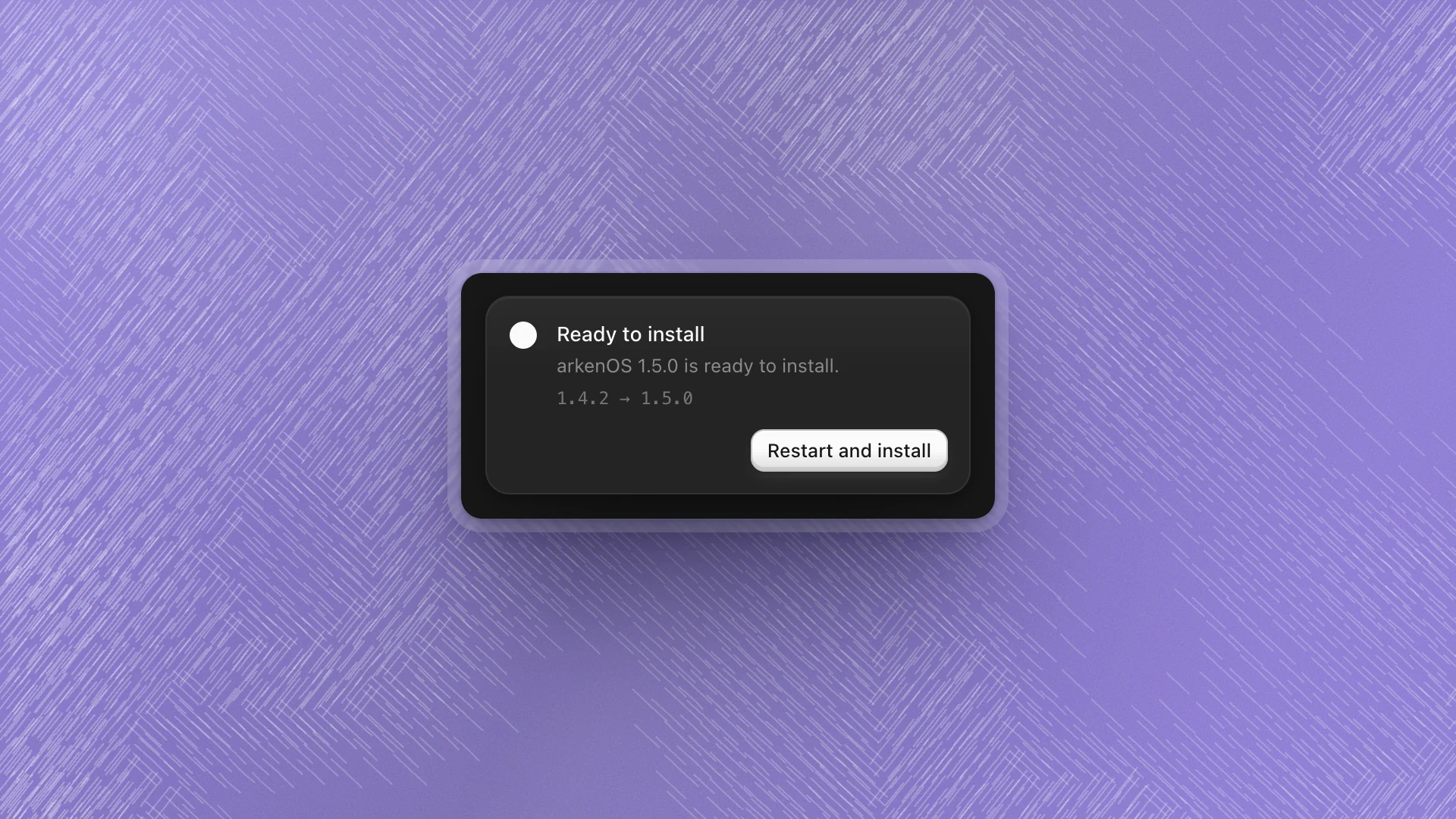
| Bottom-right card | Update available, Downloading update with a progress bar, Ready to install, and the version you have → the one that's ready |
| Next to the bell | An arrow button; hover it for what it will do (Download update, Restart and install, and so on) |
| Settings → General → Updates | You're on ArkenOS …, or which version is ready, with a button for the next step |
An optional update's card has an × to put it away; the sidebar and Settings still offer it.
Install it
How an update installs depends on your system:
| System | What happens |
|---|---|
| macOS | Click Update (or Download update). ArkenOS downloads the signed update in the background. When it's ready, click Restart to update (or Restart and install). ArkenOS restarts on the new version |
| Windows | ArkenOS downloads the installer, checks it, and opens it. Follow the installer's prompts |
| Linux | ArkenOS saves the new AppImage to your Downloads folder and shows it. Quit ArkenOS and replace your current AppImage with the new one |
Once an installer is downloaded, the button reads Open downloaded update. If a download fails, use Retry download, or Use installer to fall back to the full installer.
Required updates
Now and then a version is required. On a Mac, ArkenOS then shows Update ArkenOS to continue in place of your workspace, with the version you have and the one required. Click Upgrade ArkenOS; it downloads the update and restarts on its own. ArkenOS reopens once the update is in.
What happens to running agents
Restarting to install stops everything running in ArkenOS: chats mid-reply, goals, specialists and channel replies. ArkenOS restarts straight away when you click, without checking for running work.
- Update between runs. Let a long goal finish, or pause it (Pause goal on the goal row), before you click Restart to update.
- Check your goals afterwards. After the restart, open each chat that was working. A Paused goal resumes with the play button; for one that still says Active with nothing happening, send a message or type
/goal resume. - Leave optional updates for a quiet moment. Dismiss the card and update at the end of the day.
Files agents already wrote, pages, artifacts and chat history are all kept.
Release notes
What's new in the account menu (your picture at the top right of the Workspaces page) opens the changelog on the ArkenOS website. Help → Check for Updates… also shows the new version's notes before you download it.