Reference
Troubleshooting
What to do when an agent stops, waits, stays quiet, or can't reach a model, and where to find the logs.
Most stops have a clear cause on screen: a banner over the chat box, a status on the goal row, or a dot in the sidebar. Start there, then use the answers below.
Use this page when an agent stops, waits, or stays quiet and the reason isn't clear. For questions about how ArkenOS works rather than something going wrong, see the FAQ. If none of this fixes it, get support.
Most long-run stops can be prevented before you start: keep the computer awake, turn on alerts, check your plan's usage in Settings → Models, and update between runs instead of during them.
Chat says “Choose a model for Optimus”
Your agents have no model to think with yet. You skipped the model step during setup, or the connection was removed.
Click Set up models
It opens Settings → Models at the Intelligent task router.
Connect a model
Sign in to a plan you pay for under Subscriptions, or add an API key under Model providers. See Connect models.
Check the router
The router shows how many of its task types have a model, as assigned of total. If any are empty, pick a model for them.
Come back to the chat and the banner clears by itself. If it appeared after you sent a message, send it again.
“No provider connected” means the same thing: click Connect a provider and connect one.
The goal says “Usage limit”
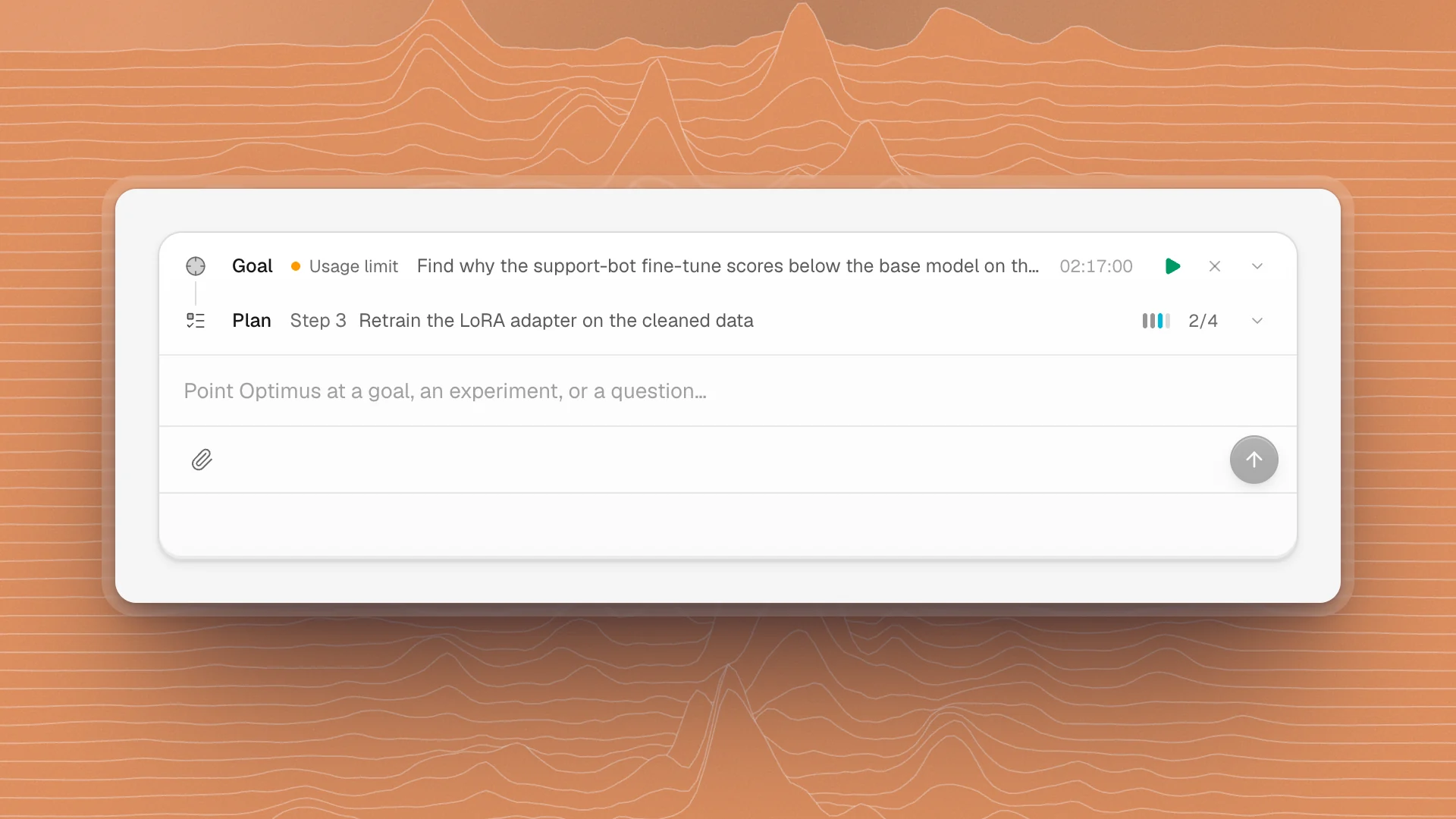
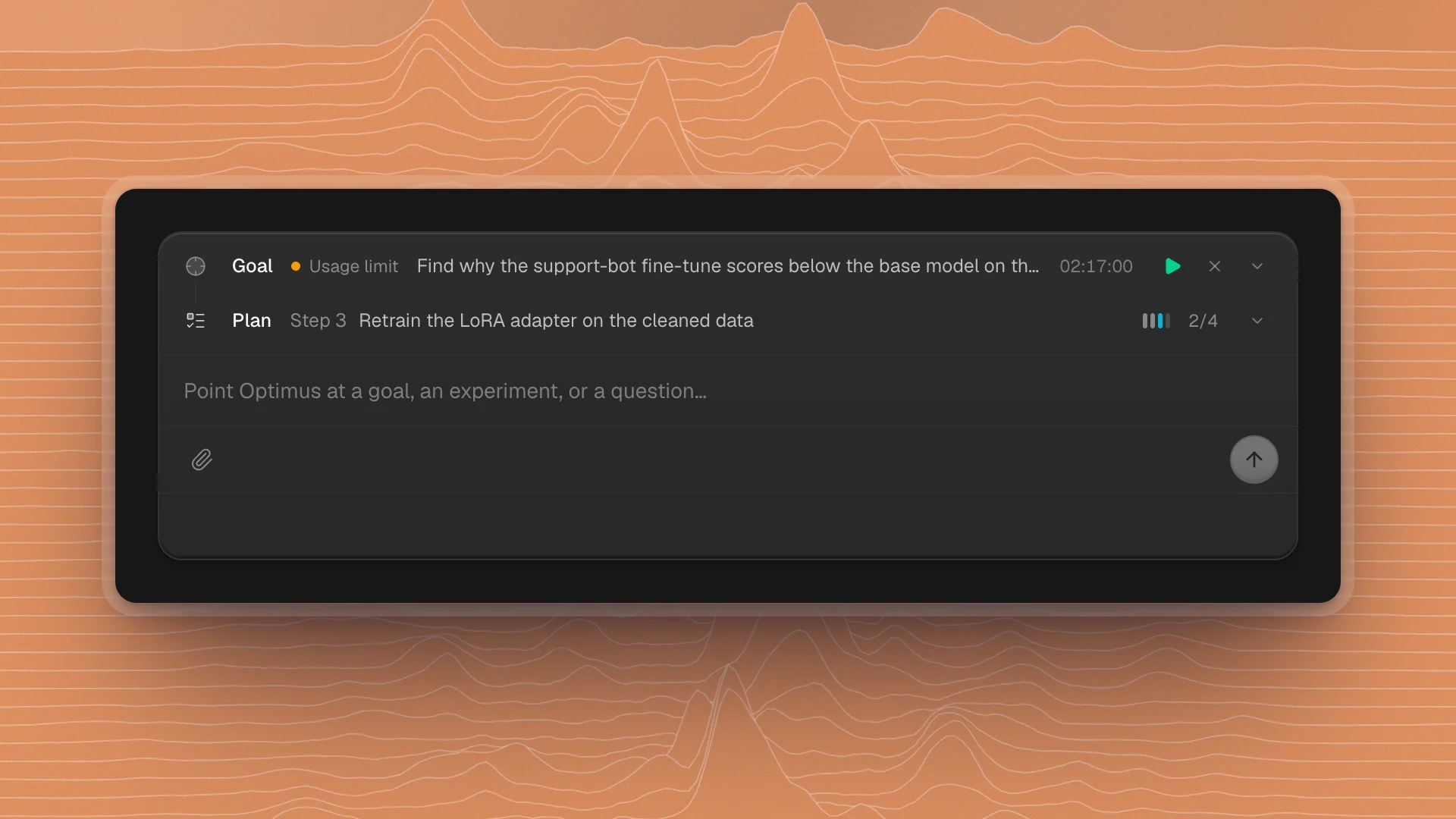
The model plan you connected has used up its allowance for now, so the goal stopped. Chat says the agent's model usage limit has been reached, and you get a notification that the agent reached a limit. Retrying works again once the plan resets.
- Wait for the reset, then resume. For plans that report it, Settings → Models shows how much is left and when it resets. When usage is back, click the play button on the goal row (Resume goal), or type
/goal resume. - Or switch models now. Connect another plan or an API key in Settings → Models, then resume.
- Short rate limits fix themselves. When a model service is only busy for a moment, the chat shows Retrying the model request… and carries on after a short wait.
Chat shows a billing banner
These come from your organization's plan:
| Banner | Do this |
|---|---|
| Billing required | Start a trial or choose a plan (Open billing) |
| Your trial has ended | Choose a plan to keep agents running (Choose a plan) |
| Billing needs attention | Update the payment method (Fix billing) |
| Subscription paused | Resume the subscription (Open billing) |
| Subscription inactive | Choose a plan to continue (Open billing) |
Billing opens in Settings → Billing, which owners, admins and billing admins can see. Anyone else should ask one of them. See Billing.
The goal says “Blocked”
A goal turns Blocked in two cases:
- The agent hit the same wall again and again and needs something only you or someone outside can give: access, a decision, a missing file. Chat shows Goal blocked: and the reason.
- An error stopped the run that retrying couldn't fix. Chat shows Goal blocked after agent error with the details.
To unblock it:
- Read the reason in the chat and fix the cause: grant the access, add the file, make the call.
- Tell the agent what changed in a new message, or type
/goal resumeto retry.
A Blocked goal has no play button, because something has to change first. If you'd rather drop the work, click the × on the goal row (Clear goal).
An agent asking you a question is a different state. The chat shows Waiting for your response with a question card. Answer it and the agent carries on.
A goal stopped while my computer slept or the app closed
Agents run on your computer, so they stop when it sleeps or when ArkenOS quits.
- Keep the computer awake. Keep awake while agents are working in Settings → General is on by default. It holds off sleep while any chat, specialist, automation or channel reply is running, and lets the display turn off.
- After a short network drop, the agent retries and continues the turn by itself.
- After sleep, a restart or an update, open the chat. If the goal row shows Paused, click the play button (Resume goal). If it still shows Active with nothing happening, send a message or type
/goal resume. - Update between runs. Restarting to update stops running work, so finish or pause long goals first.
Closing a laptop lid can still put it to sleep, depending on your system's settings. For runs that take hours, keep the lid open and the computer plugged in.
An agent didn't reply in a channel
How agents answer in channels:
@namealways starts a reply. The agent answers quickly, then keeps working in the background if the task needs it. Mentioning an agent who isn't in the channel adds it.- A message without a mention gives every other agent in the channel one light turn: stay quiet, react, reply in a line or two, or join in. Staying quiet is the usual choice.
If you expected a reply and got none, check these in order:
| Check | Where |
|---|---|
| Did you mention it? | Use @name when you need that agent to answer |
| Is it on the team? | The Agents page. Recruit it if it's under Off the team |
| Is it in the channel? | Agents outside the channel only answer when mentioned |
| Are channels switched on? | Workspace settings → Features. With channels off, a mention wakes no one |
| Is a model connected? | The chat shows Choose a model for Optimus when none is |
| Is the local runtime running? | The dot on the version pill at the bottom of the sidebar. Hover the pill: Local runtime connected is good, Local runtime offline means restart ArkenOS |
A mentioned agent can still decide it has nothing to add. If that happens, ask a direct question.
While agents work on a reply, the channel shows who is typing.
Where are the logs?
The app's logs live in its data folder:
| System | Logs folder |
|---|---|
| macOS | ~/Library/Application Support/arkenOS/logs/ |
| Windows | %APPDATA%\arkenOS\logs\ |
| Linux | ~/.config/arkenOS/logs/ |
| File | Has |
|---|---|
optimus-bridge.log | The agent runtime: chats, goals, specialists, model requests |
api.log | The local service for channels, issues, automations and settings |
desktop-startup.log, desktop-recovery.log | App start-up, and windows that failed to open |
If ArkenOS can't start, it shows ArkenOS couldn't start with Try again, Restart ArkenOS and Open diagnostics. Open diagnostics opens the logs folder. Nothing is sent anywhere automatically.
To report a problem, email dev@iaconautonomics.com with what you did, what you expected, and the relevant log files. Logs can mention file paths and project names, so look them over before attaching them. Get support has the full checklist.
For everything else ArkenOS keeps on your computer, see Where your data lives.