Get started
Create a workspace
Give one project a home for its code, notes, agents and runs.
A workspace is a folder on your computer for one project. Its code, pages, chats, agents and runs all belong to it, and agents work inside that folder. The longer they work there, the more they learn about the project.
Create one
Click New workspace
It's at the top of the Workspaces page, on the Workspace tab. The first time you visit, Optimus offers a short tour of the page.
Pick where it starts
- Existing folder: you already have code or data on this computer. The most common choice.
- New folder: you're starting from nothing.
- Clone repository: the project lives on GitHub, GitLab, Bitbucket or Hugging Face.
Name it and choose the folder
Give it a Name you'll recognize in a list. Then pick the location with the folder button next to the path. The box underneath shows exactly where the files will live.
For a clone, paste the Repository URL (or click a host to start the address) and add a Branch if you want something other than the default. Private repositories use this computer's git sign-in.
Click Create workspace
For a clone the button says Clone and create. The workspace opens on a new chat with Optimus.
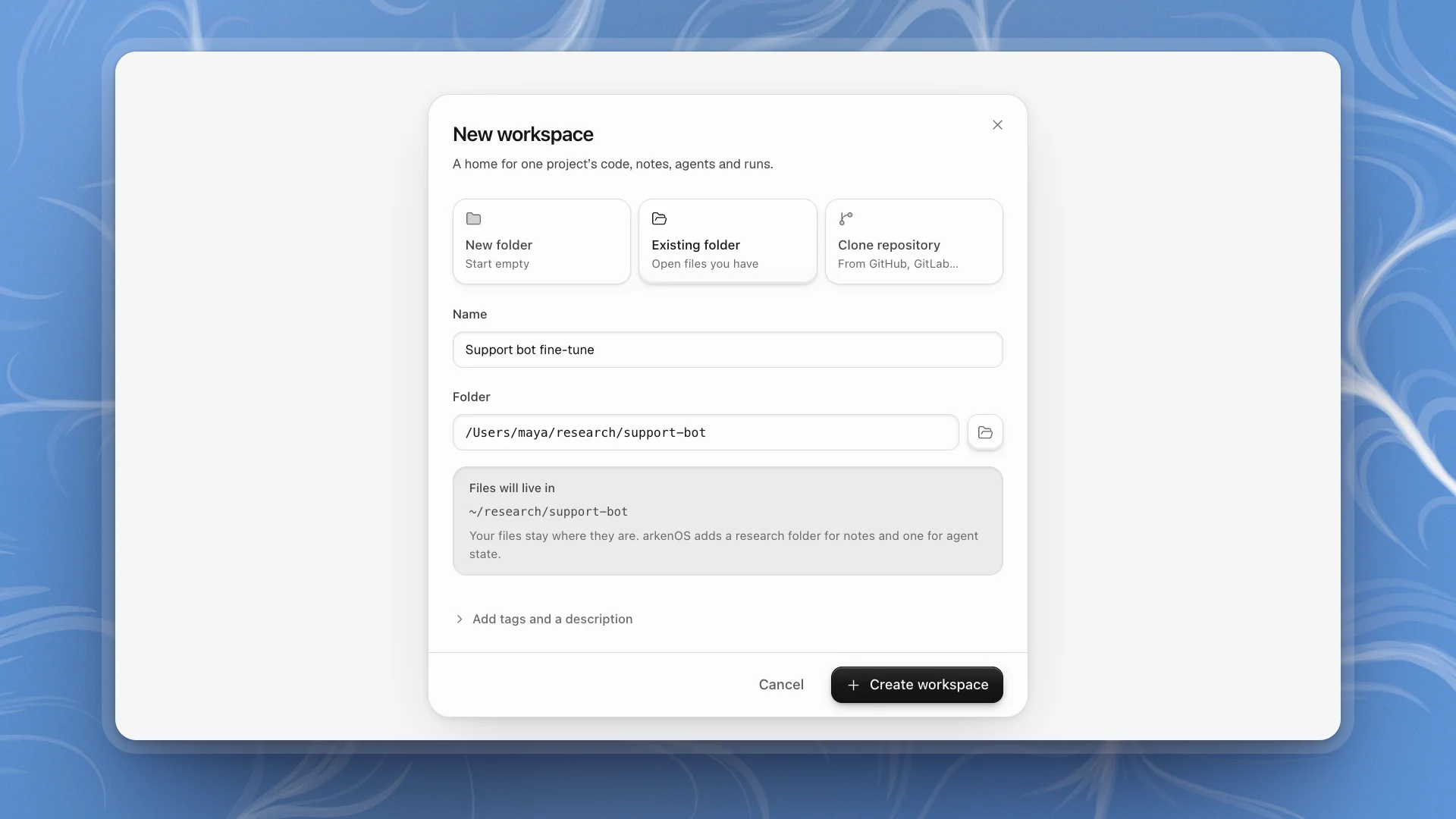
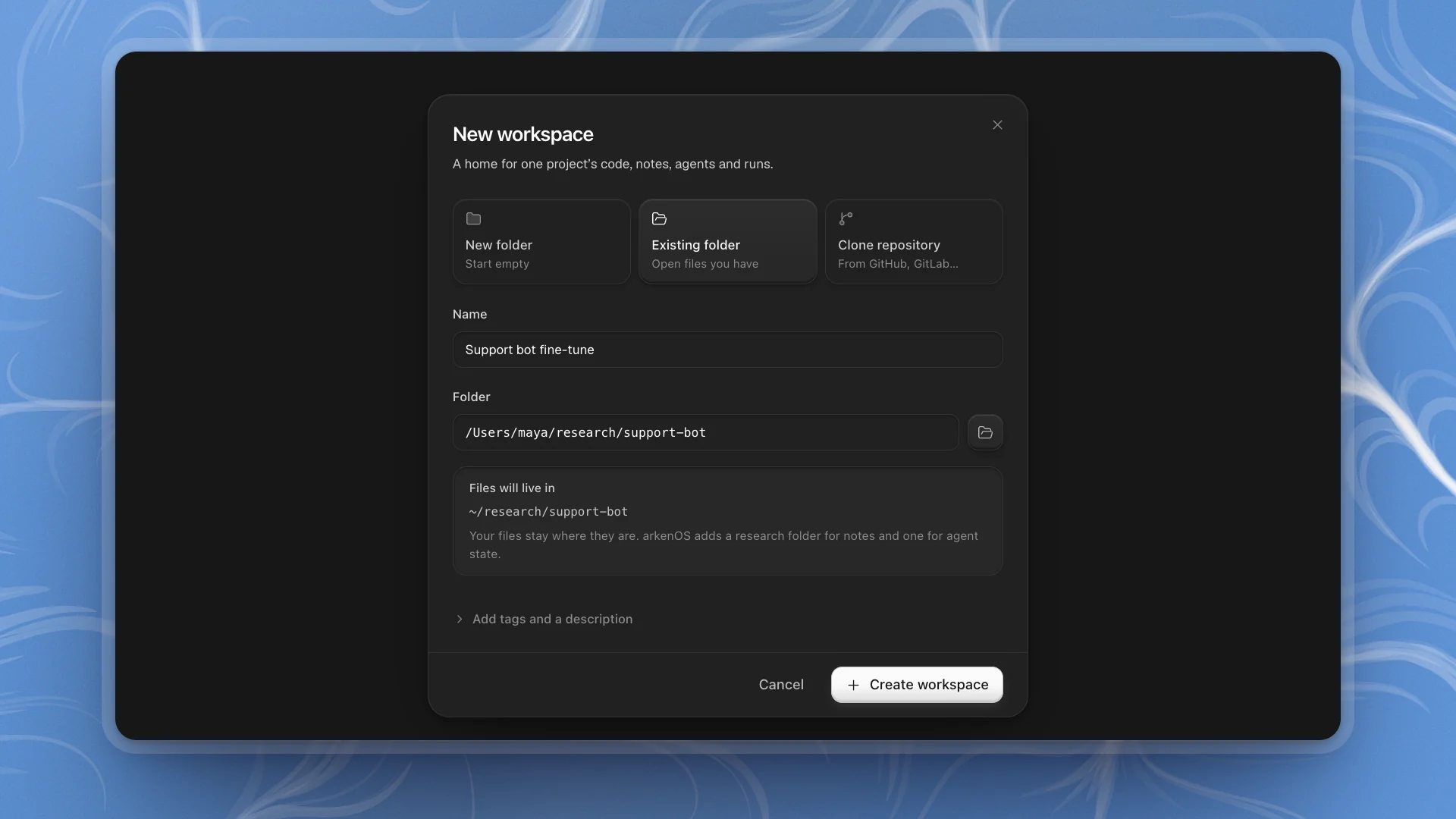
Add tags and a description at the bottom of the dialog is optional. A one-line description ("LoRA fine-tune of our support bot, eval on held-out tickets") helps you and the agents tell workspaces apart.
What ArkenOS adds to the folder
Your files stay where they are. ArkenOS adds two hidden folders next to them:
| Folder | Holds |
|---|---|
.arkenos/ | Your pages, the artifacts agents make, and a README for the workspace |
.optimus/ | Agent state: agents you create for this workspace, their memory and skills, page history and trash |
Both are plain files, so they work with git like the rest of the project. Chats and app settings live in the app's own data folder; see Where your data lives.
Tell agents how this project works
Put an AGENTS.md at the top of the workspace folder with what every agent should know: how the project is laid out, how you evaluate, what to leave alone. Every agent reads it at the start of each new chat. A short README.md helps too: agents read it before replying in channels, issues and comments. Standing instructions has an example.
Your first message
Start by letting Optimus read the project:
Then hand over real work. Good first tasks are small and checkable: “Run the held-out eval on the current checkpoint and put the numbers on a page called Baseline.”
What goes in one workspace?
One project. Agents keep notes and skills per workspace, so a focused workspace gets better faster.
- One question, one workspace. A support-bot fine-tune and an unrelated RL benchmark belong in two workspaces.
- Keep related experiments together. Every LoRA run, eval and write-up for the same model belongs in the same workspace, so agents can compare against what came before.
- Point it at the real repo. Choose Existing folder on the working copy you already run, so agents edit that code.
Manage workspaces
The Workspaces page lists every workspace. Each row's ⋯ menu opens it, edits its details, opens the folder in your editor or file manager, copies its path, or archives it. See Workspaces and organizations.