Pages
Write in the editor
Add blocks with /, format with the selection toolbar, move blocks around, and work in a page while agents edit it.
Pages open in a block editor. Type as you would in any document; each paragraph, heading, table or chart is a block you can add, change, move or delete. Underneath, the page is plain Markdown, so what you write here reads the same in git, VS Code or any other tool.
When to use it. Use the editor for anything people and agents will read: plans, results, write-ups. When you'd rather edit the raw Markdown, for a large find-and-replace say, use Open in VS Code in the page's ⋯ menu. Scripts and configs open in the Code tab's code editor.
Why it matters. Structure is what makes a page useful later. A table of runs compares at a glance, a heading gives an agent a section to update when you say “add this to Results”, and the file underneath stays plain Markdown that reads cleanly in a git diff.
Add blocks with /
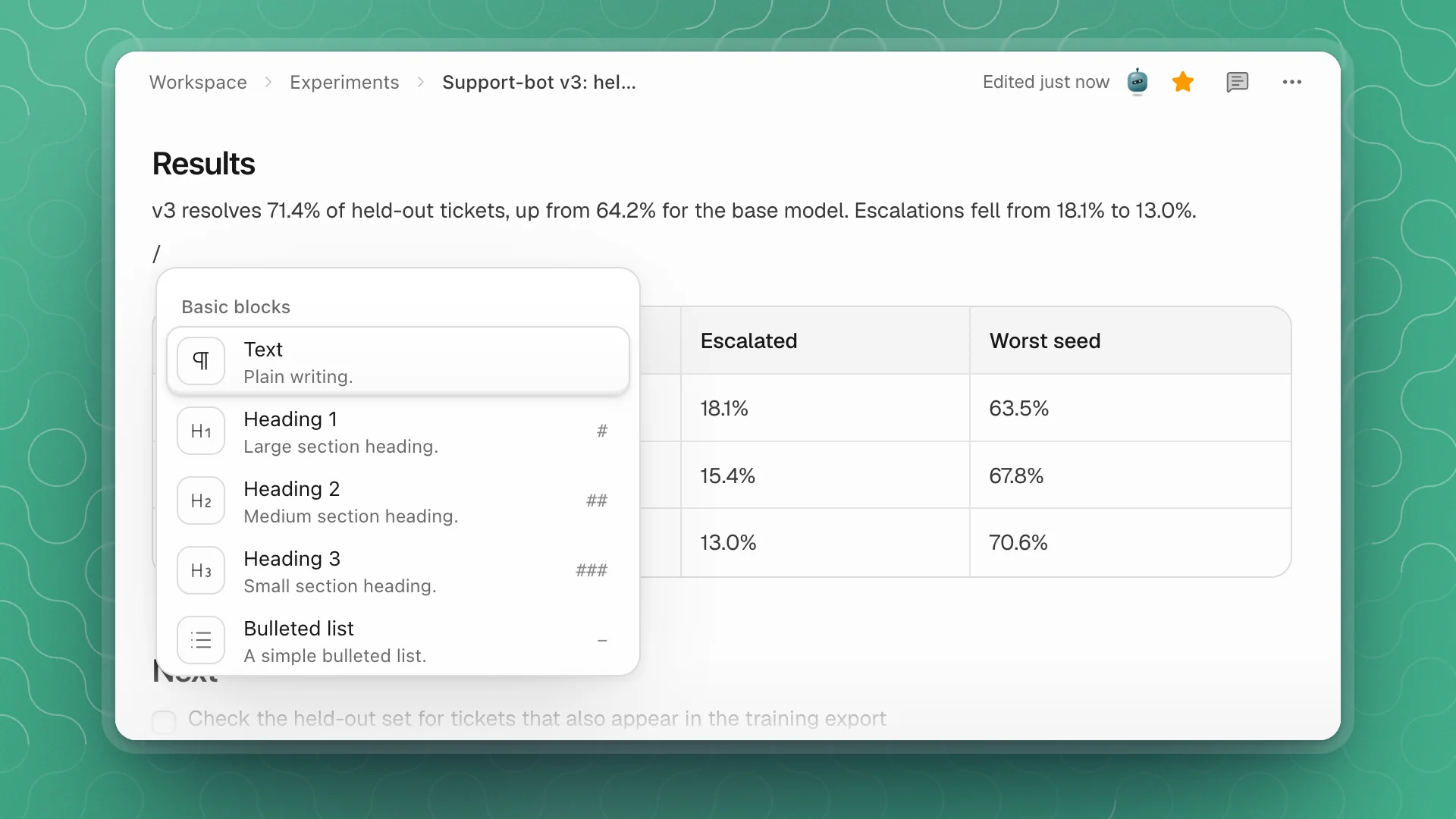
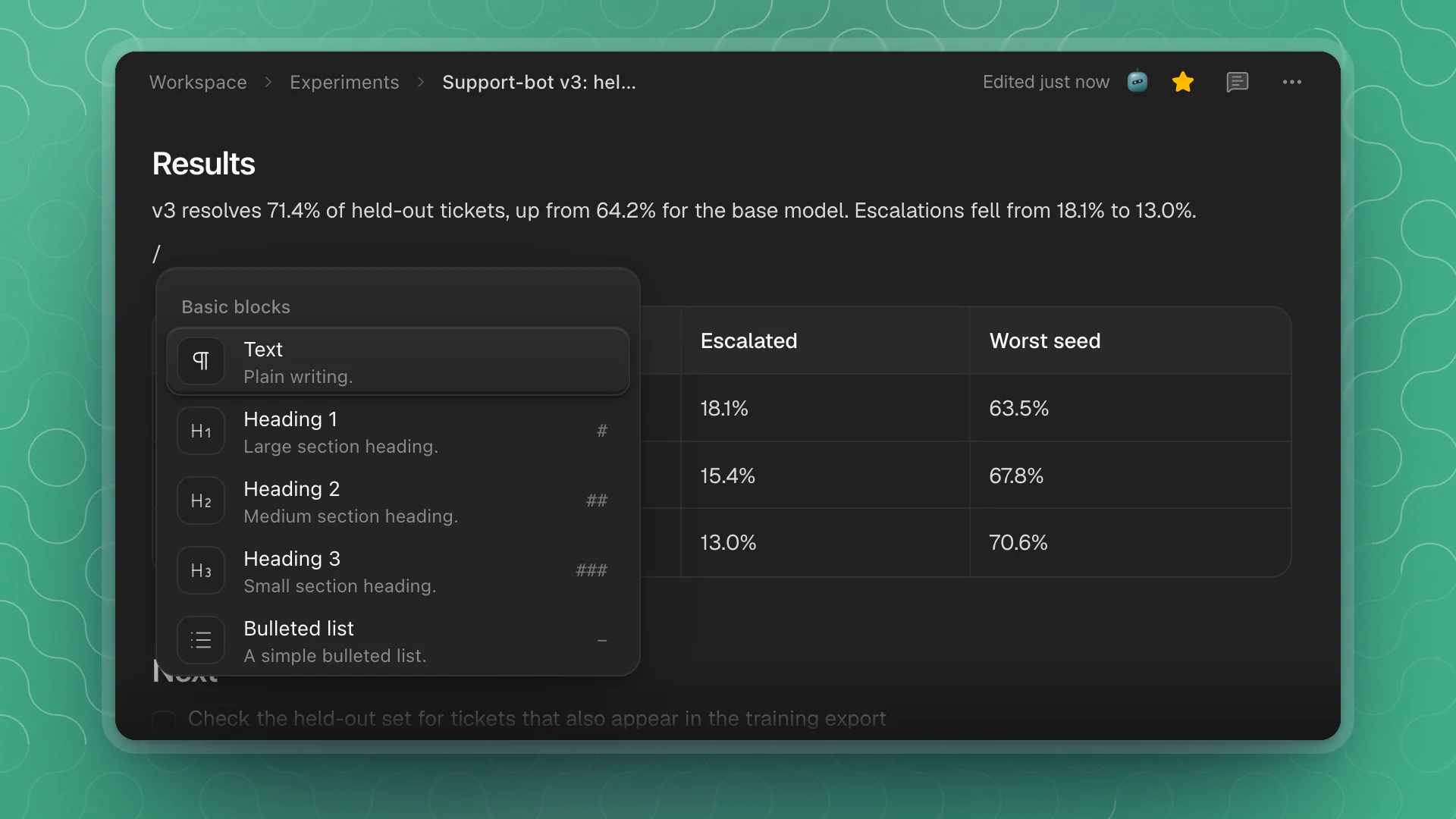
Type / at the start of a line to open the block menu. Keep typing to filter it: /table, /chart, /eq. Use the arrow keys and Enter to insert, or Esc to close it and keep the slash as text.
| Group | Blocks |
|---|---|
| Basic blocks | Text, Heading 1–3, Bulleted list, Numbered list, To-do list, Toggle, Code block, Table, Quote, Callout, Divider |
| Media | Image, Video, Audio, File, Embed |
| Advanced blocks | Table of contents, 3 columns, Equation |
| Data & diagrams | Database, Flow, Graph, Chart, Diagram (Mermaid or Graphviz), Drawing |
| Inline | Date, Footnote, Inline equation |
| Workspace | Subpage |
Files you drop or pick for Image, Video, Audio or File are saved next to the page in an assets folder, so they travel with the page.
Skip the menu with Markdown
The common blocks have a Markdown shortcut. Type it at the start of a line, followed by a space:
| Type | To get |
|---|---|
#, ##, ### | Heading 1, 2 or 3 |
- | Bulleted list |
1. | Numbered list |
[] | To-do list |
> | Quote |
``` | Code block (no space needed) |
--- | Divider |
Marks work the same way as you type: **bold**, _italic_.
Format text
Select text to bring up the toolbar above it.
| Control | Does | Keys |
|---|---|---|
| Text ▾ (Turn into) | Changes the block to a heading, list, quote, code block and more | |
| Bold, Italic, Underline | ⌘B ⌘I ⌘U | |
| Strikethrough | ⌘⇧X | |
| Inline code | ⌘E | |
| Equation | Turns the selection into inline TeX math | |
| Link | Adds or edits a link | ⌘K |
| Text color, Background color | ||
| Comment | Starts a comment thread on the selection | ⌘⇧M |
| ⋯ (More formatting) | Keyboard input, Superscript, Subscript | ⌘. ⌘, |
Move and change blocks
Hover a block to show two controls in the left margin:
- + (Add a block) opens the block menu on a new line below.
- The handle (Drag to move, click for options) drags the block to a new place. Click it, or right-click the block, for Turn into, Color, Duplicate, Copy text, Indent, Outdent, Align and Delete.
Saving and finding your place
- Saving. Pages save a moment after you stop typing, and a short Page saved note appears in the corner. Press ⌘S to save right away.
- On this page. In a wide pane, a page with level 2 or 3 headings shows a stack of short dashes at its right edge. Hover it for On this page, the page's outline, and click a heading to jump there.
Work alongside agents
Agents edit pages through the same files you do, and the editor keeps up:
- Their edits land in the open page. When an agent writes to the page you are reading, its changes merge into what you see without a reload.
- You can see where they are. While an agent is working in a page, its marker sits on the lines it is reading or changing, and its face joins the others at the top of the page.
- The stamp says who. Edited … in the top bar shows when the page last changed and whose face goes with it.
- Charts and tables are editable. When an agent reports results with a chart, table or diagram, it's an ordinary block. Change it like anything you wrote.
Write well for people and agents
- Lead with the result. Put the number and the conclusion in the first lines, then the method. Agents reading the page later find the answer faster too.
- Use headings for structure. Level 2 and 3 headings become the sections agents update when you ask them to “add to the Results section.”
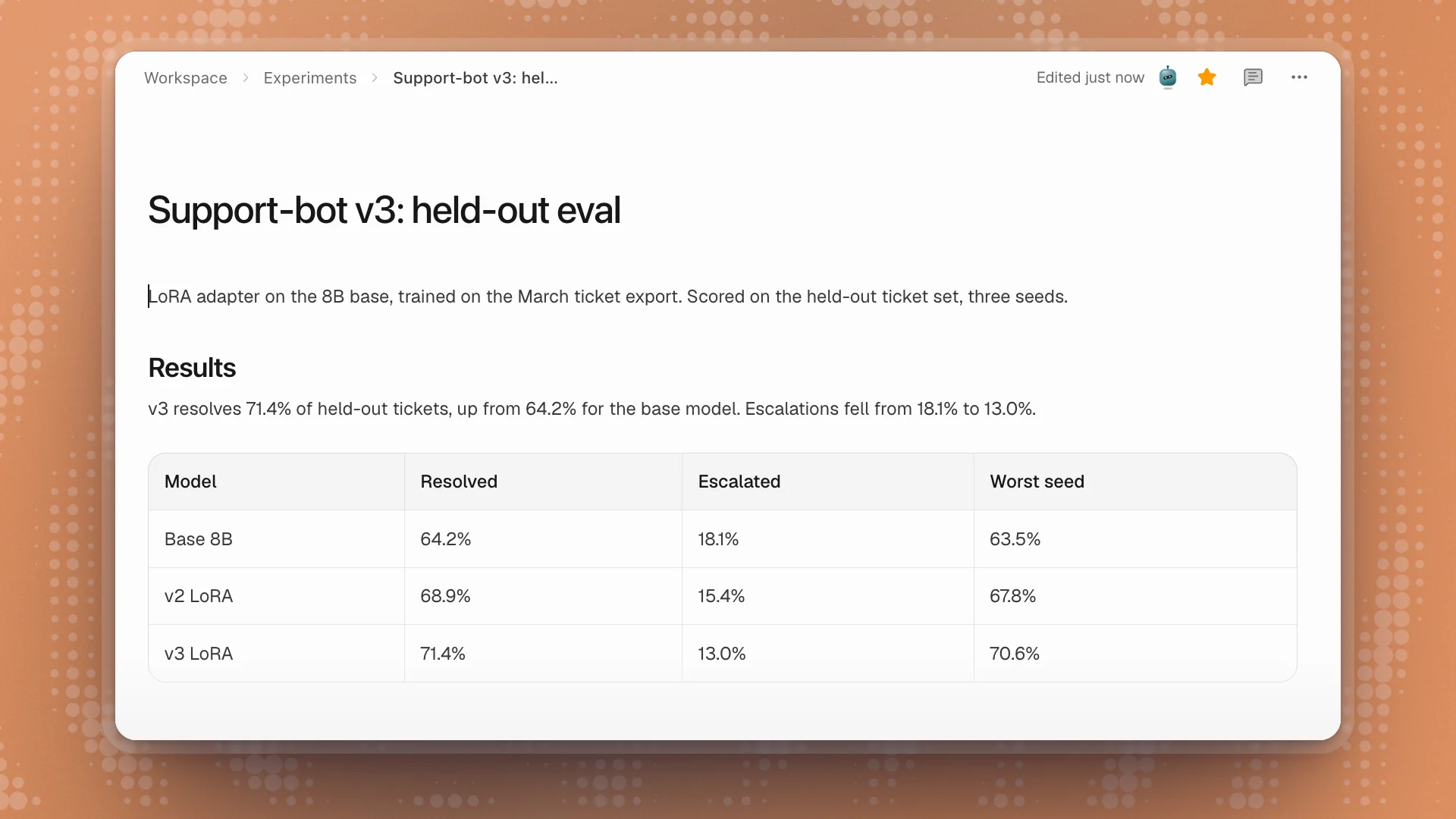
- Keep numbers in tables. A table of runs is easier to compare, sort and hand to an agent than numbers spread through paragraphs.
- Use to-do lists for open questions. “Check the held-out set for overlap” as a to-do is easy to hand to an agent and easy to tick off.
- Any Markdown file works.
.mdand.mdxfiles from the Code tab, such as a README, open in this same editor.