Pages
History, links and trash
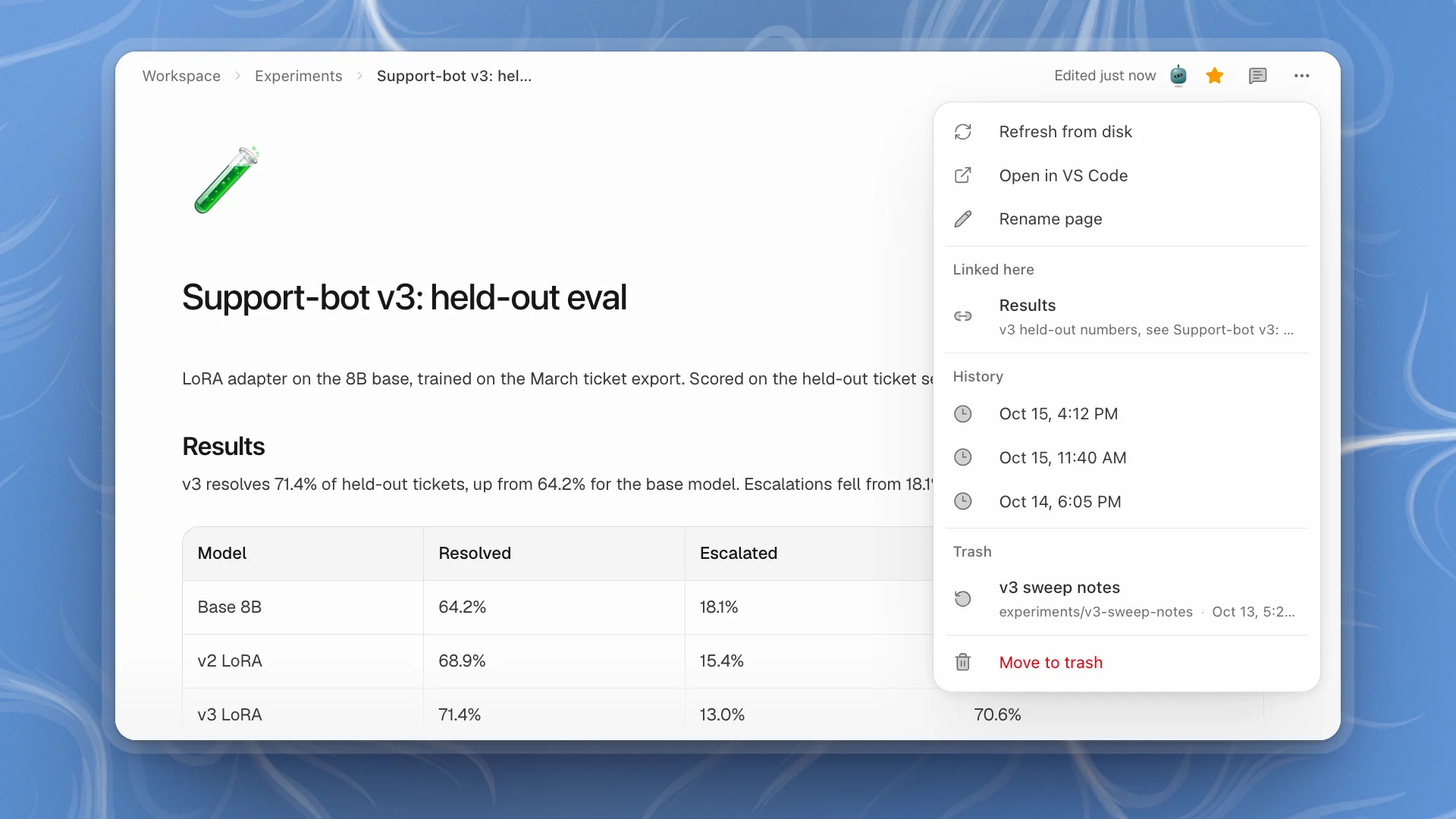
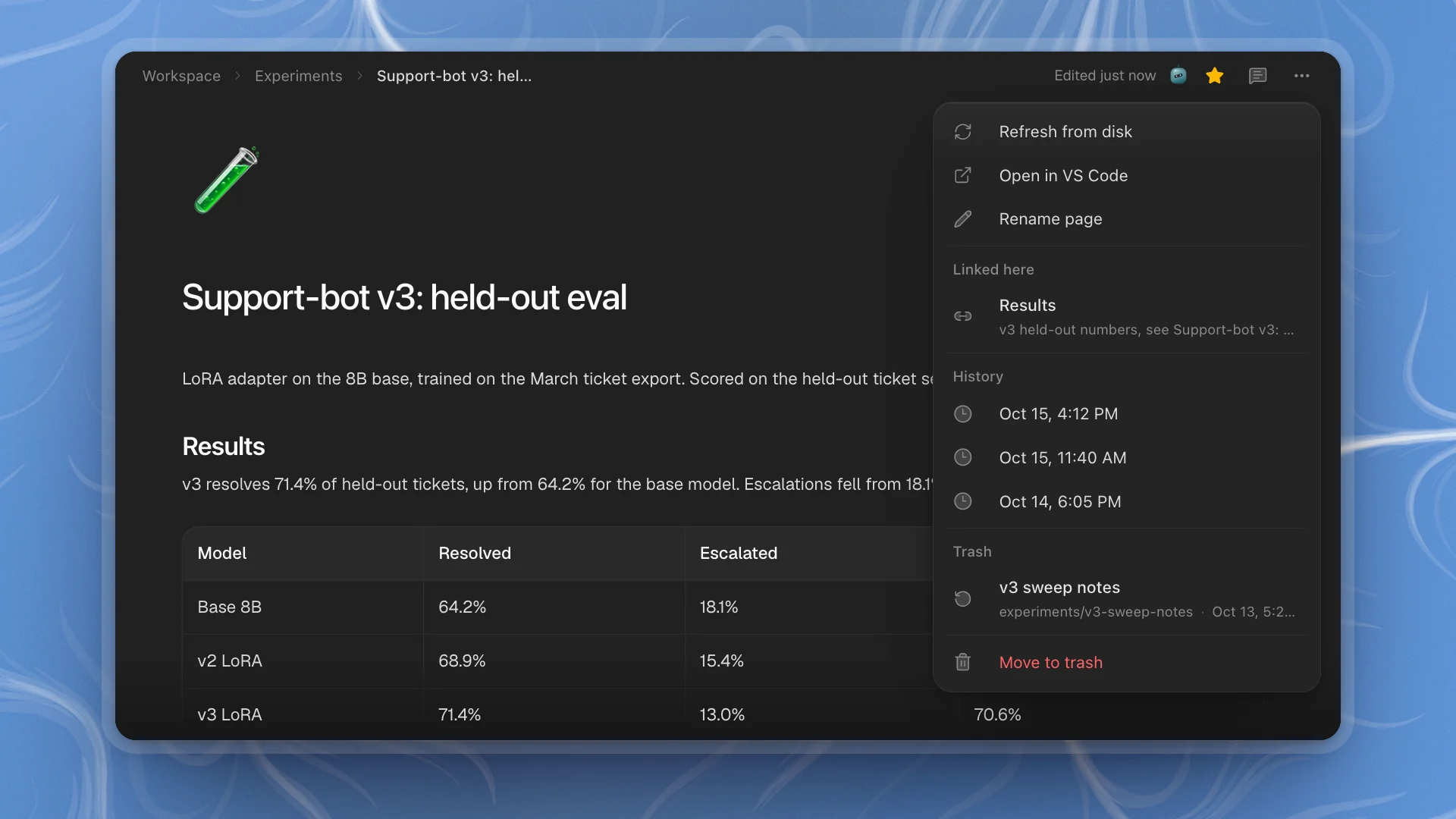
Go back to an earlier version of a page, see what links to it, rename or move it to the trash, and get it back.
Agents edit pages as often as you do, so every page keeps a way back. Everything on this page lives in the page's ⋯ menu, at the right of the top bar.
When you need it. An agent rewrote a section you wanted kept, a page went in the trash during a tidy-up, or you're about to rename a results page and want to know what links to it.
Why it matters. Pages change quickly once agents write to them. A way back for every page is what makes it safe to let agents edit pages directly.
| Item | Use it when |
|---|---|
| Refresh from disk | The file changed outside ArkenOS and the page hasn't caught up. Pages reload on their own when their file changes, so you rarely need it. |
| Open in VS Code | You want the raw Markdown in your own editor. Shown for workspaces on this computer. |
| Rename page | The page needs a new name. This renames its file or folder too. |
| Linked here | You want to see which pages link to this one. Shows up to five; click one to open it. |
| History | The page changed in a way you don't want. Pick a version to restore it. |
| Trash | You need a page back. Click it to restore it. |
| Move to trash | You're done with this page. |
Go back to an earlier version
Open ⋯ and find History
Each entry is a saved version, labelled with the date and time, newest first. The menu shows the four most recent.
Click a version
ArkenOS asks you to confirm, then replaces the page's content with that version and saves it like any edit.
If you had unsaved changes when you restore, they're kept as a version first.
A new version is saved as the page is edited in ArkenOS, at most once a minute. For a complete record of every change, including ones made by scripts or other tools, keep the workspace in git.
Rename and check links first
Rename page opens a dialog for the new name. The page keeps its place in the sidebar, and its folder or file on disk is renamed to match. If a page with that name already sits at the same level, you'll see A page named “…” already exists here; pick another name.
When someone else renames or trashes a page you have open, your tab follows: to the new name after a rename, or up to the page above it after a trash.
Links in other pages keep pointing at the old name. Before renaming or trashing a page, open Linked here to see which pages link to it, then update them, or ask an agent to:
Rename the page "Support-bot v3: held-out eval" to "Support-bot v3: held-out eval (deduplicated)" and fix every link to it in the workspace.
Move to trash and restore
Move a page to the trash with Move to trash in the ⋯ menu, or from the Workspace tab: hover the page and click the bin, or right-click it. ArkenOS asks before trashing anything with content. Trashing a page that has subpages trashes them with it.
To get a page back, open any page's ⋯ menu and click it under Trash. It returns to where it was. If another page has taken its place, it comes back next to it with restored in the name.
The menu lists the five most recently trashed pages. Older ones stay on disk in .optimus/trash/pages/items/, out of the menu. To bring one of those back, copy its folder into .arkenos/ yourself, or restore it from git. If you're clearing out a lot of pages at once, restore any you need before trashing more.
When a page fails to open
When reading a page's file fails, the page shows The page could not be opened. with Retry opening page, and the file stays untouched until it opens again. Retry once the file is back, for example after a git checkout finishes or a synced folder reconnects.
Where versions and trash live
Both live in your workspace folder, under .optimus/history/pages/ and .optimus/trash/pages/. They stay with the project and are visible to agents, so you can also ask: “What did the results table say yesterday morning?”
Good habits
- Check Linked here before big changes. A results page that five plans link to deserves a note at the top before you rewrite it.
- Restore, then compare. If an agent's edit went wrong, restore the earlier version, then ask the agent to redo just the part you wanted.
- Trash instead of deleting files. Deleting a page's file in the Code tab or a terminal skips the trash. Use Move to trash so you can change your mind.