Pages
Create pages
Make pages for plans, experiment logs and results, organise them into sections, and keep the ones you use close.
Pages are where a project's knowledge lives: the plan, the log of each experiment, the results table, the write-up. You and your agents both read and write them, so anything that should still be there next week belongs on a page, outside the chat.
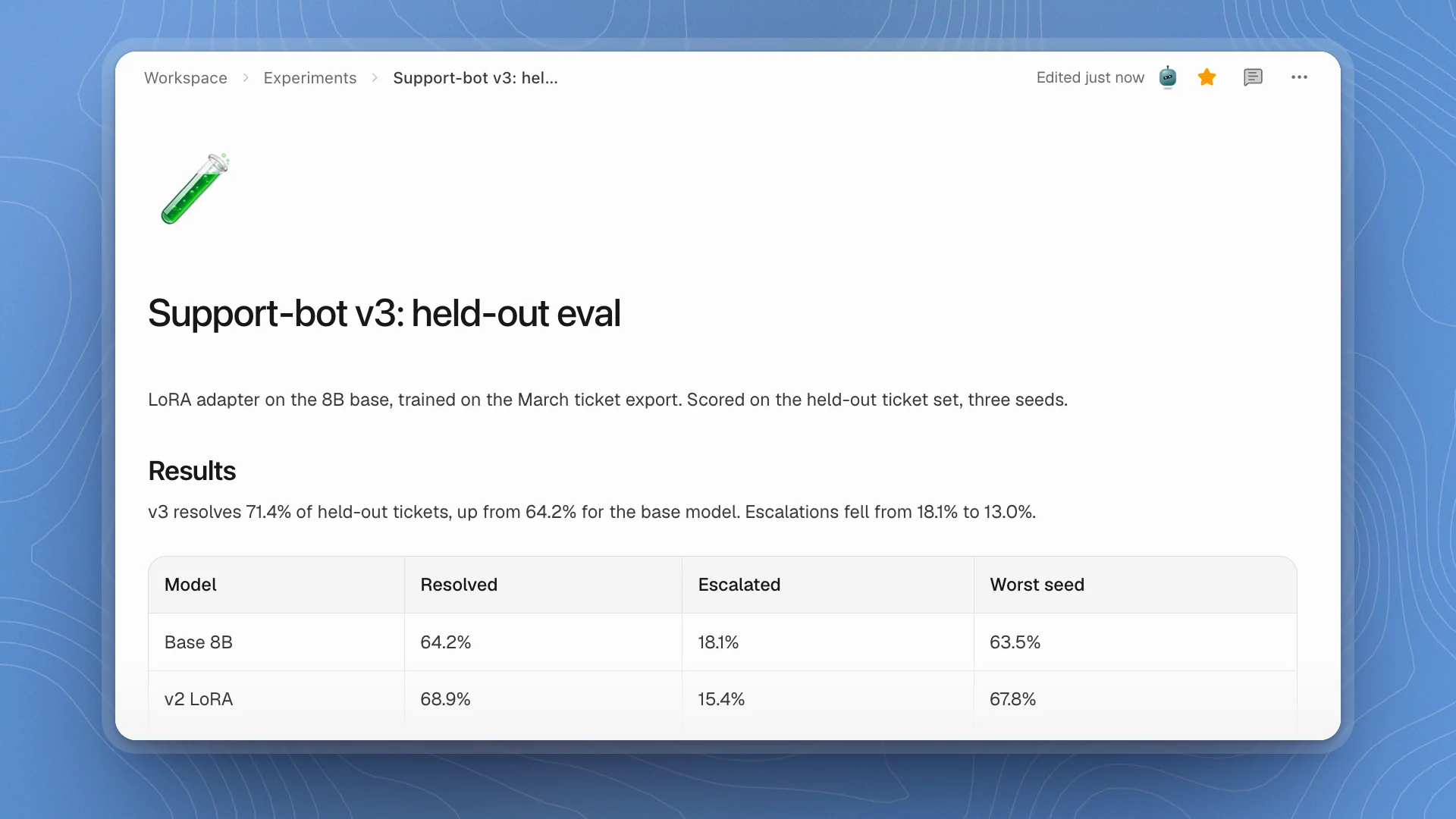
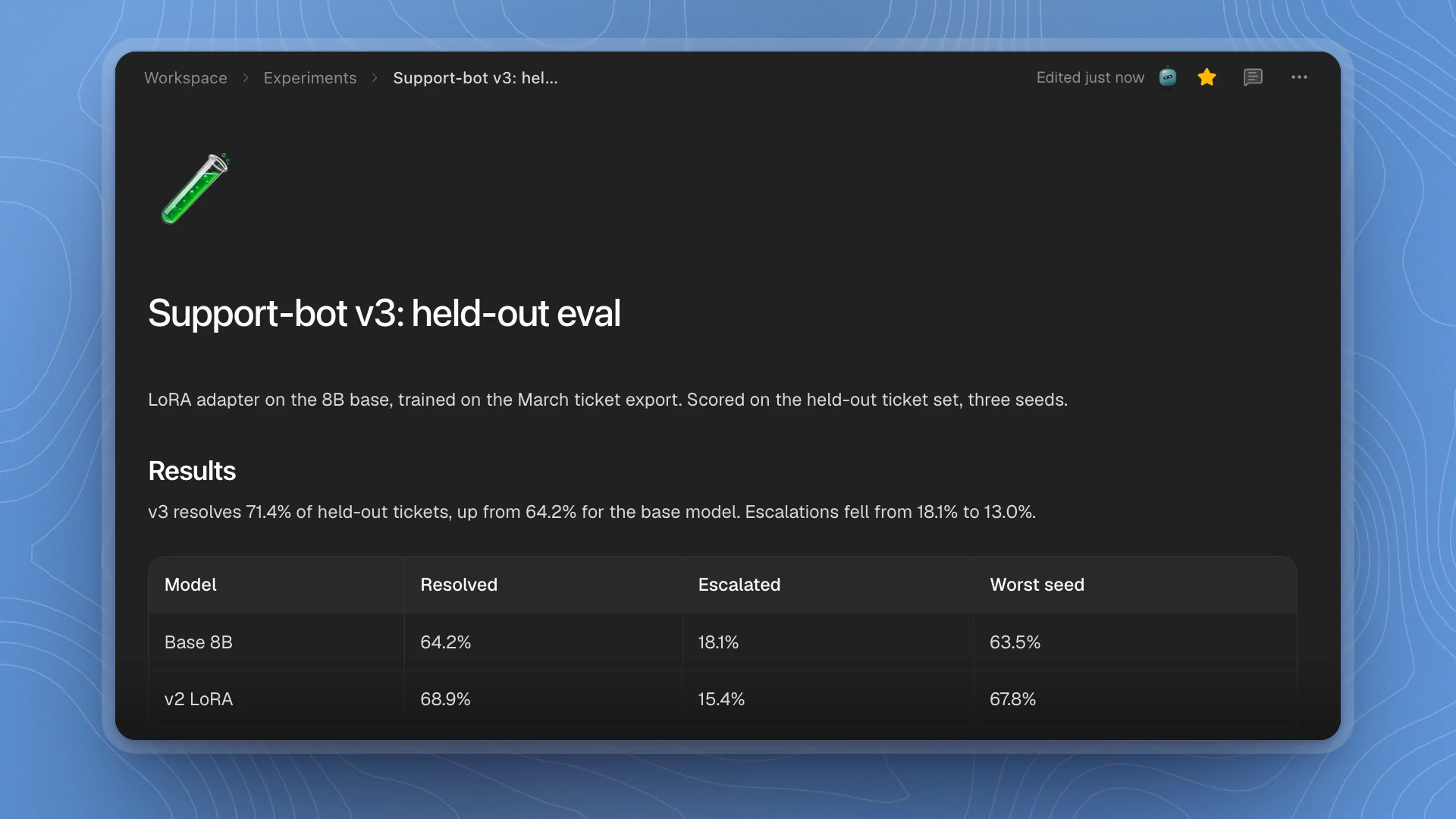
When to use a page
| Put it in | When |
|---|---|
| A page | It should still hold next week: a plan, an experiment log, a results table, a write-up. |
| A chat | You're asking an agent to do something now. Have it write the outcome to a page. |
| A channel | Several people and agents need to talk it through. |
| An issue | It's work that needs an owner and a status. |
| An artifact | You want an interactive chart or dashboard. |
Why it matters. A chat holds one conversation. A page is a file in the workspace, so the next agent, your teammates and you next month all open the same version. A held-out score that lives only in a chat gets asked for again, or recomputed slightly differently.
Make a page
Open the Workspace tab
In the sidebar, click Workspace. It lists your pages, grouped into sections such as Experiments, Results or Paper.
Click New page or New section
Hover a section and click + (New page) to add a page inside it. New section, at the bottom of the list, starts a new top-level group. Hover a page and click + (New subpage) to nest one page inside another.
Name it and write
A new page opens as Untitled. Click the title and type a name, then start writing below it. The page saves as you type.
The title names the page everywhere in ArkenOS: the sidebar, the breadcrumb and search all follow it. Rename page in the page's ⋯ menu also renames its folder on disk.
Icon and cover
An icon and a cover make a page easy to spot in a long list and in tabs. Use them on the pages you return to: the project plan, the eval protocol, the results page.
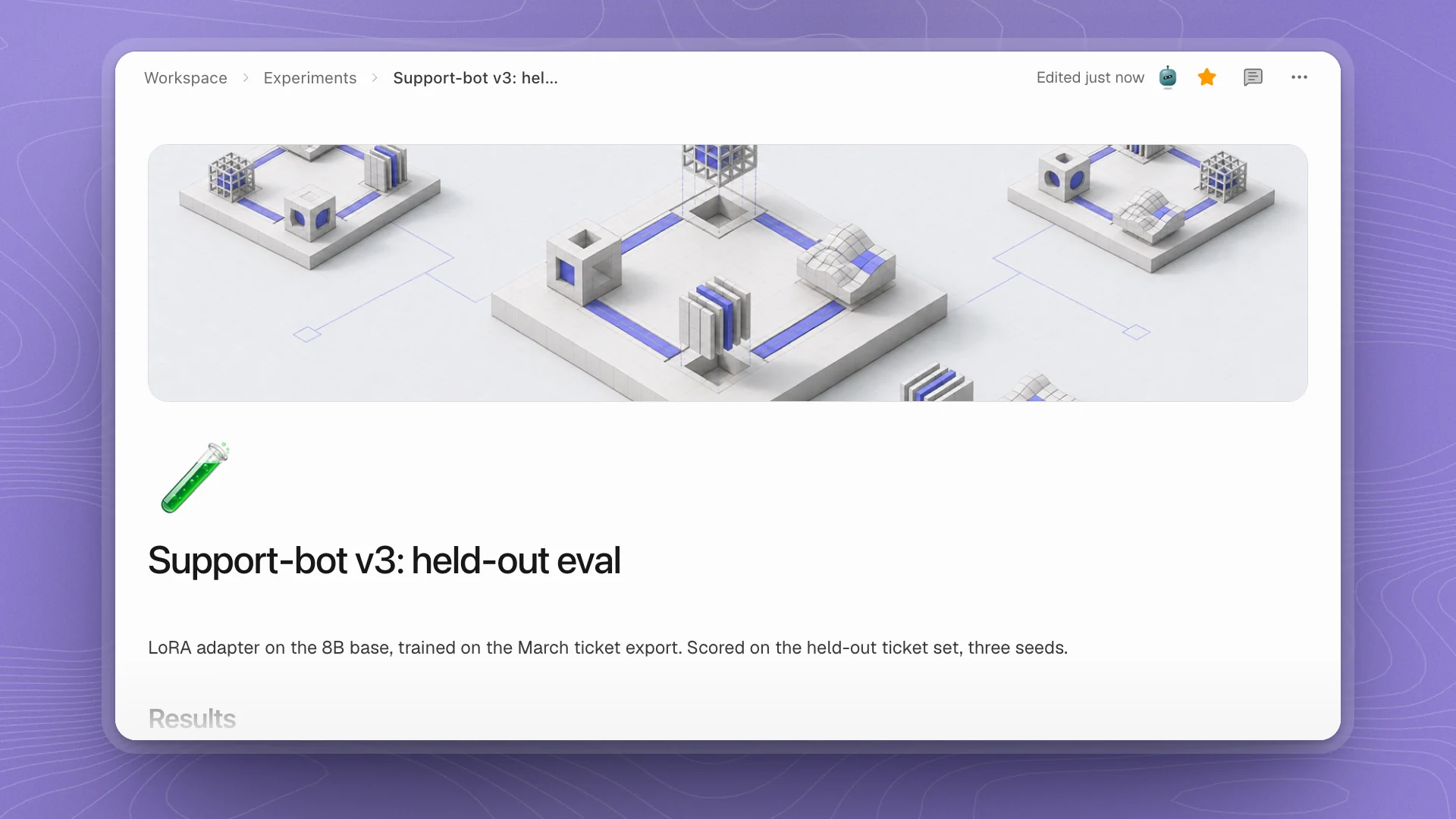
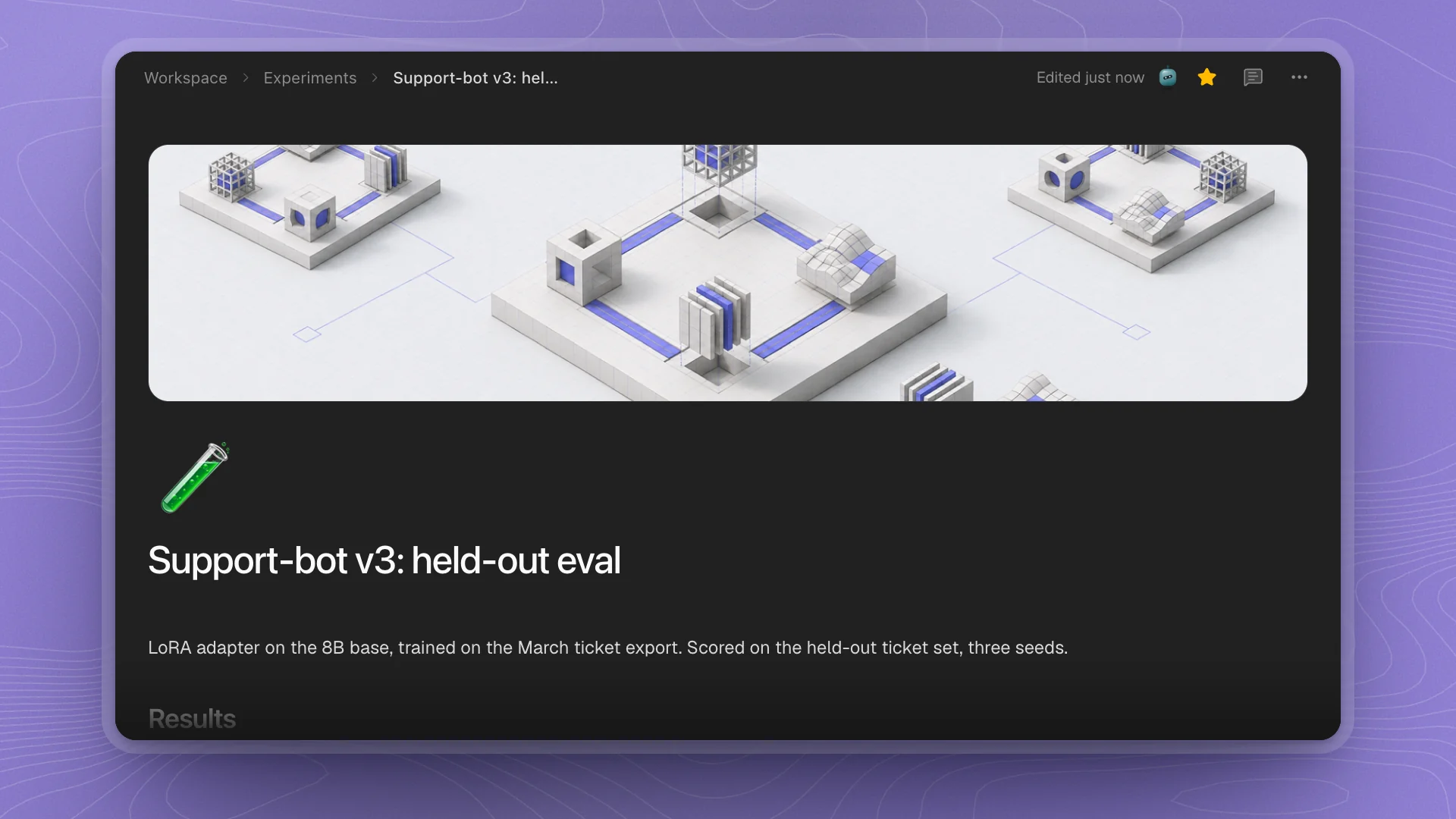
- Add one. Hover the page header and click Add icon or Add cover.
- Icon. Pick one from the grid, or type or paste any emoji into Paste any emoji and press Enter. Click the icon later to change it; Remove takes it off.
- Cover. Choose an image file. It's saved next to the page in its
assetsfolder. Hover the cover for Change cover or Remove.
Icons and covers are kept at the top of the page's Markdown file, so they travel with it. They're available on Markdown pages.
Folders without a README
A page with subpages is a folder, and its own text lives in the folder's README.md. When a folder has no README yet, for example one an agent or a script created, its page lists the subpages and offers Add a README under them. Click it to write a short note on what the folder holds, so people and agents know what belongs there.
Have an agent make it
Most pages in a busy project are written by agents. Name the page and the section, and say what goes on it.
Write the held-out eval results for the v3 LoRA adapter to a page called "Support-bot v3: held-out eval" in Experiments. Put the three models in one table with resolved rate, escalation rate and the worst seed, and list open questions at the end.
The page appears in the Workspace tab as soon as the agent writes it.
The top bar
Every page has the same row along the top:
| Part | What it does |
|---|---|
| Breadcrumb | Shows where the page sits. Click any part to see the other pages at that level and jump to one. |
| Edited … and a face | When the page last changed, and who changed it: an agent's face, or your avatar. Hover the face for the name. |
| Star | Add to favorites. Starred pages show under Favorites in the sidebar's Home tab and on Home. |
| Comments | Show comments or Hide comments for the page's comment threads. |
| ⋯ | Rename, refresh, open in VS Code, see links, versions and the trash. See History, links and trash. |
When something outside ArkenOS changed the file, such as a script or git, the stamp shows the time without a face.
Keep pages close
- Star the pages you check every day. They collect under Favorites in the sidebar's Home tab.
- Pin to sidebar. Right-click a page in the Workspace tab and choose Pin to sidebar to give it a row of its own at the top of the sidebar.
- Recents. Pages you open show up under Recents in the same tab, next to recent chats and files.
- Quick open. Press ⌘K and type part of a title to jump to any page or file.
Where pages live
Pages are ordinary files in your workspace folder, under .arkenos/. A page with its own subpages is a folder with a README.md inside, so it works with git, your editor and any tool that reads Markdown.
The Workspace tab also opens other files you keep there: HTML, PDF, CSV, Word documents, images, video and audio each open in their own viewer, and .tex files open as LaTeX documents. Plain text files show their first 256 KB; text and CSV viewers have Download original for the whole file.
Project config files, such as package.json, .env, requirements.txt, pyproject.toml and AGENTS.md, stay out of the Workspace tab, along with folders like .git and node_modules. Find them in the Code tab.
Organise for the long run
- One section per kind of work. Experiments, Results, Paper and Notes is a layout that holds up for months. Ask agents to file into it: “Write this to a new page in Experiments.”
- One page per experiment. Name it after the question or the run, and keep its config, numbers and conclusion together. A page that grows past one question is two pages.
- Give results one home. A Results section that agents update is where you, your team and the agents look first, so findings collect in one place.
- Link instead of copying. A plan page that links to each experiment page becomes a map of the project. Before you change or delete a page, check Linked here in its ⋯ menu.