Projects and issues
Create an issue
Write down a piece of work so it gets an owner, a status and a home, and write it so an agent can run with it.
An issue is one piece of work with a status, a priority and an owner. Use one for anything that needs doing and shouldn't get lost: a bug in the data loader, a retrain, a check someone asked for in a channel. The owner can be you, and you can hand the work to an agent.
When to use it. When work needs an owner and a status, and will outlive one conversation. For a quick question, ask in a chat. For work that repeats, build an automation. When several issues share one aim, group them in a project.
Why it matters. A task mentioned in a channel is easy to lose. An issue keeps its status where everyone can see it, can go to an agent that starts at once, and keeps a record of what was done in its Activity.
Create one
Press C
From anywhere in the workspace while your cursor is outside a text box. Or click New issue on the Projects page, or the + on a status group to start the issue in that status.
Write the title
Say what needs doing, as an action: “Retrain the LoRA adapter without pre-March refund tickets”.
Write the description
What, why, and what done looks like. If an agent might take it, this is its brief.
Set its properties
The pills under the description set the Project, Status, Priority, Assignee and Labels. Pick an agent in the assignee menu and it starts work as soon as the issue is created.
Press ⌘Enter
Or click Create issue. The issue is created and opens.
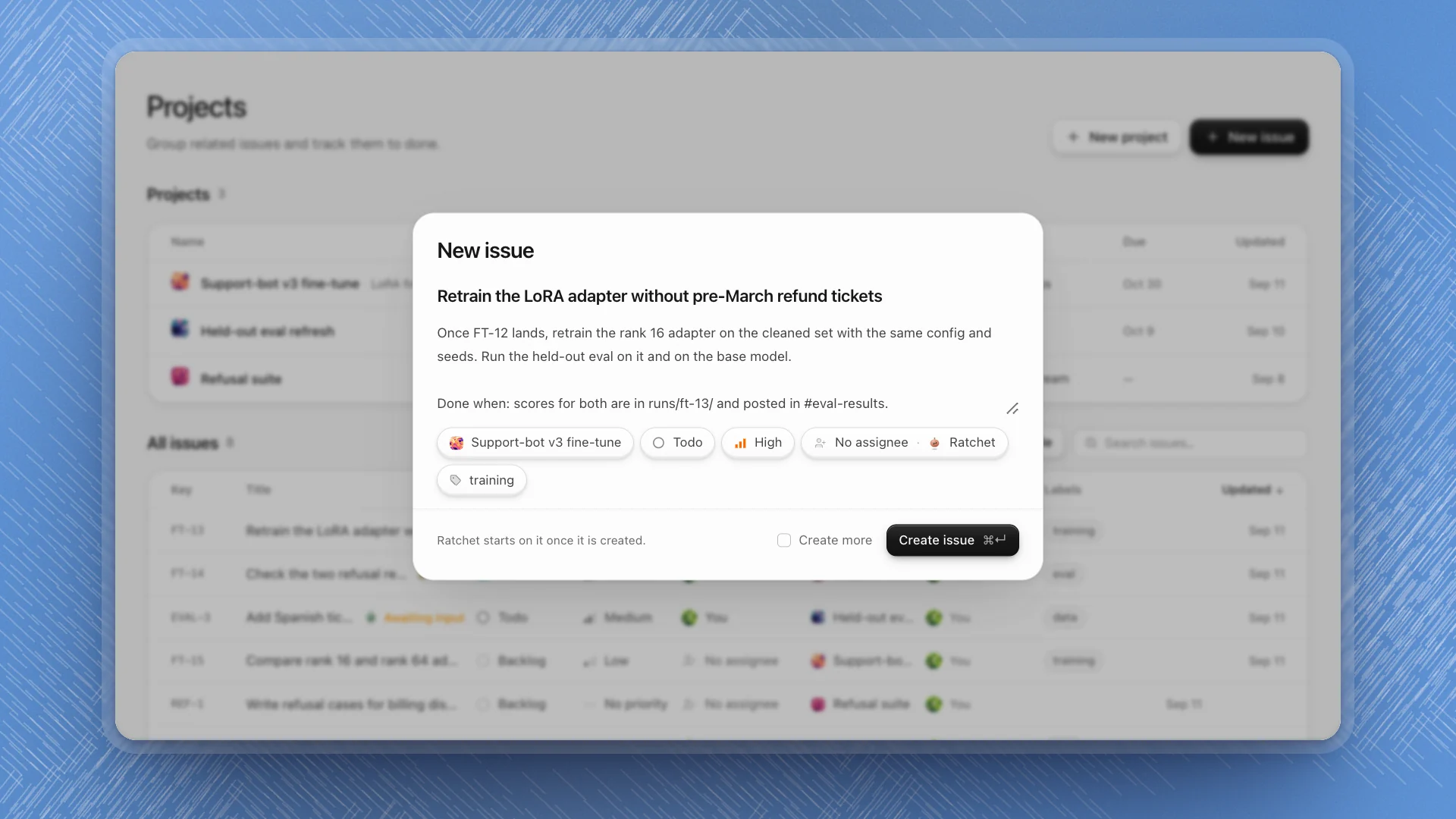
To write several in a row, tick Create more: the dialog stays open and keeps the properties for the next one. ⌘⇧Enter creates the issue and keeps everything, text included, for a near-copy.
Write issues that get done
The description is what an agent reads first when it picks the issue up, and what you'll read when you come back to it in a month. Write it for both.
Fix the eval.
Re-split the held-out set before we drop pre-March refund tickets. 9 of them are in both sets. Move overlaps to a quarantine file, keep the eval script as it is. Done when the held-out set has no overlap with training and the dedupe report lists what moved.
- Start the title with a verb. “Retrain…”, “Check…”, “Add…”. It reads as a job in every list.
- Say what done looks like. A file that exists, a number that's reached, a post in a channel.
- Point at the evidence. Run folders, page names, the channel message it came from.
- Say what to leave alone. “Keep the eval script as it is” saves a surprise later.
- One job per issue. If it has an “and then”, it's probably two issues.
Status and priority
| Status | Means |
|---|---|
| Backlog | Worth doing, not planned yet. |
| Todo | Planned, not started. |
| In progress | Someone's on it. |
| In review | Finished, waiting for someone to check it. |
| Done | Checked and closed. |
| Canceled | Dropped. The record stays. |
Priority is Urgent, High, Medium, Low or No priority. Keep Urgent for things that block other work today; if everything is urgent, nothing is.
When an agent works an issue, it moves the status for you: In progress when it starts, In review when it finishes. See Assign issues to agents.
Turn conversations into issues
- From a channel: hover a message and click Create issue. The message becomes the description, with a link back to it.
- From a page comment: hover the comment and click Create issue from comment.
Do it the moment a conversation produces a task. The link back keeps the reasoning one click away.
Discuss an issue
Every issue has an Activity section: comments, status changes and hand-offs in one timeline. Leave a comment to add context, or @mention an agent to ask it something. The agent working the issue reads new comments too, even while it works, so a comment is the easiest way to add a detail mid-flight.
Good to know
- Closed the dialog by accident? If you'd written something, ArkenOS asks whether to Keep draft for next time.
- To remove an issue, use More issue actions → Delete issue. If you might want the record later, set it to Canceled instead.
- Agents create issues too. Ask in a chat or channel: “File an issue to retrain the adapter once FT-12 is done, and give it to Ratchet.”