Automations
Create an automation
Turn work you repeat into a routine of agent steps that runs the same way every time.
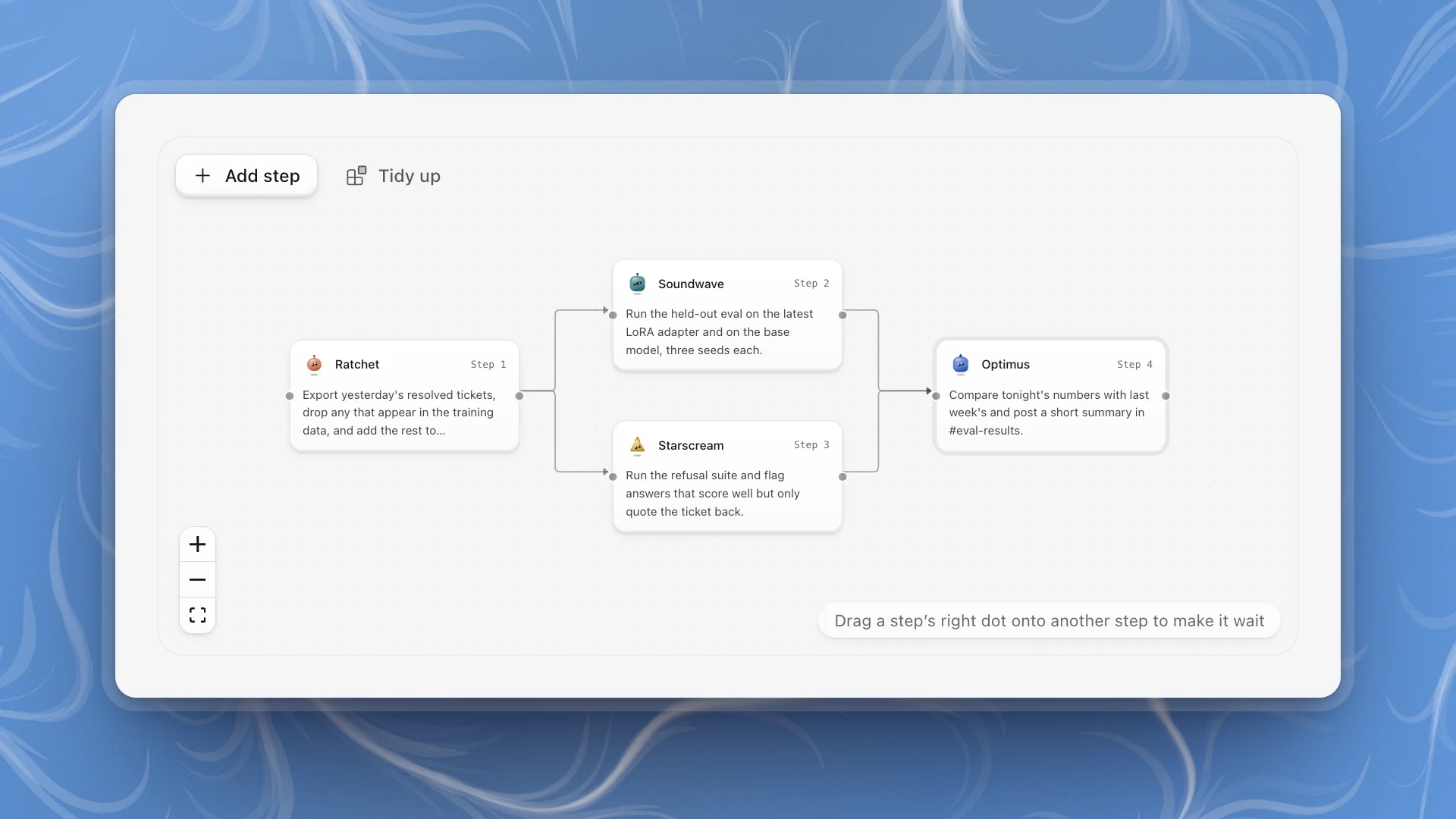
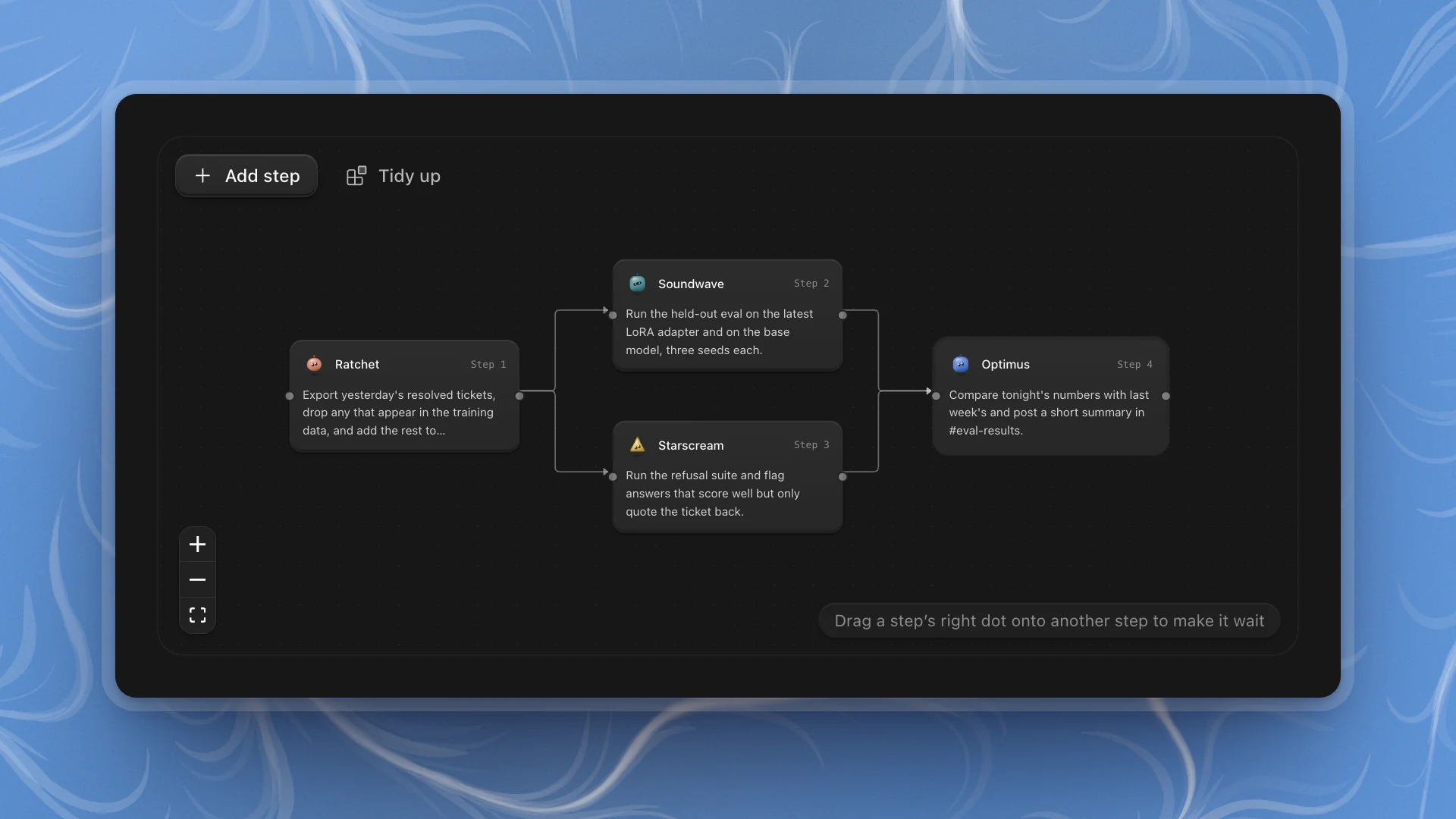
An automation is a routine made of steps. Each step hands one job to one agent, and steps can wait for each other. Build it once, then start it with Run now or put it on a schedule.
When to use one
Use an automation for work you already know how to do and want done again: a nightly eval, a weekly report, a data check before every training run. The steps stay fixed, so every run is comparable with the last.
A good test: if you could write the steps down for a new teammate today, it's an automation.
Why it matters. An automation runs the same steps, with the same agents and instructions, every time, so tonight's eval compares cleanly with last night's. Asked by hand in a chat, the wording drifts from night to night, and so do the runs.
Build it
Click New automation
Open Automations from the sidebar and click New automation. The editor opens with one empty step for Optimus.
Name it
Type a name in Name this automation at the top. Say what it does, like “Nightly support-bot eval”. The name is what you'll see in the list and on every run.
Fill in the first step
Click the step on the canvas. The side column shows its details:
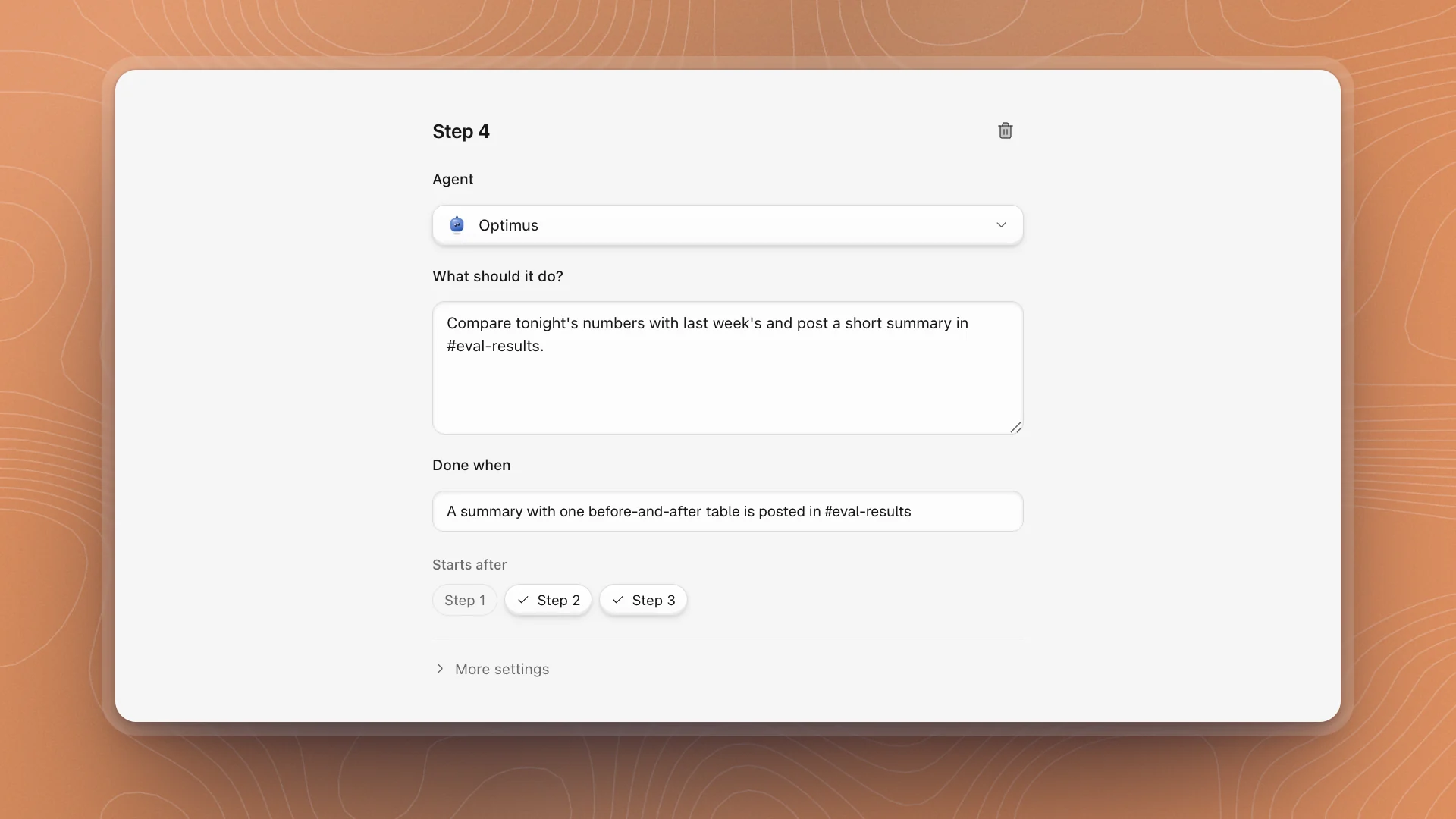
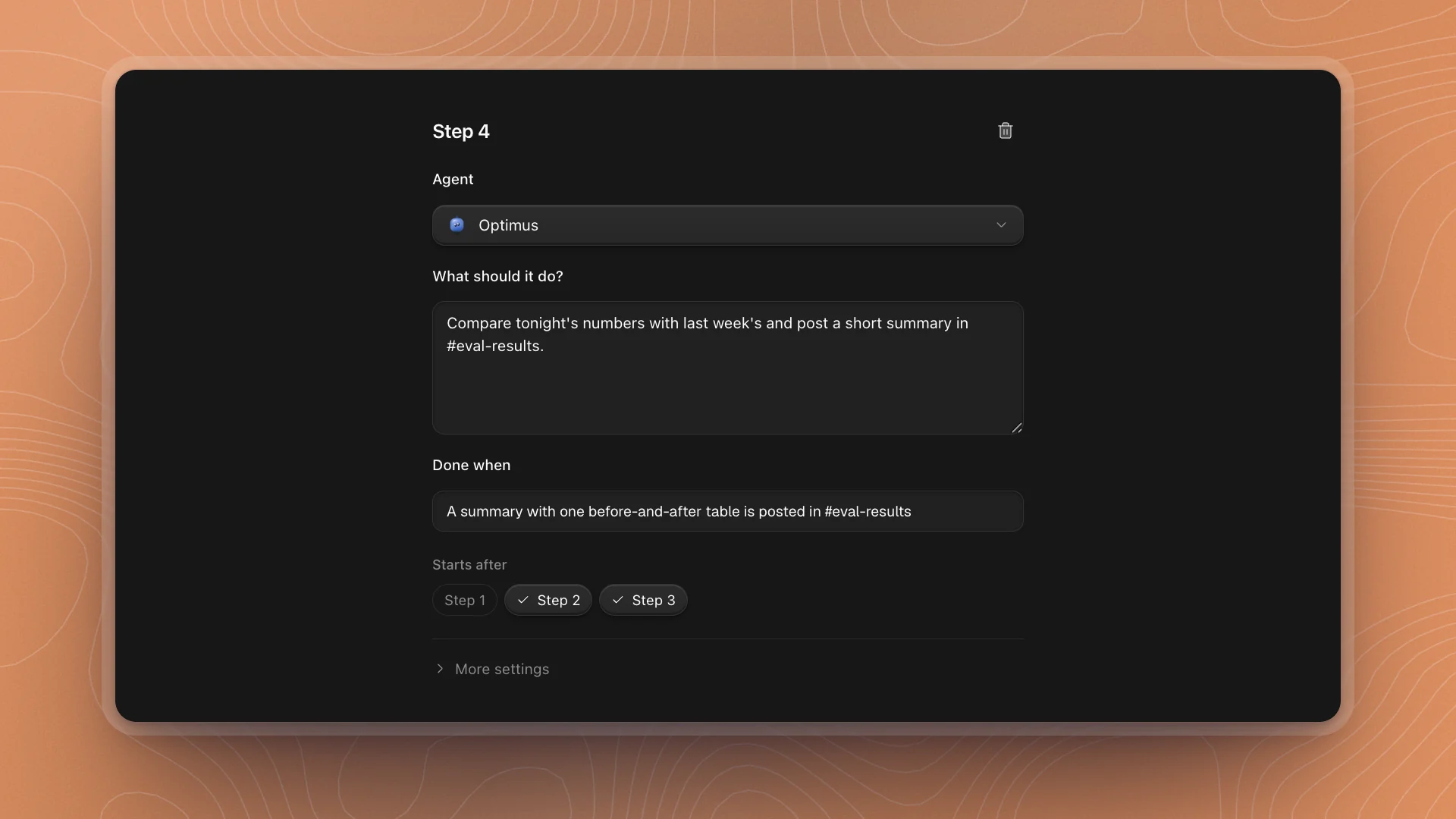
- Agent: who does it. Pick the agent whose role fits the job.
- What should it do?: the instructions, written the way you'd write a chat message.
- Done when: how the agent knows it has finished, like “scores for both models are saved in runs/nightly/”.
Add the next steps
Click Add step. The new step waits for the one you had selected, so clicking Add step with each new step selected builds a chain. To change what a step waits for, use the Starts after chips in its details, or drag a step's right dot onto another step. To remove a connection, click the line and press Delete.
Click Create automation
Or press ⌘S. Then click Run now once and read the result before you put it on a schedule.
How steps run
- A step starts when every step it waits for is done. Steps that wait for nothing start right away, side by side.
- If a step fails, the steps that wait for it are skipped. Steps on other branches keep going.
- Each step works on its own. It gets its instructions, its Background and the results of the steps it waited for. Put anything it needs to know in the step itself.
Tidy up lays the canvas out again from left to right. Use it after rewiring a few steps.
More settings
Each step has More settings under its details:
| Setting | What it does |
|---|---|
| Background | Links, files or facts the agent should read first. |
| Where it works | In the workspace, or On its own copy (git worktree). Use its own copy when steps that run side by side edit the same files. |
| Time limit | From 15 minutes to 24 hours. The step is stopped when it runs past it. |
New steps take their time limit from Settings → Workspace → Automations → Step time limit. Set it a little above how long the step usually takes, so a stuck step ends instead of holding up the run.
Or ask Optimus
Describe the routine in a chat and Optimus builds the automation for you: the steps, the agents and the order. Open it in Automations afterwards to check each step and click Run now.
Create an automation for our support-bot fine-tune. First Ratchet builds tonight's held-out set from yesterday's resolved tickets, dropping anything already in training. Then Soundwave runs the eval on the LoRA adapter and the base model, three seeds each, while Starscream runs the refusal suite. When both are done, Optimus compares with last week and posts a summary in #eval-results. Run it every weekday at 6am.
Ask from a chat: building automations is a chat job, so agents in channels hand it back to you.
Write steps that hold up
- One job per step. “Run the eval” and “write the report” are two steps. When something fails, you see which one.
- Make Done when checkable. Name a file, a page or a channel post. “Scores are saved in runs/nightly/” gives the agent a finish line it can check.
- Name exact paths and channels. The same step runs every night, so write down what it should touch.
- Split work that can run side by side. Independent checks that wait on the same step run at the same time and finish sooner.
- End with a report step. Have the last step post in a channel or write a page, so you see the outcome without opening the run.
Up to 100 steps per automation. Waits run forward, so every chain of steps has a clear start and end.
Good to know
- ArkenOS has to be open on this computer for an automation to run. The agents work in your workspace, on your machine.
- Automations can be switched off per workspace in Workspace features. While they're off, nothing runs, schedules pause, and agents stop starting them.