Automations
Schedules and runs
Put an automation on a schedule, follow each run, and fix the step that failed.
Once an automation does the right thing with Run now, give it a schedule and let it run on its own. Every run is kept, step by step, so you can see what happened on any night.
When to schedule. Once a Run now has gone through cleanly. While you're still changing steps, keep using Run now. Schedule work you want waiting for you, like an eval that finishes before you start your day.
Why it matters. Results are there when you arrive, and the run history shows which night something changed, which step broke and why.
Put it on a schedule
Open the automation and click Edit
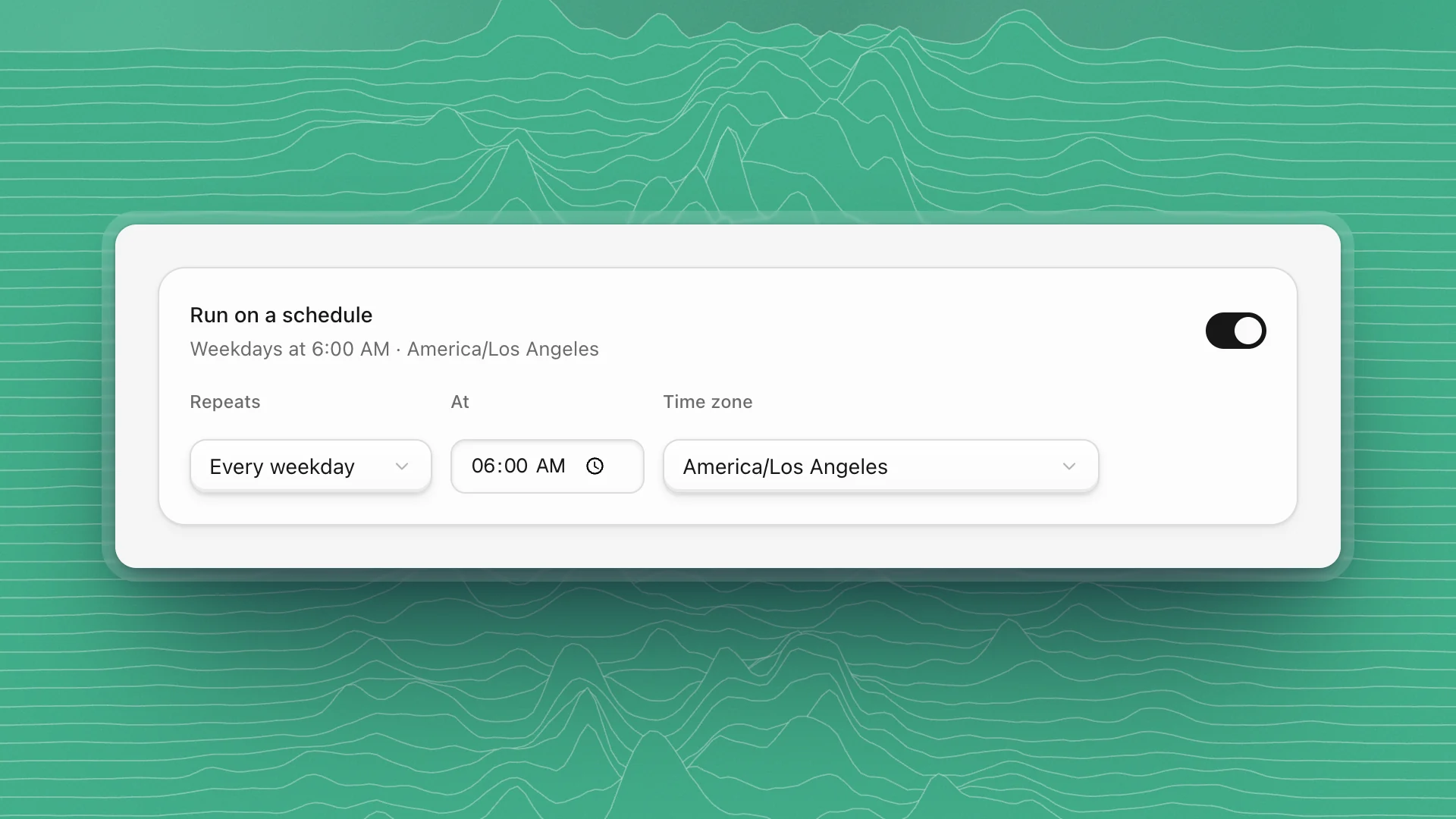
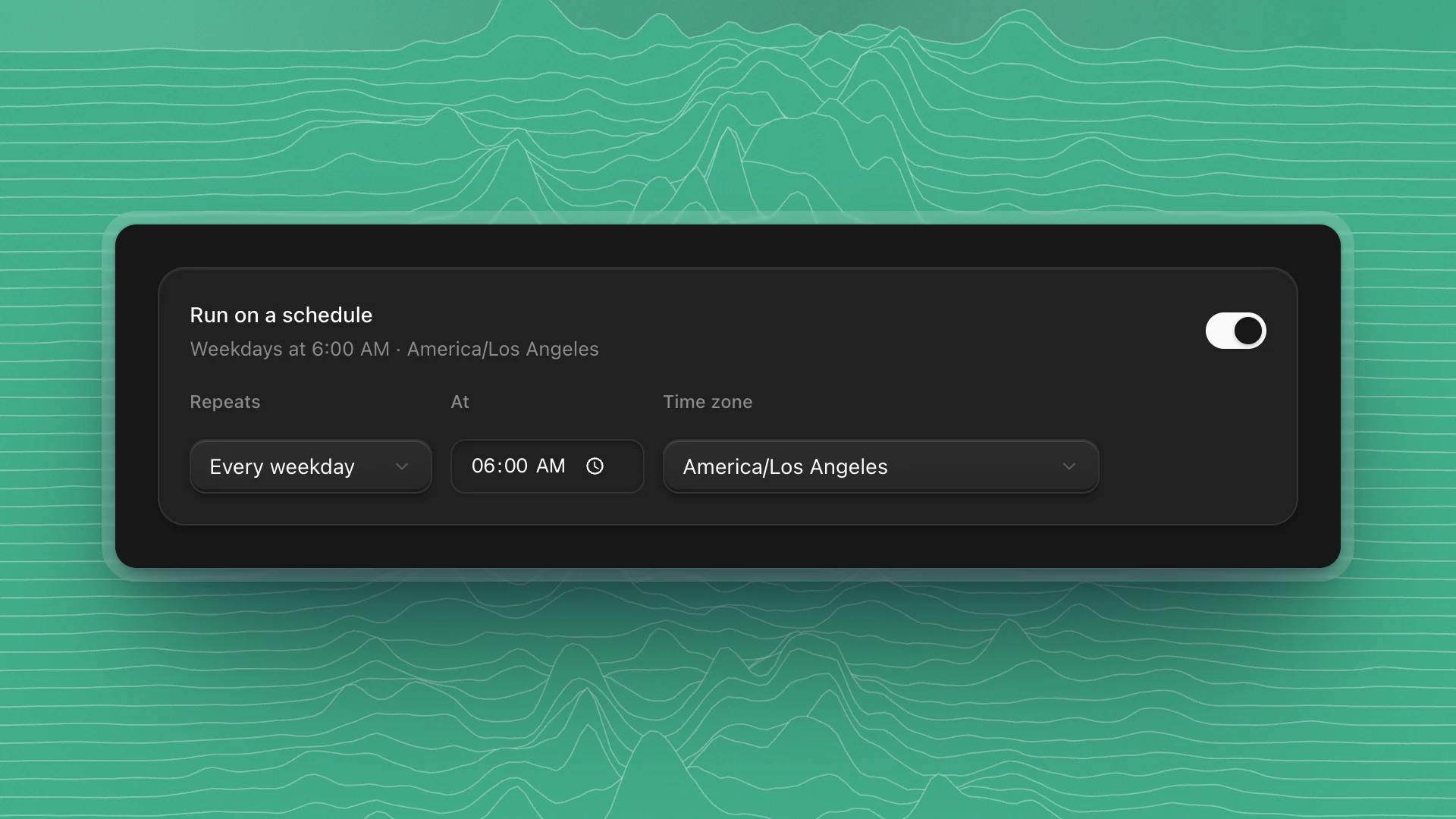
The schedule card sits at the top of the editor.
Turn on Run on a schedule
The line under it reads back the schedule in words, like “Weekdays at 6:00 AM”.
Pick how often
Under Repeats, choose Every hour, Every day, Every weekday, Every week or Custom (cron), then set the time.
Check the time zone and save
Times follow the Time zone you pick, so a 6:00 AM run happens at 6:00 AM there, all year. Click Save changes.
New schedules start in the zone set in Settings → Workspace → Automations → Schedule time zone, or this computer's zone if none is set. Set it once if your team works to one clock.
Custom (cron) takes a five-part cron expression: minute, hour, day of month, month, weekday. 0 6 * * 1-5 is 6:00 AM on weekdays; 30 22 * * 0 is 10:30 PM on Sundays. Use it when the presets don't fit, like twice a day or the first of the month.
Pick a good time
- Run long jobs before you need them. An eval that takes an hour should start an hour before you read the results.
- Leave room between runs. One run of an automation goes at a time. If the last run is still going when the next one is due, that one is skipped.
- Stagger heavy routines. Two automations that both train or evaluate on the same GPU at 6:00 slow each other down. Start one at 6:00 and the other at 7:00.
Follow the runs
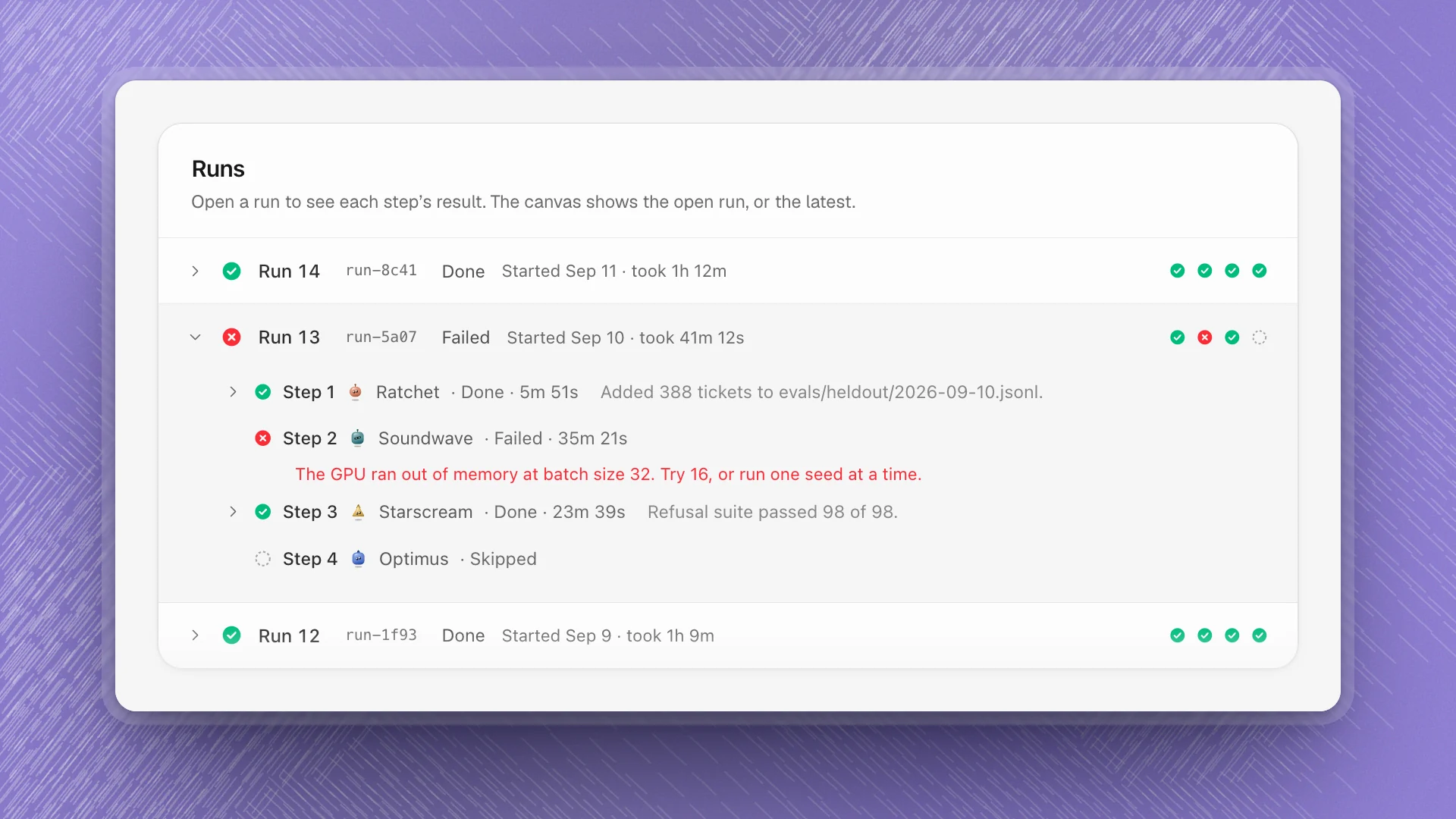
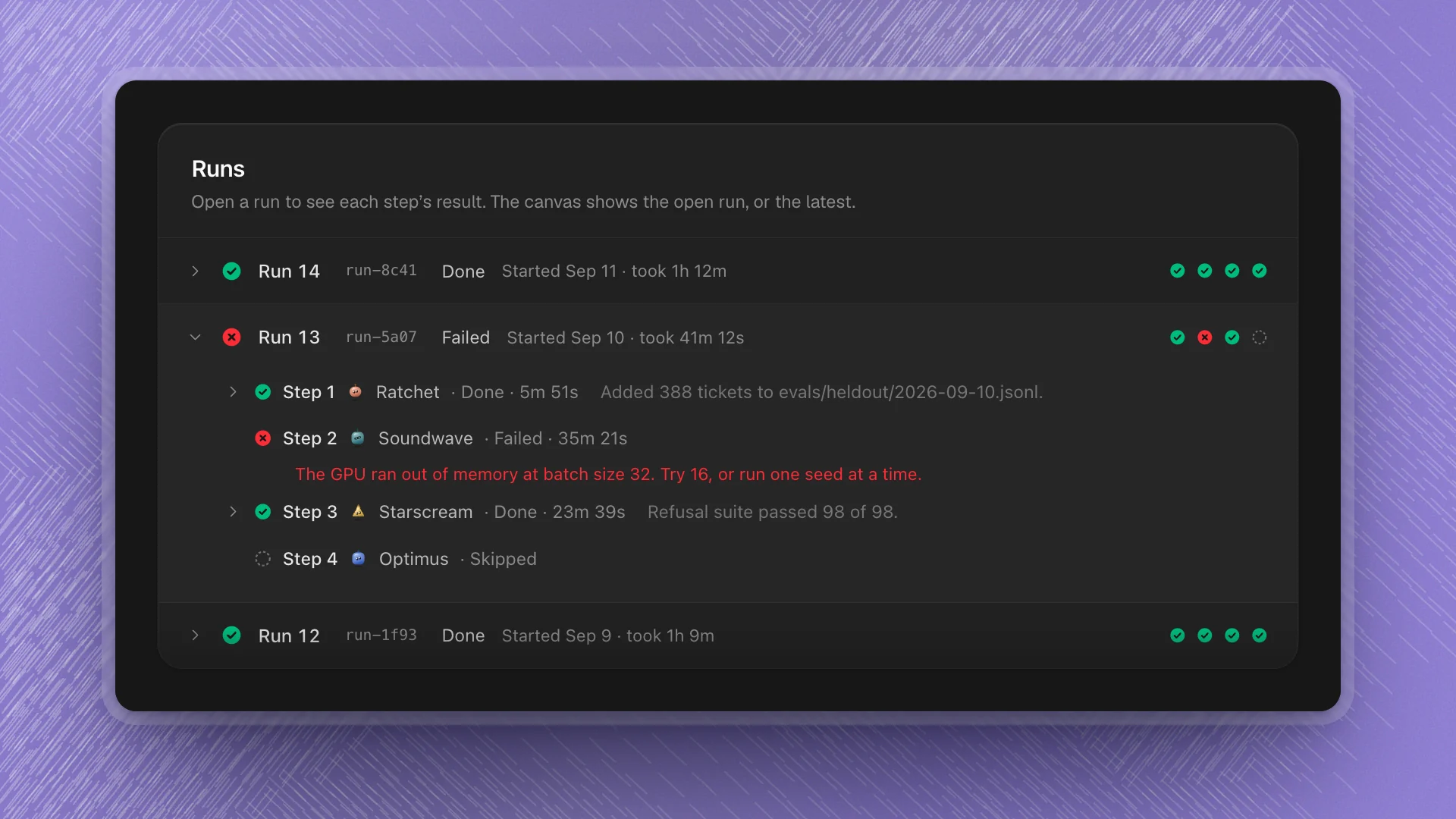
Open an automation to see its steps and every run below them. The canvas lights each step with how it went in the run you have open, or the latest one.
| Status | Means |
|---|---|
| Queued | Waiting to start. |
| Running | At least one step is working. A Stop button ends the run. |
| Done | Every step finished. |
| Failed | A step failed or ran past its time limit. |
| Stopped | Someone stopped it. |
| Skipped | Steps only: a step it waits for failed or was stopped, so it didn't start. |
Click a run to open it. Each step shows its agent, how long it took and the first line of its result; click a step to read the full result.
When a run fails
Open the failed run
Find the step marked Failed and read its error. The steps after it show Skipped.
Fix the cause
Most fixes are one of three: clearer instructions in What should it do?, a more concrete Done when, or a longer Time limit under More settings. If the error is in your code or data, fix that instead, or hand it to an agent.
Click Run now
Check the next run goes through before you leave it to the schedule.
When the computer is off
Automations run on this computer, in your workspace. If ArkenOS is closed when a run is due, it waits. The next time ArkenOS opens, the automation runs once, then carries on with its schedule. You get one catch-up run, however many were missed.
Edit, pause, duplicate or delete
The More actions menu (on the automation's row and on its page) has Edit, Duplicate, Pause schedule or Resume schedule, and Delete.
- Pause during work that would break the routine, like moving the eval folder. When you resume, it waits for the next scheduled time and skips the runs it missed.
- Duplicate to try a change without touching the version that works. The copy is named “… copy” and has no schedule until you add one.
- Delete removes the automation. Its past runs are kept on record.
Changes you save apply from the next run. A run that's already going finishes with the steps it started with.