Chat
Run a goal
Hand Optimus something big and let it work turn after turn until it can show the job is done.
A normal chat ends when Optimus replies. A goal keeps going: when one turn ends, the next starts on its own, until Optimus can show the work is finished. Then it tells you what it did and how it checked.
When to use one
Use a goal when the work takes many steps or hours and you want it finished and checked: a fine-tune pushed to a target score, a paper result reproduced, a benchmark sweep, a data pipeline rebuilt. For a quick question or a task you'll watch, a normal chat is faster.
Why it matters: a normal chat waits for you after every reply, so a long job stalls each time you look away. A goal keeps going overnight and ends with evidence that the target was met, so you check a result instead of babysitting turns.
Start a goal
Type /goal and the objective
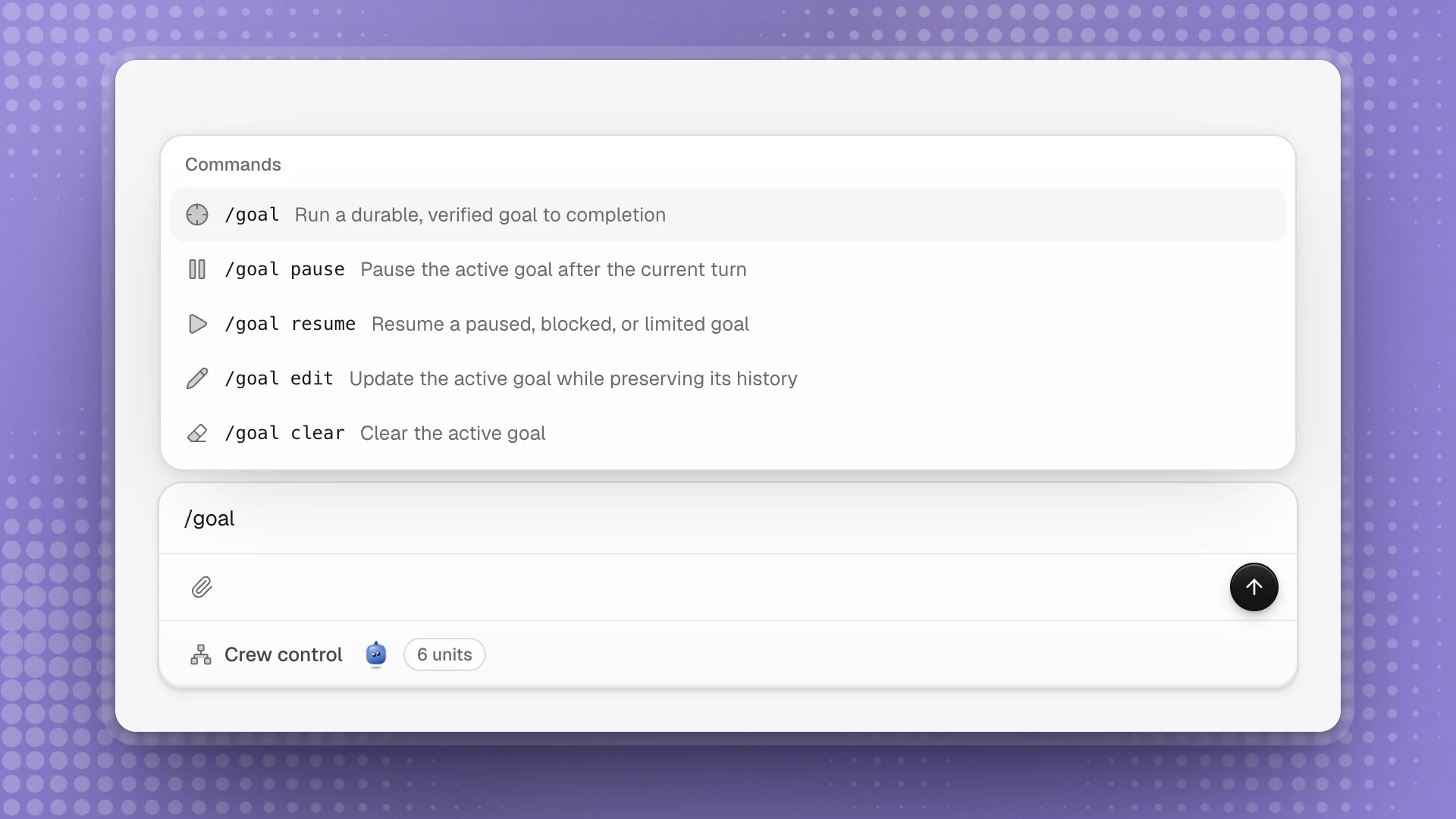
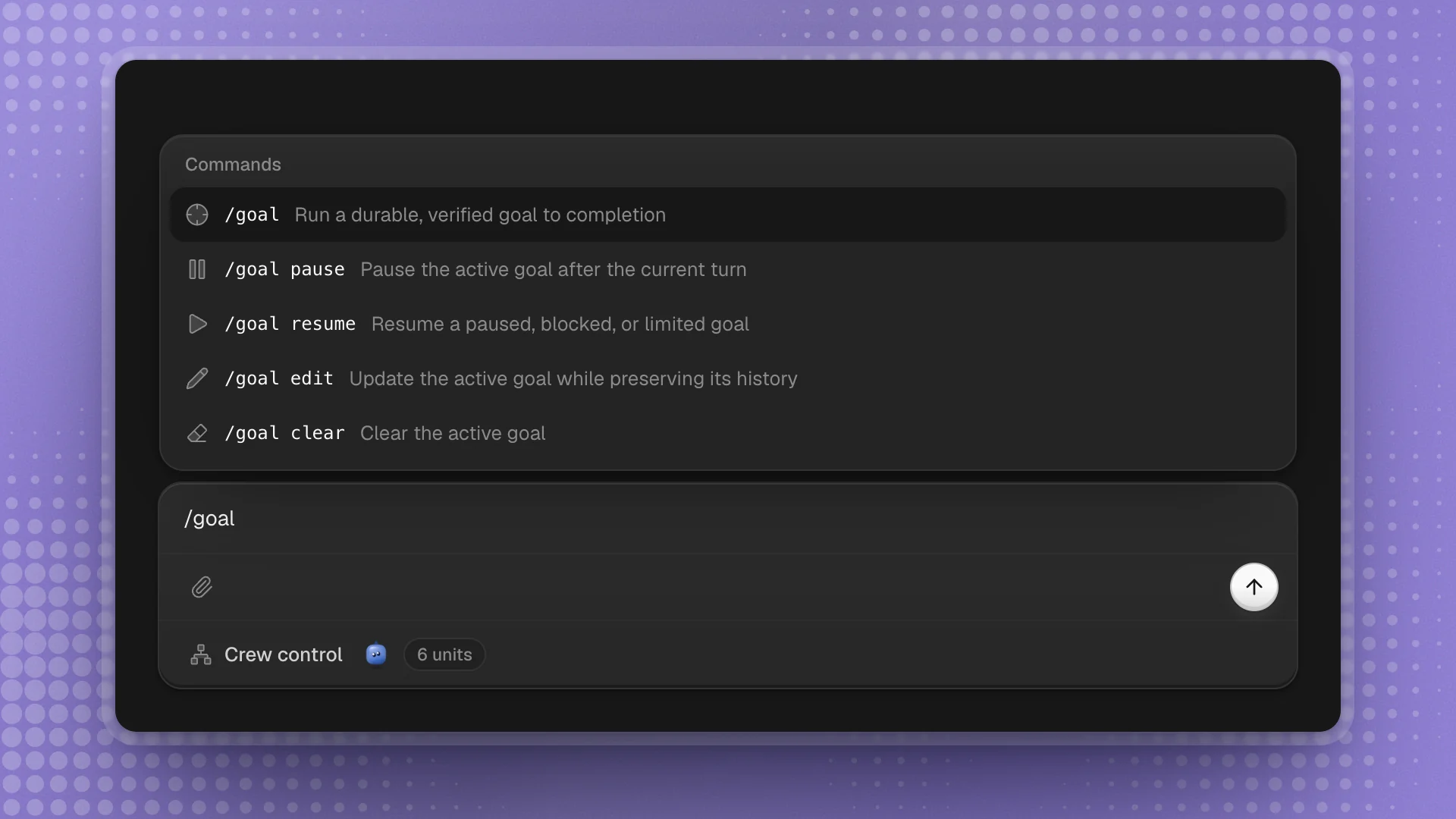
Typing / opens the command list. Pick /goal, then write what done looks like. Plain words work too: start with “Goal:”, or say “pursue this as a goal” or “create a goal to …”.
Let it run
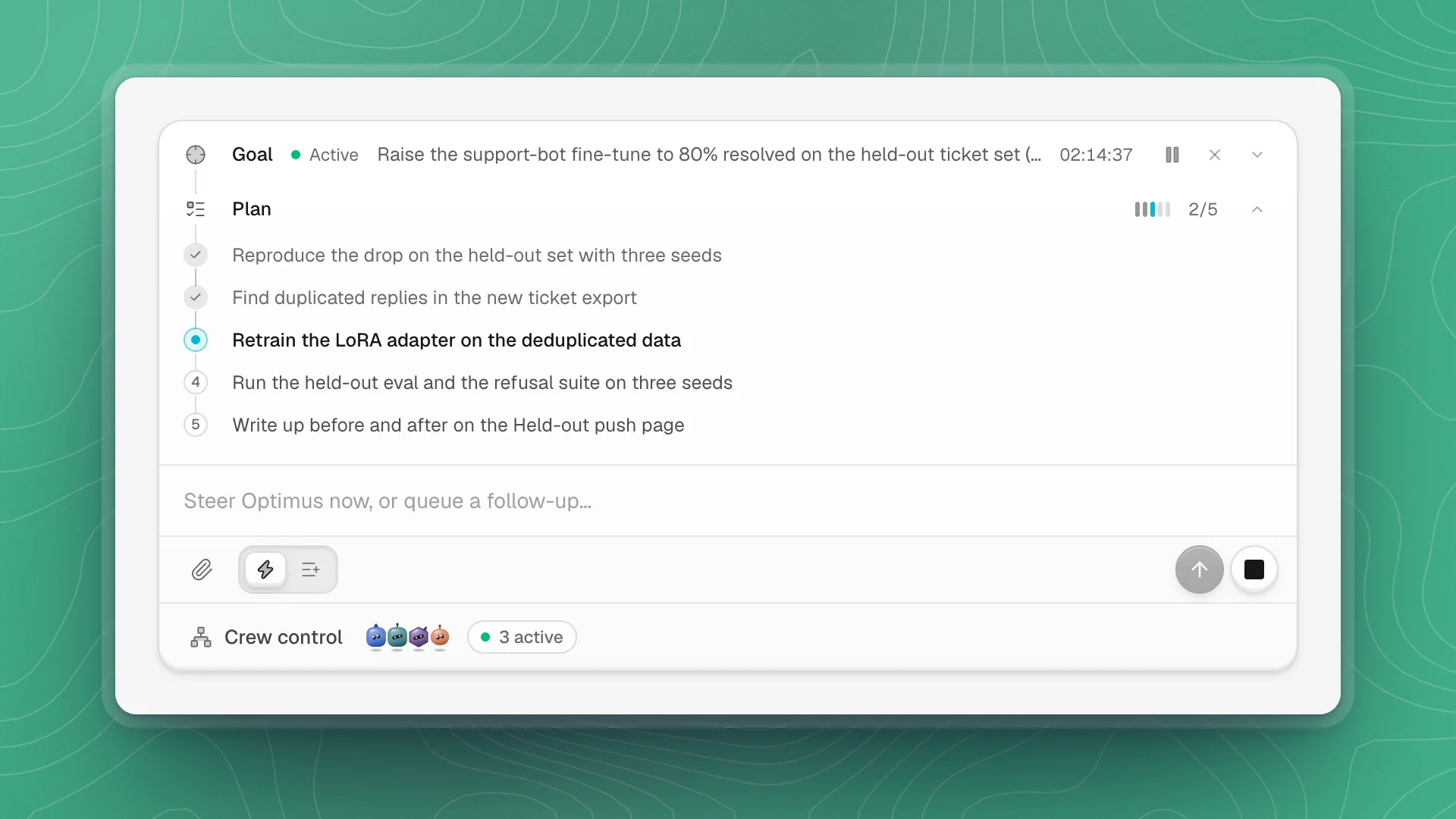
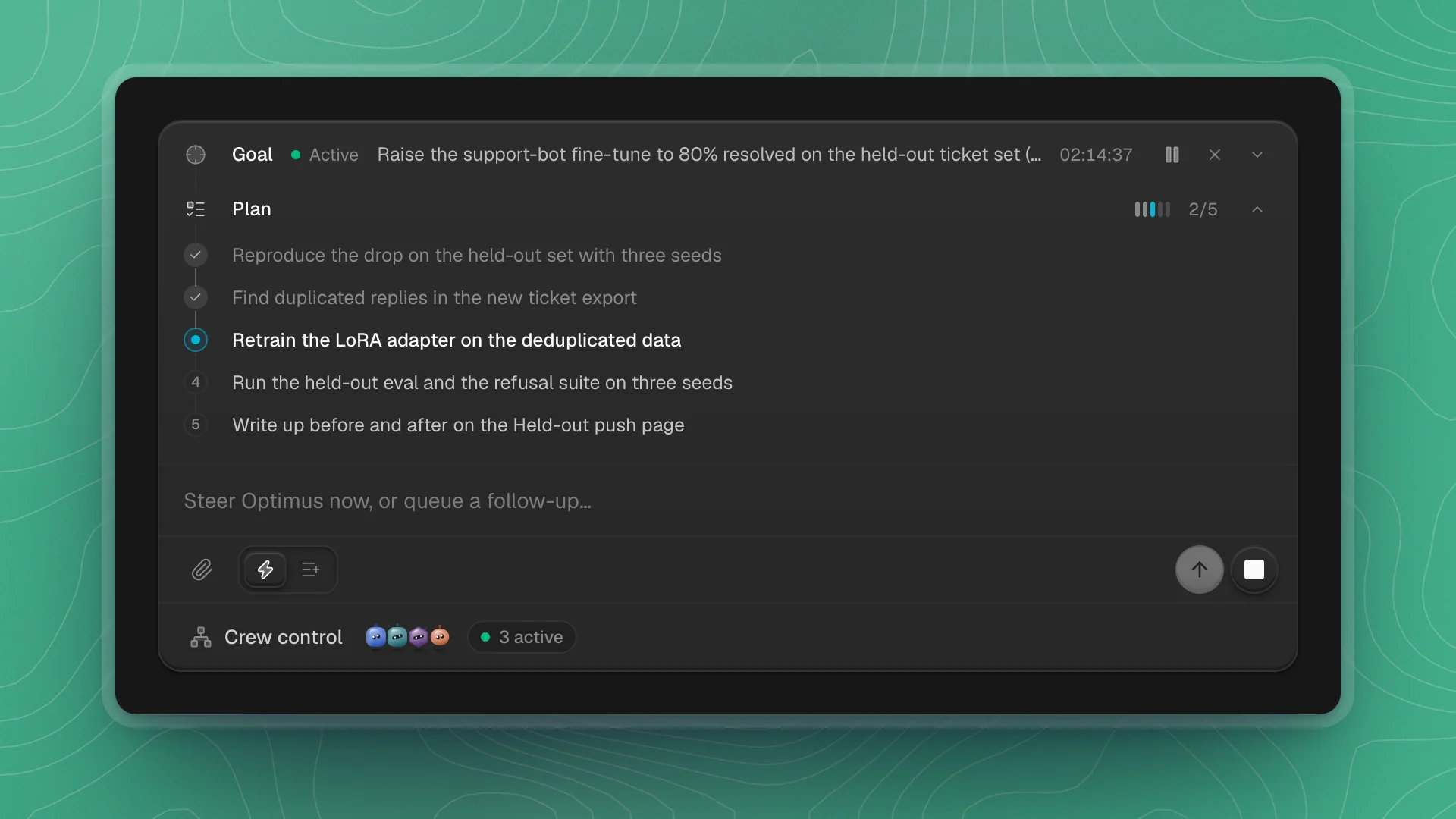
The Goal row appears above the composer with its status and active time. Click the row to read the full objective; click Plan to see the steps.
Each chat runs one goal at a time. Starting a new one replaces the current goal.
Write it well
A goal ends when Optimus can show the objective is met, so the objective has to say what “met” means.
Improve the support bot.
Goal: raise the support-bot fine-tune to 80% resolved on the held-out ticket set (base model: 71.4%). Keep the eval set and the 8B base as they are. Done when three seeds all clear 80%. Write the results to a page called Held-out push.
The clear version gives a target you can measure (80%, three seeds), what to leave alone (the eval set, the base model), and where the answer goes (the page).
- One outcome per goal. Two unrelated targets make it hard to say when it's done. Run them in two chats.
- Name your inputs with
@. Point at the dataset, config or paper so it starts from the right file. - Set the bar you'd accept. “Three seeds all clear 80%” stops it declaring victory on one lucky run.
- Say what's off limits. Anything you'd be upset to see changed (the eval set, the base model, the budget) belongs in the objective.
Goal: reproduce the main result from @papers/lora-ablation.pdf on our 8B base. Done when held-out accuracy over three seeds is within 1 point of the paper's number. Use the existing training script. Write the results to a page called "LoRA reproduction".
Statuses
| Status | Means | What to do |
|---|---|---|
| Active | Working, turn after turn | Let it run, or steer it |
| Paused | You paused it | Click Resume goal, or type /goal resume |
| Usage limit | It hit a usage limit | Resume once you have usage again; it continues where it stopped |
| Blocked | It hit the same wall three turns running and needs something from you | Read the reason in the chat, give it what it needs, then type /goal resume |
| Done | It finished and reported | Read the summary and check the evidence |
Blocked is for things only you can provide: a key, an approval, a decision between two directions. Optimus works around ordinary errors on its own.
Control it
| Command | Button on the Goal row | Does |
|---|---|---|
/goal pause | Pause goal | Pauses after the current turn. Press the button again (Stop now) to stop at once. |
/goal resume | Resume goal | Picks up a paused, limited or blocked goal |
/goal edit | Changes the objective and keeps what it has learned so far | |
/goal clear | Clear goal | Removes the goal |
You can also steer a running goal like any chat. Use steering for a nudge (“use the clean export”), and /goal edit when the target itself changes.
Let it run long
A goal can run for hours or days, as long as your computer stays on.
- Keep the machine awake. Turn on Keep awake while agents are working in Settings → General.
- Turn on alerts so you hear when it finishes or gets blocked.
- Watch your usage. A goal makes model calls turn after turn. A vague objective keeps it working longer than it needs to, and a plan's limit pauses it with Usage limit.
- Check in on the plan. If the steps look right, it's on track, and you can skip reading every message.