Projects and issues
Create a project
Group the issues that serve one aim, give them a key, and track the project to done.
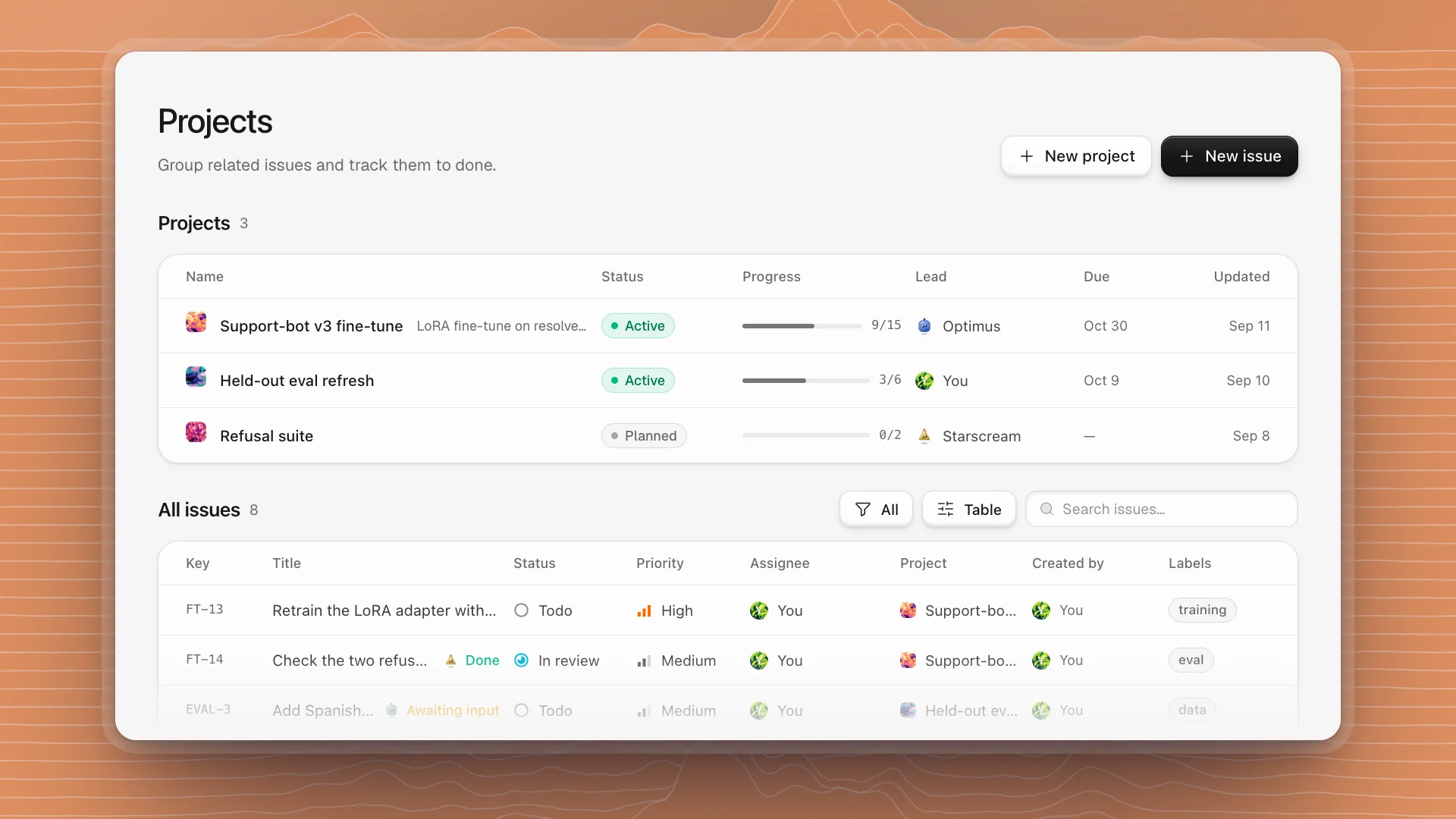
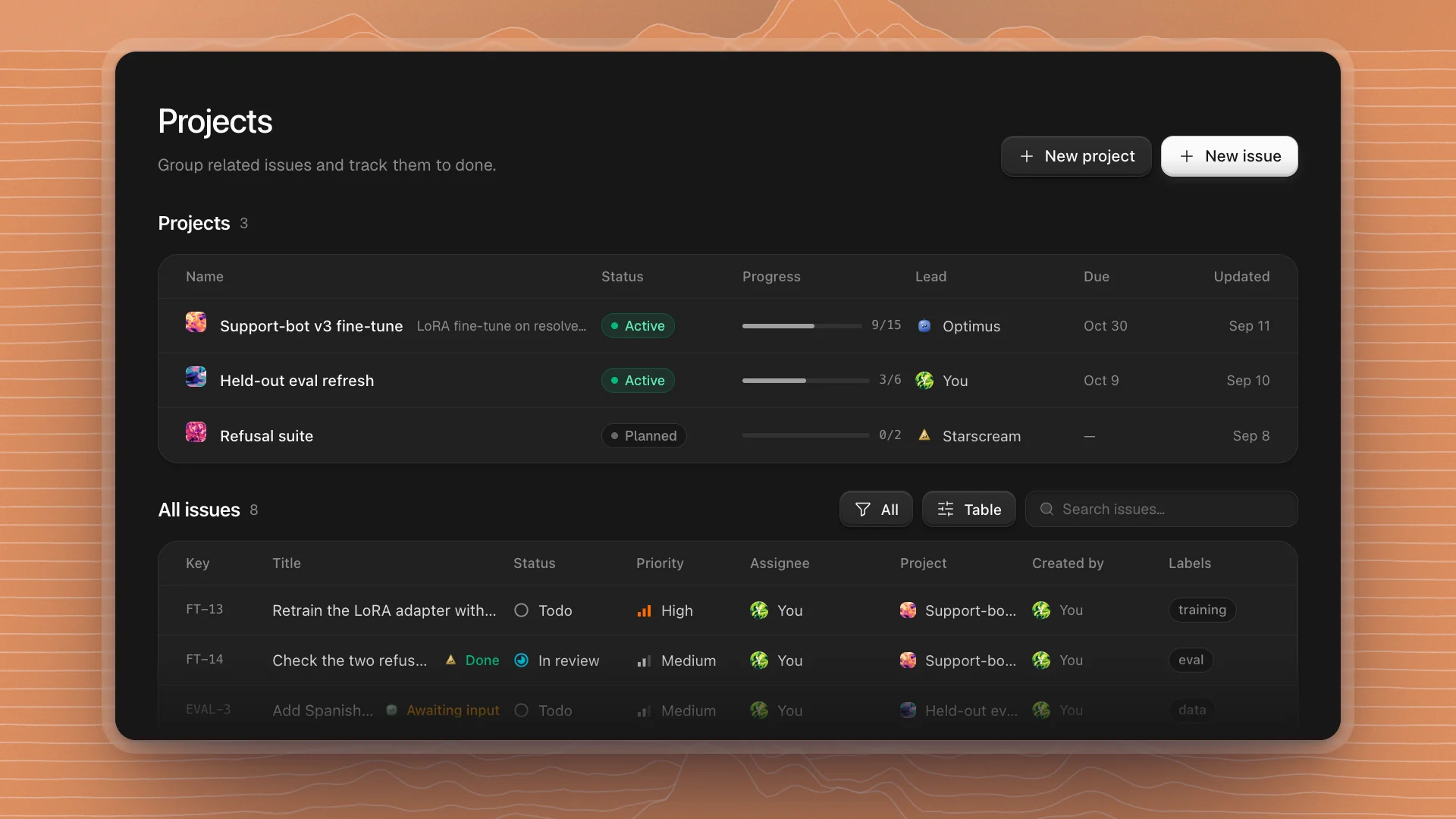
A project groups issues that share one aim: a fine-tune you're shipping, an eval you're rebuilding, a paper you're writing. Its issues share a key and numbering (FT-1, FT-2…), so you can tell at a glance where each one belongs, and the project shows how far along it is.
When to make one
- Several issues serve one aim and you want to see progress across them. “Support-bot v3 fine-tune” with fifteen issues is a project.
- The work has an end. A project moves to Completed when its aim is met. Ongoing chores fit better in an automation.
- A one-off task needs no project. Write a single issue; it goes into your workspace's default project.
Why it matters. A project gives related issues one key, one progress figure, one lead and one target date, so you can see how close the aim is and who is driving it. Kept in the default project, the same issues mix with everything else and their progress is hard to read.
Every workspace starts with one default project, keyed after the workspace name. New issues go there unless you pick another.
Create it
Click New project
Open Projects from the sidebar and click New project.
Name it and check the key
The key is filled in from the name; change it if you like. Up to six letters or numbers, and the dialog shows what issues will read (
FT-1,FT-2and so on). Short and obvious works best:FTfor a fine-tune,EVALfor an eval,PAPERfor a paper.Add a description, lead and target date
All optional, all worth it. The description says what done looks like. The Project lead can be you or an agent on the team. The Target date shows in the Due column.
Click Create project
Or press ⌘Enter. The project opens on its Issues tab.
Fine-tune stuff
LoRA fine-tune on resolved tickets. Done when it beats the base model on the held-out set with no refusal regressions.
Track progress
The Projects table shows each project's Status, Progress (done issues out of all of them), Lead, Due date and when it was last Updated.
| Status | Use it when |
|---|---|
| Planned | Scoped, not started. |
| Active | Work is under way. |
| Paused | On hold, like waiting on data or compute. |
| Completed | The aim is met. |
| Canceled | Dropped. The issues and their history stay. |
Open a project to see its Issues (with the same views and shortcuts as everywhere else: see Views and shortcuts) and its Overview, which holds the details and a longer description. The description takes Markdown, so link the pages, runs and papers the project depends on.
Keep projects useful
- One aim per project. If you can't write its finish line in a sentence, it's two projects.
- Set a target date. It's what lets the Due column show what's slipping.
- Make an agent the lead for work it runs end to end. Optimus leading a fine-tune project keeps ownership clear when several agents work its issues.
- Close it out. Set Completed when the aim is met, then More project actions → Archive project to clear it from the table. The default project stays.
To move an issue to another project, change its Project. It takes that project's next key.