Workspace
Home
Pick up where you left off, and choose what opens when you enter a workspace.
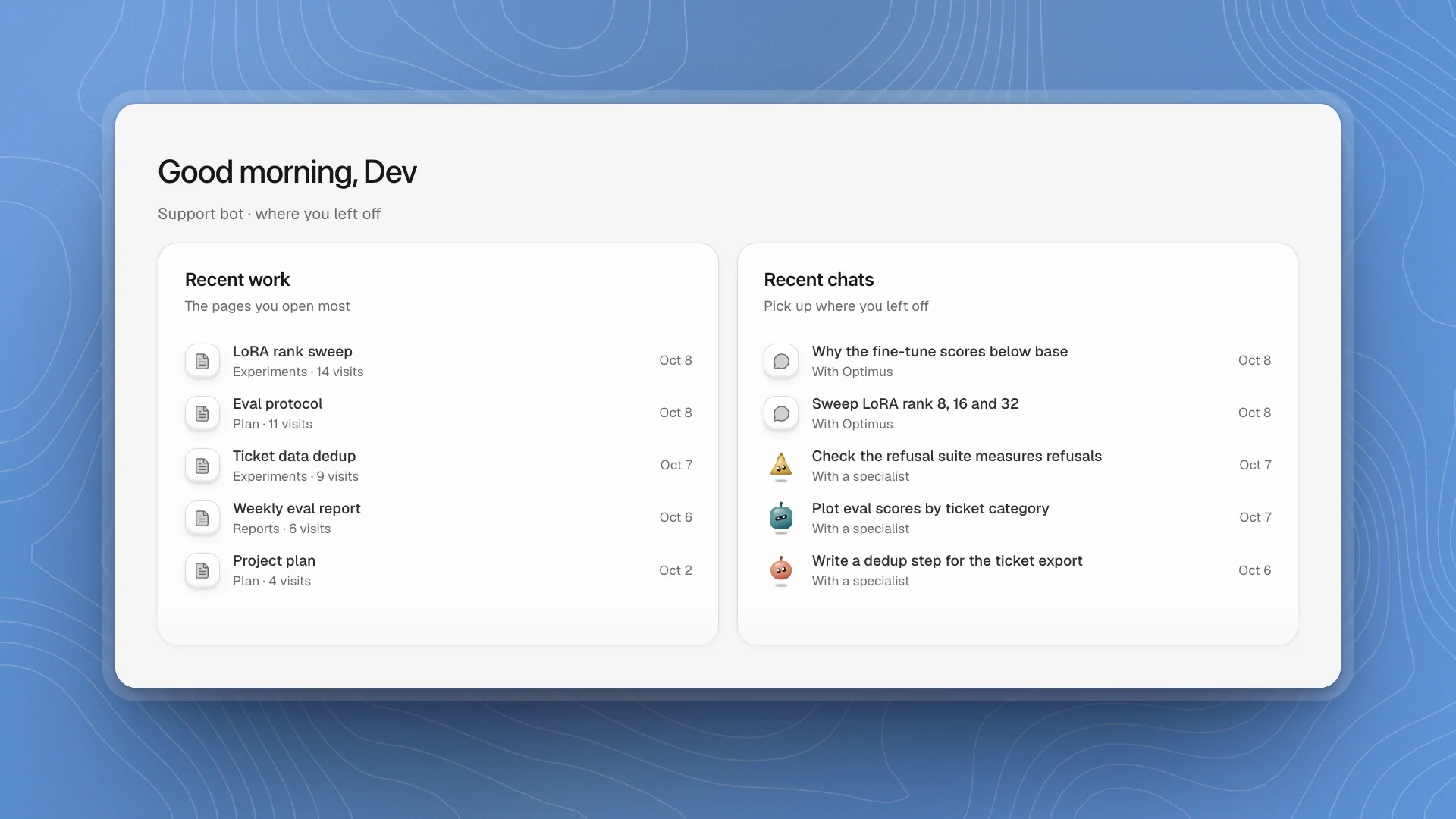
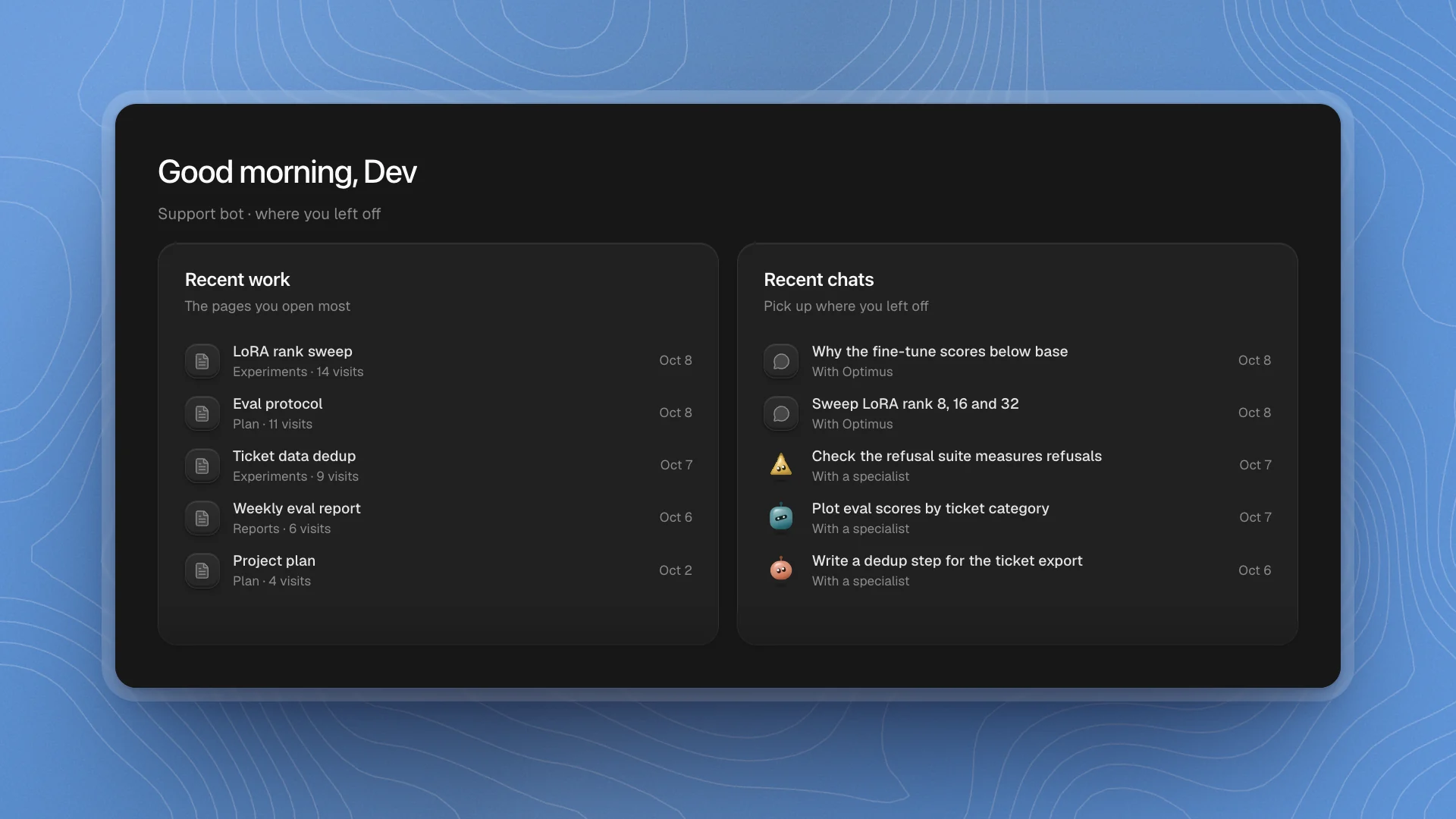
Home is the workspace's front page. It greets you and puts the pages you open most beside your latest chats, so getting back into a project takes one click.
When to use it. When you come back to a project after a break and want the pages and chats you were last working in. When you'd rather start every session with a fresh ask, keep the default start page, New chat.
Open Home
Click the Home tab in the sidebar, or click the workspace name at the top of the sidebar and choose Workspace home. To land on Home every time you enter the workspace, make it the start page.
Each sidebar tab opens its own landing page the same way: Chat opens all your chats, Workspace opens the library of pages and folders, and Code opens the top folder of your files.
What's on it
| Panel | Shows |
|---|---|
| Recent work | Up to six pages you open most, with the section each sits in, how many times you've opened it, and when you last did |
| Recent chats | Your six latest chats, newest first, and whether each one is with Optimus or a specialist |
| Favorites | Every page you starred. It appears once you've starred one. |
Recent work ranks by visits, so the pages you keep coming back to stay at the top even when you open something else in between. Click any row to open it. Favorites and visit counts are kept on this device.
Recents and Favorites
The Home tab in the sidebar carries two lists that fill themselves as you work:
| List | Holds |
|---|---|
| Recents | The chats, pages and files you opened lately, newest first |
| Favorites | Pages and files you starred |
Star a page from the star at the right of its top bar, or a file from the star beside its path in the Code tab. Click the star again to unstar it. Pages you delete drop out of Recents on their own.
Both lists show five rows, then Show more. Both are kept on this device, per workspace, so each machine you use builds its own.
Choose a start page
A workspace opens on a new chat by default, ready for the next task. Change it in Workspace settings → Sidebar → Start page:
| Opens on | Good for |
|---|---|
| New chat | Starting each session with a fresh ask to Optimus |
| Home | Picking up yesterday's work |
| All chats | Following several long-running chats |
| Workspace pages | Writing-heavy projects |
| Notifications | Team workspaces where replies and assignments pile up |
| Projects | Working from issues |
| Agents | Checking on the team first |
| Automations | Watching scheduled runs |
| A page… | One page you always start from, like your project plan |
A link to somewhere in the workspace still opens there. The start page only applies when you enter without one. Options whose feature is off leave the list.
Make Home useful
- Star the handful of pages you steer by. A project plan, the eval protocol and the latest results page cover most projects.
- Ask agents to write results onto pages. “Write it up on a page called LoRA rank sweep” gives you a page that lands in Recent work as you return to it, instead of an answer buried in a chat.
- Pick Home as the start page for long projects. On a project you return to over weeks, the pages and chats you used last are usually where you want to begin.
The Home tab in the sidebar is its own list of sections, like Projects, Recents and Favorites. Arrange it in Customize the sidebar. Numbers on how the workspace is moving are in Workspace analytics.