Workspace
Code and split view
Browse and edit files, see what agents changed, and work on several things side by side.
The Code tab is the workspace's files: the scripts, configs and data your agents work in. Open any file to read or edit it, watch agents' edits land as a diff, and split the window to keep a chat, a config and a dashboard in view together.
When to use it. Open the Code tab to read or edit scripts and configs, to see exactly what an agent changed in a file, or to look at results files. Notes and write-ups belong on pages. Split the window whenever you'd otherwise flip between two tabs, like a chat and the config it's editing.
Why it matters. A changed data path or epoch count makes a run a different experiment. Seeing an agent's edits as a diff in a file you have open is the quickest way to catch that before you trust a result.
Browse and open files
Click Code in the sidebar's tabs to see the file tree. Type in Filter files to narrow it down. Esc clears the filter.
- Click a file to preview it. The next file you click replaces the preview, so browsing doesn't pile up tabs.
- Double-click a file to keep its tab open.
- Right-click a file, or click the ⋯ that appears when you hover a row, for Open and Copy path. On a folder the menu offers Expand or Collapse instead of Open.
The tree is for finding and opening files. To add, move or delete files, ask an agent or use your file manager; the tree picks up the change on its own.
With no file open, the main area lists the folder with Name and Size columns, folders first, and shows its README below. Click a folder to walk into it.
Find your place
The bar above the editor shows the file's full path, starting at Code. Each part is a menu: click a folder name to jump to a sibling folder, or the file name to switch to another file in the same folder. Click Code to go back to the top.
Edit files
| File | Opens in | Saving |
|---|---|---|
| Code and config | A code editor | Press ⌘S or click Save. Unsaved shows until you do. |
Markdown (.md, .mdx) | The page editor | Saves on its own as you type |
| CSV and JSON | A Preview of the data. Switch to Code for the raw file. | Edit in Code, then save |
LaTeX (.tex) | The LaTeX editor with a PDF preview | As in the LaTeX editor |
| Images, video, audio, PDF | A viewer | — |
A tab with unsaved changes shows a dot. ⌘W closes the tab.
A Read only pill beside the file name means the file opens for viewing only: it's a binary file, such as a checkpoint or an archive, or reading it failed. Edit it with the app it belongs to.
See what agents changed
When an agent edits a file you have open, the editor switches to Changes: a line-by-line diff of what the agent did, with counts of lines added and removed. Read it, then click Close diff to go back to the file.
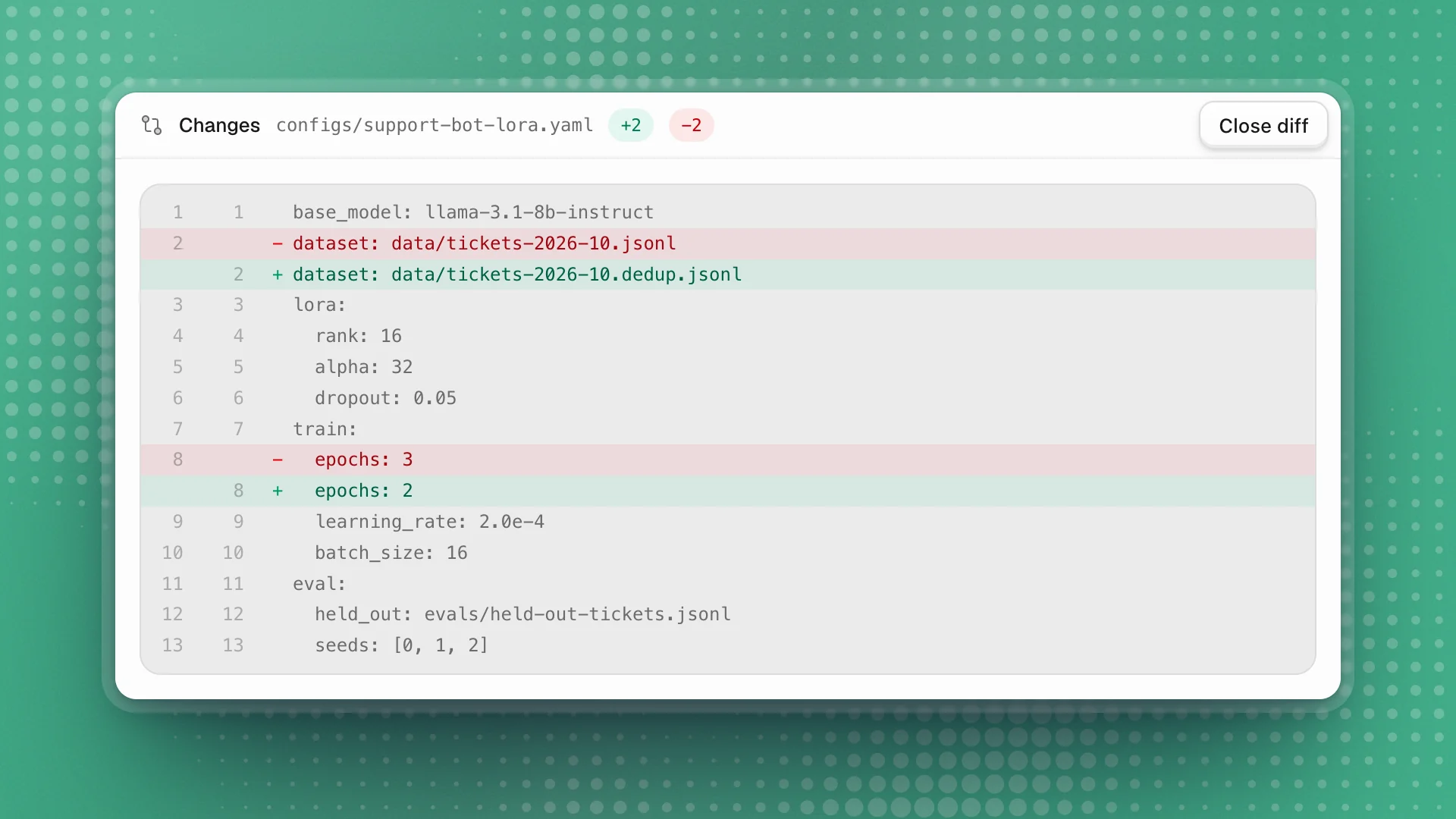
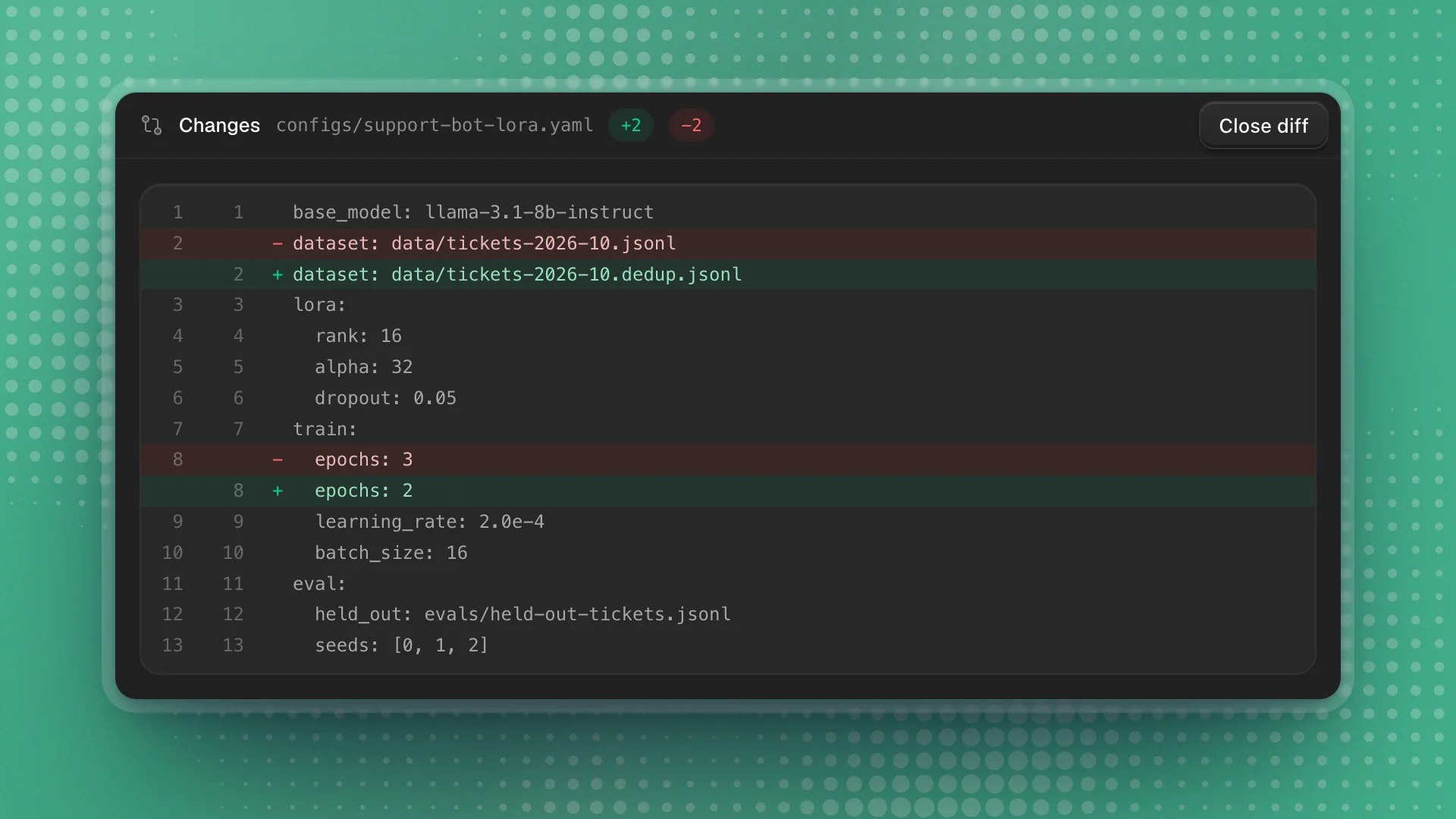
- Keep the files you care about open. The diff appears for files open in a tab. Before a long task, open the training config and the eval script, and you'll see every change to them as it lands.
- Read config diffs before you trust a run. A changed dataset path or epoch count is a different experiment. Catching it in the diff takes seconds.
- Ask about anything surprising. “Why did you drop epochs to 2?” in the chat gets you the reason.
The diff waits while you have unsaved edits in that file, so it never interrupts your typing.
See who is in a file
When an agent is reading or working in a file you have open, its face appears at the top of the file, beside the faces of anyone else there. Up to four faces show, agents first, then +N for the rest. Hover a face for the name.
The lines the agent is working on get a faint band and a bar in the gutter. Hover the band to see who it is. Your view never scrolls to follow them.
- Watch the band before you edit. If Ratchet is working on lines 40–60 of
train_lora.py, edit elsewhere or wait, so your change and the agent's don't collide. - Use it to follow a long task. Keeping the training script open while an agent debugs it shows you which part it's looking at, without asking.
Split view
Split the window to work on two or more things at once: a chat beside the file it's editing, a page beside the code it describes, or a live dashboard beside a running chat.
| To split | Do this |
|---|---|
| Right | Press ⌘\, or click Split right at the end of the tab strip |
| Down | Press ⌥⌘\, or click Split down |
| From a tab | Right-click the tab and choose Split right or Split down |
| By dragging | Drag a tab to the left, right, top or bottom edge of a pane. Drop it in the middle to move it into that pane. |
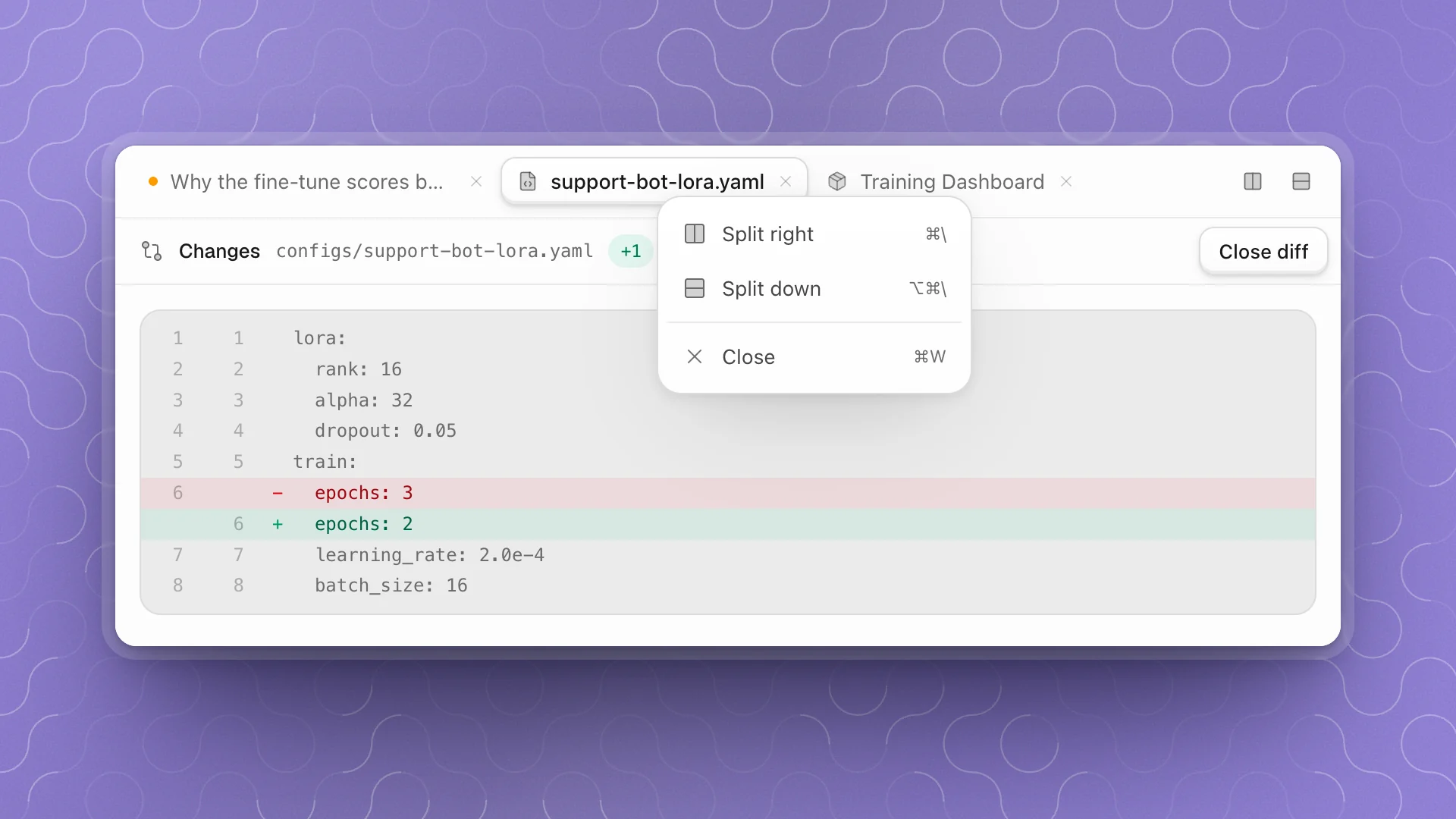
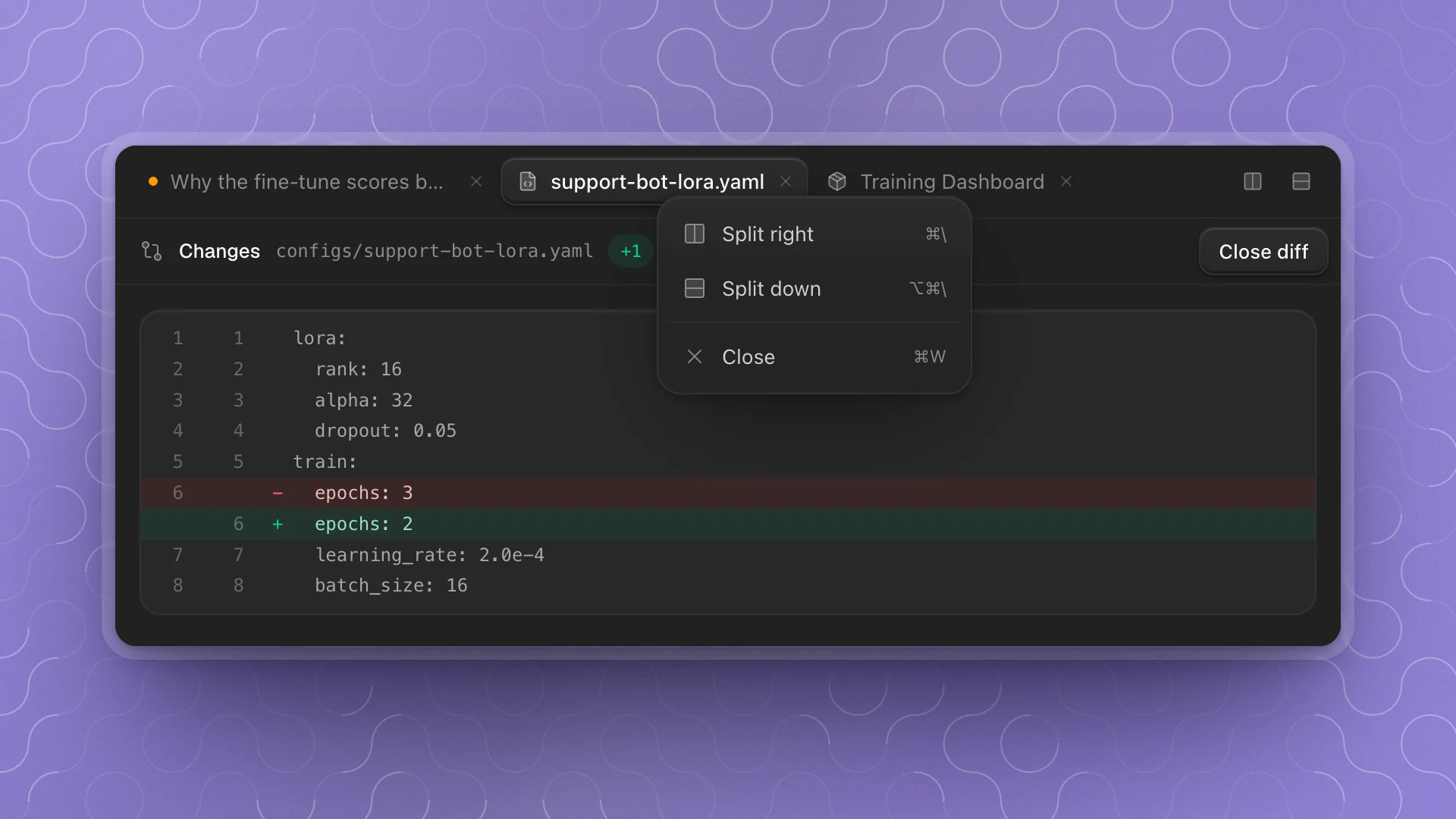
Splitting moves the current tab into a new pane beside the old one. If it was the pane's only tab, a new chat takes its place. Each pane keeps its own tabs, and the pane you click into is the one shortcuts act on.
Drag the line between panes to resize them. Double-click it to make them even. Close a pane's last tab and the pane goes away. There's no limit on panes, though two or three is usually what fits.
In a window narrower than about 768 px, every pane's tabs share one strip in a single pane. The split comes back when the window widens. More in Tabs and windows.
Tab view and canvas
Splits belong to Tab view. The switch at the bottom of the sidebar flips to Canvas view, which lays the same open tabs out as cards on one board. See Canvas and library.