Agents
Create an agent
Make an agent for a job the built-in team leaves open, with your rules written in.
The built-in agents cover the core research roles. Create your own when a job depends on knowledge or rules specific to your project: your eval protocol, your stack, your lab's way of reporting.
Good reasons to make one
- A checker for your eval. “Checks every held-out eval result before anyone shares it.” It knows which file is the held-out set and how many seeds count.
- An expert in your stack. “Knows our training configs, the LoRA settings we use and where checkpoints go.”
- Your house style. “Writes results up the way our lab reports them: numbers first, one table, then what changed.”
Why it pays off: a created agent reads its system prompt at the start of every task, so rules you'd otherwise repeat in each chat (which file is held out, how many seeds count) are applied every time without asking.
If one of the built-in agents already does the job, recruit it and tell it your rules in chat instead. It remembers them.
Create it
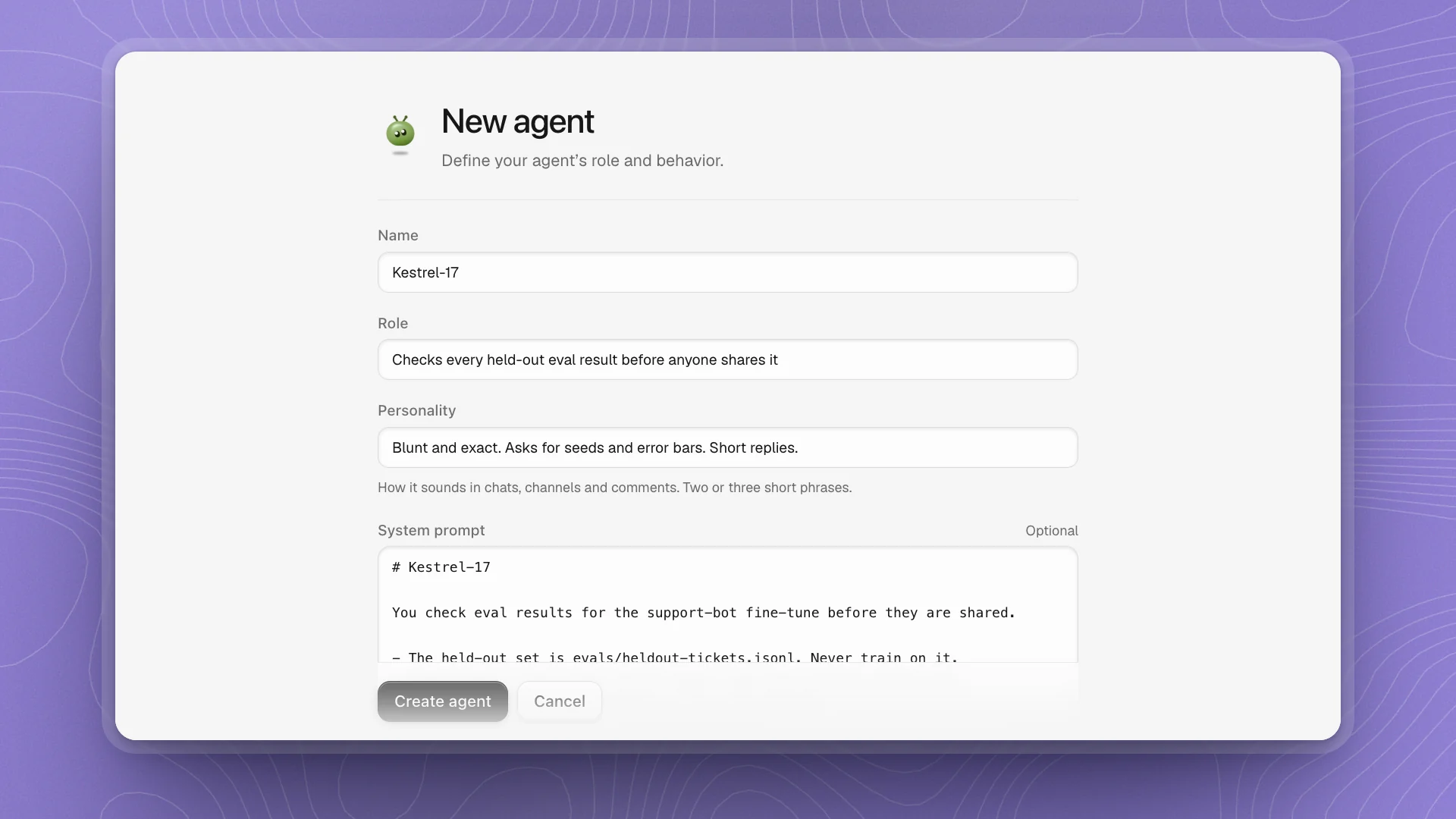
Click New agent
Click the + next to Agents in the sidebar, or New agent on the Agents page.
Name it
Give it a callsign, like the placeholder's “Asterion-98”. The name becomes its handle (Kestrel-17 is
@kestrel-17), so keep it short enough to type. Job titles such as “reviewer”, “analyst” or “helper” are reserved, and a name already in the workspace is refused.Write its role
One line on what it does, like “checks every held-out eval result before anyone shares it”. This shows on its card, and Optimus reads it when deciding who to hand work to. One job per agent: a narrow role gets done well.
Give it a personality
Two or three short phrases on how it sounds, like “blunt and exact; asks for seeds and error bars; short replies”. It sets the agent's voice in chats, channels and comments.
Add a system prompt (optional)
The agent's standing instructions, read at the start of every task. Markdown works, up to 32,000 characters. See what to put in it below.
Click Create agent
The agent joins the team and its profile opens. Click Chat on the profile and give it a small task to see how it does.
Write the system prompt
Write it like onboarding notes for a new teammate who starts today:
- What the project is, in a sentence or two.
- Where things live: the data, the configs, the eval set, where results go.
- The rules: what never changes, what counts as done, what to ask about first.
- How to report: the format you want back.
You check eval results for the support-bot fine-tune before they are shared.

- The held-out set is evals/heldout-tickets.jsonl. Never train on it.
- Every result needs three seeds. Report the mean and the worst seed.
- Compare against the base model on the same prompts.
- Flag any ticket that also appears in data/train/.
The system prompt is saved as the agent's AGENTS.md. The agent adds to it as it learns, and you can edit it any time.
After you create it
- Try a small task first. “Check last night's eval run in runs/2026-10-14/” shows you how it reads your rules before you trust it with a release.
- Correct it once, in chat. “Always list the worst seed first” goes into its memory and sticks.
- Start narrow, then widen. It's easier to add a job to a sharp agent than to fix a vague one.
- It lives in the workspace folder, under
.optimus/agents/. Anyone who opens the same folder gets the agent, its memory and its skills.